

Proxy Integration With XLogin
This tutorial will show you how to integrate Anonymous Proxies wtih Xlogin to boost your privacy, avoid blocks, and run clean, geo accurate profiles.
What Is Xlogin?
Xlogin is an antidetect browser that builds isolated, realistic browser profiles so every project looks like it is running on a different device. It is designed for work that demands clean separation of identities such as account management, advertising, geotesting, and price monitoring. Profiles store their own cookies, cache, and settings, so your sessions never bleed into each other.
Xlogin Features
- Profile Isolation With Unlimited Profiles
- Precise Fingerprint Controls Including Canvas WebGL AudioContext And Fonts
- Timezone And Geolocation Matching
- WebRTC Control To Prevent IP Leaks
- User Agent And Hardware Parameters Editor
- Cookie And Session Import Export
- Team Collaboration With Role Management
- Proxy Binding Per Profile With One Click Testing
- Automation Friendly Workflow And Fast Profile Launch
Xlogin on its own gives you clean profiles that mimic real devices and cut tracking noise. However, when you combine Xlogin with our residential proxies you add stable consumer IPs from real locations. The result is higher trust, fewer blocks, accurate geotargeting, and smoother multi account operations.
How To Integrate Anonymous Proxies With Xlogin Antidetect Browser
Below, I'll show you exactly how to integrate Anonymous Proxies with Xlogin browser in just a few minutes.
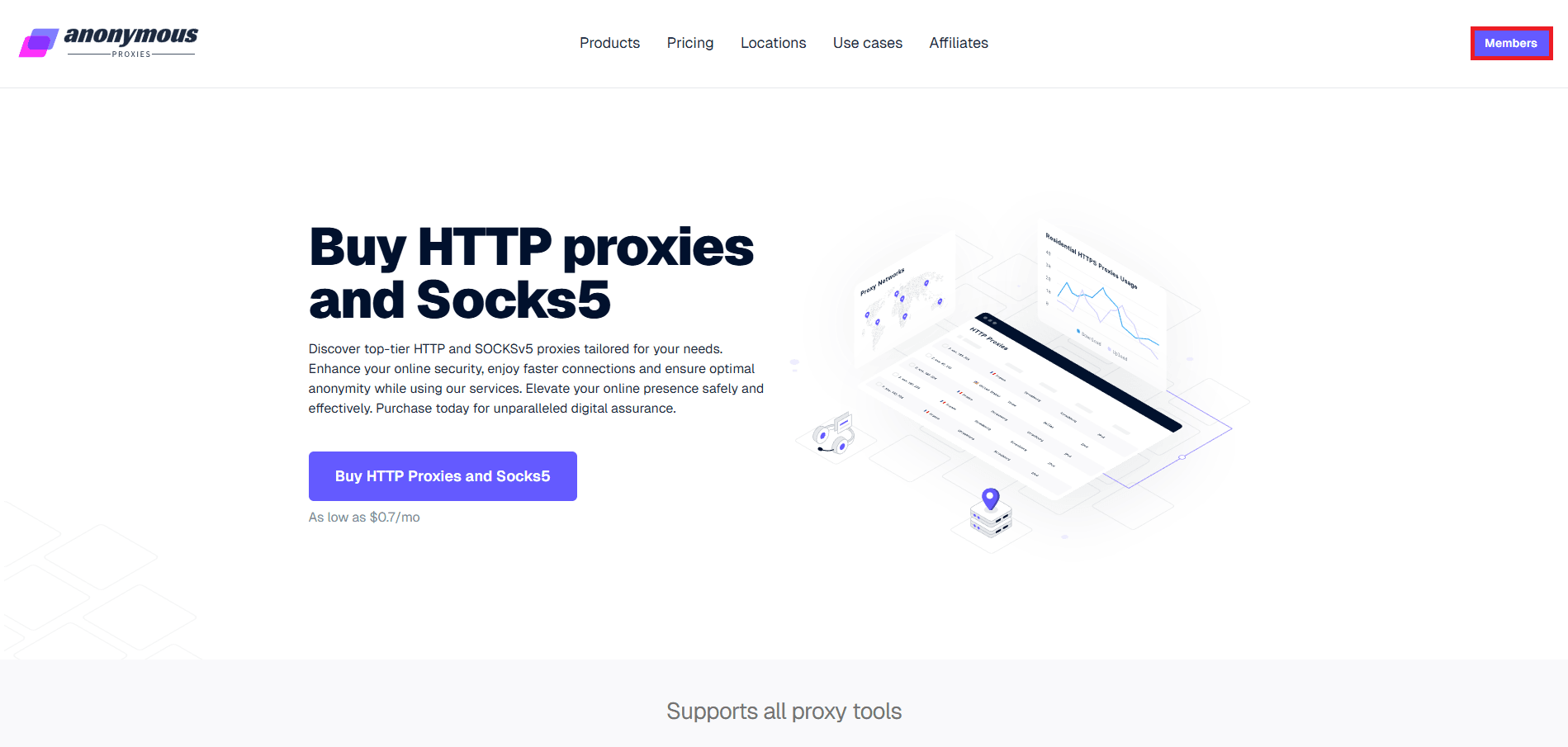
Step 1: Go To Anonymous Proxies Dashboard
Open the "Members" area from the main site to access your account panel.
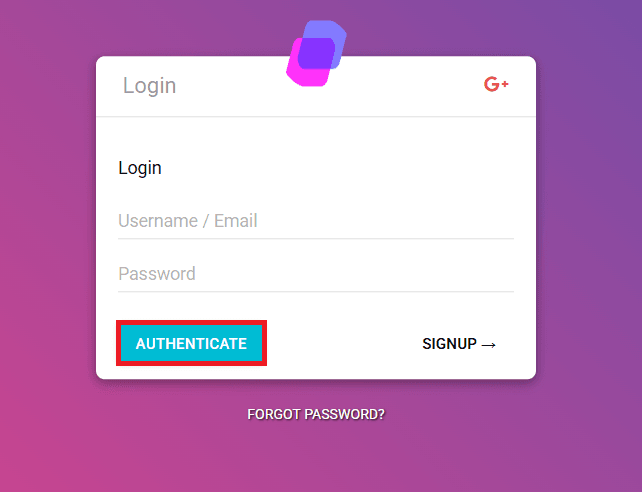
Step 2: Log In To The Anonymous Proxies Members Area
You'll need to enter your username and password, then click "Authenticate".
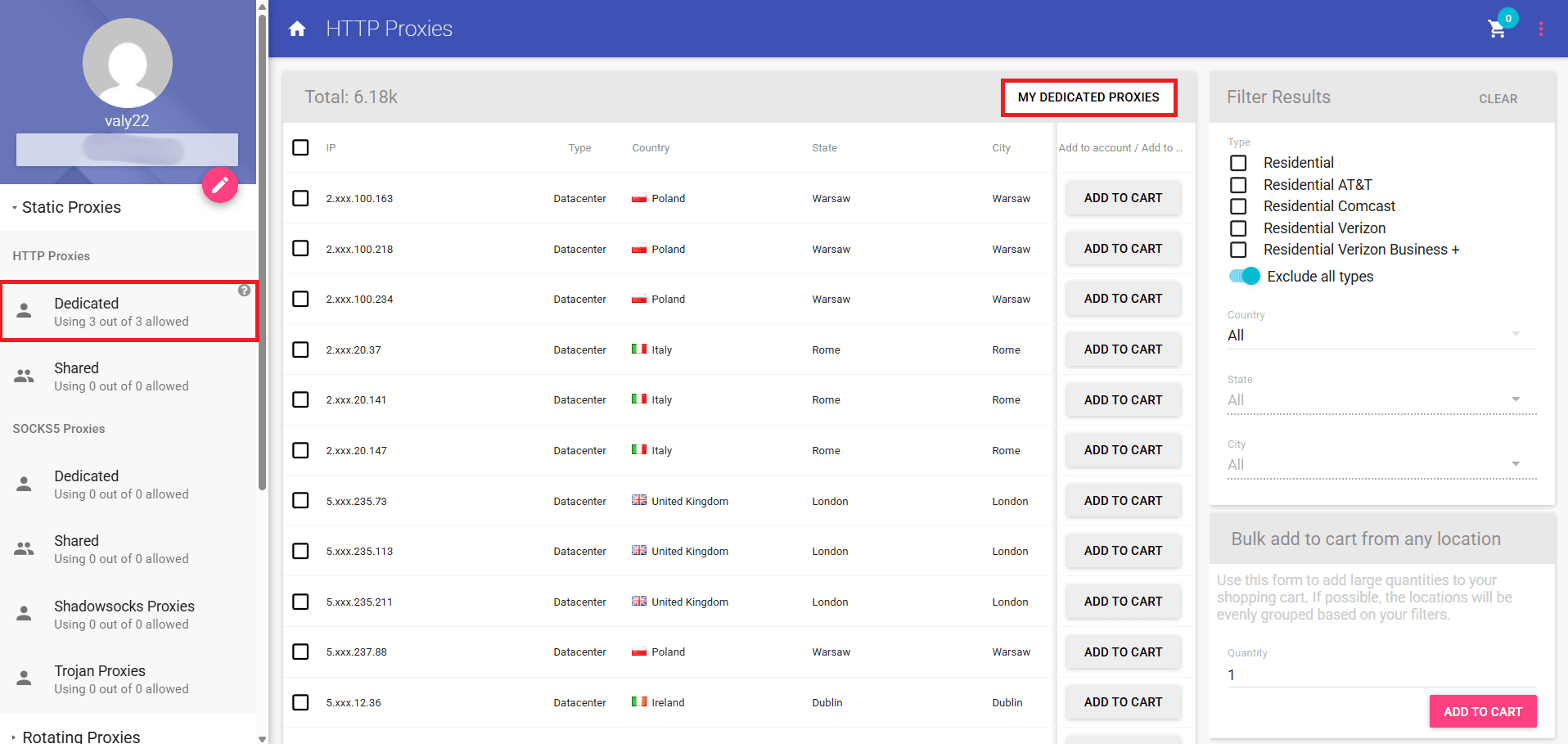
Step 3: Open Your Proxies List
When you are in the dashboard, go to "My Dedicated Proxies" to see the IPs available in your plan.
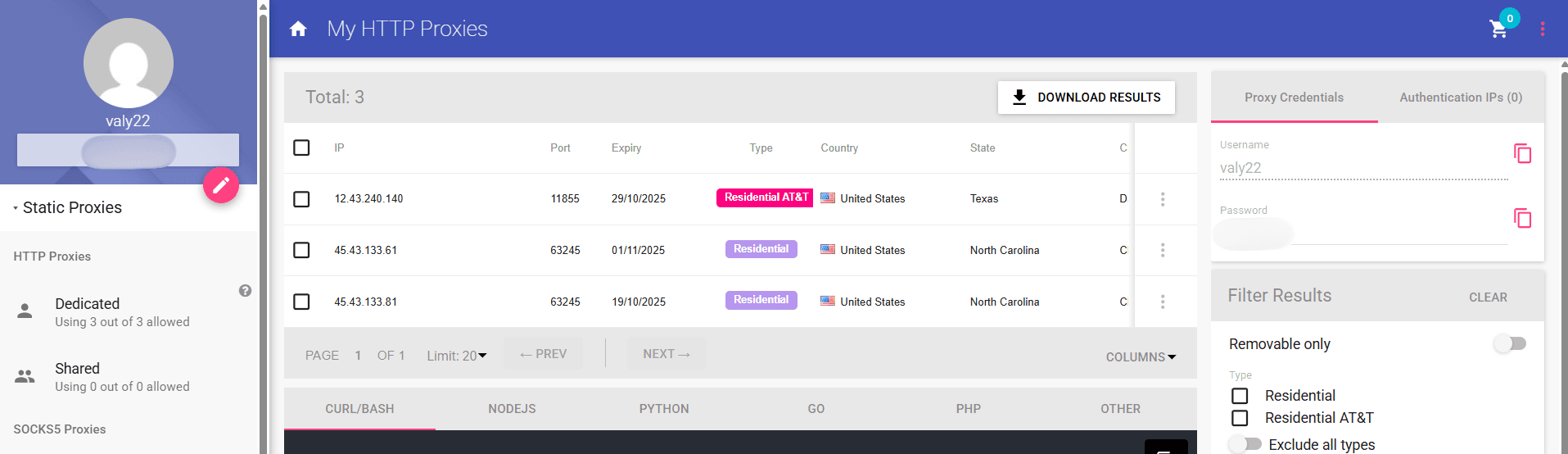
Step 4: View Proxy Details
On this page, you will be able to see all the details you need for the Xlogin broswer profile, for example, the proxy's IP address, port, username, and password. If you don't want to use authentication, you can even whitelist your IP directly from the dashboard by clicking on "Authentication IPs" and choosing your own IP.
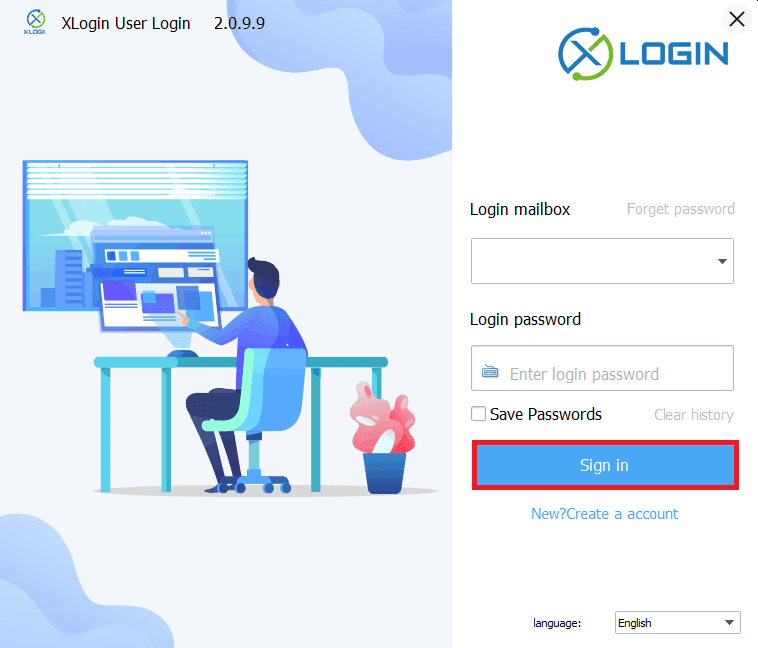
Step 5: Sign In To Xlogin
Once you have all the credentials ready, you can launch the Xlogin application on your device and sign in with your Xlogin credentials. If you don't have an account, try to create one right now, it takes you only one minute.
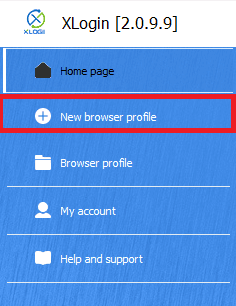
Step 6: Create A New Browser Profile
After you log in, you'll need to click "New Browser Profile". Also, XLogin offers a 3-day free trial.
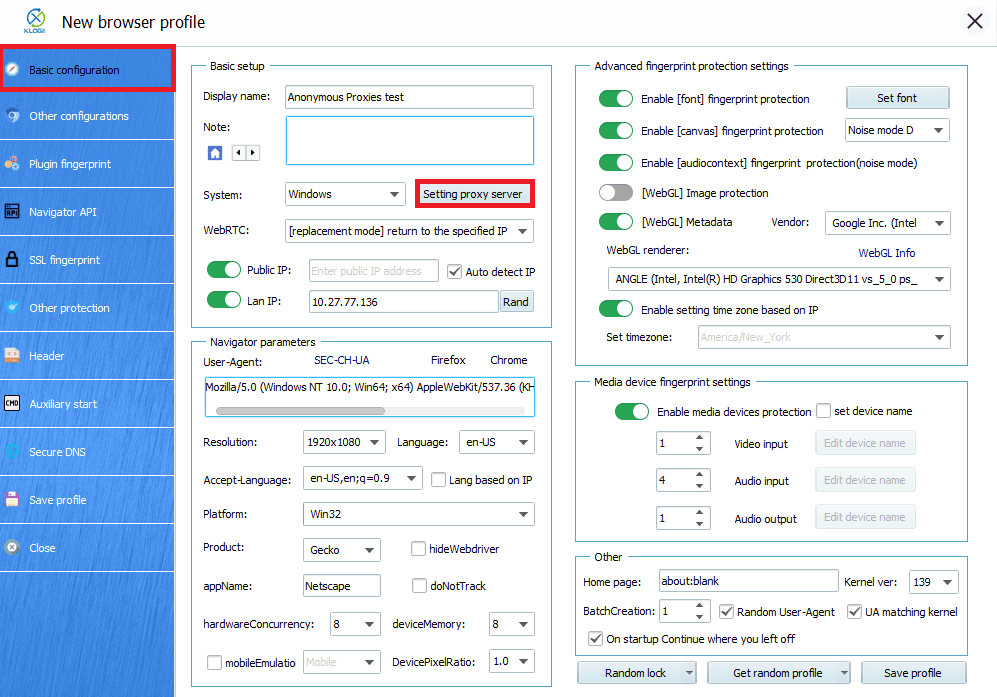
Step 7: Open Proxy Settings
In the profile window, you can give your profile a clear name that matches your use case and then click on "Setting Proxy Server" to open the Proxy Settings for this profile.
Step 8: Enter Proxy Details
When the window of proxy settings appears, you'll need to toggle "Enable Proxy Server" firstly. Then, you can choose what proxy type you are going to use, for this example we will select HTTP, but if you have a SOCKS5 proxy, then you'll need to select that one. All what remains to do right now, is to enter your proxy credentials. Once you entered your proxy credentials, click on the "Test Proxy" button.
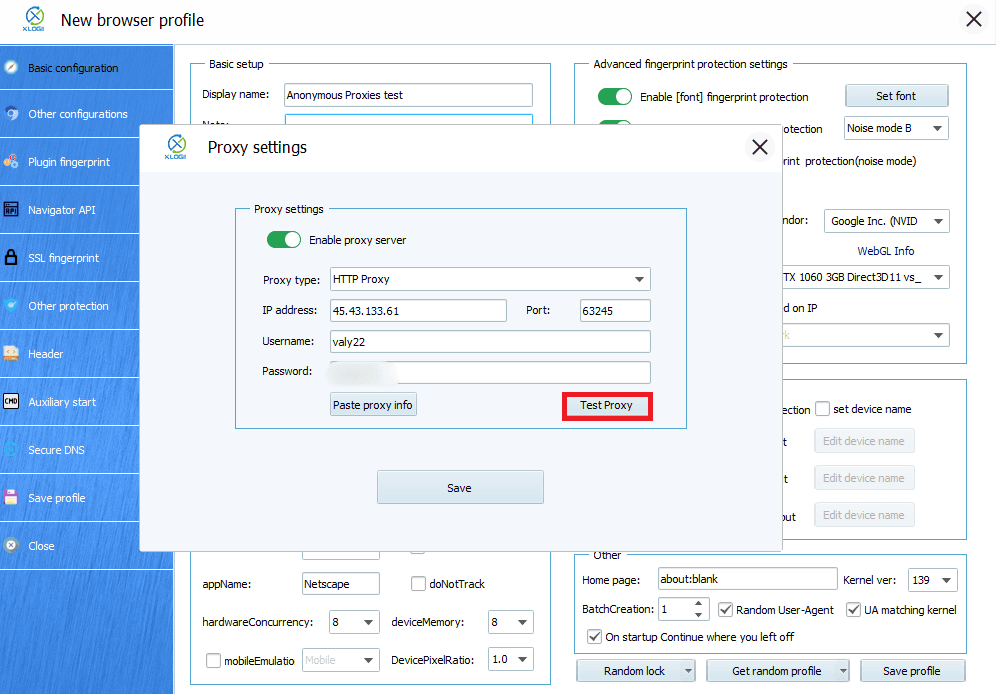
Step 9: Test The Connection and Save The Profile
After you clicked on the "Test Proxy" button, a success message should show your proxy's country and city. Once you see that the connection is successfull click on "Confirm", then hit the "Save" button in the Proxy Settings window, and then "Save Profile".
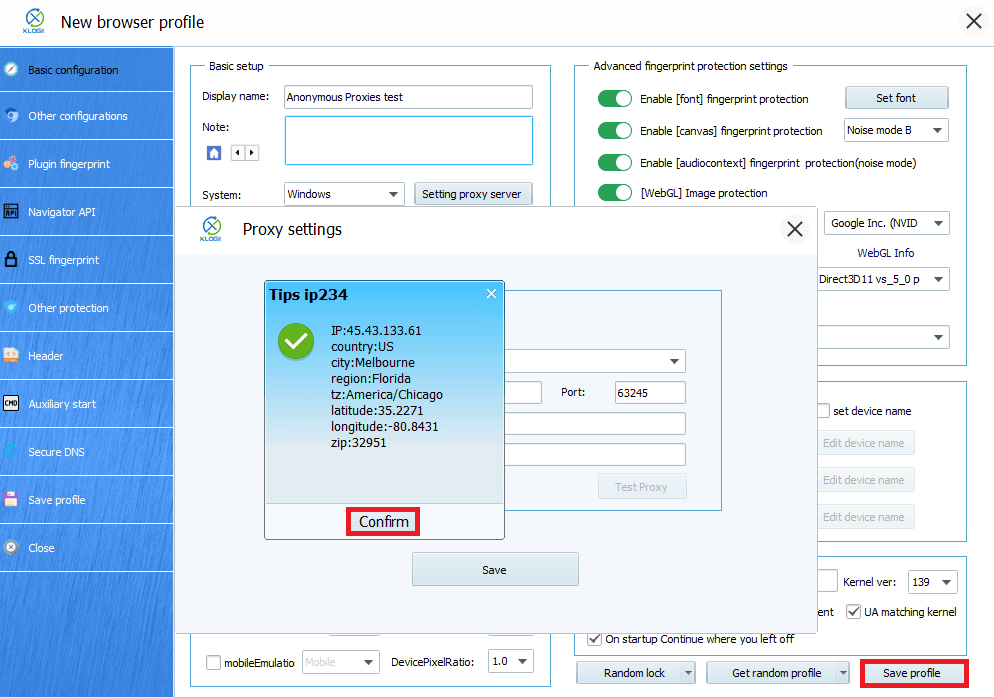
That's it! All traffic from this profile now routes through your purchased proxy while Xlogin maintains the fingerprint you configured.
Wrap Up
Now you should know what Xlogin is, what it can do, and how you can integrate Anonymous Proxies with it. This profile you've created will make you ready to browse with stronger privacy, higher trust, and spot-on location targeting. And if you ever need help, you can contact our support team which is here for you 24/7. For more tips and step-by-step guides, you can visit our integrations page.

Buy Backconnect Proxies
Rotating IPs on every request. Scale scraping and automation without manual IP management.
More antidetect-browser Proxy Integrations
See more antidetect-browser integrations that work seamlessly with Anonymous Proxies.

Proxy Integration With Kameleo
Learn how to set up Anonymous Proxies' residential proxies with Kameleo for automation, web scraping, and easier multi-account management.

Proxy Integration With Lalicat
Learn how to integrate Anonymous Proxies' residential proxies with Lalicat to manage multiple accounts with ease and browse in anonymous way.

Proxy Integration With ClonBrowser
Learn how to set up Anonymous Proxies’ residential proxies in ClonBrowser to manage multiple social media accounts smoothly and browse more privately.

Proxy Integration With Octo Browser
This integration tutorial will show you how to connect Anonymous Proxies in Octo Browser for safer multi-accounting and scraping in just a few minutes