

Proxy Integration With ClonBrowser
Learn how to set up Anonymous Proxies’ residential proxies in ClonBrowser to manage multiple social media accounts smoothly and browse more privately.
What is ClonBrowser?
ClonBrowser is an anti-detect browser built for people who want a simpler way to manage multiple accounts and online tasks from one place. ClonBrowser lets you create different browser profiles, which means each profile works as a separate and independent browser. This is one of the main reasons why ClonBrowser is used by businesses and marketers for automation and multi-account work.
ClonBrowser Features
- 30+ fingerprint settings. ClonBrowser has over 30 different settings that you can change, which helps keep your identities separate..
- Multi-profile, multi-account management. You can create and run separate browser profiles from one dashboard, keeping cookies, storage, and sessions isolated so working with multiple identities feels organized and consistent.
- Flexible proxy support. ClonBrowser also works with proxies, which helps you control how you appear online. You can assign a proxy to each profile, which makes it much easier to keep your accounts separate and maintain a more consistent setup.
- RPA automation with ready templates. ClonBrowser also includes RPA automation and a wide range of ready-made templates, helping you handle repetitive tasks faster and spend less time doing everything manually.
- Team collaboration tools. ClonBrowser is also useful for teams. It lets you share profiles and control who can use them, which helps when many people need to work without mixing up their online identities.
How to Set Up a Proxy with ClonBrowser
Before we get into the actual setup, make sure that you are logged into the Anonymous Proxies dashboard and have your proxy details ready.
Step 1: Download ClonBrowser
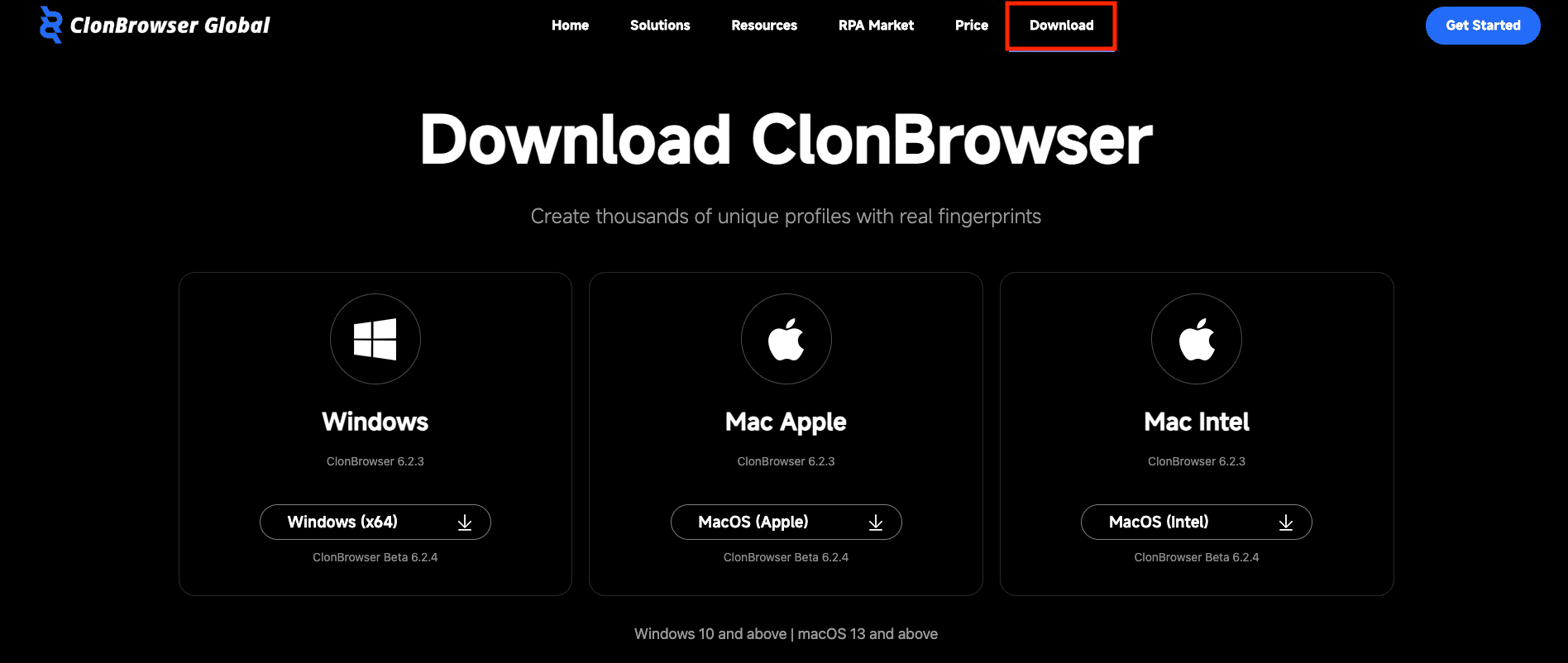
To begin, go to the official ClonBrowser website, click on the Download button and choose the installer based on your OS.
Step 2: Log In
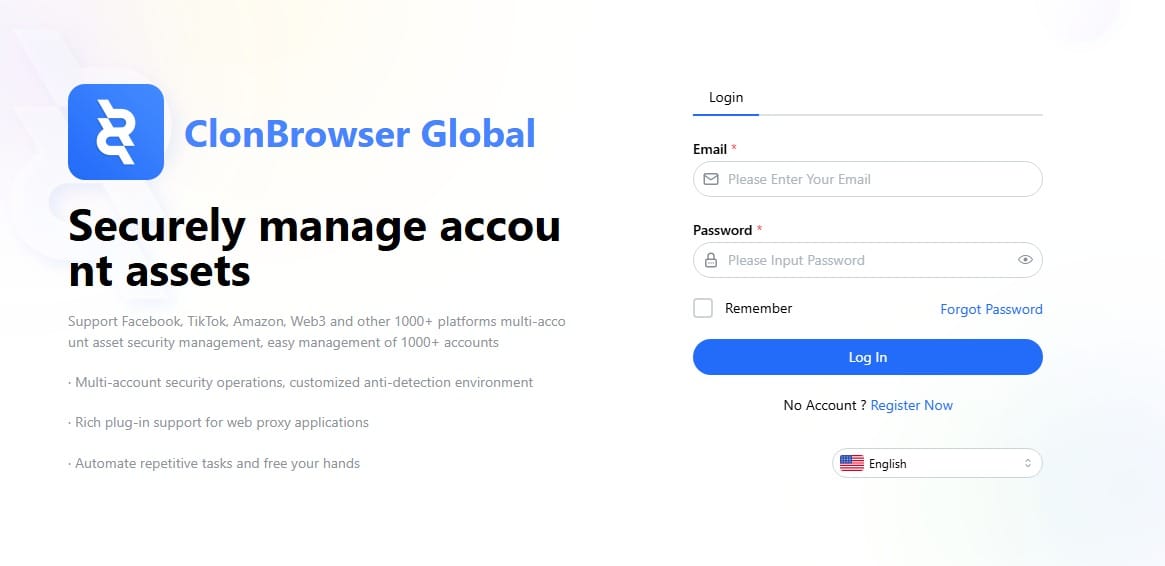
Once ClonBrowser is installed, open it and sign in using your account credentials.
Step 3: Create Profile
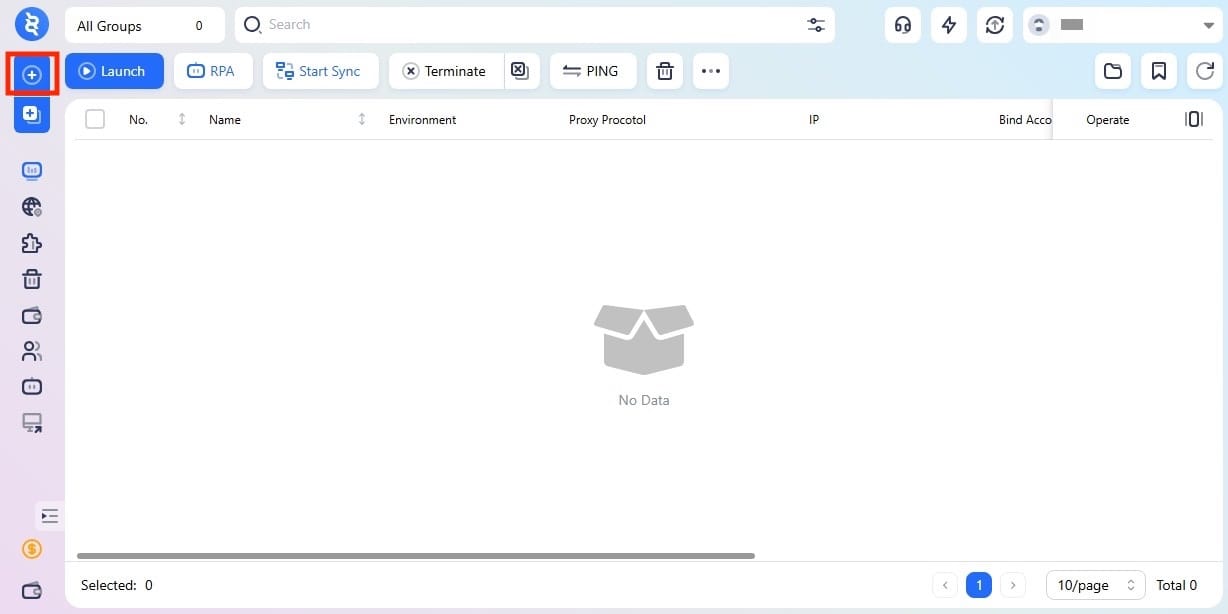
Once you’re inside the main dashboard, click the plus icon on the left side to create a new browser profile.
Step 4: Open Proxy Tab
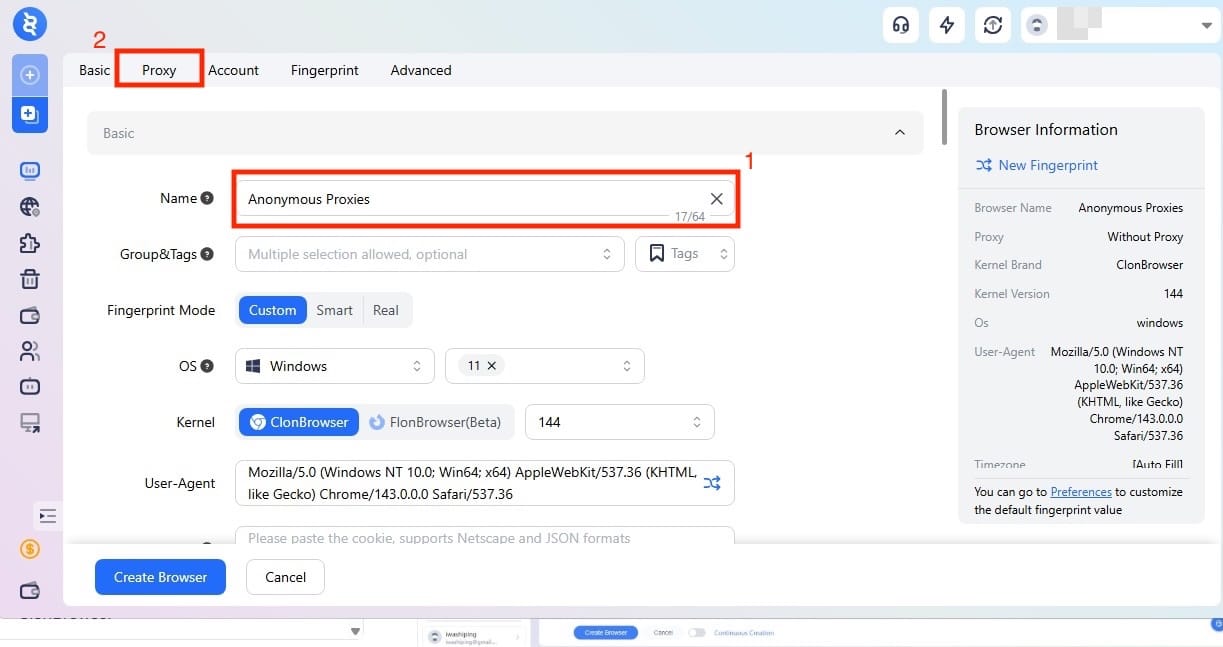
In the profile setup window, name your profile and after that, click the Proxy tab near the top of the screen to move into the section where the proxy connection will be added.
Step 5: Enter Proxy Details
Once you are inside the Proxy tab, select Custom mode and fill the required proxy fields with the proxy credentials that you can find in the Anonymous Proxies dashboard.
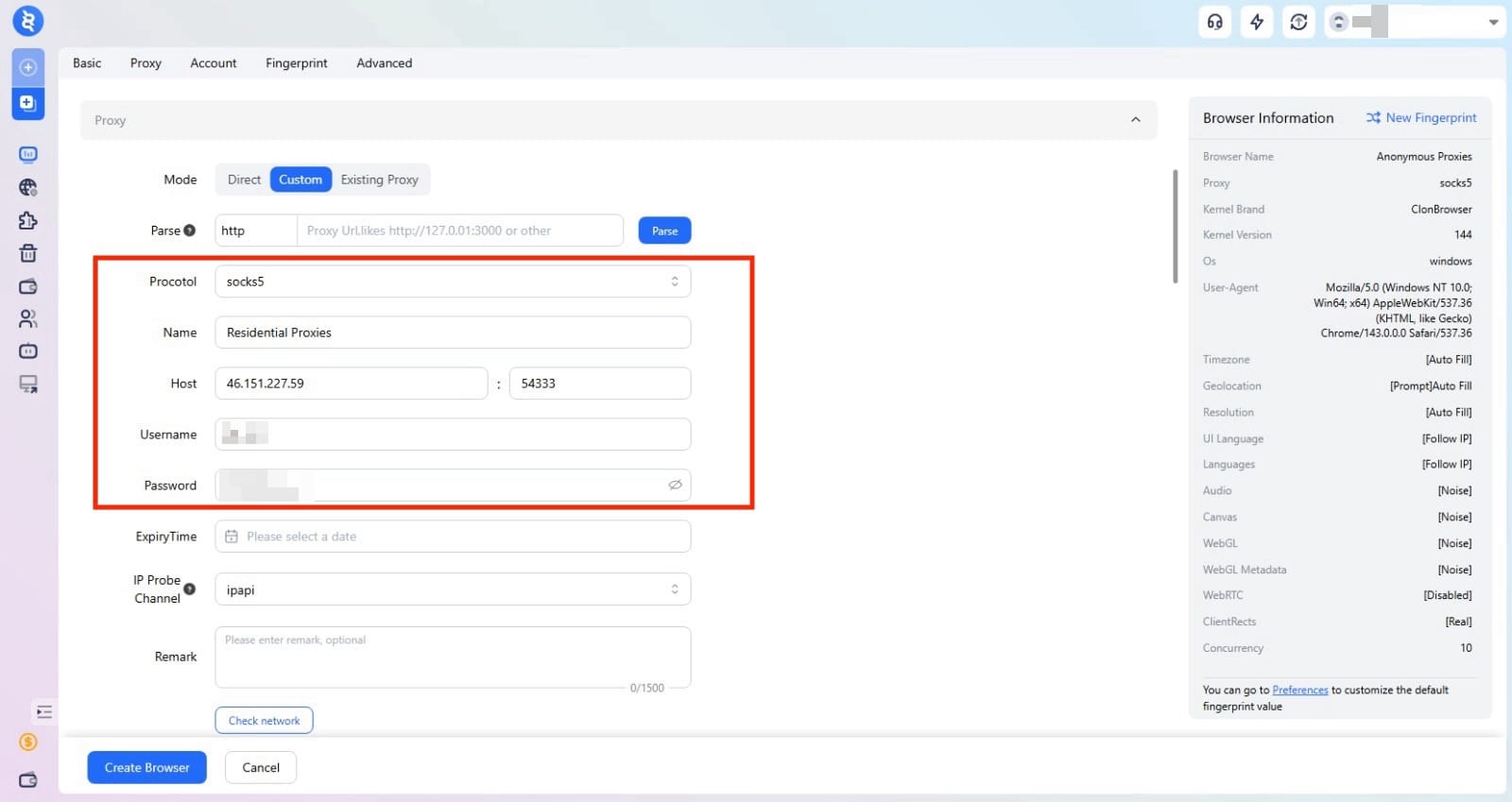
Step 6: Check the proxy
After you entered all the proxy details, click Check network to make sure your proxy is working properly. You should see a green successful message, and once you see it, you just need to click on Create browser to save the profile.
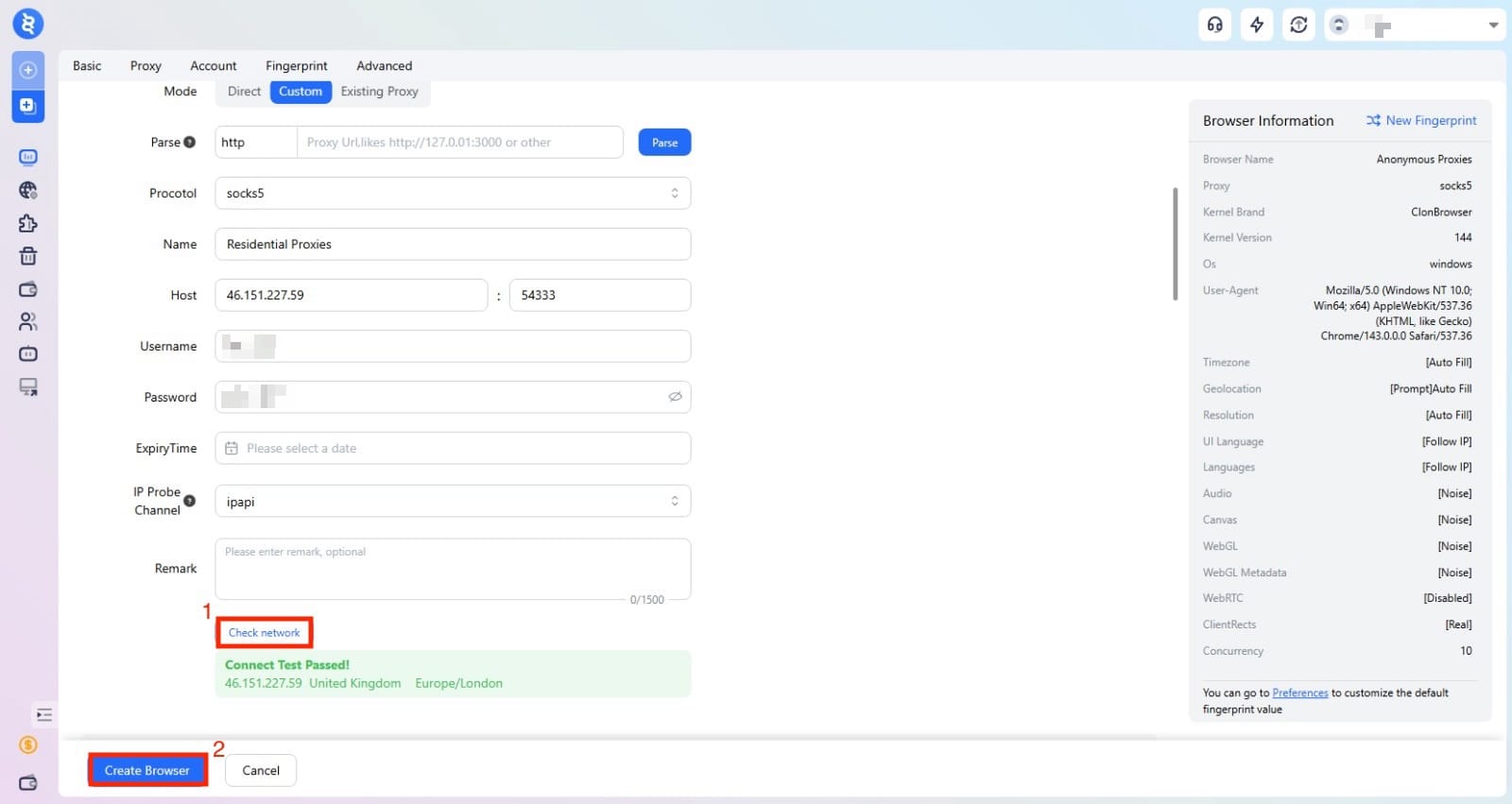
Step 7: Launch Profile
You will be taken to the main dashboard, where you will be able to see your new profile. Now, just click on Launch to open it.
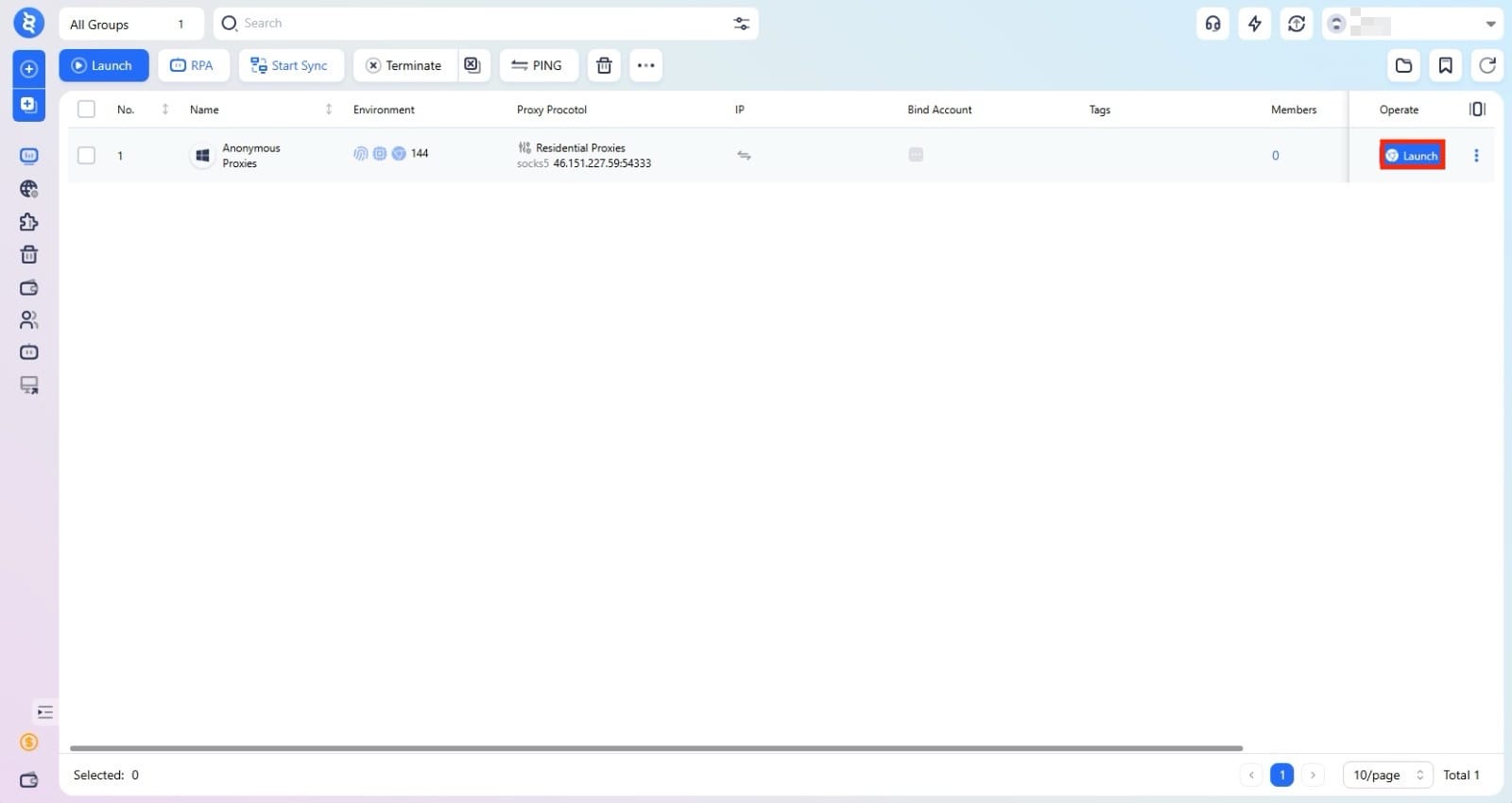
A Chromium-based browser profile will start, and on the first page you will see your proxy details. Once you see those details, you can start to work on your tasks without any problems.
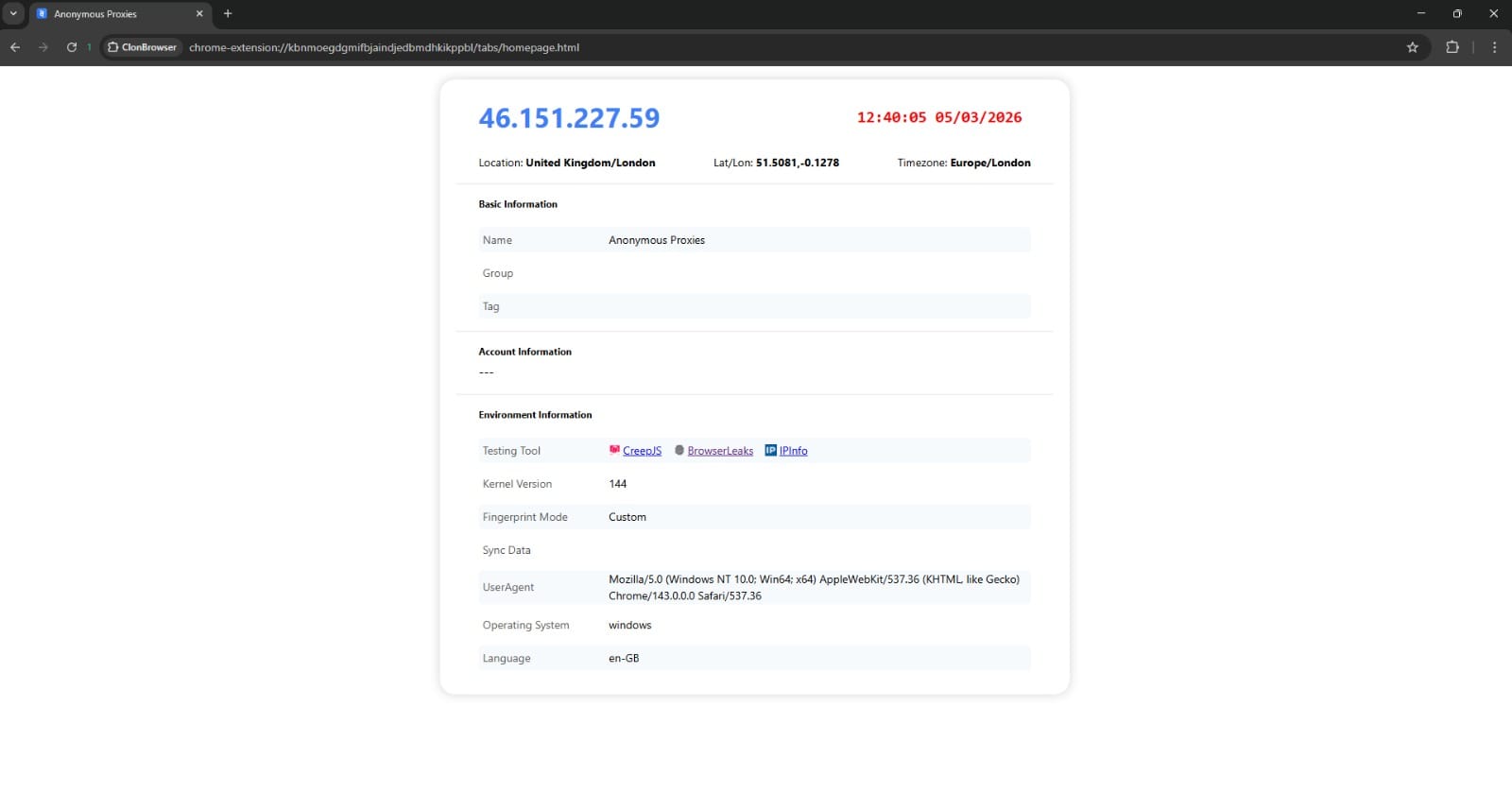
Conclusion
As you've seen above, if you need a simple way to handle multiple accounts and automate your online tasks, ClonBrowser is a tool worth considering. Now, if you don't know what proxy type to choose, you can go with residential proxies if you need higher authenticity for your tasks, or you can go with datacenter proxies if your tasks do not require the higher trust level that residential IPs provide.
If you need help during setup or have any questions about proxies, contact our support team and they will assist you with any problem you've got. If you want to see more integration tutorials, you can take a look at our integrations page.

Buy Backconnect Proxies
Rotating IPs on every request. Scale scraping and automation without manual IP management.
More antidetect-browser Proxy Integrations
See more antidetect-browser integrations that work seamlessly with Anonymous Proxies.

Proxy Integration With Kameleo
Learn how to set up Anonymous Proxies' residential proxies with Kameleo for automation, web scraping, and easier multi-account management.

Proxy Integration With Lalicat
Learn how to integrate Anonymous Proxies' residential proxies with Lalicat to manage multiple accounts with ease and browse in anonymous way.

Proxy Integration With Octo Browser
This integration tutorial will show you how to connect Anonymous Proxies in Octo Browser for safer multi-accounting and scraping in just a few minutes

Proxy Integration With Antik Browser
Learn how to connect Antik Browser with Anonymous Proxies in minutes for safer browsing, stable profiles, and clean IP separation.