

Proxy Integration With Lalicat
Learn how to integrate Anonymous Proxies' residential proxies with Lalicat to manage multiple accounts with ease and browse in anonymous way.
What is Lalicat?
Lalicat is an anti-detect browser built for people who need to manage multiple online accounts without mixing sessions together. Basically, you do not have to handle everything in a single browser, as you can create separate profiles for different accounts and keep each one in its own environment.
It is also built for more than just basic profile switching. Lalicat highlights features for team collaboration and local API automation, which makes it useful for individual users and teams that handle larger workflows. It is a really useful tool for anyone that is in e-commerce, marketing, scraping, and other tasks where profile separation and easy account management matter.
How to Set Up a Proxy With Lalicat?
Before you start, open your Anonymous Proxies dashboard and keep your proxy details ready. Also, if you want to get the best results with Lalicat anti-detect browser, I suggest you to have a residential proxy ready for this setup, since it looks more like "normal" user browsing to the websites you work with. Also, the setup remains the same if you want to use datacenter or mobile proxies instead.
Step 1: Download Lalicat
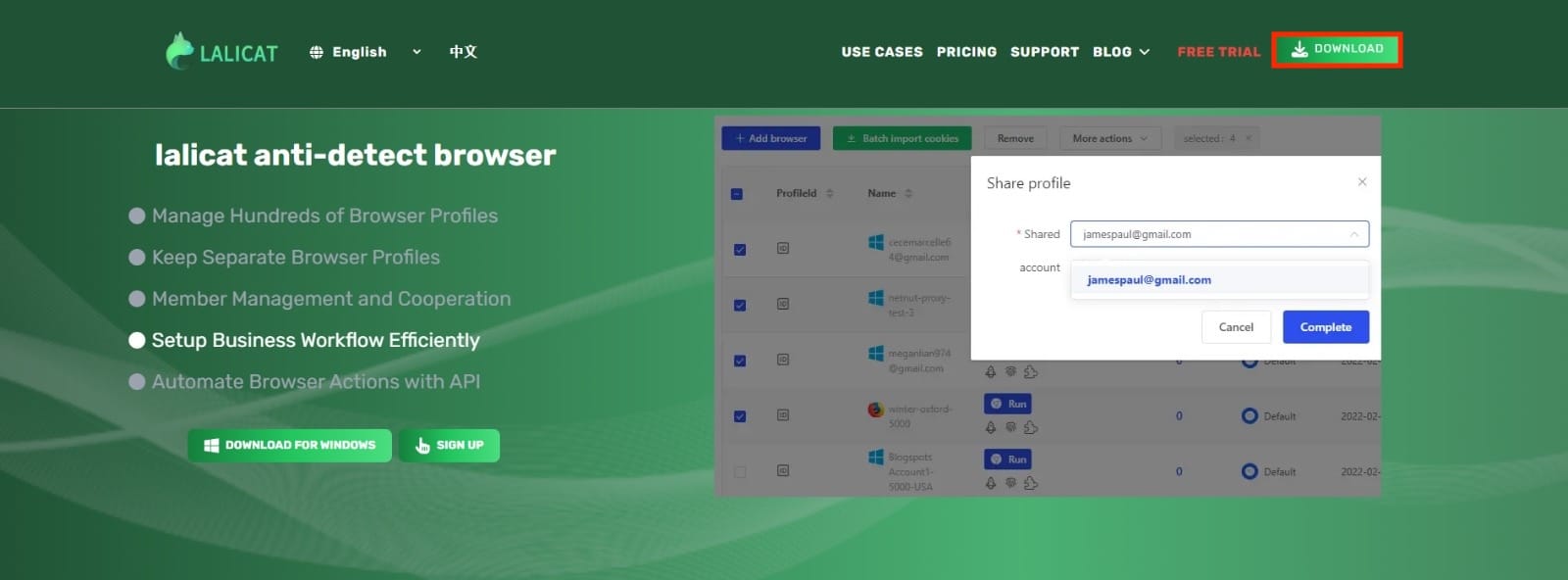
Now, to begin, go to the official Lalicat website and click on the Download button.
Step 2: Log In
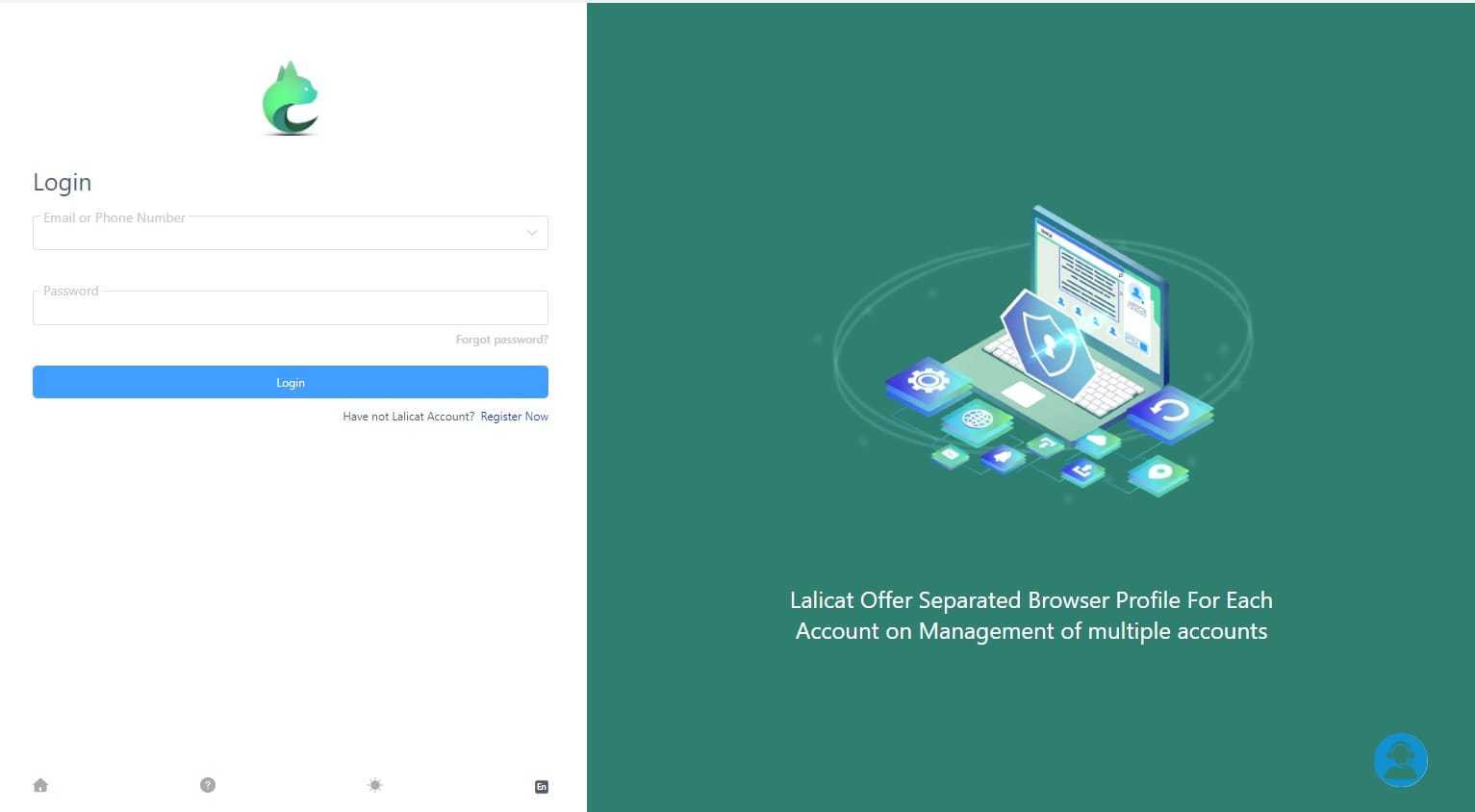
Once the download is finished, install it and then open it. You'll need to sign in to your account. If you do not have an account yet, create one first and then return to the login page to continue.
Step 3: Add a Browser Profile
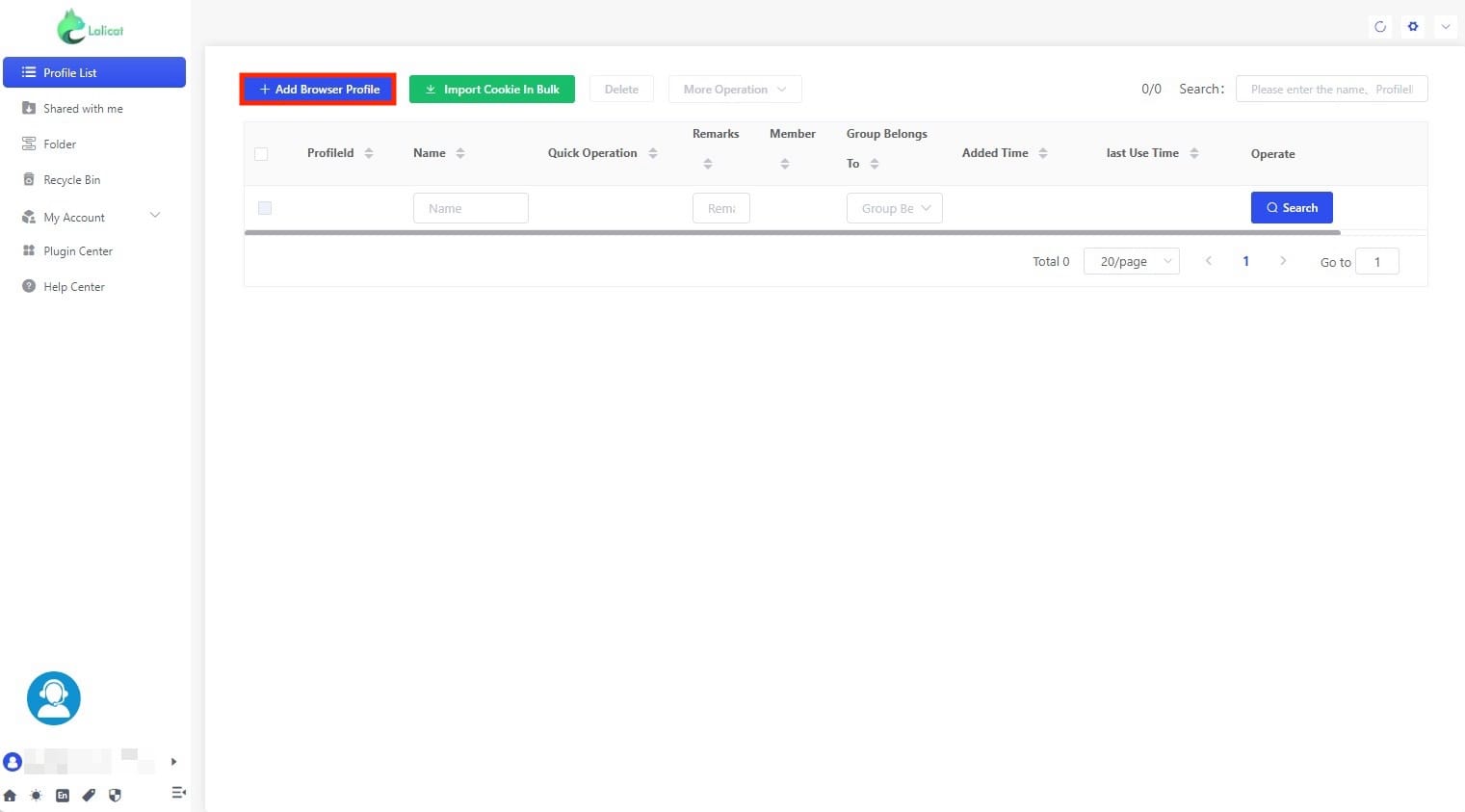
After you log in, assure that you are in the Profile List page and click + Add Browser Profile.
Step 4: Configure the Profile
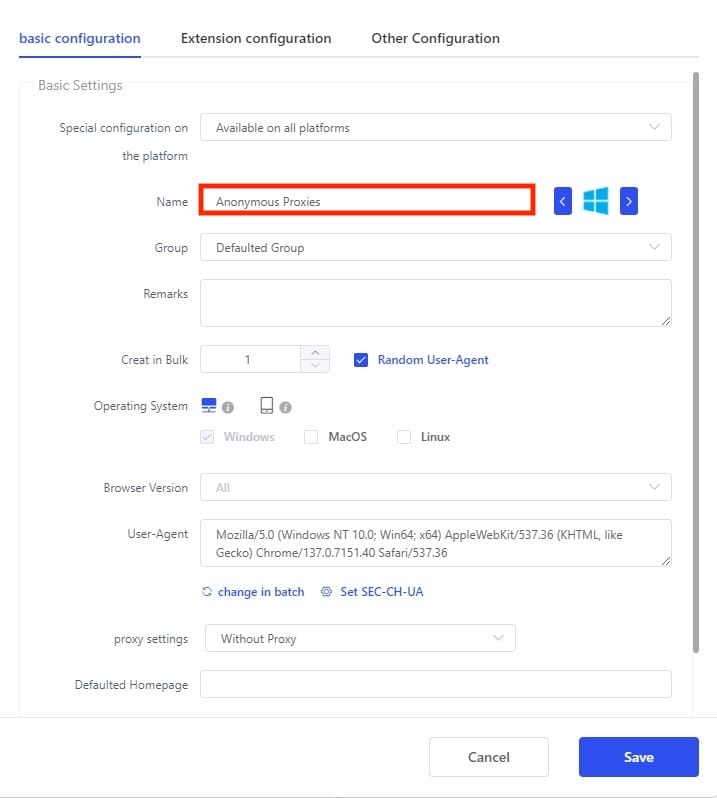
You'll be taken to the Basic Configuration section, where you'll need to name your profile and do other optional settings to the profile if you need.
Step 5: Enter Proxy Details
Once you did what I said in the step above, scroll to the Proxy Settings section and enter the proxy credentials that you can find in the Anonymous Proxies dashboard.
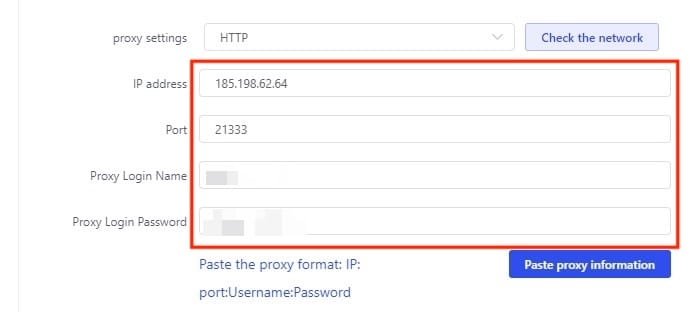
Step 6: Test the Proxy Connection
After you fill all the required proxy fields, click Check the Network to make sure that your proxy server is working as expected. Then, just click on Save to complete the setup.
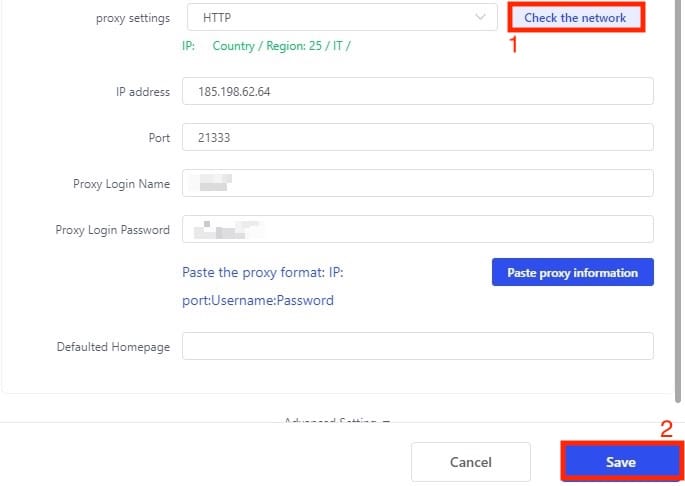
Step 7: Launch the Browser Profile
After you save the profile, click Open on the profile you've just created.
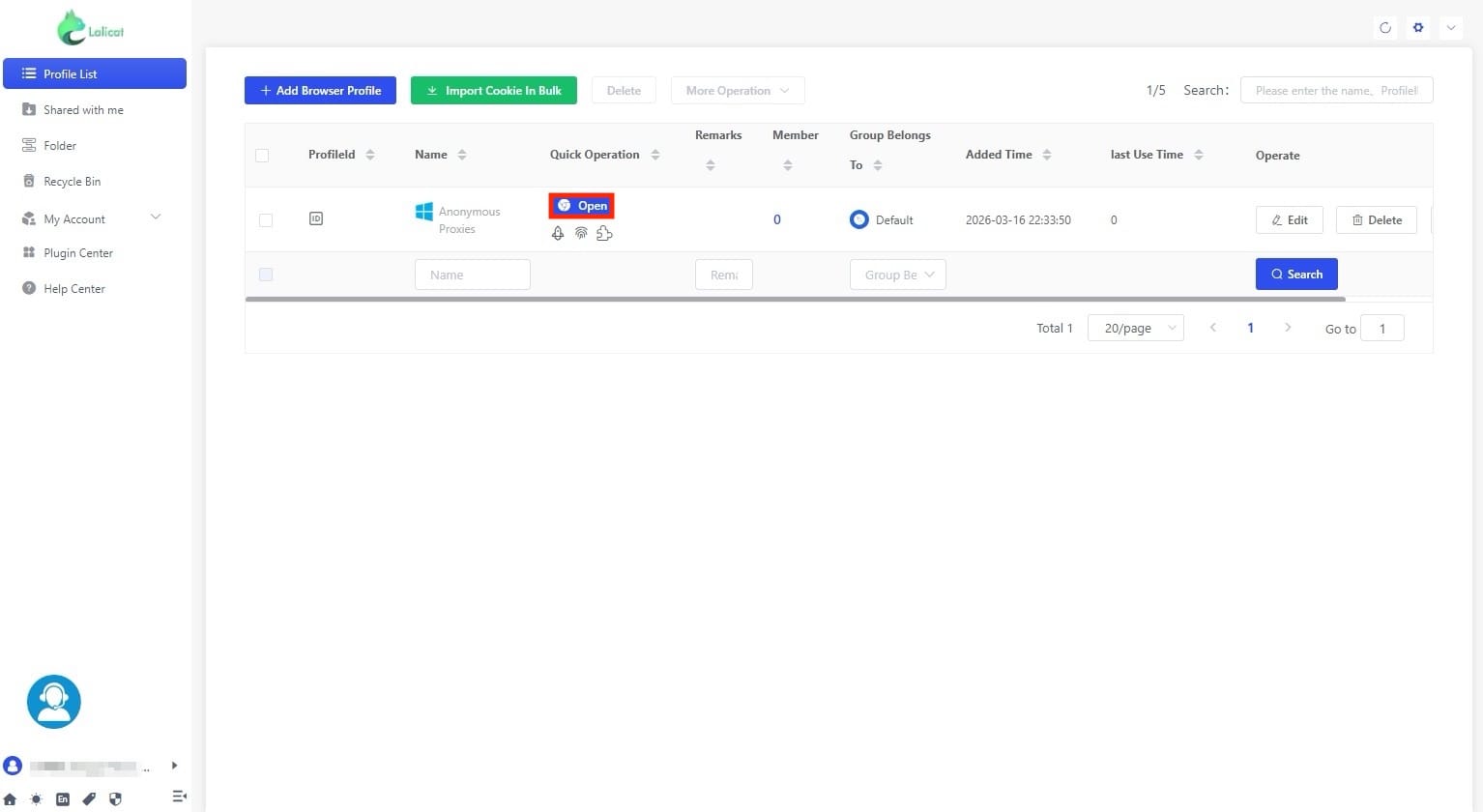
Step 8: Verify Proxy
Now, just to be sure that everything is fine, open a site where you can check your IP and if you see your proxy's IP, it means that you configured it properly and you can continue to work on your tasks in an anonymous way without being flagged.
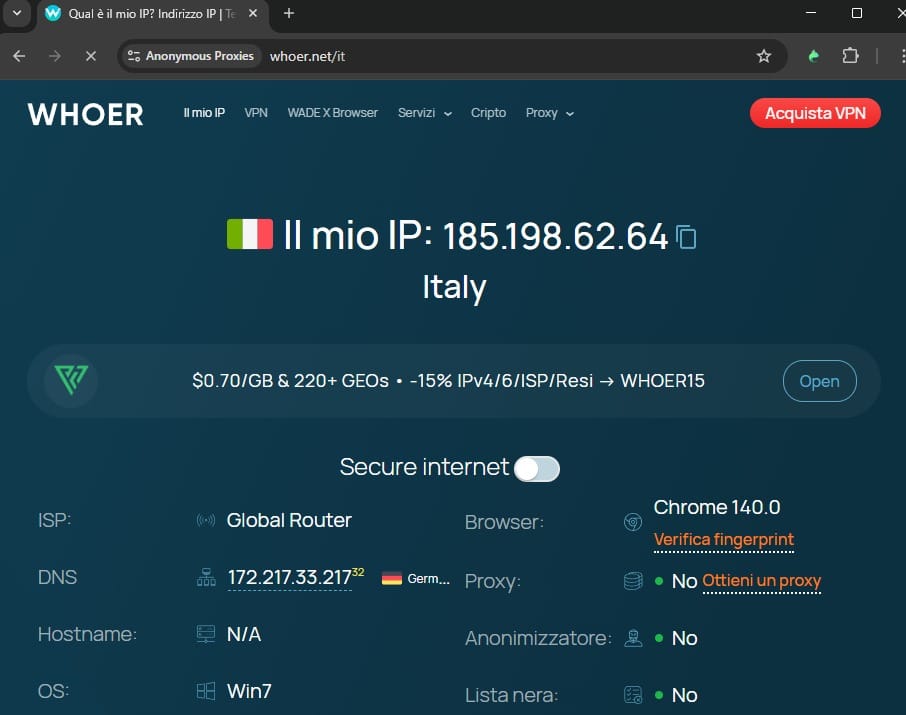
Wrap Up
After you completed the steps above and followed them in a careful way, you are now able to set up Lalicat with Anonymous Proxies’ residential proxies.
Now, if you encounter any difficulties with the setup or have any inquiries regarding proxies, please contact our support team that is here to assist you with all of your problems. Additionally, if you would like to find out more about how to use our product in conjunction with other anti-detect browsers, tools or platforms, simply go to our integrations page.

Buy Backconnect Proxies
Rotating IPs on every request. Scale scraping and automation without manual IP management.
More antidetect-browser Proxy Integrations
See more antidetect-browser integrations that work seamlessly with Anonymous Proxies.

Proxy Integration With Kameleo
Learn how to set up Anonymous Proxies' residential proxies with Kameleo for automation, web scraping, and easier multi-account management.

Proxy Integration With ClonBrowser
Learn how to set up Anonymous Proxies’ residential proxies in ClonBrowser to manage multiple social media accounts smoothly and browse more privately.

Proxy Integration With Octo Browser
This integration tutorial will show you how to connect Anonymous Proxies in Octo Browser for safer multi-accounting and scraping in just a few minutes

Proxy Integration With Antik Browser
Learn how to connect Antik Browser with Anonymous Proxies in minutes for safer browsing, stable profiles, and clean IP separation.