

Proxy Integration With Octo Browser
This integration tutorial will show you how to connect Anonymous Proxies in Octo Browser for safer multi-accounting and scraping in just a few minutes
What is Octo Browser?
Octo Browser is an antidetect browser designed for multi-accounting. It can help users to manage multiple browser profiles from one device, with each profile having its own fingerprint settings. It is available as a desktop browser for Windows, macOS, and Linux, which makes it really useful for teams and solo users working across different systems. Octo Browser is built around profile management, so users can create profiles quickly, clone them for similar tasks, and keep everything organized as their workflow grows. It also runs on a Chromium-based kernel and this will basically make your profiles stay closer to normal Chrome browsing behavior.
Octo Browser Features
- Multi-account profile management. Octo Browser lets users create and manage separate browser profiles for different accounts.
- Fingerprint control. It gives each profile its own browser fingerprint settings to help profiles appear as separate environments.
- Flexible proxy handling. It supports adding, managing, and checking proxies inside the browser.
- Team collaboration. It gives teams a simple way to share access and manage who can do what inside the workspace.
- API automation. It lets users automate profile creation and management through the API instead of doing everything by hand.
Octo Browser is a strong tool by itself for profile separation, fingerprint control and multi-account management. Still, the browser setup is only one part of the picture. The IP attached to each profile matters too. When you pair Octo Browser with our premium residential proxies, each session can look more natural and better aligned with normal user traffic because of the authenticity these type of IPs can offer.
How to Set Up Proxies With Octo Browser?
If you want to set up a proxy in Octo Browser, don't panic because it is really simple and does not take an eternity. Once you have your proxy details ready from your proxy provider, you can add them in just a few steps. Also, the setup is the same whether you use datacenter, residential, or mobile proxies. Below, I’ll show you exactly how to connect Anonymous Proxies' residential proxies in Octo Browser.
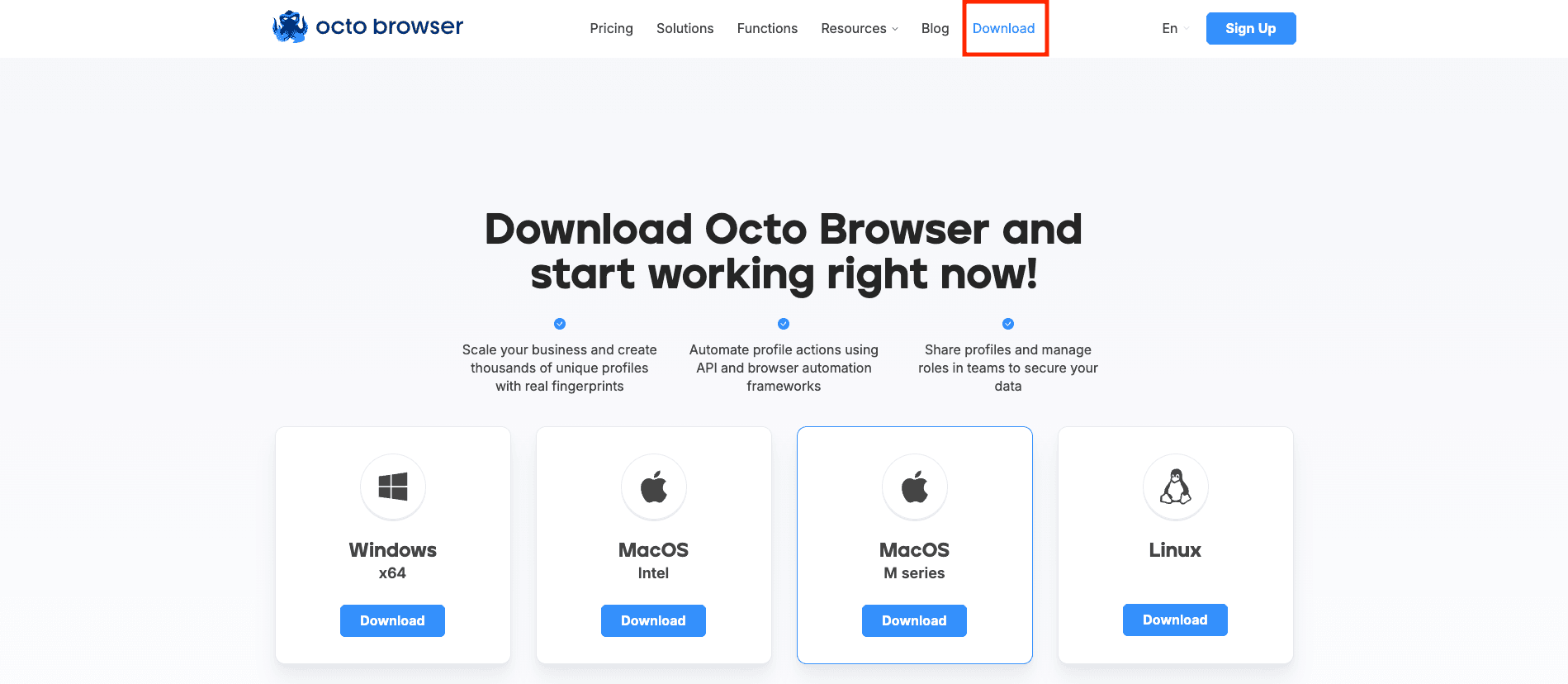
Step 1: Download Octo Browser
The first thing you need to do is go to the official Octo Browser website and click on Download section, then choose the version that matches OS and install it.
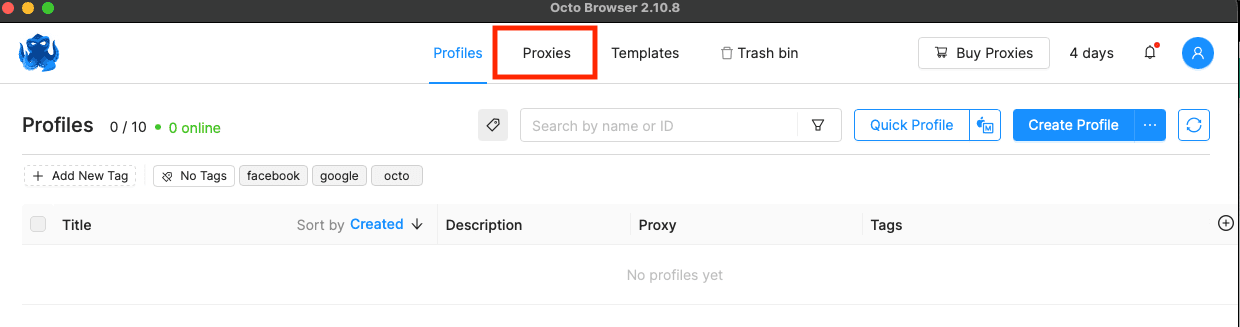
Step 2: Open the Proxies section
Once Octo Browser is installed, open it and click on the Proxies tab.
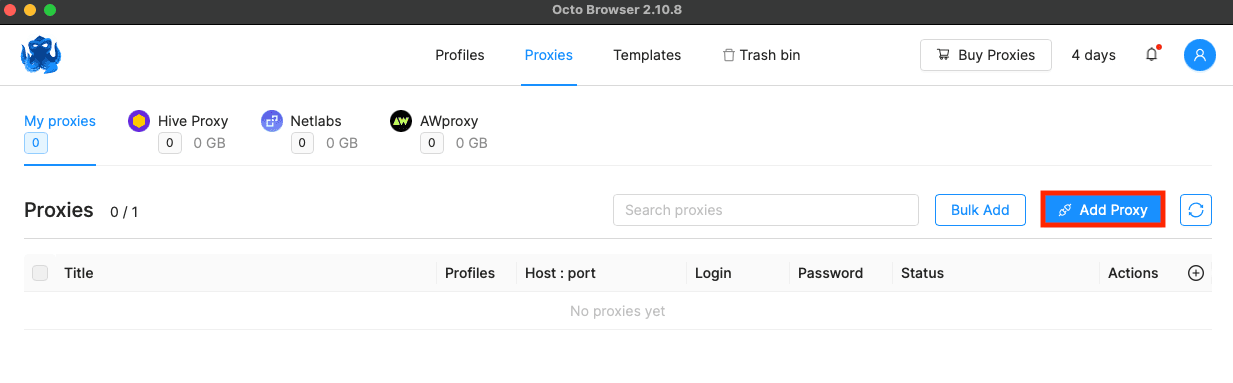
Step 3: Click Add Proxy
When you are Inside the Proxies section, click Add Proxy.
Step 4: Input proxy details
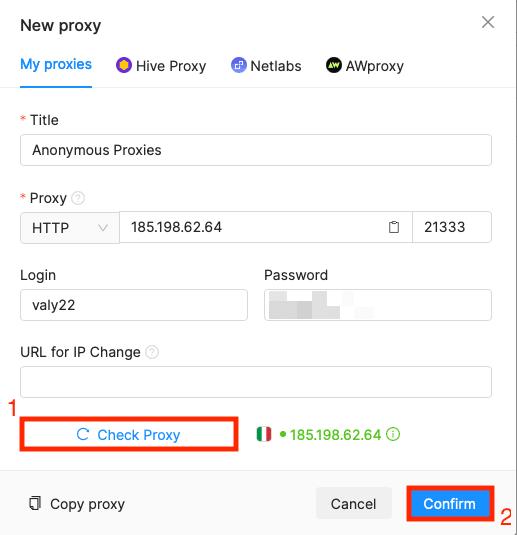
Now, it's time to paste your proxy credentials from Anonymous Proxies dashboard into the required fields. Be sure that you select the right protocol that you are going to use, and if you use authentication don't forget to enter the username and password which you can find in our dashboard. If you've whitelisted your IP, then you can skip this step.
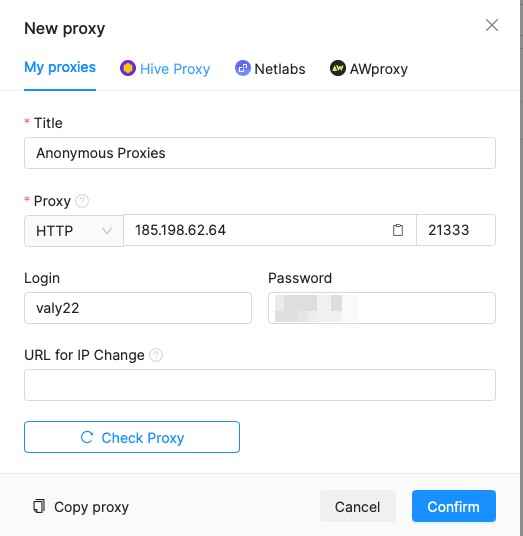
Step 5: Check proxy connection
Once you entered all the required details, click on Check Proxy to make sure the connection works, then on Confirm to save the proxy.
Step 6: Create profile
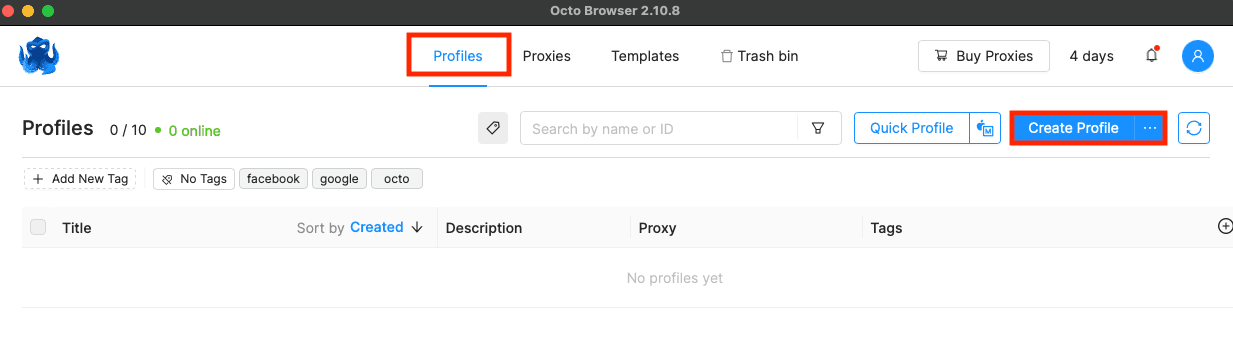
Now, you'll need to go back to the Profiles section and click Create Profile.
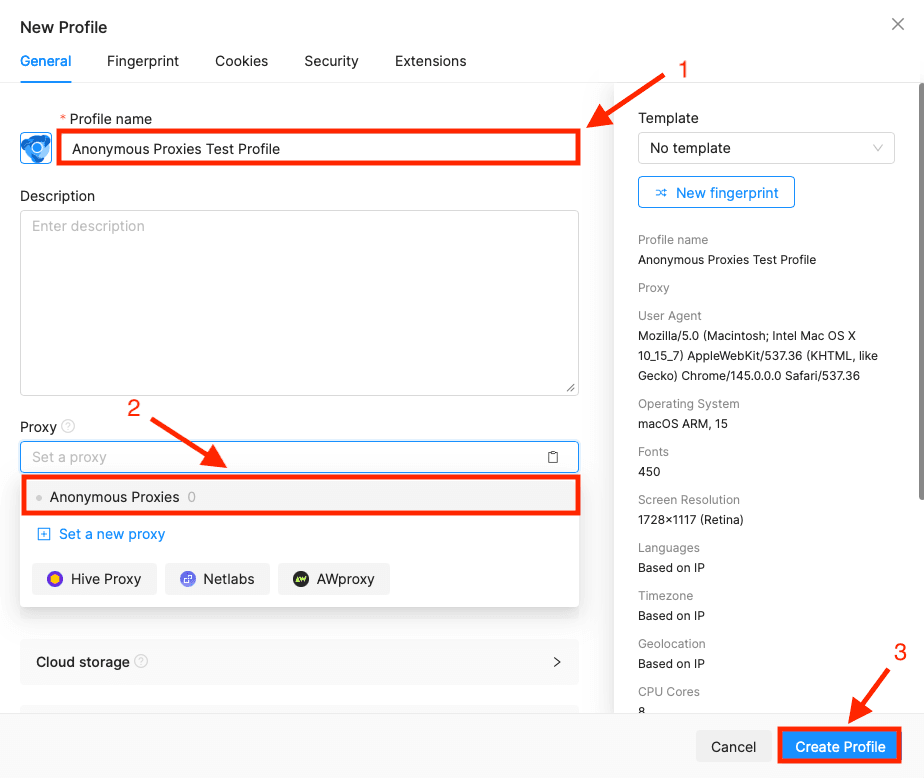
In the new profile window, you can name your profile, then ensure that you select the proxy you just added and click Create Profile to save the setup.
Step 7: Start the profile
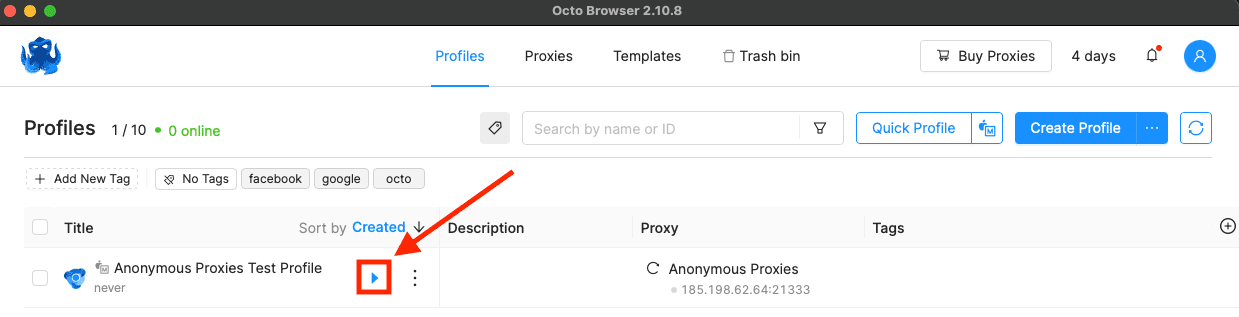
After you save it, click the Start button launch the profile.
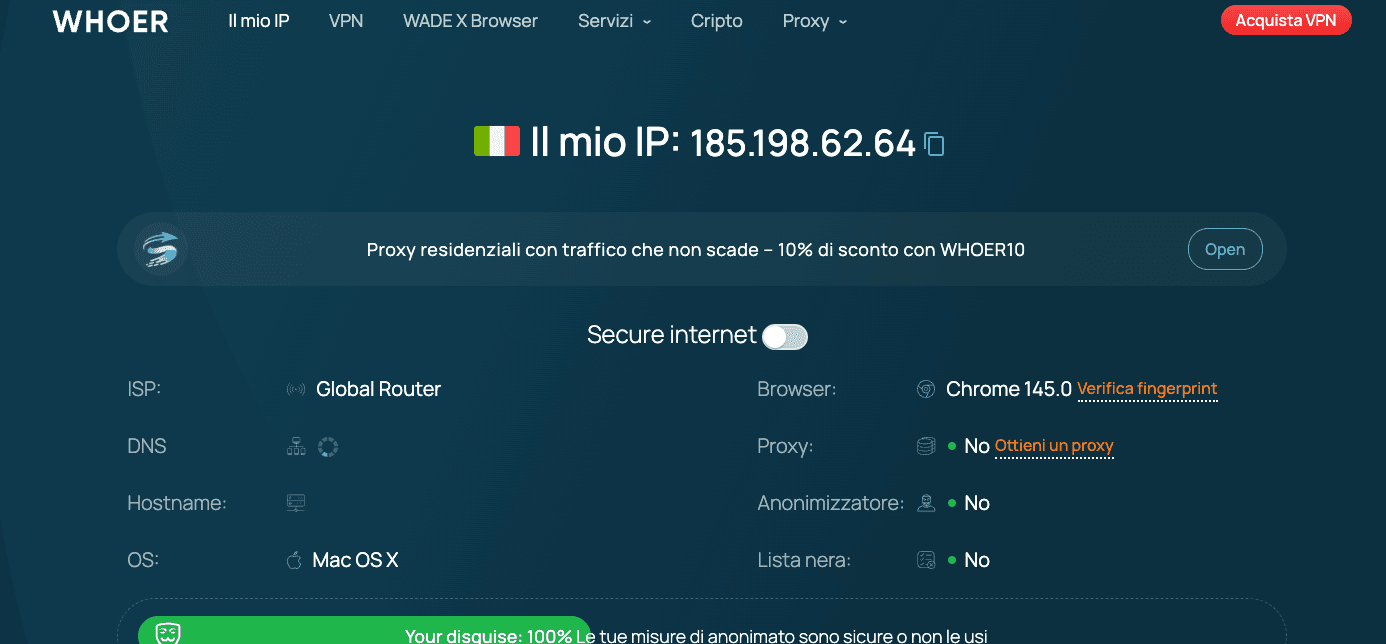
Step 8: Check your IP
For the final step, you can open an IP checker site inside the running profile and confirm that the IP looks the same as the one you've set up.
Wrap Up
That's it! Now the Octo Browser profile you've just set up will have its connection routed through Anonymous Proxies' residential proxies.
If you encounter any problems or have any questions related to the setup, you can contact our support team which will always be here to help you. And if you want to see more integration tutorial with other anti-detect browser or other tools, you can visit our integration page.

Buy Backconnect Proxies
Rotating IPs on every request. Scale scraping and automation without manual IP management.
More antidetect-browser Proxy Integrations
See more antidetect-browser integrations that work seamlessly with Anonymous Proxies.

Proxy Integration With Kameleo
Learn how to set up Anonymous Proxies' residential proxies with Kameleo for automation, web scraping, and easier multi-account management.

Proxy Integration With Lalicat
Learn how to integrate Anonymous Proxies' residential proxies with Lalicat to manage multiple accounts with ease and browse in anonymous way.

Proxy Integration With ClonBrowser
Learn how to set up Anonymous Proxies’ residential proxies in ClonBrowser to manage multiple social media accounts smoothly and browse more privately.

Proxy Integration With Antik Browser
Learn how to connect Antik Browser with Anonymous Proxies in minutes for safer browsing, stable profiles, and clean IP separation.