

Proxy Integration With VMLogin
In this step-by-step guide, we will show you how to configure Anonymous Proxies' residential and datacenter proxies inside the VMLogin browser.
What is VMLogin?
VMLogin is an anti-detect, multi-login browser built for running many independent browser profiles on a single machine—without those profiles touching each other. Each profile has its own cookies, local storage, and a customized browser fingerprint (things like canvas/WebGL signals, fonts, language, timezone, WebRTC), so websites see every profile as a separate, natural-looking device. In practice, that means you can operate multiple accounts in one place with less risk of linkages or accidental cross-contamination.
VMLogin benefits
- True isolation: Each profile operates in its own container, meaning one account getting flagged won't affect the other profiles.
- Natural fingerprints: You can randomize or adjust fingerprint elements so each profile can have a real user look, not a non-human look.
- Team-oriented processes: Profiles can be transferred or shared with access control so transition is easy for agencies and distributed teams.
- Ready for Automation: If you have automation, VMLogin offers APIs, and works with well-known automation stacks, to scale repetitive tasks across separate and unique identities.
- Seamless Scaling: Rather than managing additional devices or VMs, you can create new profiles in seconds that are clean, consistent, and easy to manage.
VMLogin includes a three-day free trial so you can test profile isolation first. By itself it will change the browser fingerprint, but not your public IP, which still links profiles together. However, if you combine it with our residential or mobile proxies, every profile will have its own IP for real separation, fewer flags, and seamless logins.
How to set up VMLogin with Anonymous Proxies
Before I'll show the steps needed to integrate Anonymous Proxies with VMLogin, be sure that you are logged in Anonymous Proxies Dashboard, then follow these steps below and you’ll be up and running in minutes.
Step 1: Download VMLogin
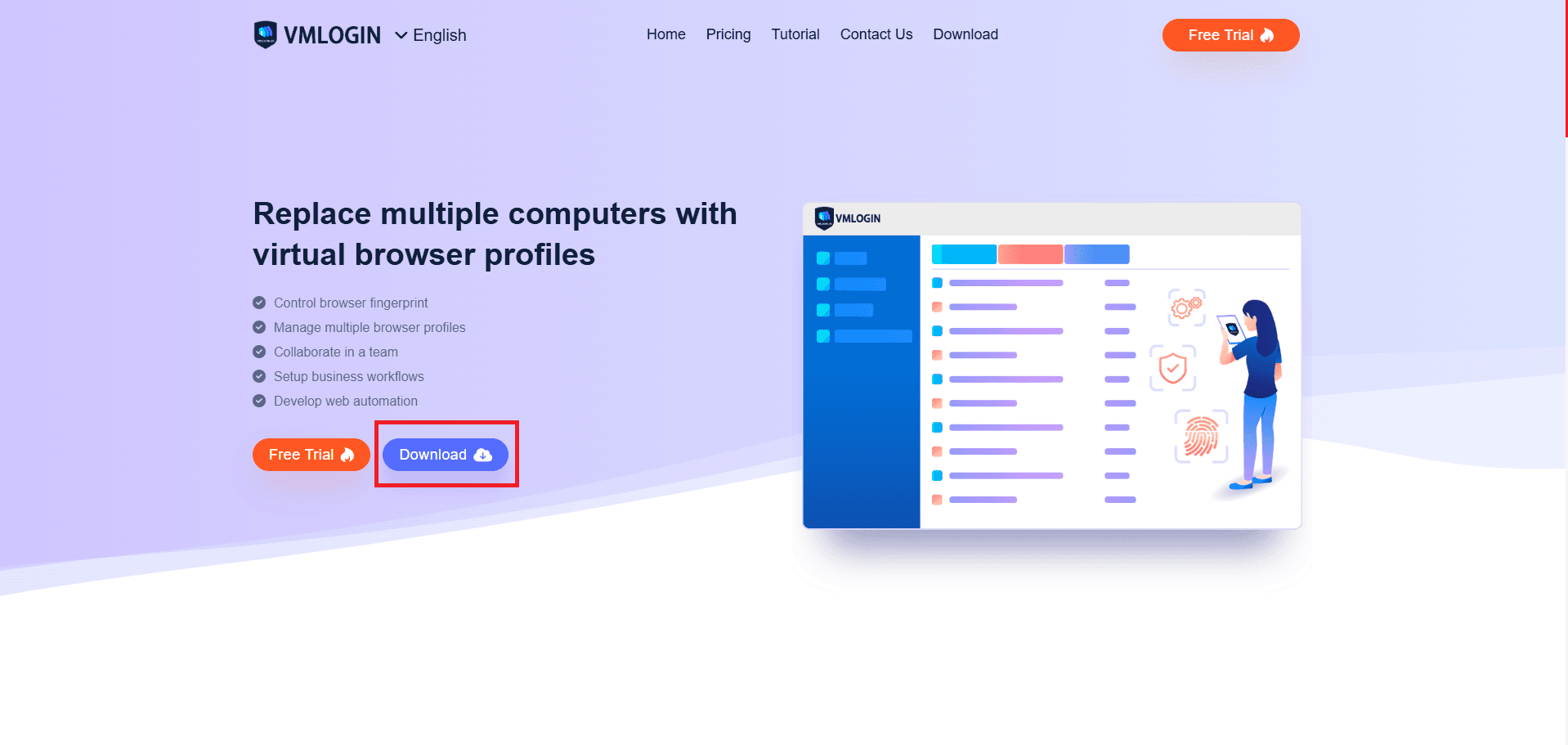
First, you'll need to go to the official VMLogin site and click the Download button.
Step 2: Sign in to VMLogin
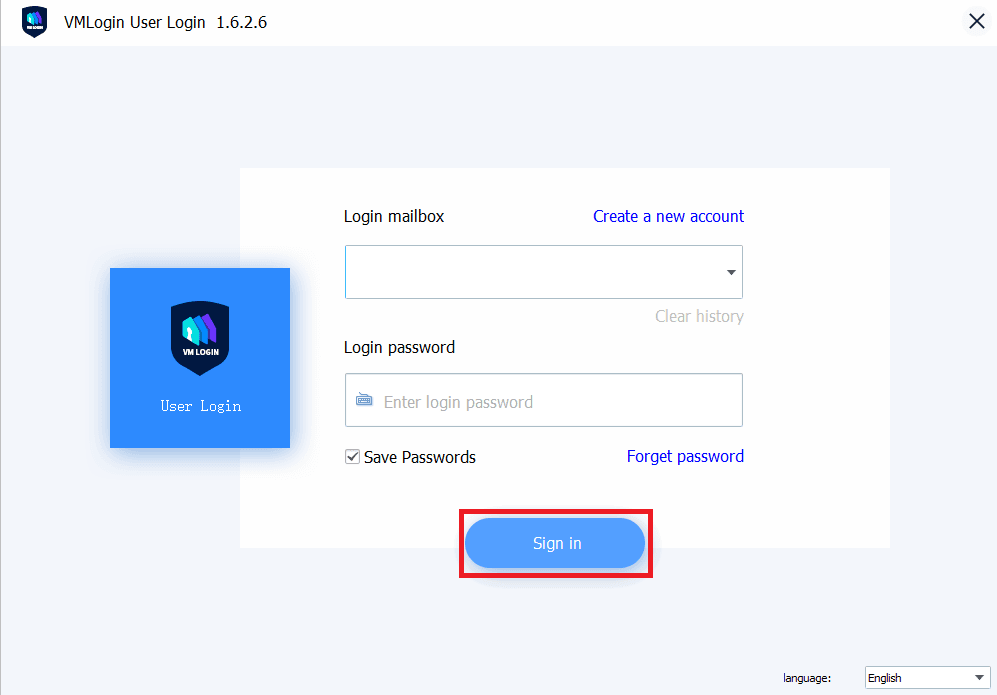
When the download is finished, open the app and Sign in with your account. If you don't have an account, click on Create a new account.
Step 3: Create a New Browser Profile
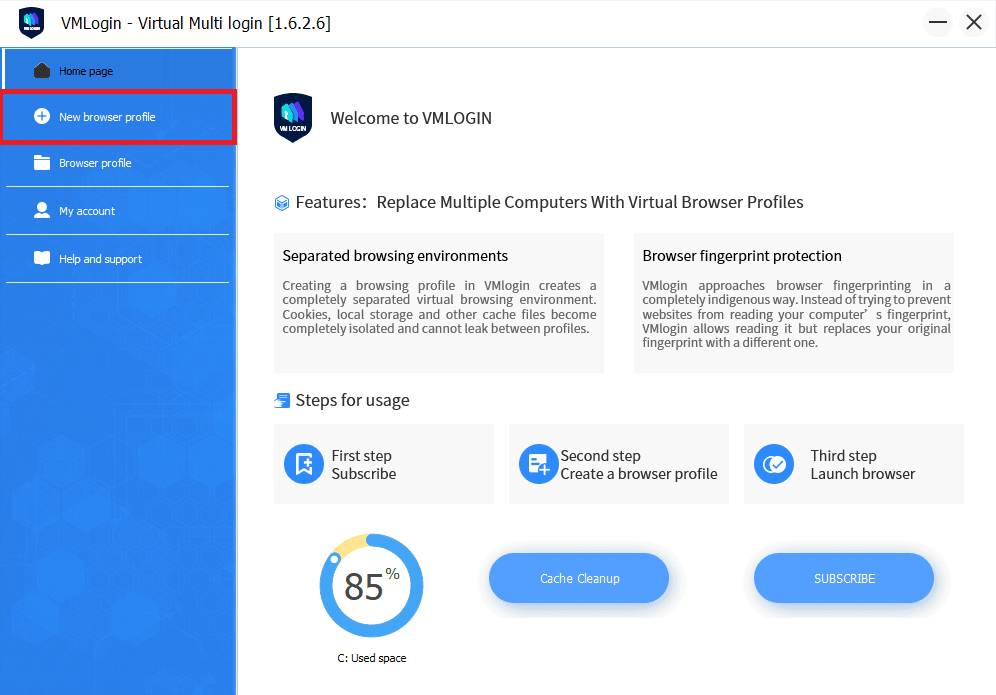
After you opened the app, look on the left sidebar and click on New browser profile.
Step 4: Open Proxy Settings in the Profile
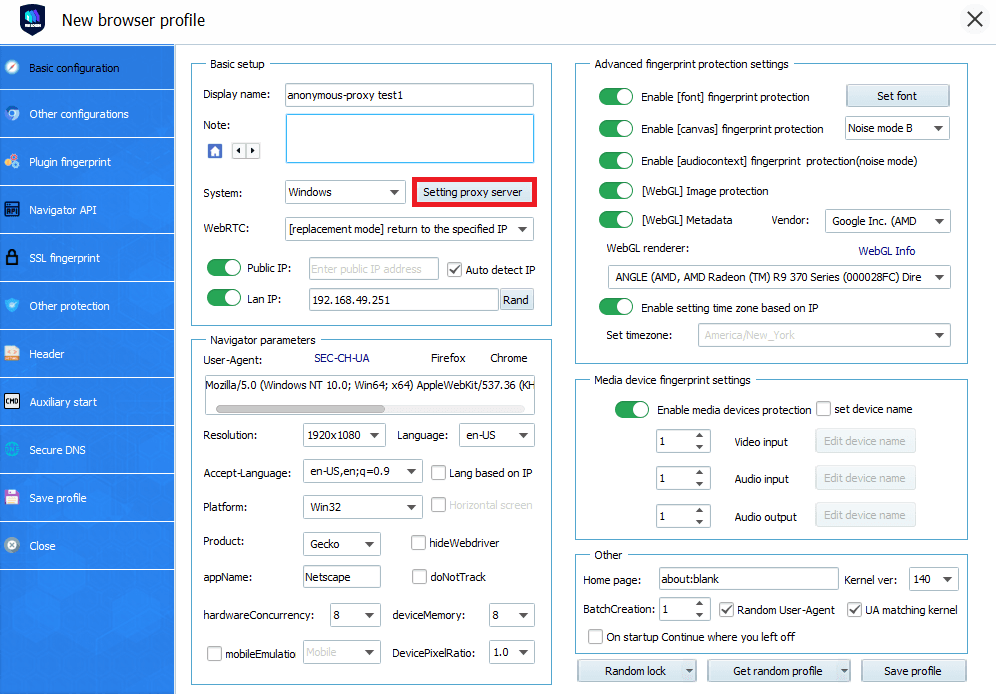
When you are in the New browser profile window, you'll need to name your profile and then click on Setting proxy server.
Step 5: Enter Your Anonymous Proxies Details
Once you clicked it, a new window to input your proxy details will be opened. Here, you'll need to toggle Enable proxy server, then choose the protocol you are going to use. We will use in this example HTTP. Then, you only need to enter your proxy credentials from the Anonymous Proxies Dashboard. If you've whitelisted your IP from the Anonymous Proxies dashboard you can skip entering the username and the password.
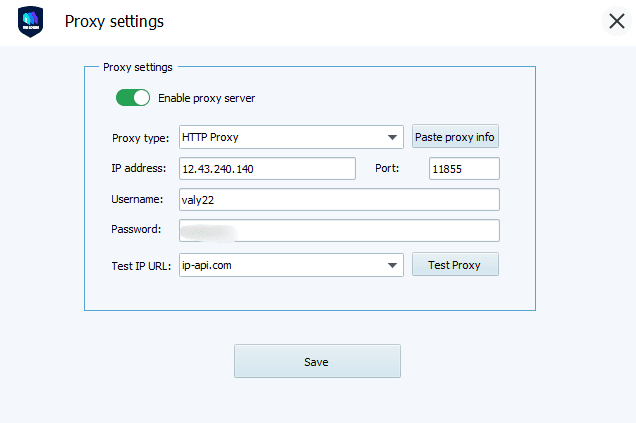
Step 6: Test and Confirm the Proxy
Once you filled all the details needed, click on Test Proxy to confirm that your proxy is working fine and then hit Save.
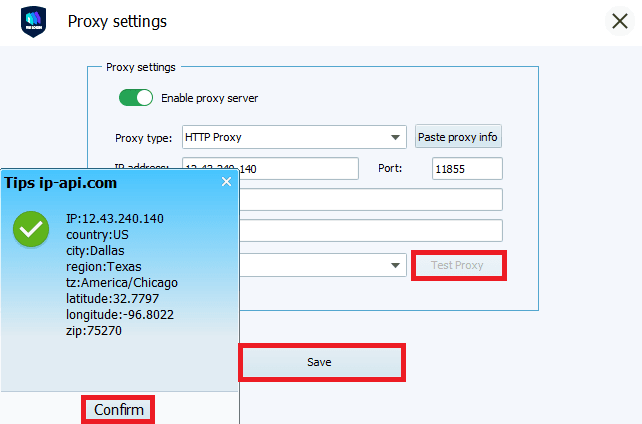
Step 7: Save the Profile
You'll be returned to the profile window and once you're there, you'll just need to click Save profile.
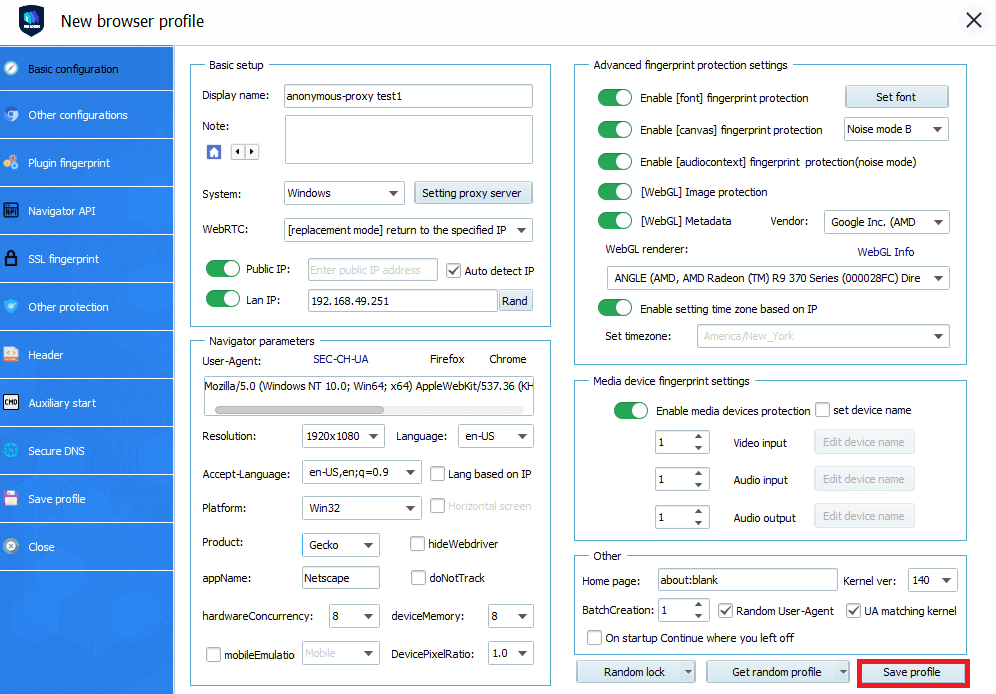
Pro tips for a cleaner setup
- One profile, one IP address: Think of each profile as its own identity, and assign a unique proxy to it.
- Match geo-signals: If your proxy has its location in London for example, be sure that you match the profile’s timezone and language to mirror that exit.
- Stay consistent: Try not to change a profile’s core fingerprint regularly. Consistency may look more reasonable over time.
If you work in teams, you can share or transfer the finished profile to a colleague without exposing raw credentials. If you automate, you can launch and control profiles automatically while keeping each one tied to your own proxy server.
Conclusion
As you've learned, if you pair VMLogin with Anonymous Proxies gives you the two pillars of safe multi account browsing: airtight profile isolation and clean, unique network identities. VMLogin manages the browser side, including separate storage and realistic fingerprints, while Anonymous Proxies supplies stable, location specific IPs for each profile.
If you have any problems with setting up your residential proxies with VMLogin or have any question related to proxies, contact our support team which is there for whenever you need help and if you want to see more setup guides, take a look at our integrations page.

Buy Backconnect Proxies
Rotating IPs on every request. Scale scraping and automation without manual IP management.
More antidetect-browser Proxy Integrations
See more antidetect-browser integrations that work seamlessly with Anonymous Proxies.

Proxy Integration With Kameleo
Learn how to set up Anonymous Proxies' residential proxies with Kameleo for automation, web scraping, and easier multi-account management.

Proxy Integration With Lalicat
Learn how to integrate Anonymous Proxies' residential proxies with Lalicat to manage multiple accounts with ease and browse in anonymous way.

Proxy Integration With ClonBrowser
Learn how to set up Anonymous Proxies’ residential proxies in ClonBrowser to manage multiple social media accounts smoothly and browse more privately.

Proxy Integration With Octo Browser
This integration tutorial will show you how to connect Anonymous Proxies in Octo Browser for safer multi-accounting and scraping in just a few minutes