

Proxy Integration With SessionBox
This integration tutorial will show you how to set up Anonymous Proxies in SessionBox for easier multi account work and private browsing.
What is SessionBox?
SessionBox is basically the “finally, this is easier” way to handle more than one account online. If you’re tired of logging out, logging back in, and losing your place every time you switch profiles, it keeps everything running side by side in one browser.
You set up separate profiles, and each one behaves like its own little browser bubble, with its own cookies, cache, and saved sessions. So your accounts don’t mix, your tabs don’t get messy, and you can jump between identities in seconds. It also helps cut down on cross site tracking by giving each session its own fingerprint.
For client work, testing, or daily multitasking, it makes multi account browsing feel calm and organized.
SessionBox Features
- Multiple profiles in one browser. SessionBox lets you run several accounts at the same time without constantly signing in and out. Each profile feels like its own separate space, so switching between identities stays quick and effortless.
- True session separation. Every profile keeps its own cookies and site data, which helps prevent mix ups like landing in the wrong dashboard or accidentally blending accounts together.
- Cloud sync across devices. If you move between machines, your profiles can come with you. You can start work on one device and continue later without rebuilding your setup from scratch.
- Proxy support per profile. You can attach a specific proxy to a specific profile, which is perfect when each account needs its own IP, location, or a consistent connection path. You can use any of the datacenter proxies, isp proxies or rotating residential proxies.
- Built in proxy management. Instead of keeping proxy details in random notes, spreadsheets, or chat messages, you can save everything inside SessionBox and give each proxy a clear label.
- Made for teams. If you work with other people, SessionBox makes it easier to stay aligned. You can keep setups consistent and hand work off without someone needing to recreate the same sessions from scratch, which is a huge relief for agencies and busy teams.
- Automation friendly workflows. When your workload grows, you can move beyond doing everything manually. SessionBox fits nicely into repeatable, scalable workflows, so you can streamline testing or automation tasks without losing the structure of your profiles.
How to Set Up a proxy in SessionBox?
Before you start setting things up in SessionBox, take 30 seconds to prep the only info you’ll need. Log in to your Anonymous Proxies dashboard account and pull up your proxy credentials. In the walkthrough below, I’ll use residential proxies since that’s the most common choice for day to day browsing and account work. But nothing changes if you’re using datacenter or mobile proxies, so the choice is totally up to you.
Step 1: Download SessionBox
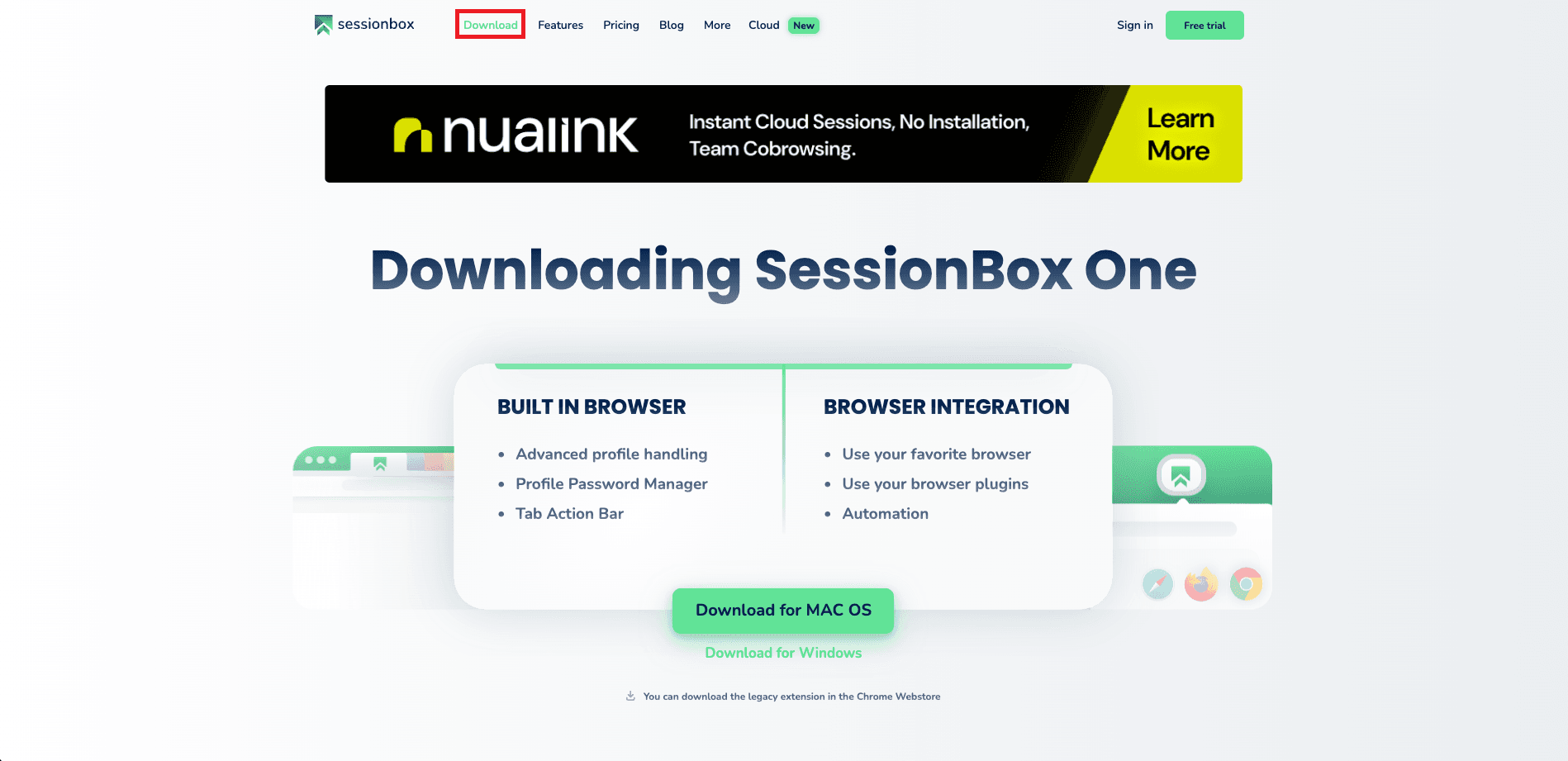
For the beginning, we'll need to go to the SessionBox website and click on Download button, then choose the installer based on your OS.
Step 2: Create a SessionBox account
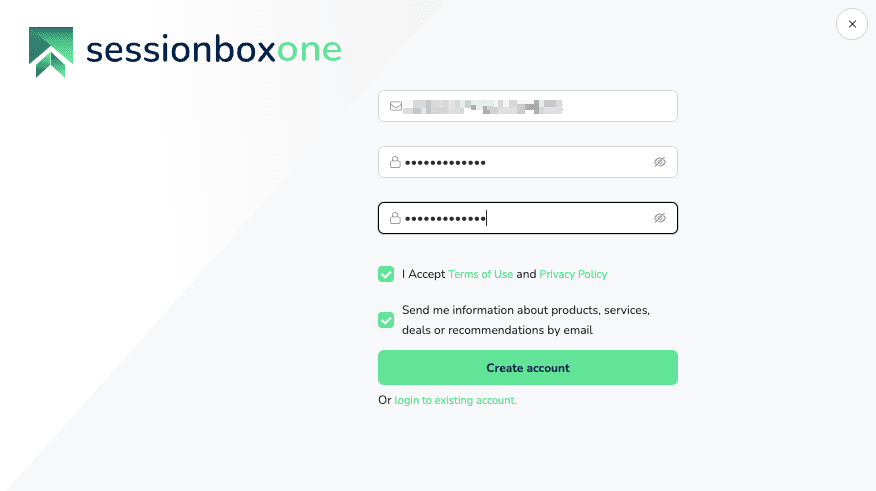
Once the download is finished, you'll need create an account for SessionBox. If you already have a SessionBox account, use the login option instead and continue.
Step 3: Create profile
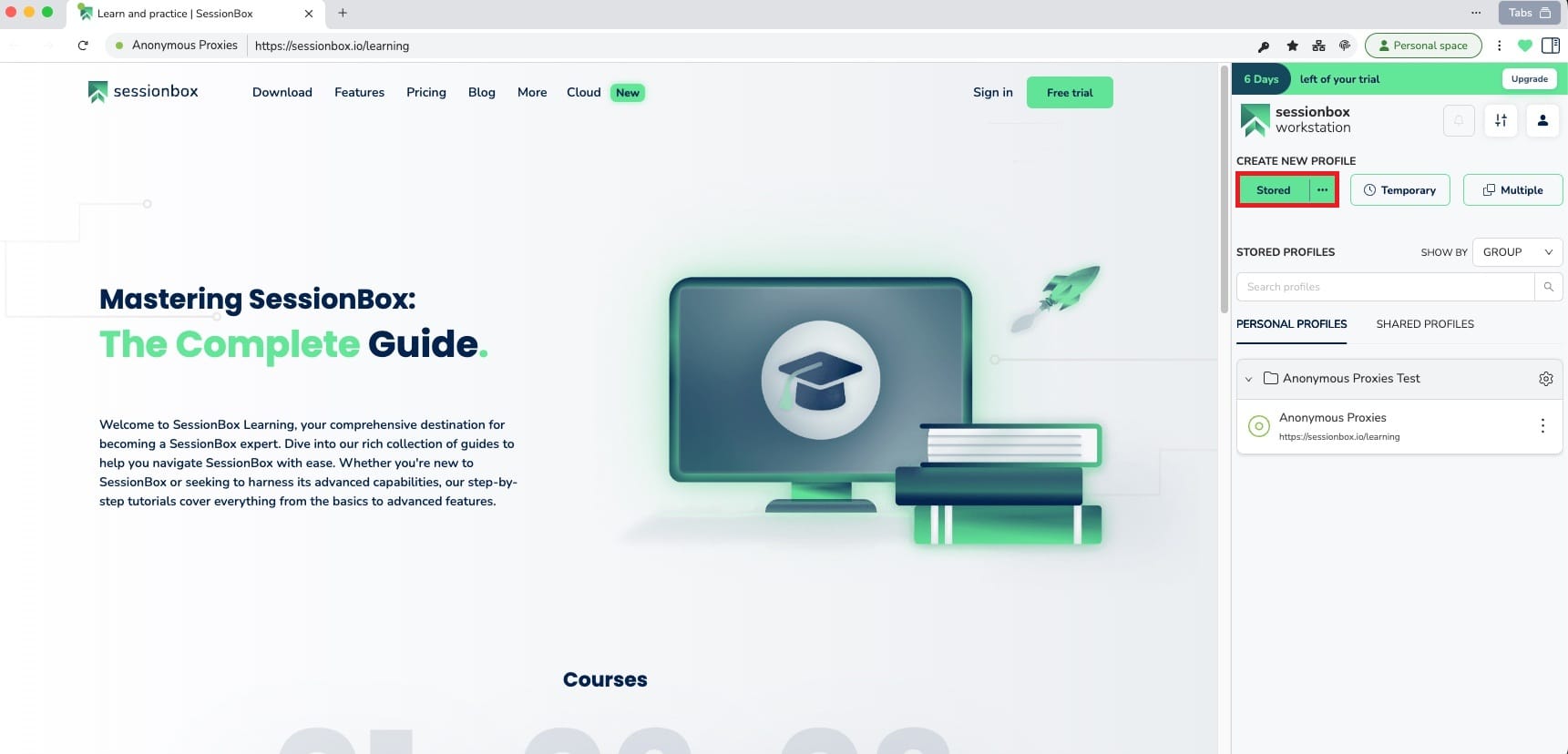
When you'll be inside SessionBox Workstation, you will need to create a new profile. To do this, click on Stored so the profile remains saved for future use. You can also give it a so you instantly recognize what it’s for.
Step 4: Open proxy manager
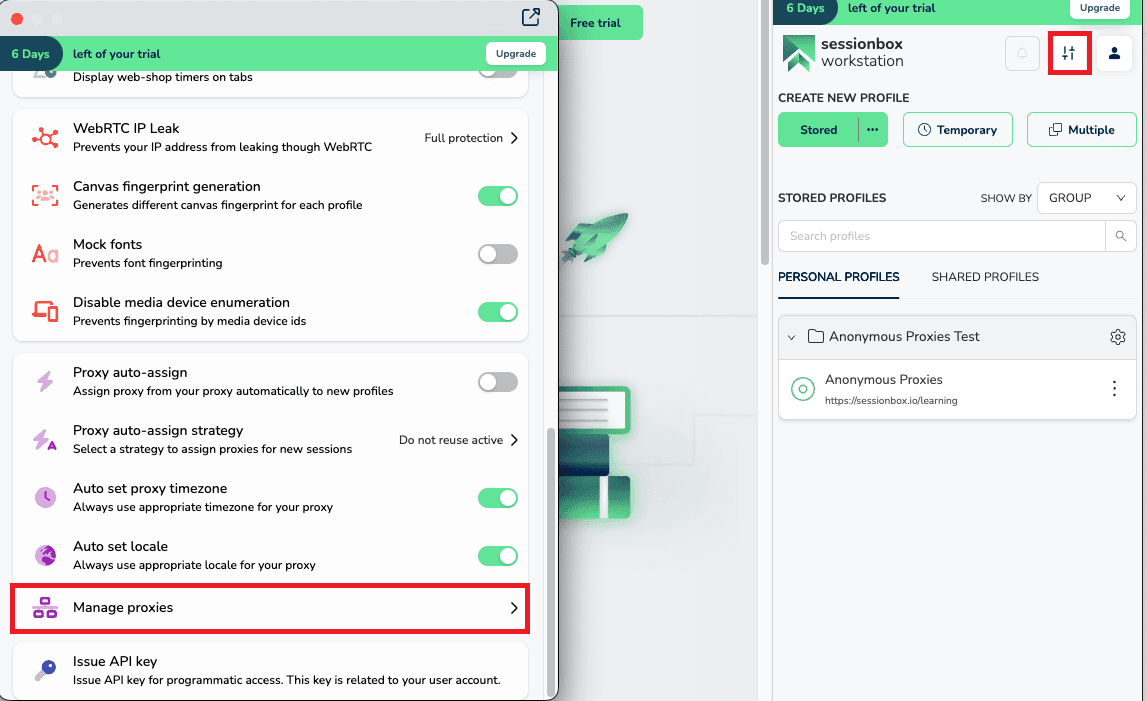
After you create the profile, click the settings icon, scroll down until you see Manage proxies, then open it.
Step 5: Configure proxy
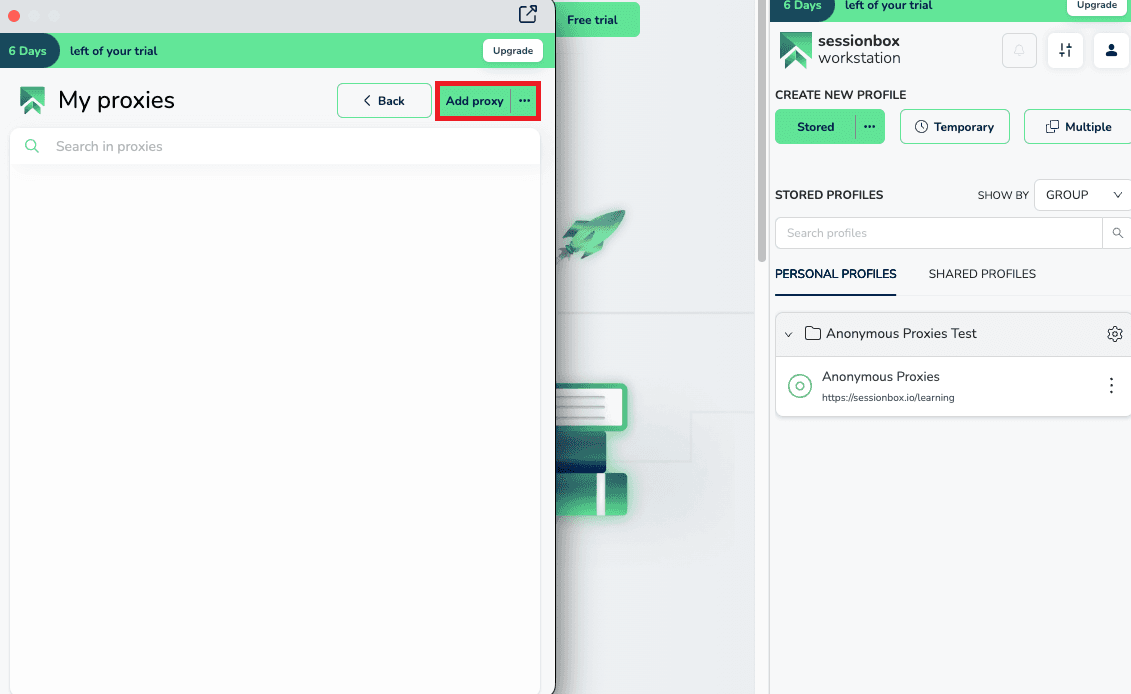
Once the My proxies screen open, click the Add proxy button in the top-right corner.
Step 6: Add proxy details
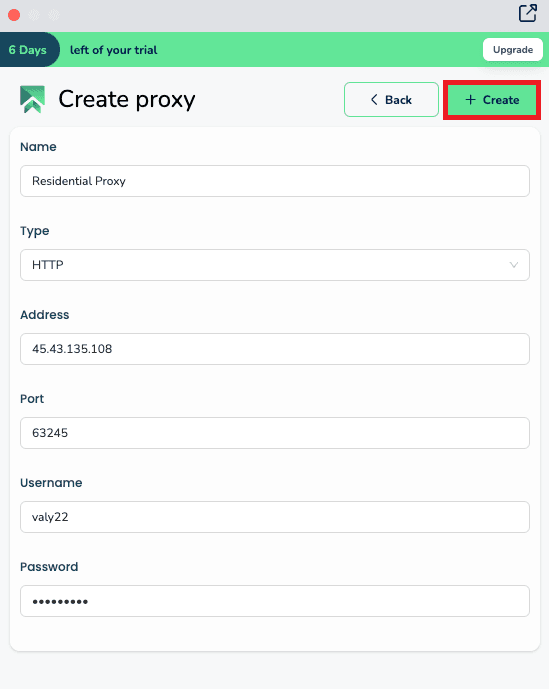
You’ll land on the Create proxy page and here be sure to select correct proxy type you are going to use, then fill all the required fields using the proxy's details from Anonymous Proxies dashboard. When everything looks clean and complete, hit Create to save it.
Step 7: Test proxy connection
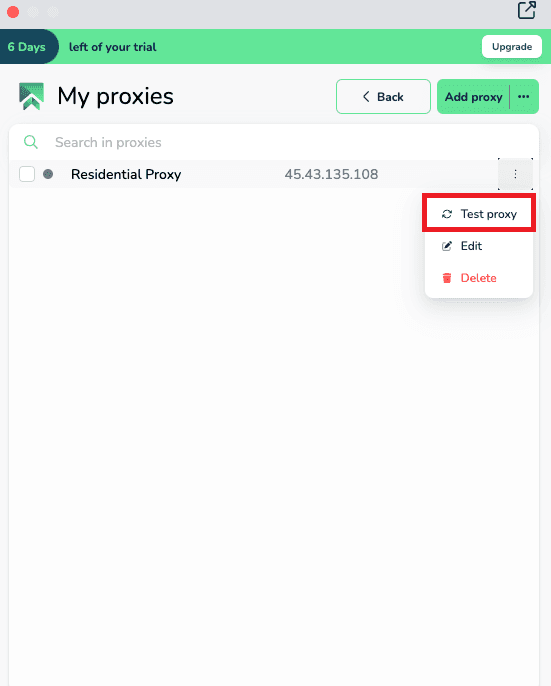
Once your proxy is saved, find it in the list, click the three dot menu next to it, and choose Test proxy.
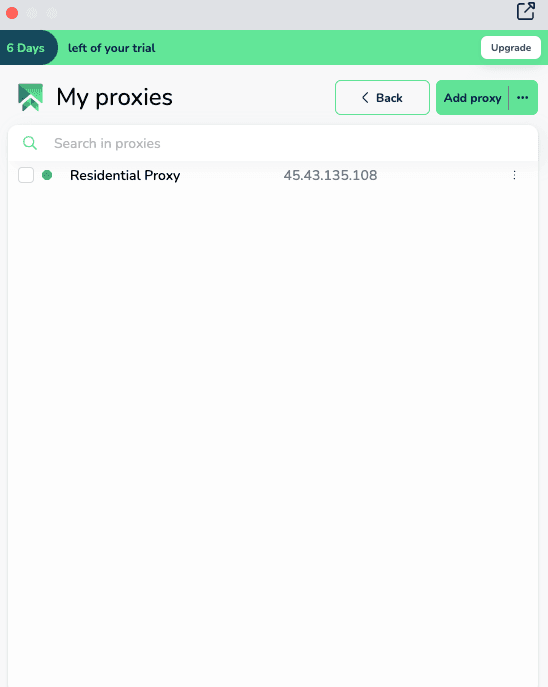
If the connection is good, you’ll see it marked as successful and the status indicator will update right there in the proxy list.
Step 8: Open profile settings
Now return back to your profile list, find the profile you created previously, click on it and select the Edit Profile option.
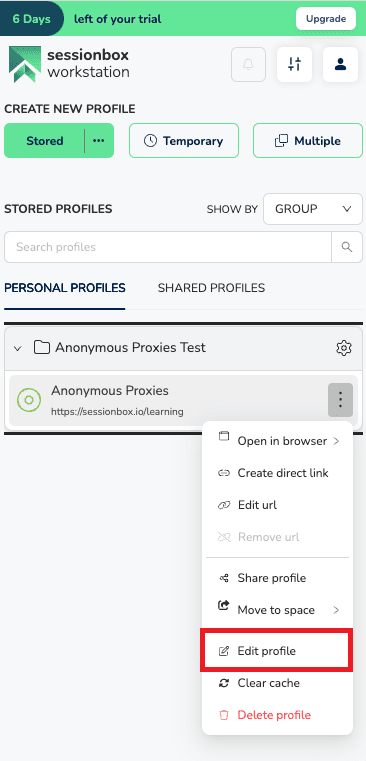
Step 9: Attach the proxy to your profile
When you are in the Edit profile window, find the Proxy dropdown and select the proxy you created. Click Ok to save it.
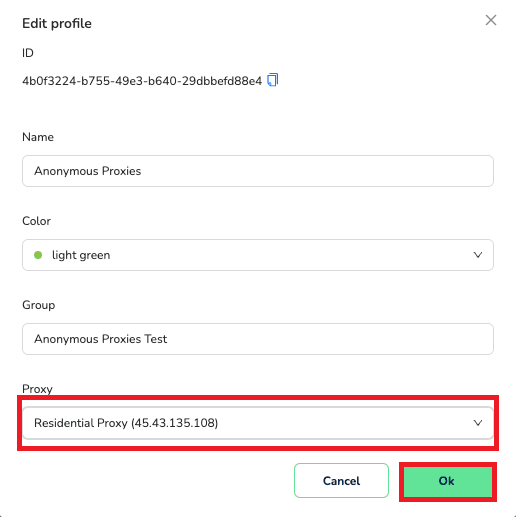
Step 10: Verify IP
For the final step, open a tab inside that SessionBox profile and visit an IP checker site to see that the profile you've created uses the proxy's IP.
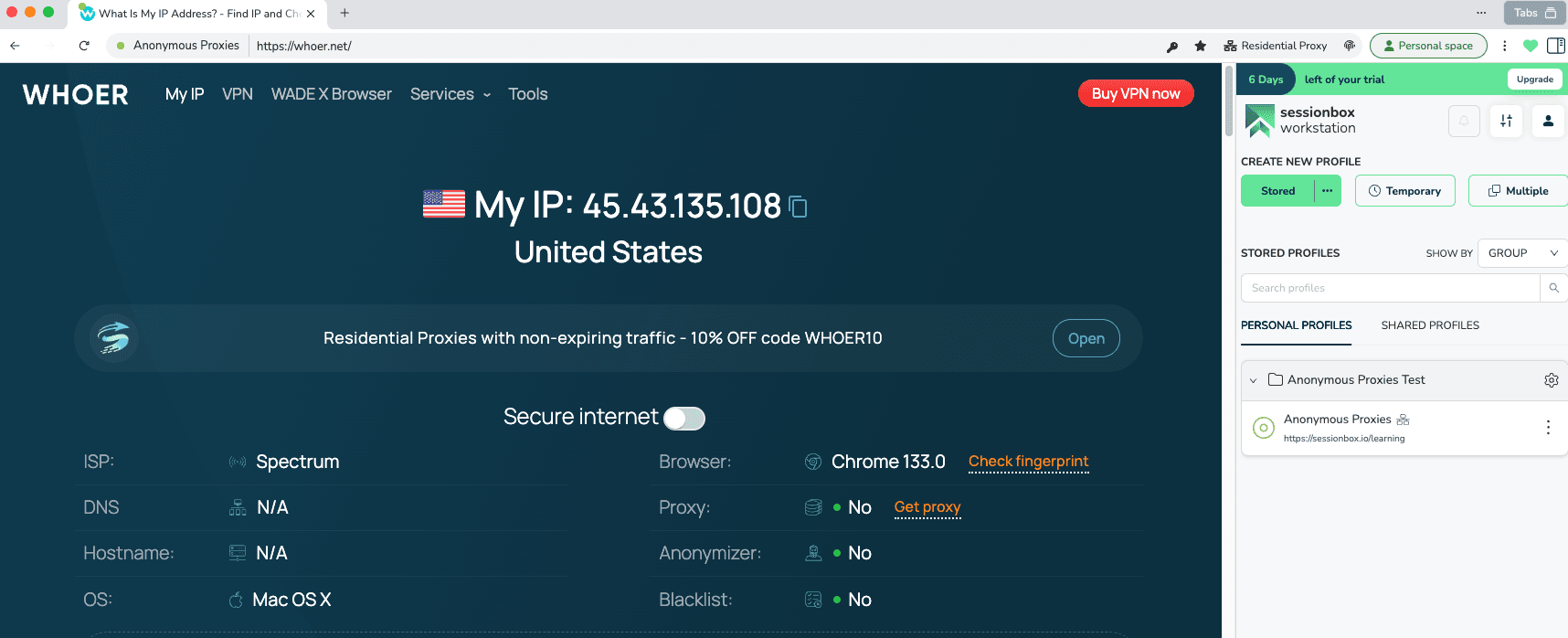
Final Thoughts
SessionBox is already excellent at keeping your sessions separate, but the real difference is seen when you pair it with a reliable proxy provider like Anonymous Proxies. Together, they give you a simple two layer setup that just makes sense. SessionBox keeps cookies and logins isolated inside each profile, and your proxies add a dedicated IP and location for every profile you run.
If you’re not sure which proxy type matches what you’re trying to do, the Anonymous Proxies support team can help you choose the best option. And if you’d like more guides like this, you can see more integration tutorials on our integrations page.

Buy Backconnect Proxies
Rotating IPs on every request. Scale scraping and automation without manual IP management.
More antidetect-browser Proxy Integrations
See more antidetect-browser integrations that work seamlessly with Anonymous Proxies.

Proxy Integration With Kameleo
Learn how to set up Anonymous Proxies' residential proxies with Kameleo for automation, web scraping, and easier multi-account management.

Proxy Integration With Lalicat
Learn how to integrate Anonymous Proxies' residential proxies with Lalicat to manage multiple accounts with ease and browse in anonymous way.

Proxy Integration With ClonBrowser
Learn how to set up Anonymous Proxies’ residential proxies in ClonBrowser to manage multiple social media accounts smoothly and browse more privately.

Proxy Integration With Octo Browser
This integration tutorial will show you how to connect Anonymous Proxies in Octo Browser for safer multi-accounting and scraping in just a few minutes