

Proxy Integration With RoxyBrowser
Learn how to integrate Anonymous Proxies with RoxyBrowser to run multiple profiles safely, reduce bans, and browse anonymously.
What is RoxyBrowser?
RoxyBrowser is an anti-detect browser made for anyone who needs to run more than one account or workflow without everything blending together. Instead of treating your browser like one single identity, it lets you create separate profiles that behave like completely different devices. Each profile keeps its own cookies, cache, and session data, so logging into one account does not “spill over” into another. And when you add a proxy to a profile, that profile also gets its own network route, which makes your setup feel clean, consistent, and far less likely to trigger account linking.
RoxyBrowser Features
- Profile isolation that stays truly separate. Each profile runs as its own clean environment with independent cookies and sessions, so switching accounts feels safe and organized rather than messy.
- Built-in proxy management. You can add and manage proxies inside RoxyBrowser, then assign a specific proxy to each profile so every workflow has its own IP route.
- Fast profile creation for scaling. When you need more than a couple of profiles, speed matters. RoxyBrowser makes it easy to create profiles quickly and assign proxies without turning setup into a repetitive task.
- Fingerprint controls for realistic setups. RoxyBrowser lets you adjust key browser signals so profiles look consistent and natural, which is essential when you’re running multiple identities at scale.
- Team-ready organization. With workspaces and projects, your setup stays tidy as it grows. You can group profiles by client, campaign, or task, and give teammates access only to what they actually need, so nothing turns into a messy “who opened what?” situation.
How to Integrate Anonymous Proxies with RoxyBrowser
Before you jump into RoxyBrowser, log in to your Anonymous Proxies dashboard and keep your proxy details ready. I’ll walk through the flow using residential proxies, but the exact same process applies to datacenter or mobile proxies too.
Step 1: Download RoxyBrowser
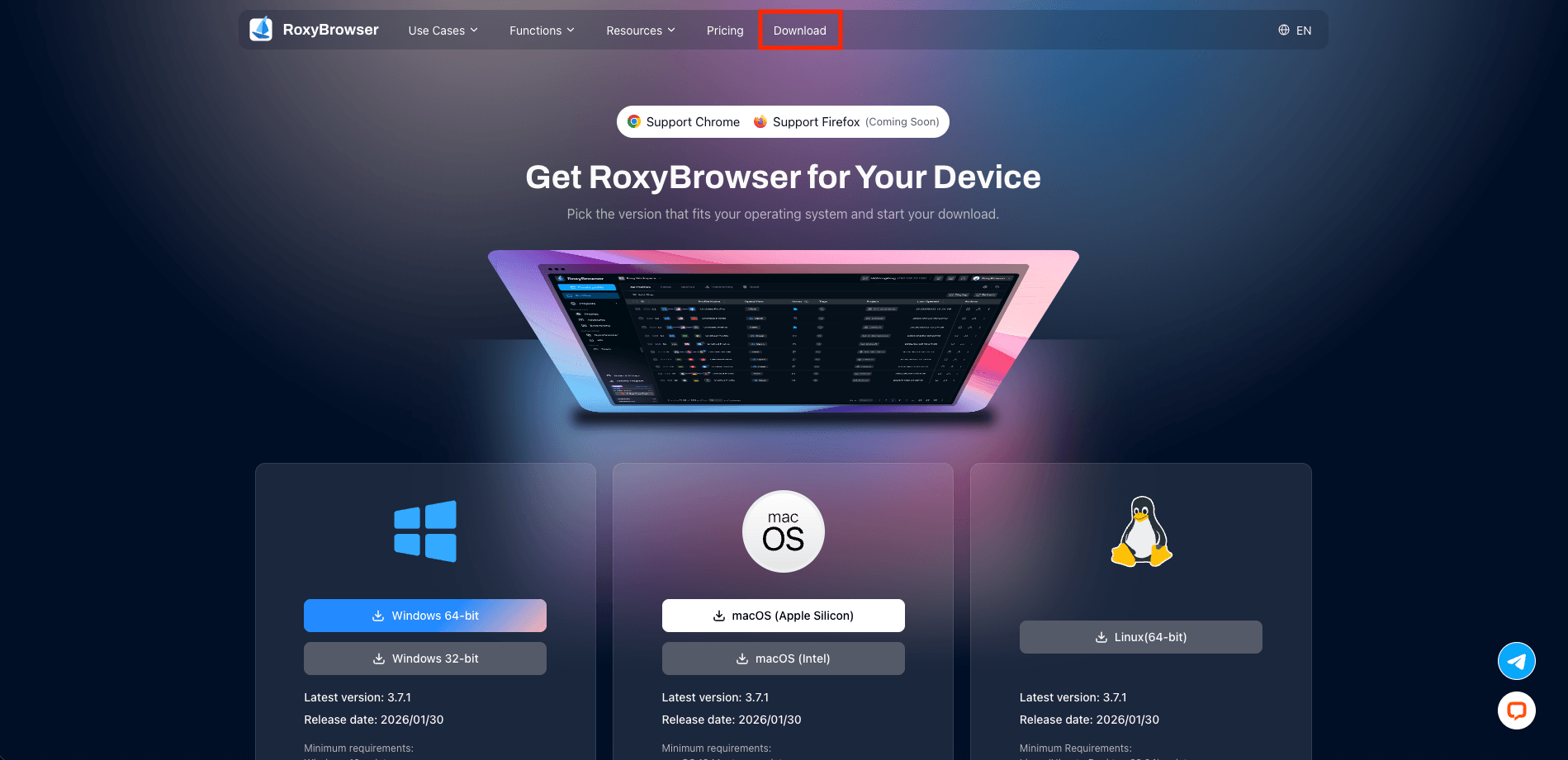
Go to the RoxyBrowser website and click the Download button in the top menu. Right now, RoxyBrowser support Windows, macOS, and Linux. Pick the one that matches your device.
Step 2: Sign in
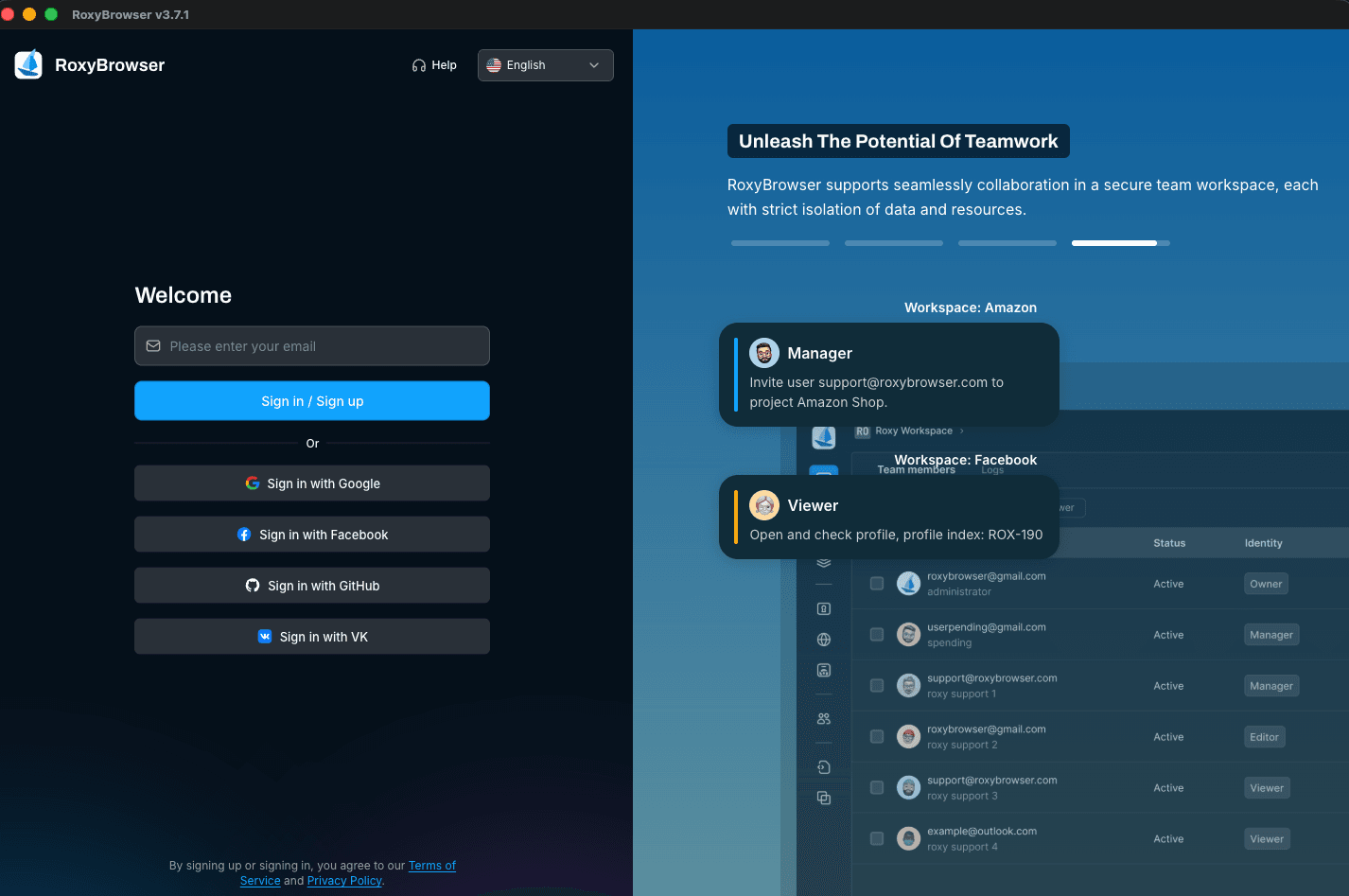
After you have downloaded RoxyBrowser, simply click on the Sign in / Sign up button. If you have an account already, just sign into RoxyBrowser like normal, otherwise, registering for one takes no more than a few minutes.
Step 3: Create profile
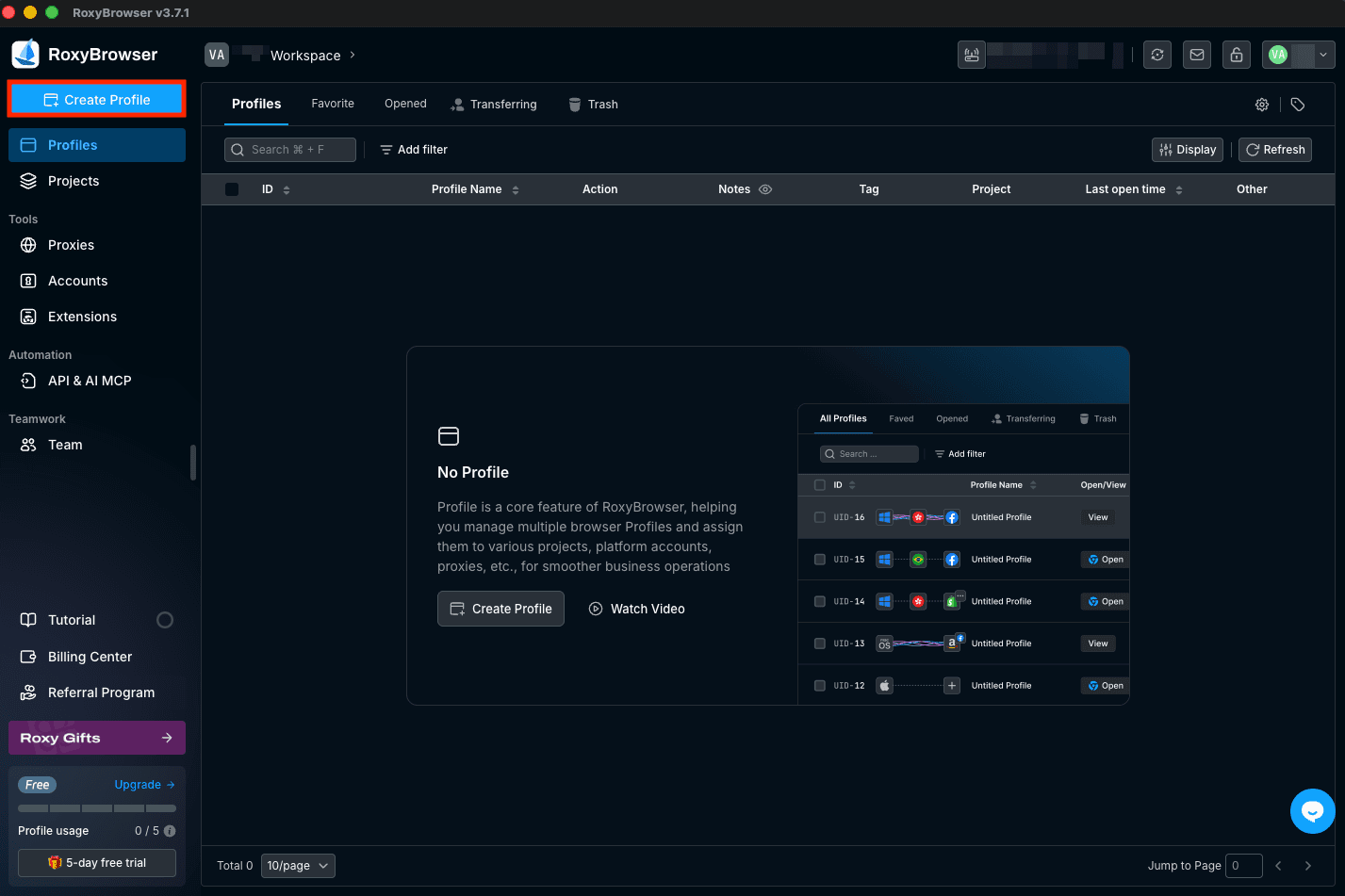
After you log in and are inside the app, go to the Profiles area and click Create Profile on the left side.
Step 4: Name profile
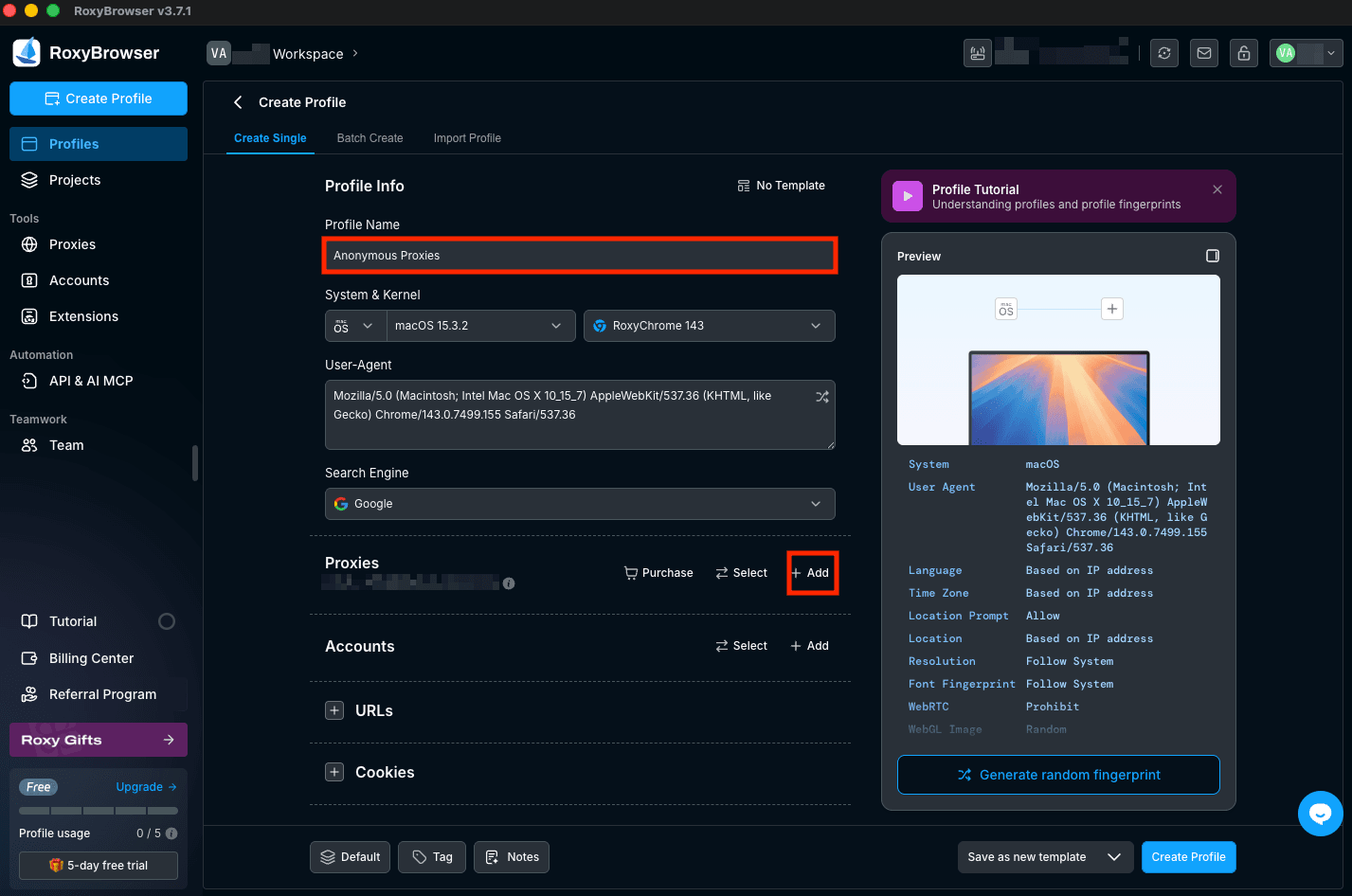
When you are in the Create Profile screen, stay on Create Single and be sure that you name your profile. You can also choose the system/browser options shown in the profile info area. Then, you need to scroll down to the Proxies section and click + Add to bring up the proxy setup window.
Step 5: Add proxy details
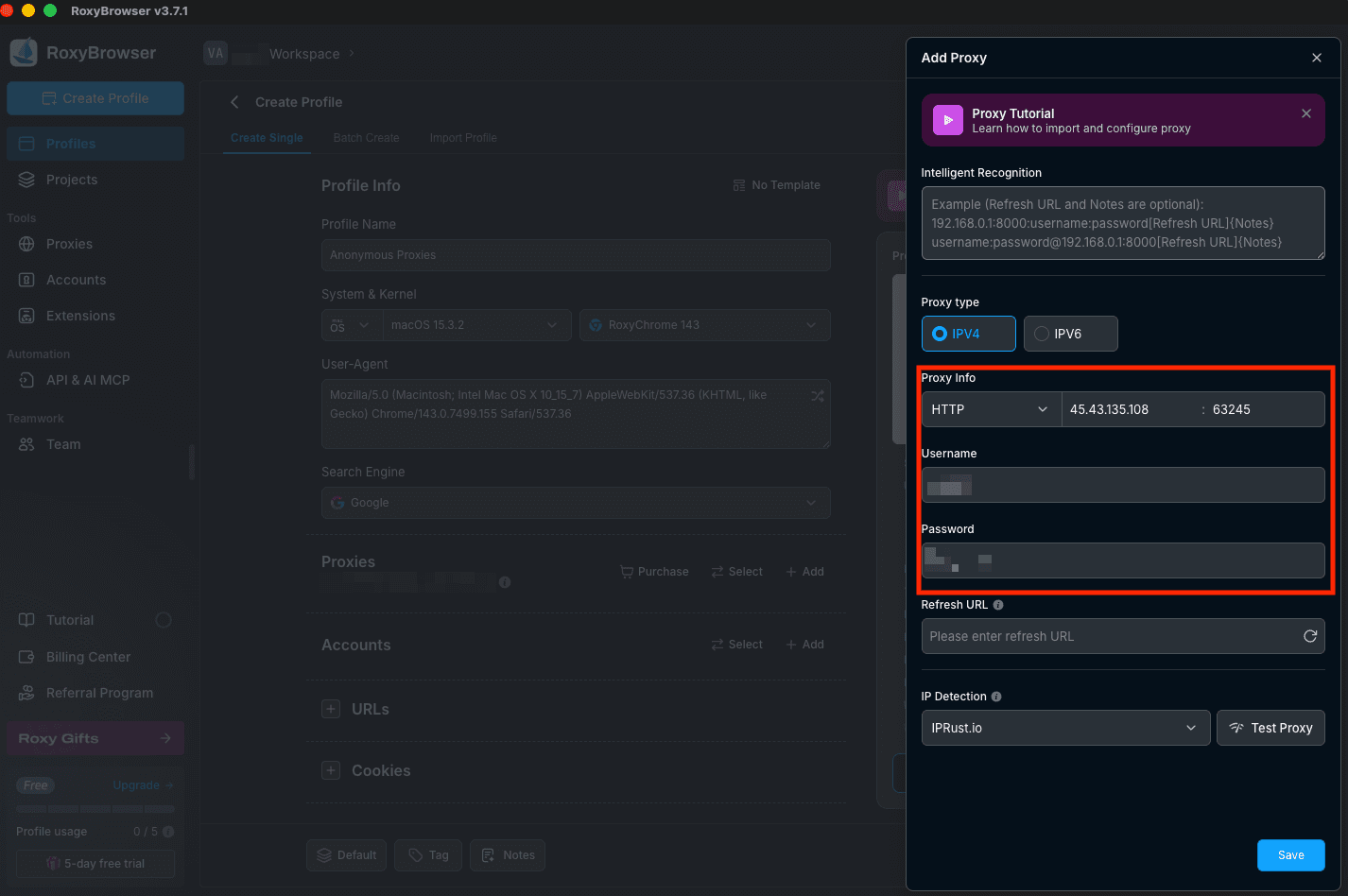
In the Add Proxy window, choose your proxy type, then, under Proxy Info, select the protocol you want and enter your proxy host/IP and port. Next, fill in Username and Password if your proxy plan uses credential authentication. If your plan uses IP whitelisting instead, you can usually leave those fields empty after you whitelist your device IP in the Anonymous Proxies dashboard.
Step 6: Test proxy
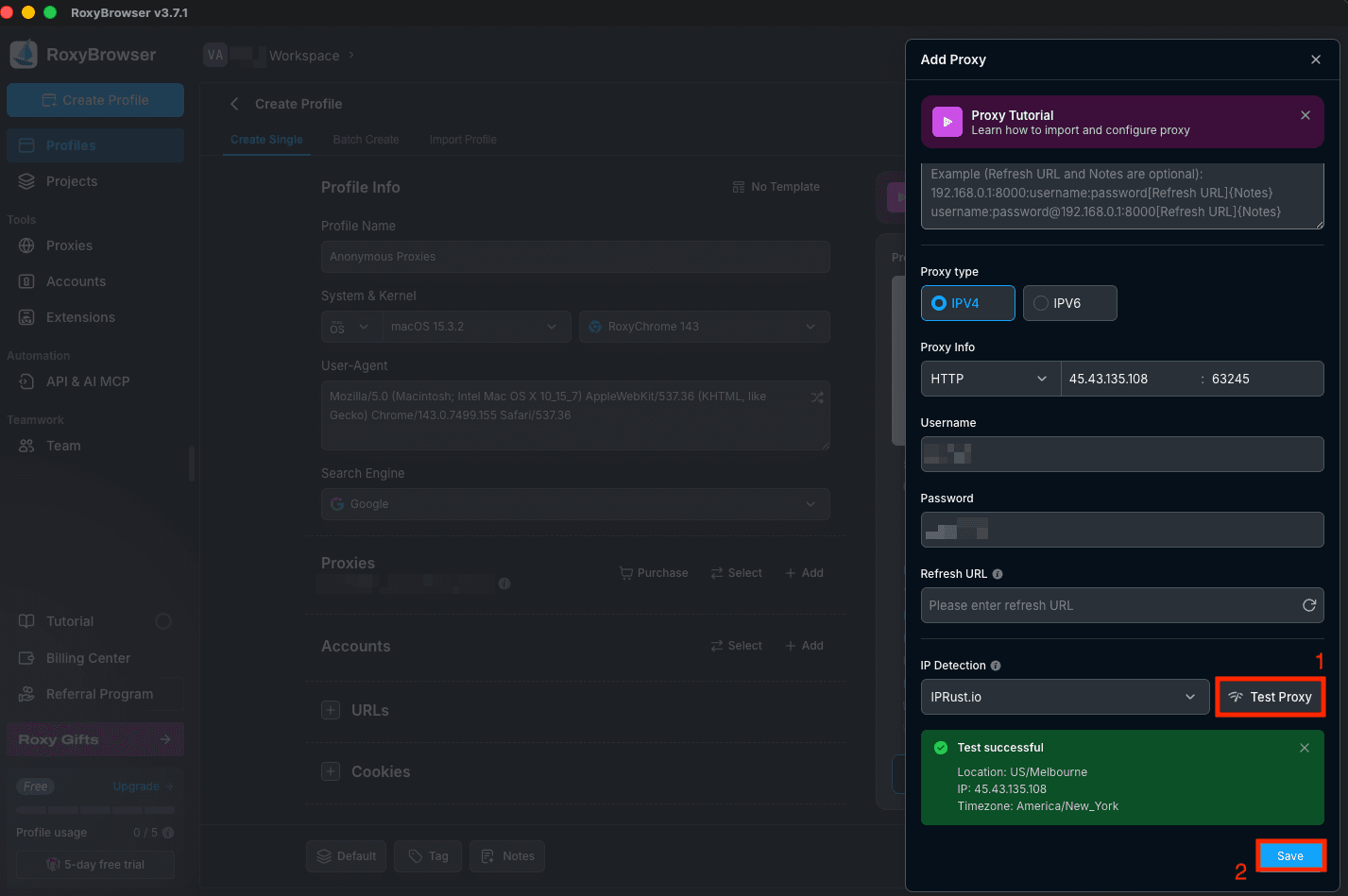
Once you filled all the required fields, it's time to click Test Proxy. If everything is set up correctly, you should see a successful result along with details like the detected location and IP. Once the test looks good, click Save.
Step 7: Save profile
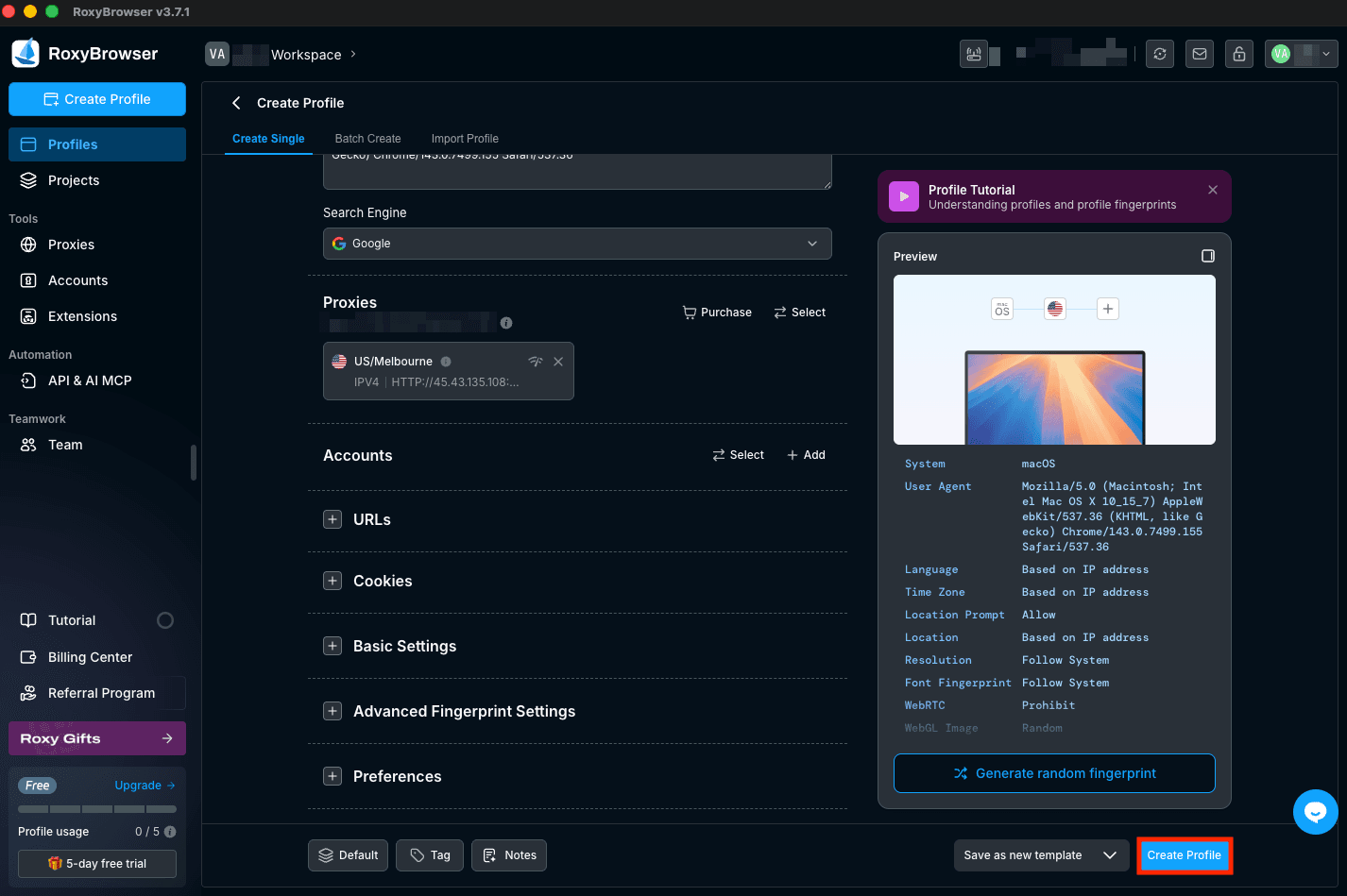
After saving your proxy details, you will return to the profile creation screen and see your proxy added under the Proxies section. Then, all what's left is to click Create Profile in the bottom right to save the whole profile.
Step 8: Open profile
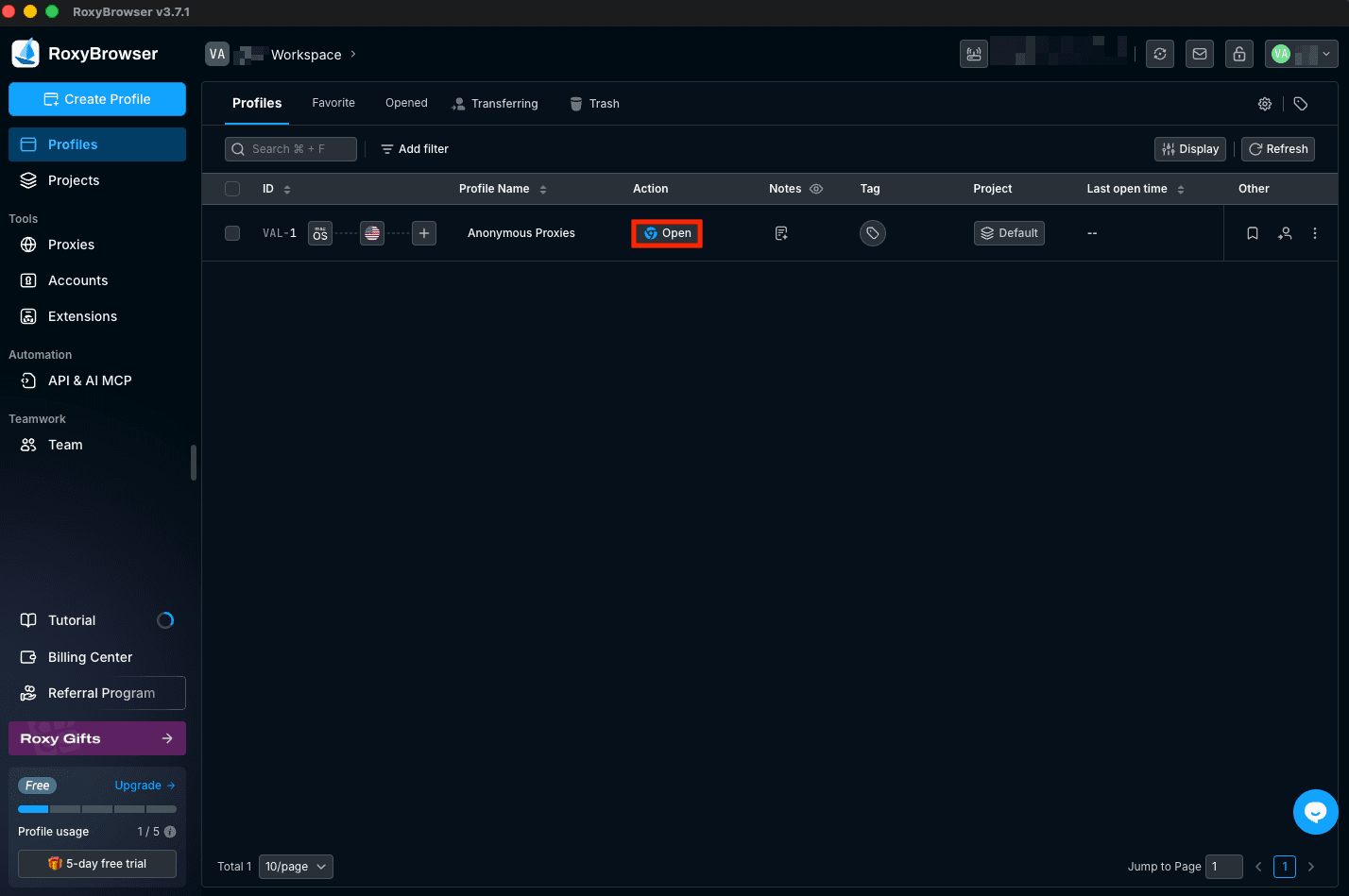
Once you'll be back on the Profiles list, find the profile you just created and click Open. A new browser window will launch which will have its traffic router through the proxy we've just set up.
Wrap Up
RoxyBrowser is already built for clean profile isolation, but if you pair it with Anonymous Proxies's residential or mobile proxies takes it even further. With the authenticity these type of proxies provide, you'll forget about those annoying blocks when you need manage your IG accounts or you are web scraping.
If you ever get stuck or want help choosing the best proxy type for your use case, our support team is available around the clock. And if you want to see more integration tutorials, you can also check them out on our integrations page.

Buy Backconnect Proxies
Rotating IPs on every request. Scale scraping and automation without manual IP management.
More antidetect-browser Proxy Integrations
See more antidetect-browser integrations that work seamlessly with Anonymous Proxies.

Proxy Integration With Kameleo
Learn how to set up Anonymous Proxies' residential proxies with Kameleo for automation, web scraping, and easier multi-account management.

Proxy Integration With Lalicat
Learn how to integrate Anonymous Proxies' residential proxies with Lalicat to manage multiple accounts with ease and browse in anonymous way.

Proxy Integration With ClonBrowser
Learn how to set up Anonymous Proxies’ residential proxies in ClonBrowser to manage multiple social media accounts smoothly and browse more privately.

Proxy Integration With Octo Browser
This integration tutorial will show you how to connect Anonymous Proxies in Octo Browser for safer multi-accounting and scraping in just a few minutes