

How to Set Up Anonymous Proxies With Octoparse
In this guide, you'll learn how you can enhance your web scraping efficiency by integrating Anonymous Proxies with Octoparse. Forget about IP bans and secure every data extraction process.
What Is Octoparse?
Octoparse is a web scraping tool that is easy to use for anyone, from non-developers to large enterprises, to extract any web page into structured and organized data without writing a single line of code. Through the advanced AI and machine learning algorithms of Octoparse, users can trace any target information while working with it and simplify the process of web data extraction effectively.
Octoparse Features
- No Coding Required. Octoparse doesn't require any programming knowledge. It provides an intuitive and user-friendly interface-just point and click on what you want to capture, and it would get the data for you.
- Advanced AI and Machine Learning. This tool utilizes advanced AI and machine learning in order to detect and scrape data efficiently. It can deal with very complicated websites and extract a wide range of information, including text, links, image URLs, and HTML code.
- Overcoming Web Scraping Challenges. You can forget about these common challenges since Octoparse has features like automatic IP rotation and extended session times that allow you to get around most anti-scraping mechanisms. Not to mention the handling of CAPTCHA, so your data extraction never gets interrupted
- 24/7 Cloud-Based Scraping. Octoparse provides you with continuous cloud scraping, so you can scrape data any time from anywhere. The cloud service keeps your data collection up and running even when your device is off.
- Visual Workflow and Pre-Built Templates. The platform offers an easy-to-navigate visual workflow, along with a library of pre-configured templates for popular websites. You can also customize tasks to meet your specific data extraction needs.
Integrate Anonymous Proxies With Octoparse In Just A Few Simple Steps
Step 1: Download Octoparse
Visit the official Octoparse website, download the software and install it. Once installed, you can open the application.

Step 2: Log In or Set Up a Free Account
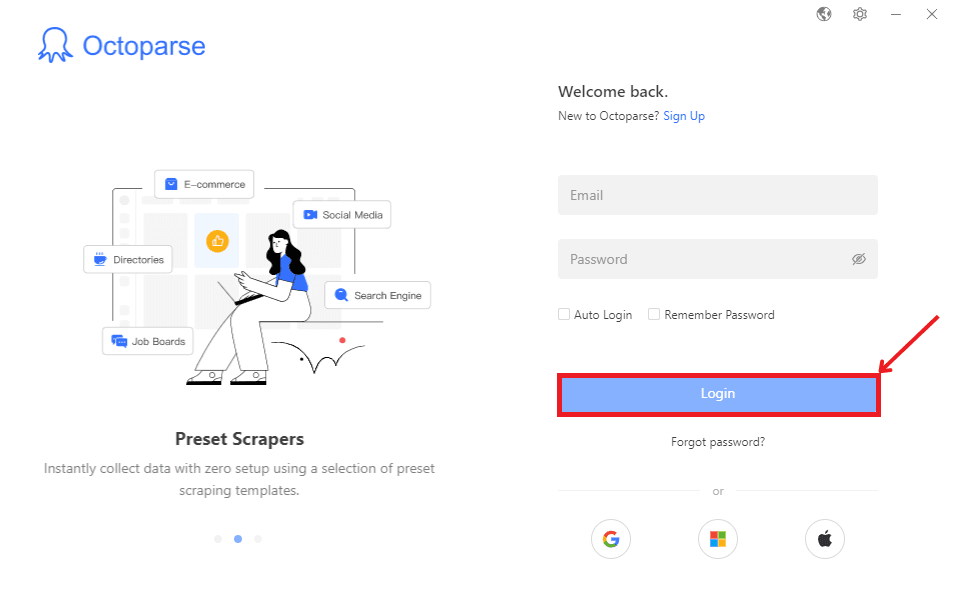
If you haven't already, create a free Octoparse account or log in to your existing one. Once logged in, you’re ready to create your first task.
Step 3: Create a New Task
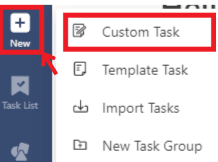
In the top-left corner, click on the “+New” button to start a new task. There, select the "Custom Task" option.
Step 4: Enter the Target URL
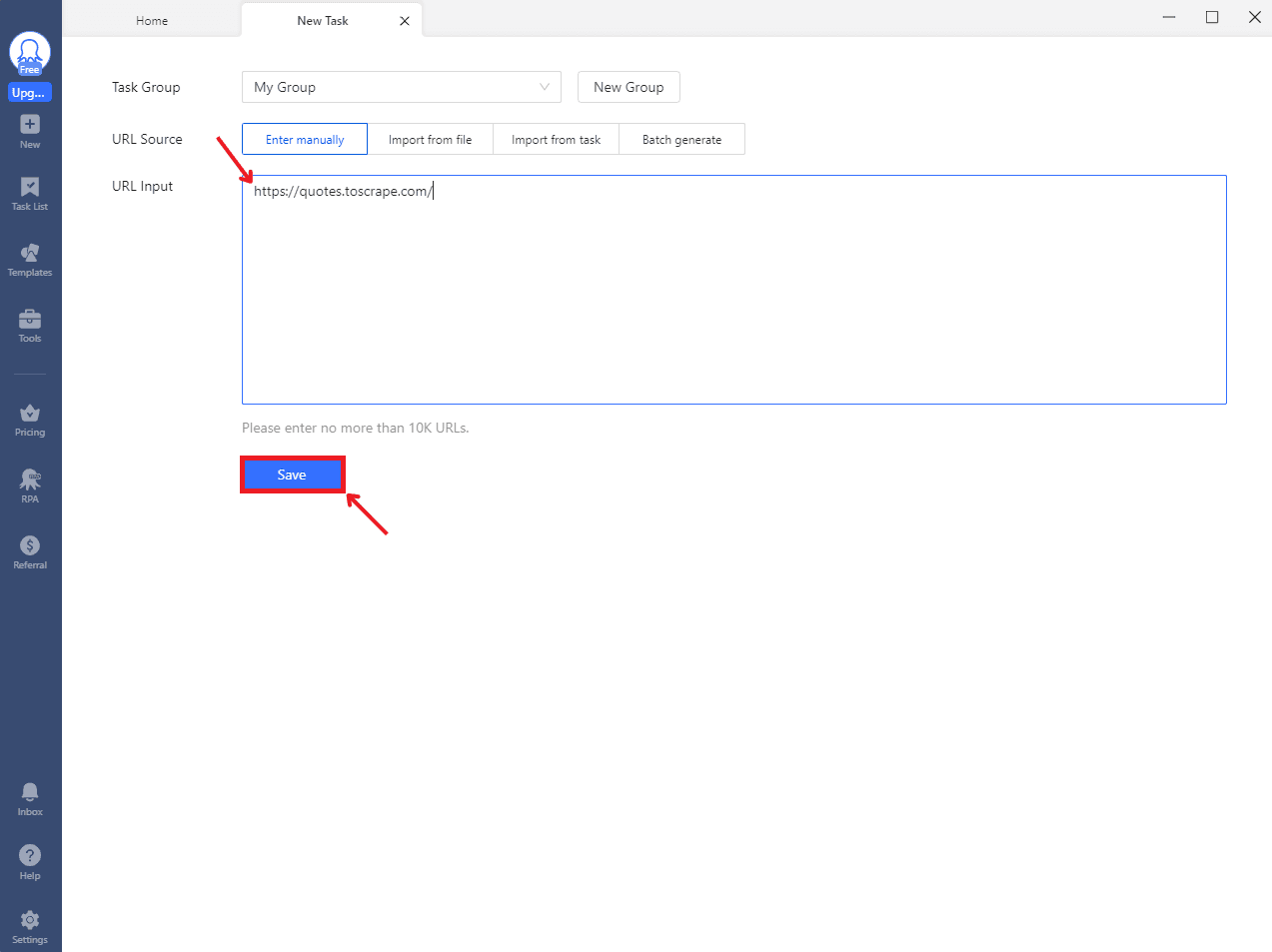
In the URL Input field, type the web address of the page you want to scrape and click Save. I'm going to use quotes.toscrape.com as an example.
Step 5: Access Anti-blocking Settings
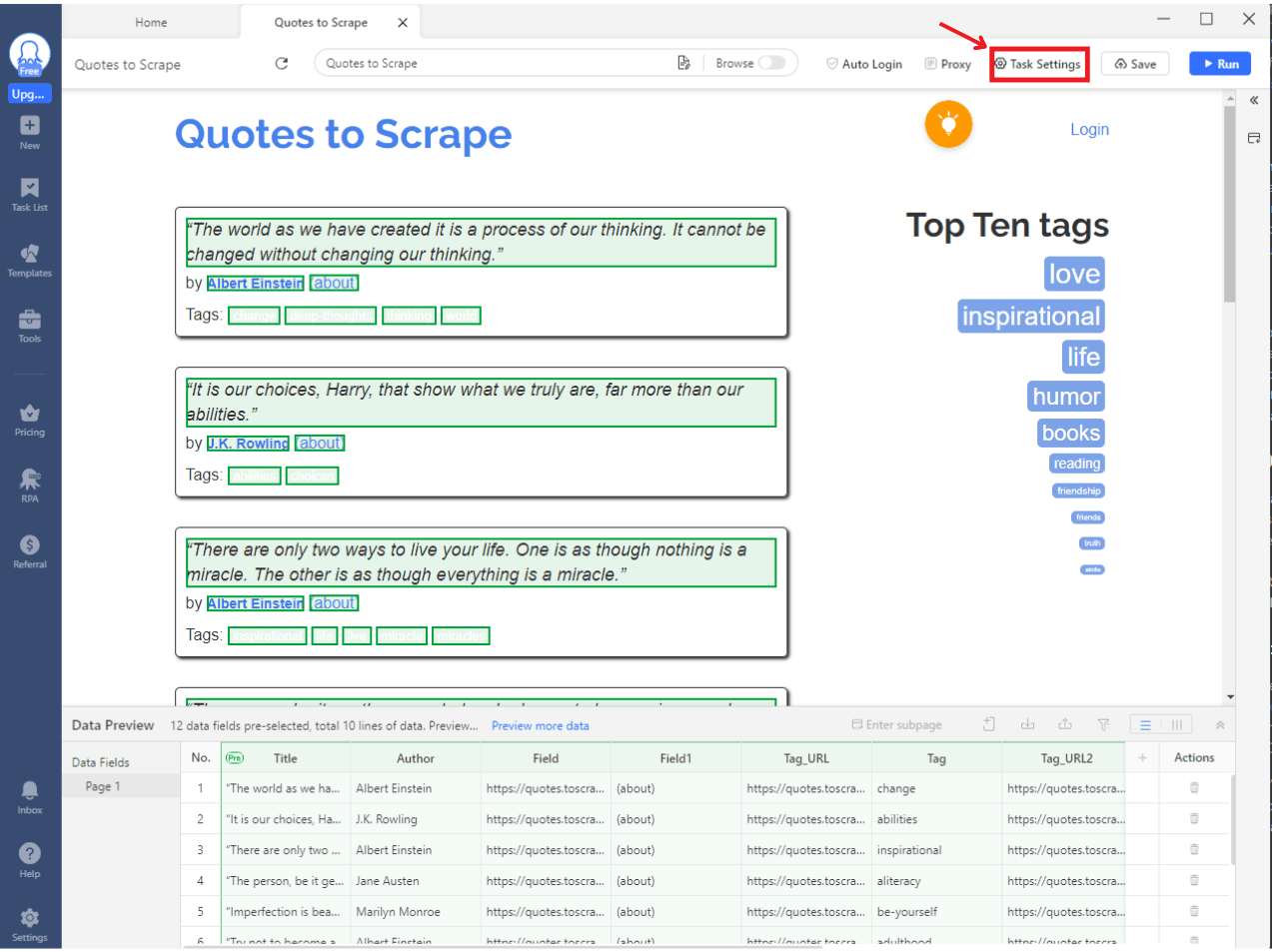
After the page loads, go to Task Settings and click on the Anti-blocking Settings button.
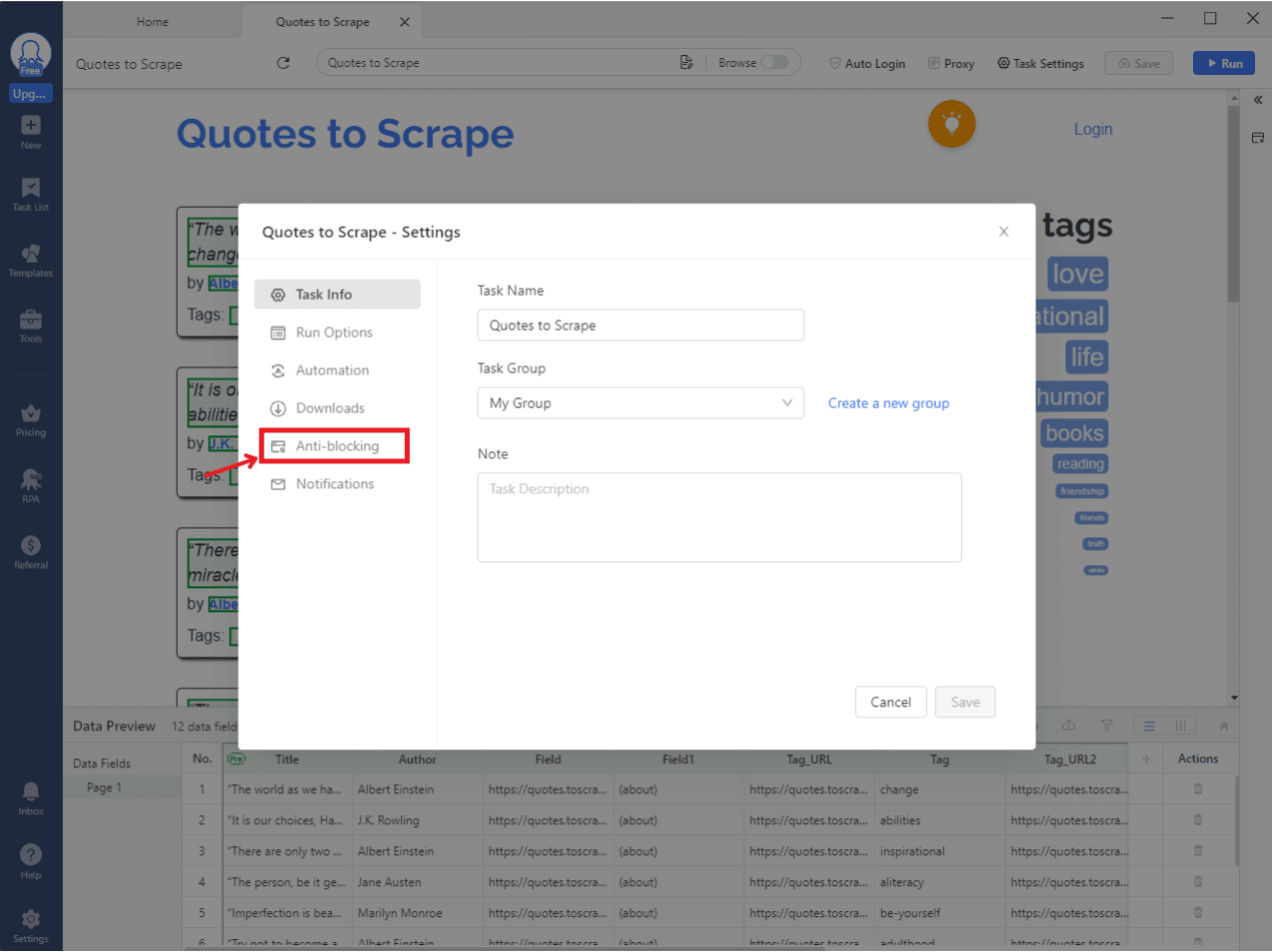
Step 6: Configure Proxies
Here, check the box labeled Access websites via proxies and then you should enable Use my own proxies and click on the Configure button.
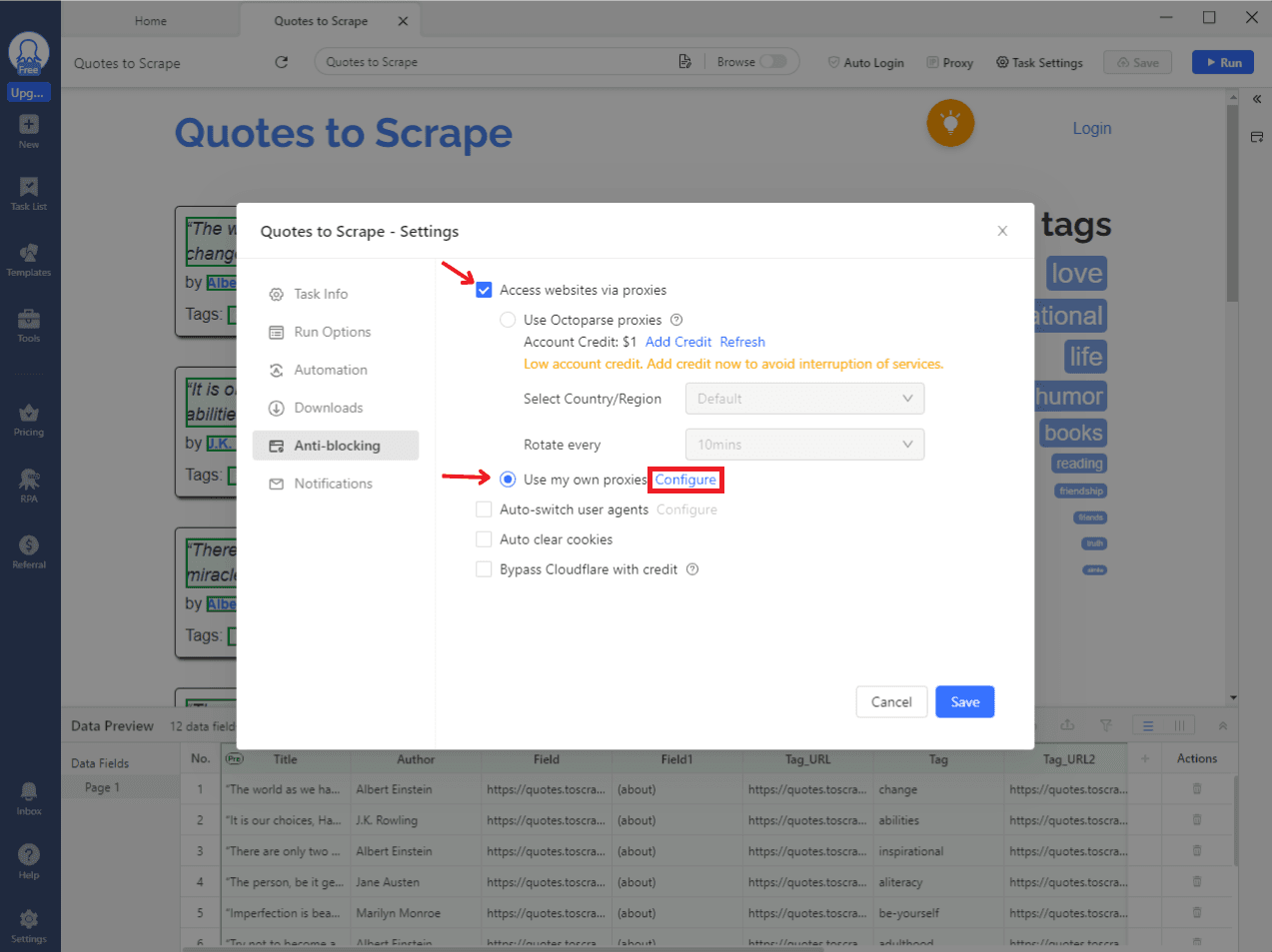
Step 7: Enter proxy details
In the pop-up window you will need to enter your proxy details.
- For proxies that need authentication, use IP:PORT:USERNAME:PASSWORD.
- For IPs that are whitelisted, you just need to enter proxies in the IP:PORT format.
Moreover, you can set the Switch interval according to your preference. Now, you just need to click on Confirm and then on Save.
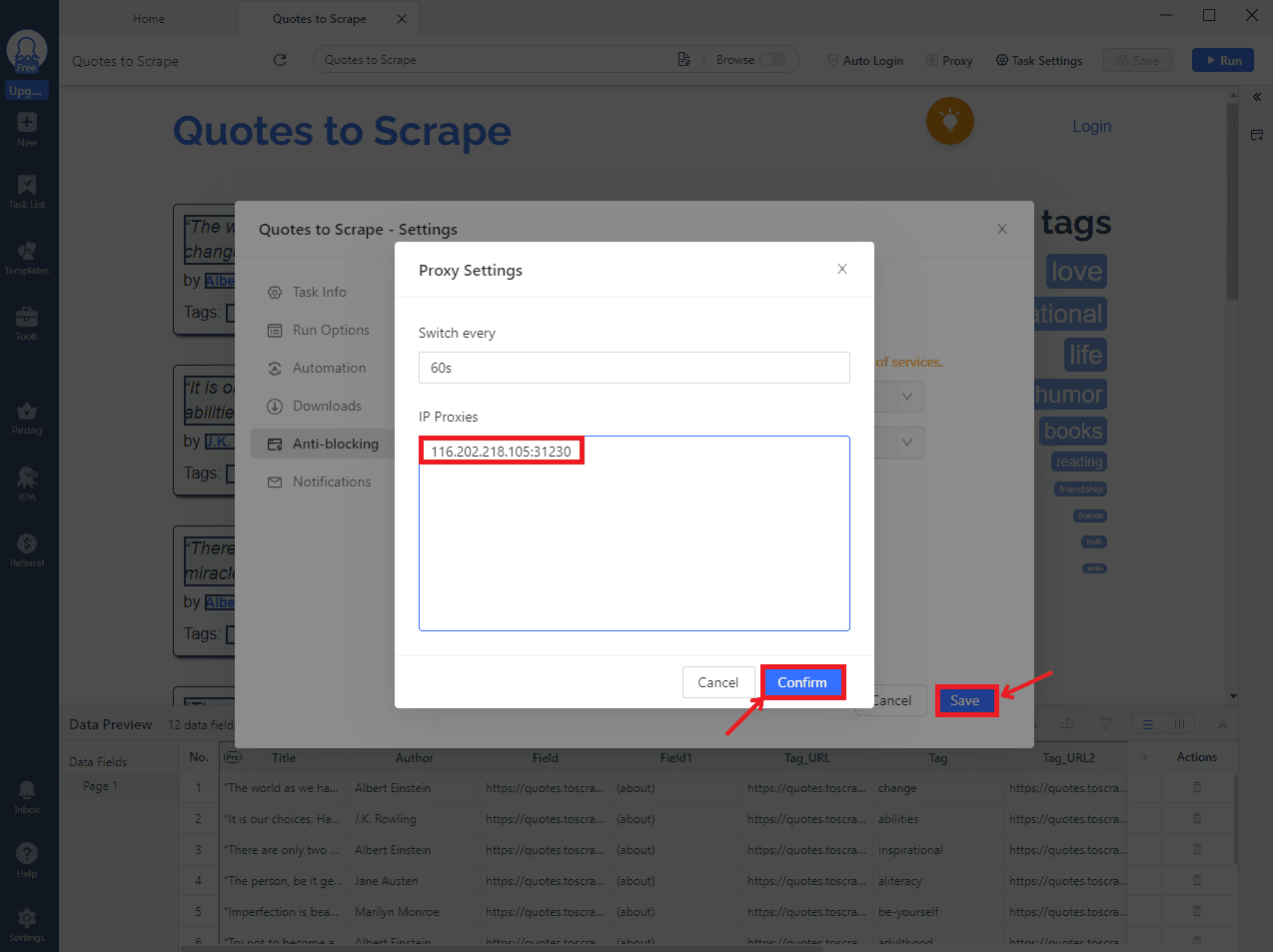
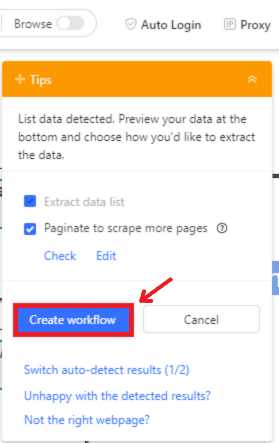
Step 8: Open the Tips Panel
Now, you will be taken to the main page and there you should see a lightbulb icon located on the right side of the screen, when you see it just click on it. After you clicked on it, then you should press on Create Workflow.
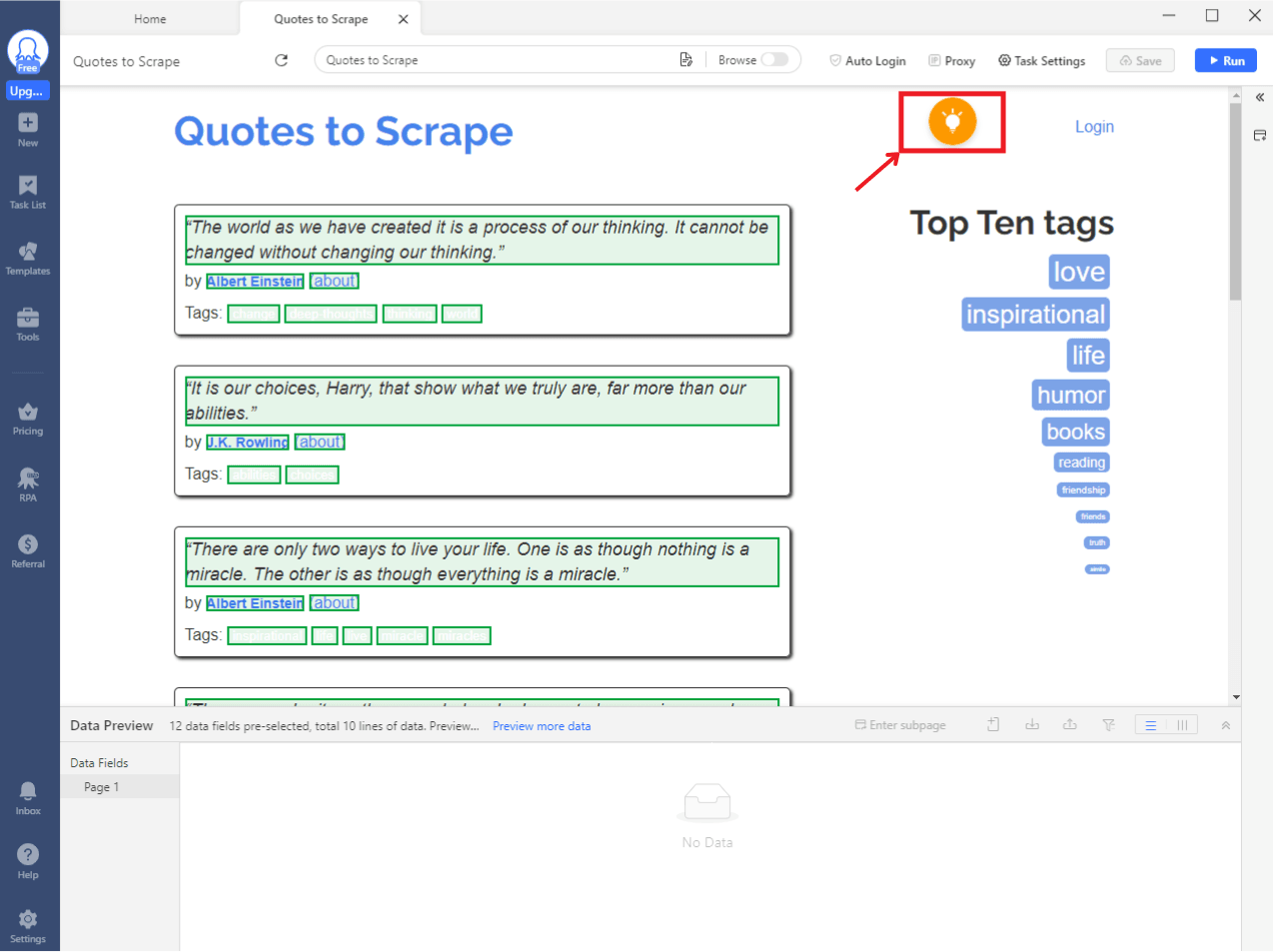
Step 9: Select Similar Elements
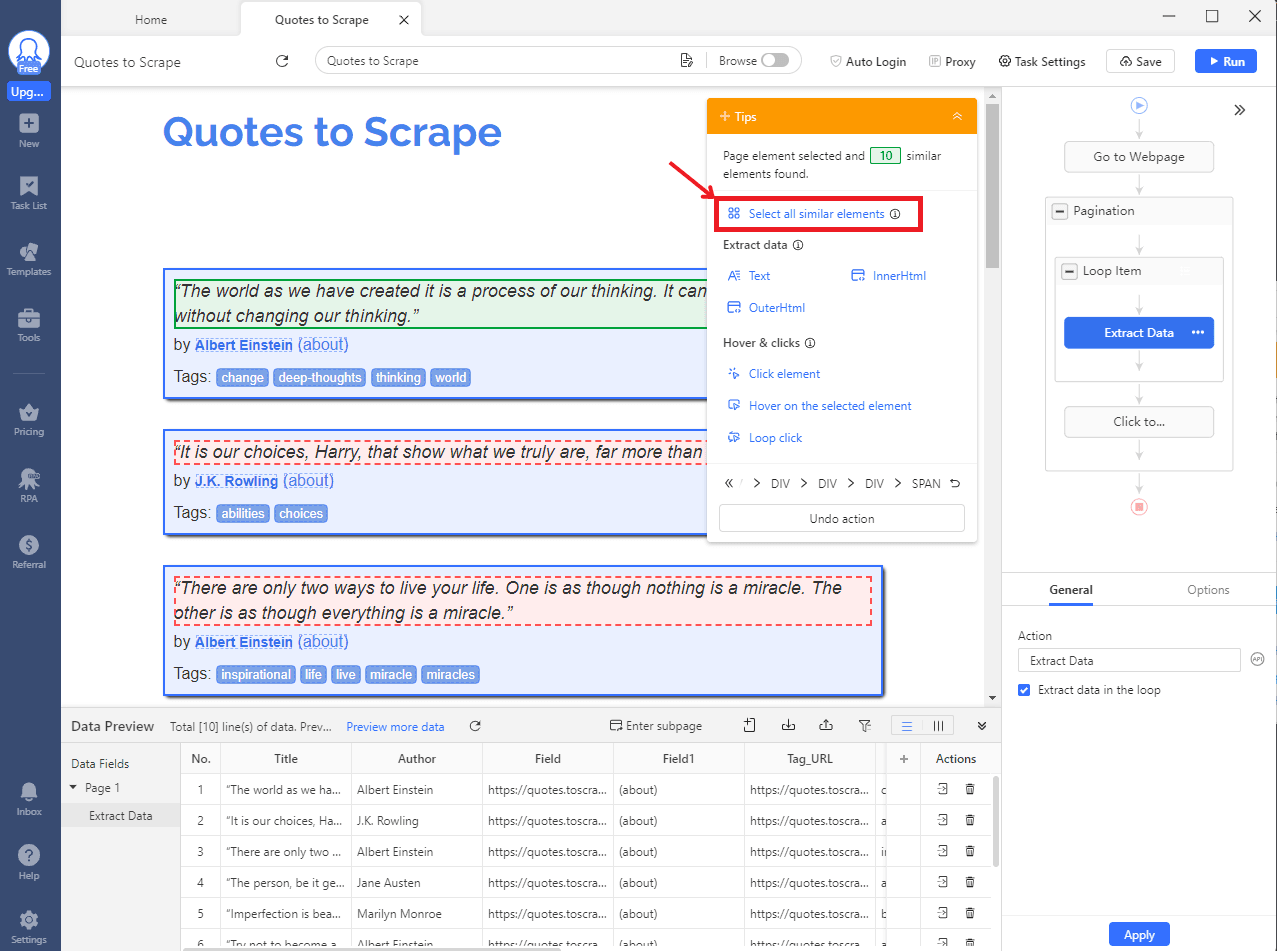
Click on one element of the type you want to scrape, for example: a a quote or author name, and then Octoparse will automatically detect similar elements on the page and display the option to Select all similar elements. When you see it, just click on this button.
Step 10: Choose Data Type to Extract
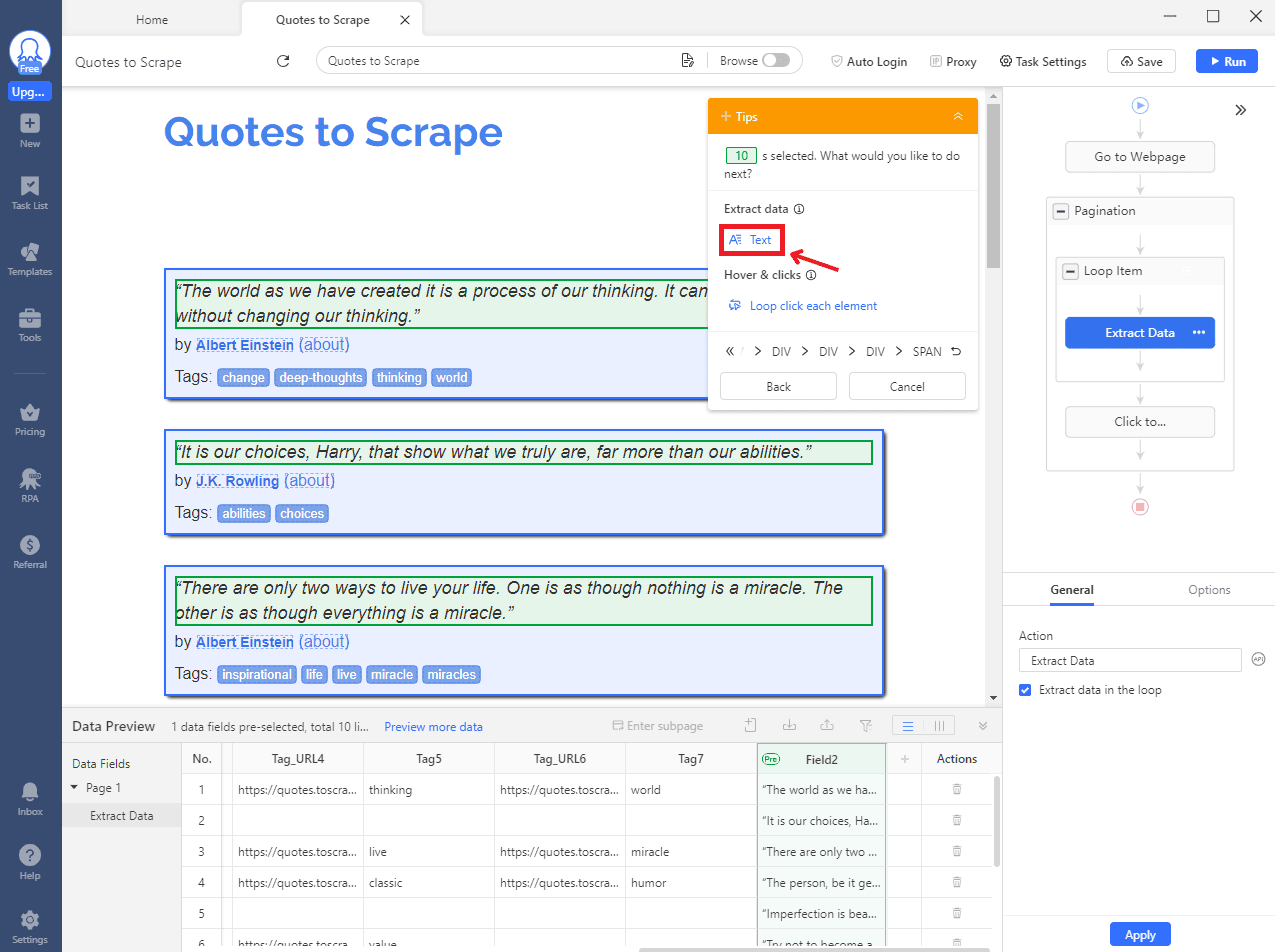
Once you've selected similar elements, specify the data type you want to capture. In the tips panel choose Text.
Step 11: Set Up Pagination
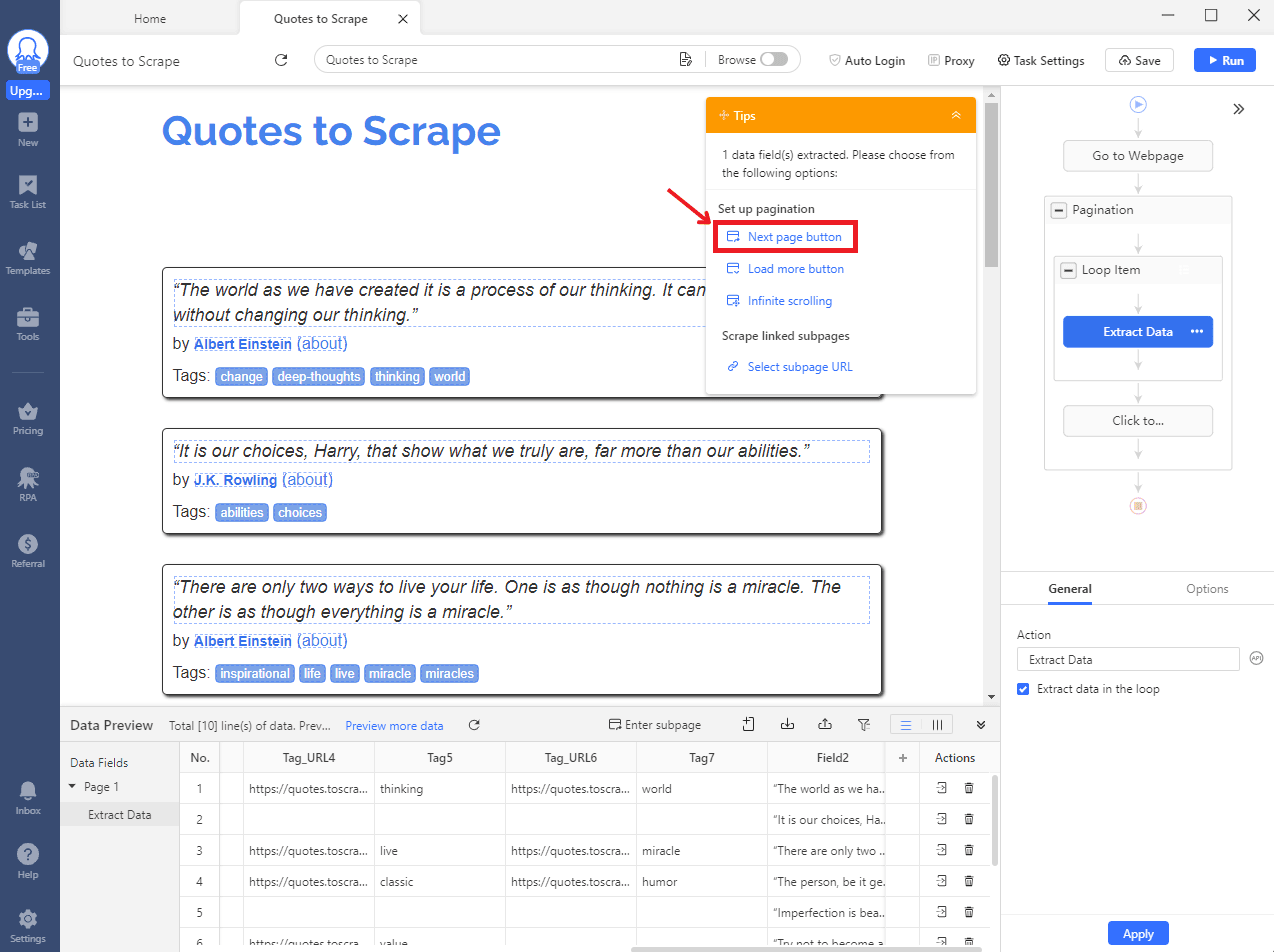
Now, if you want scrape data across multiple pages, you need to set up pagination. Click on the Next page button.
Step 12: Confirm Pagination Button
There, you need to choose the button that is gonna take you to the next page. In our case is the Next Button. After you selected it, just click on Confirm to finish the setup.
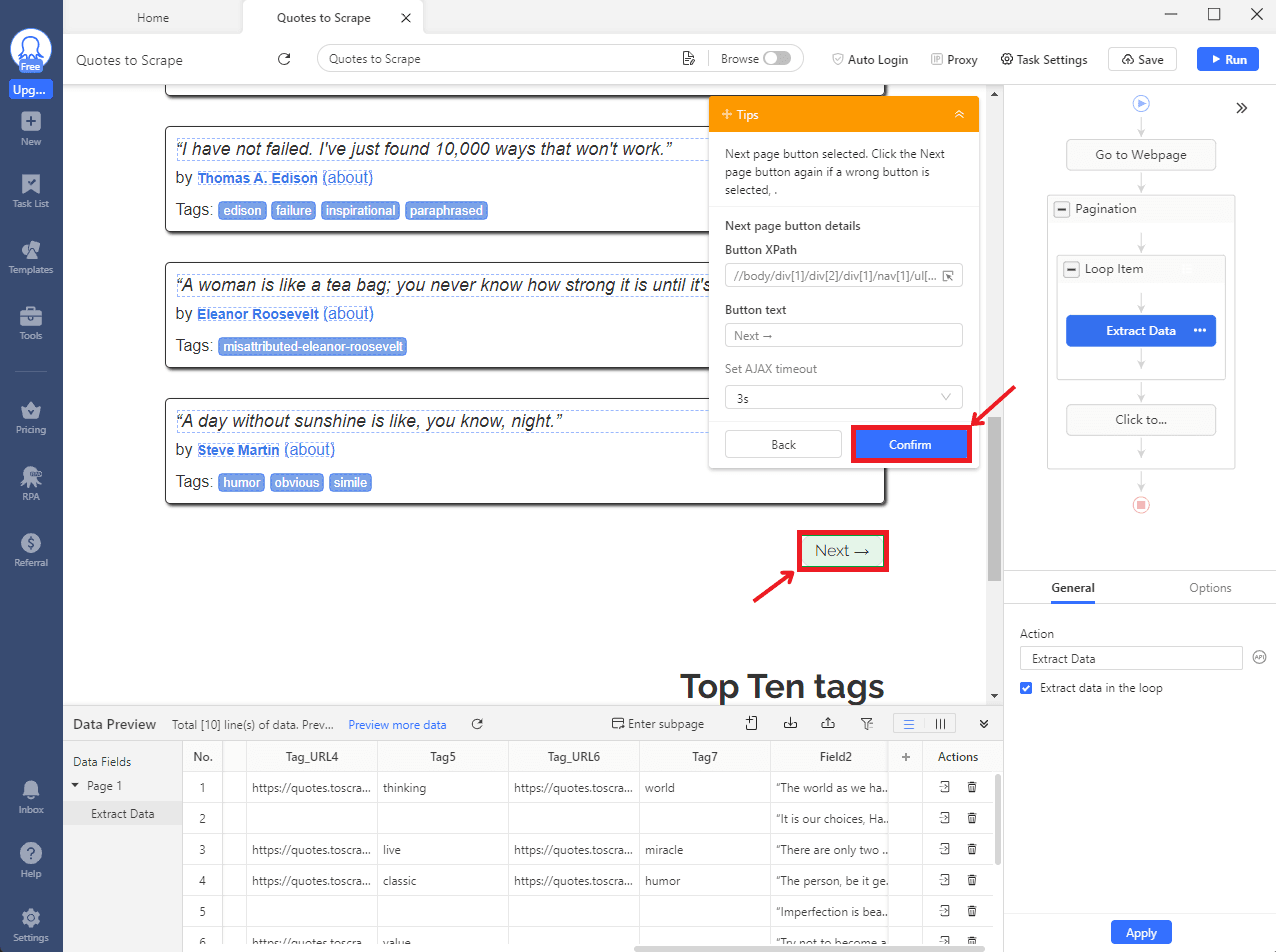
Step 13: Complete the Setup
Once you finished the setup, click on the Complete button in the tips panel to finalize your workflow and then you can press on the Run Button.
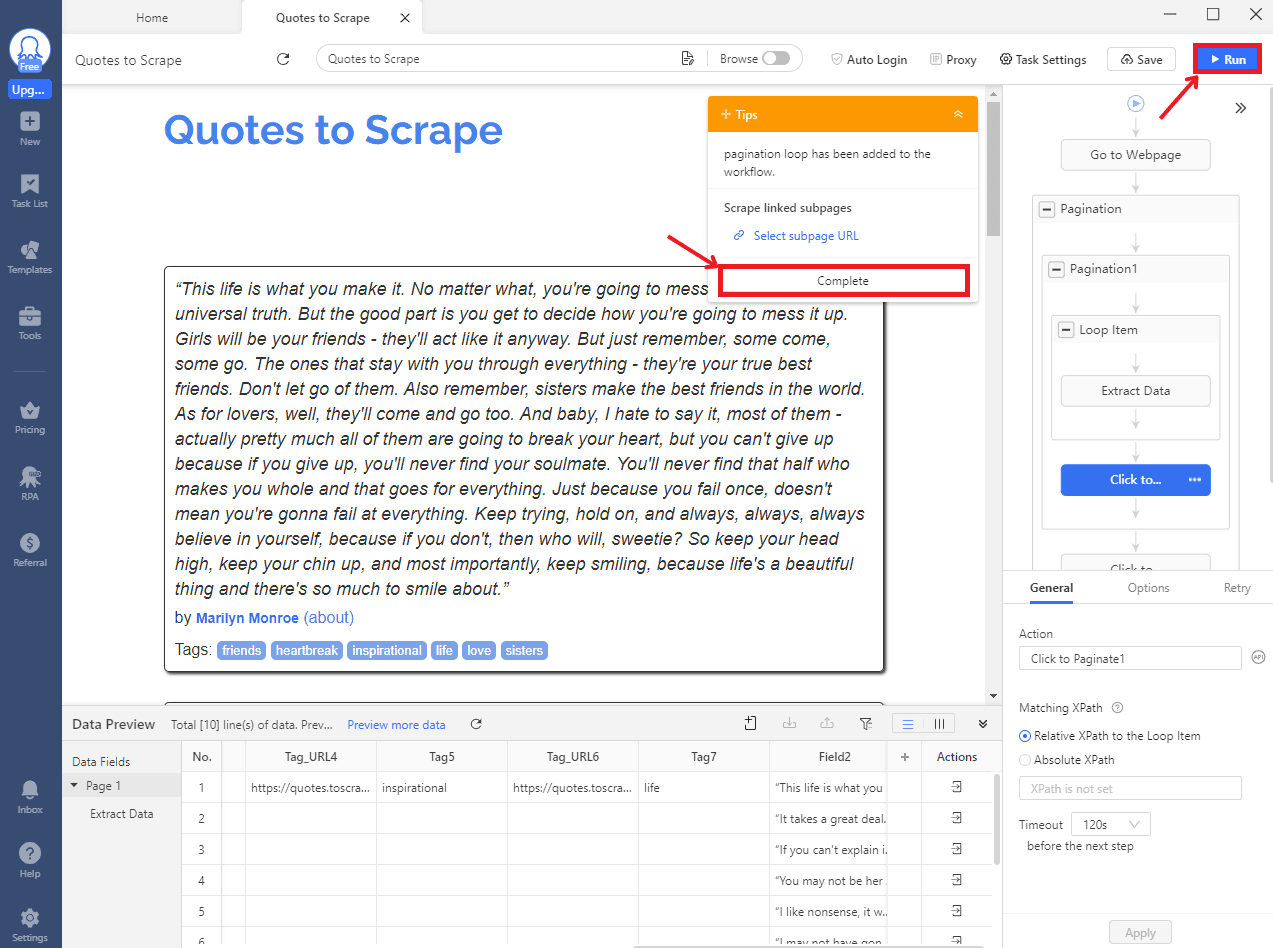
Step 14: Choose Run Options
Once you clicked on Run a pop-up will appear that tells you how to run your task. There, you need to select Standard Mode on the Run on your device side.
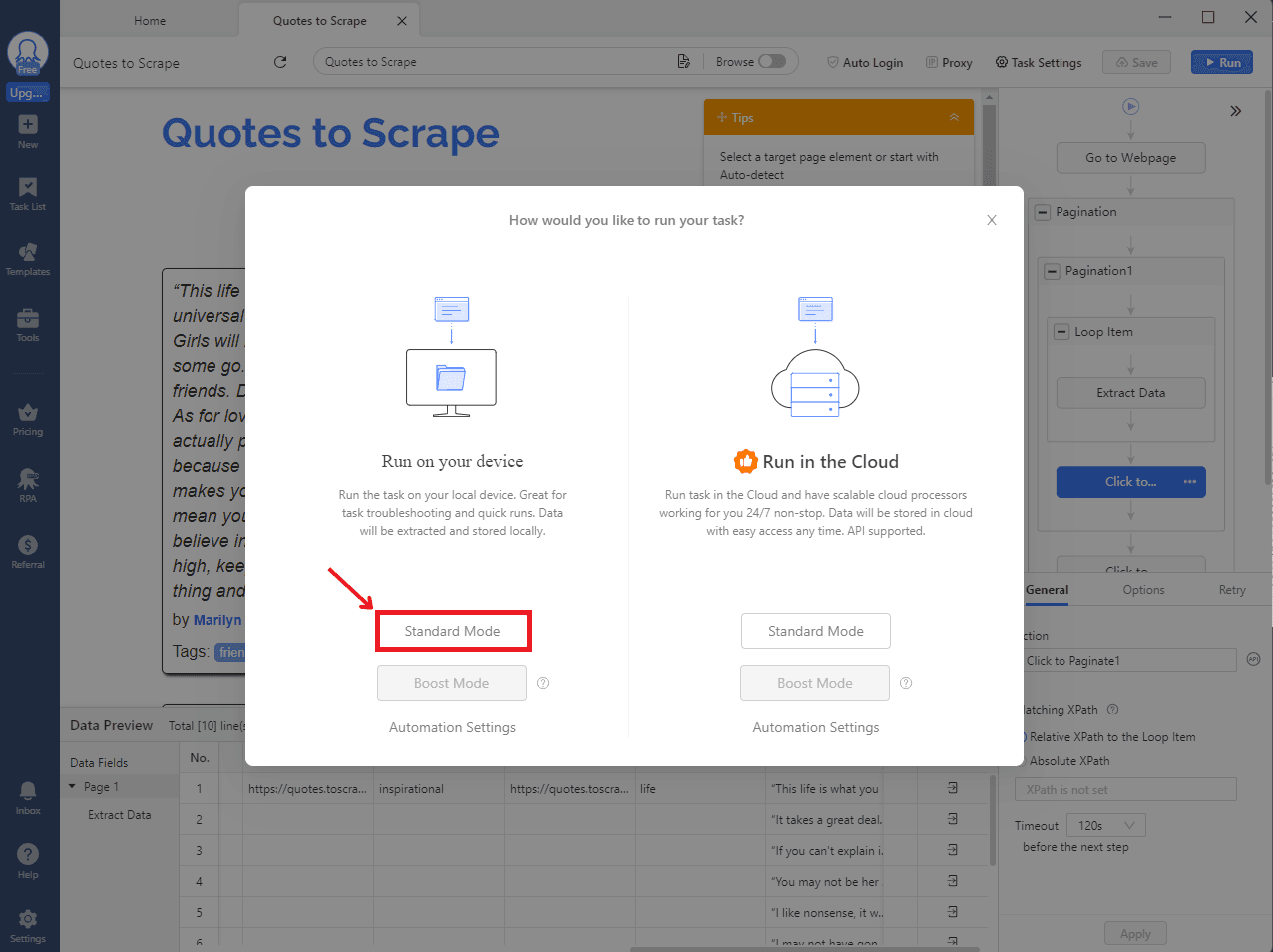
Step 15: Monitor the Scraping Progress
As the scraping task runs, you can monitor its progress in real-time. You can also pause or stop the task if you want.
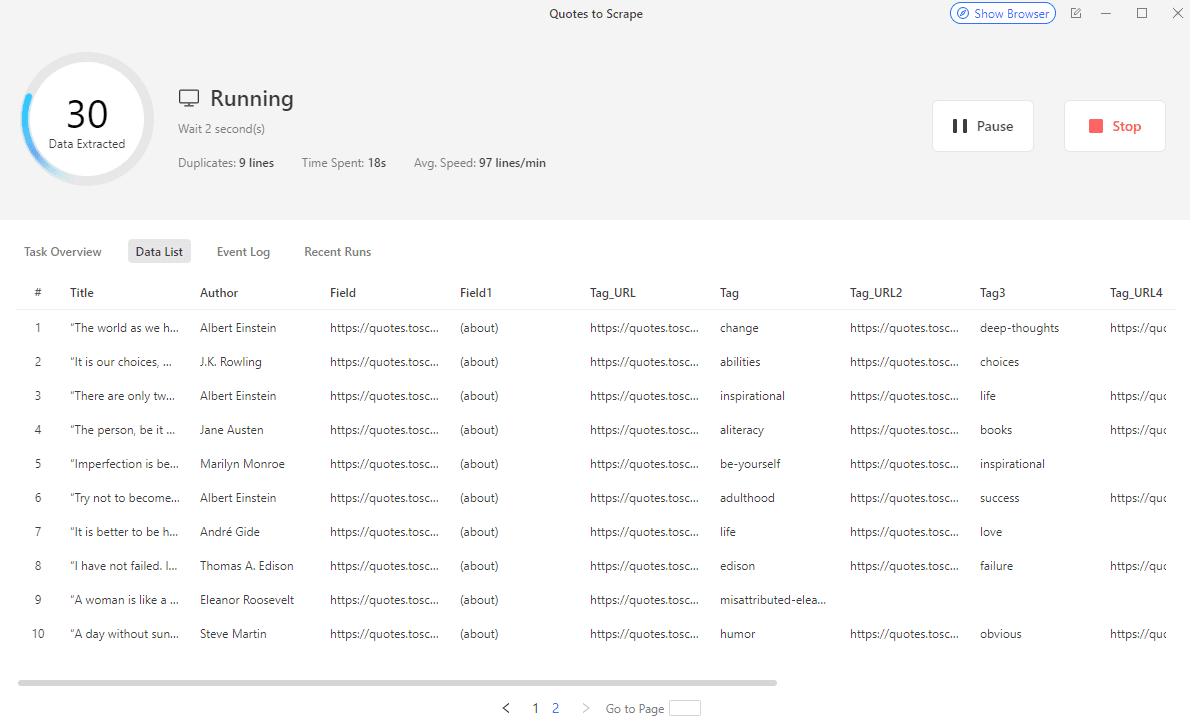
Step 16: View Scraping Completion Summary
Once the scraping is completed, a summary screen will appear showing the total data entries extracted, any duplicates and the time taken to complete the task.
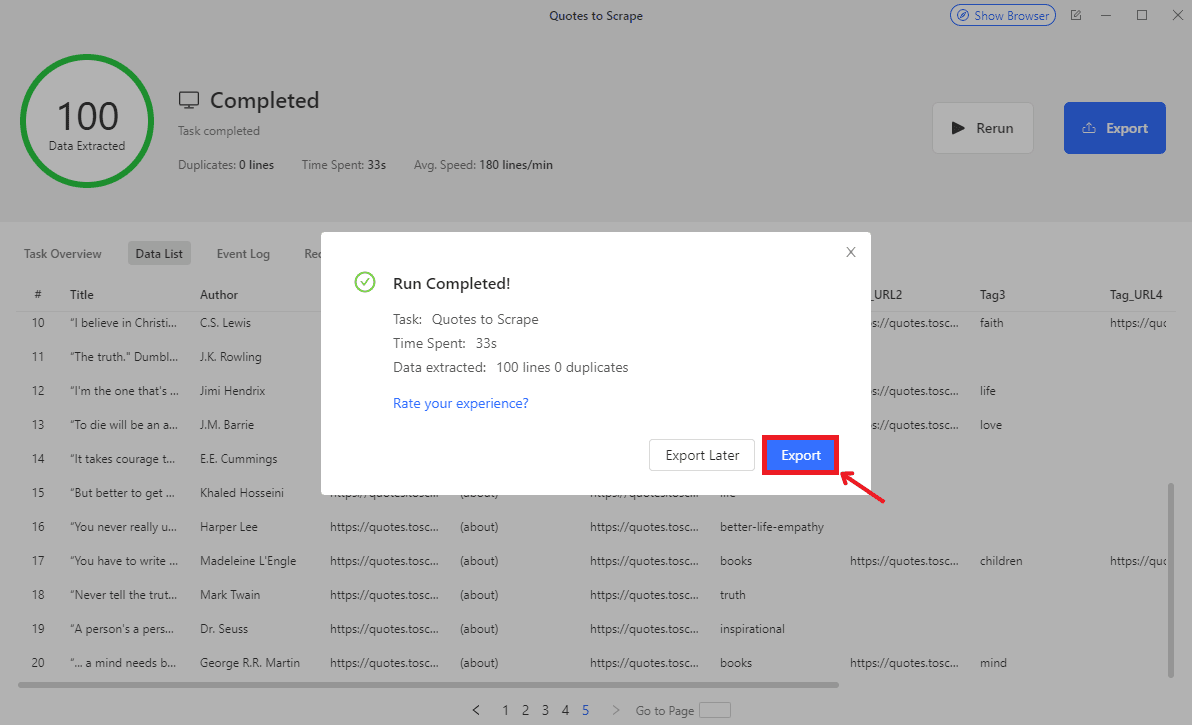
Step 17: Export the Data
Now, to see your extracted data, you need to click on the Export button. There, you will see various export format options. Select your preferred format and click Confirm to start the download. In this example, I'm going to use Excel.
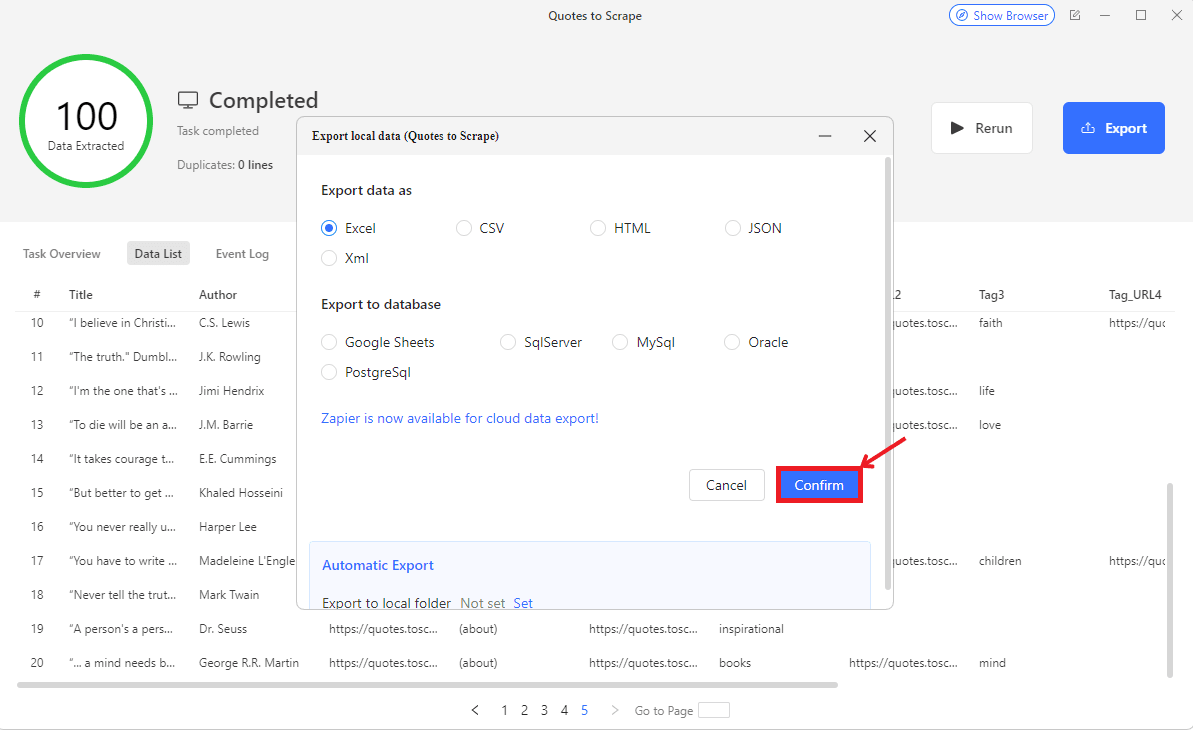
Step 18: Check the Exported Data
Once exported, open the file to verify that all data has been extracted correctly.
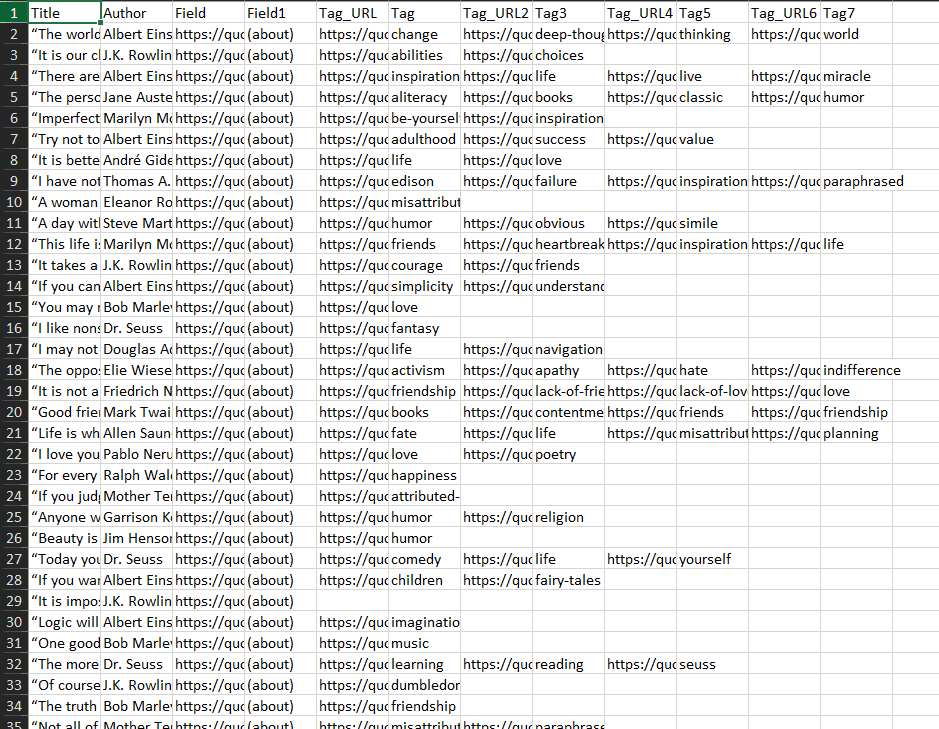
And that’s it! Now you are ready to continue your web scraping tasks with Octoparse.

Buy Backconnect Proxies
Rotating IPs on every request. Scale scraping and automation without manual IP management.
More web-scraping-tool Proxy Integrations
See more web-scraping-tool integrations that work seamlessly with Anonymous Proxies.

Proxy Integration With Helium Scraper
This guide will show you how to connect Helium Scraper with Anonymous Proxies' residential proxies to scrape safely and avoid blocks.

Proxy Integration With WebHarvy
This integration tutorial will show you how to set up Anonymous Proxies' residential proxies in WebHarvy and scrape data smoothly with fewer blocks.

Proxy Integration With Apify
Learn how to integrate Anonymous Proxies with Apify for secure and seamless web scraping. Protect your IP and overcome anti-scraping measures with ease.