

Proxy Integration With Helium Scraper
This guide will show you how to connect Helium Scraper with Anonymous Proxies' residential proxies to scrape safely and avoid blocks.
What Is Helium Scraper?
Helium Scraper is a desktop tool that lets you collect website data through a visual point and click interface instead of writing code. You open a page in its built in browser, click the elements you need, and Helium Scraper turns those actions into repeatable scraping rules that export to structured formats.
If you are serious about scraping with Helium Scraper, using a single IP is no longer an option. Our high quality residential proxies are a must have partner here since they hide your real IP, make your traffic look natural, and help you avoid constant CAPTCHAs and blocks. If you want to spend your time collecting data instead of fighting errors, plug our proxies into Helium Scraper and let the proxies do the hard work for you.
How To Set Up Proxies With Helium Scraper
Before I will show you how to set your proxies in Helium Scraper, log in to your Anonymous Proxies dashboard and get your proxy details ready. Also, if you prefer not to use credentials in the app, you can whitelist your device IP in the dashboard.
Step 1: Download Helium Scraper
For the first step, be sure that you visit the official Helium Scraper website and download the installer for your operating system. It has a 10-day free trial.
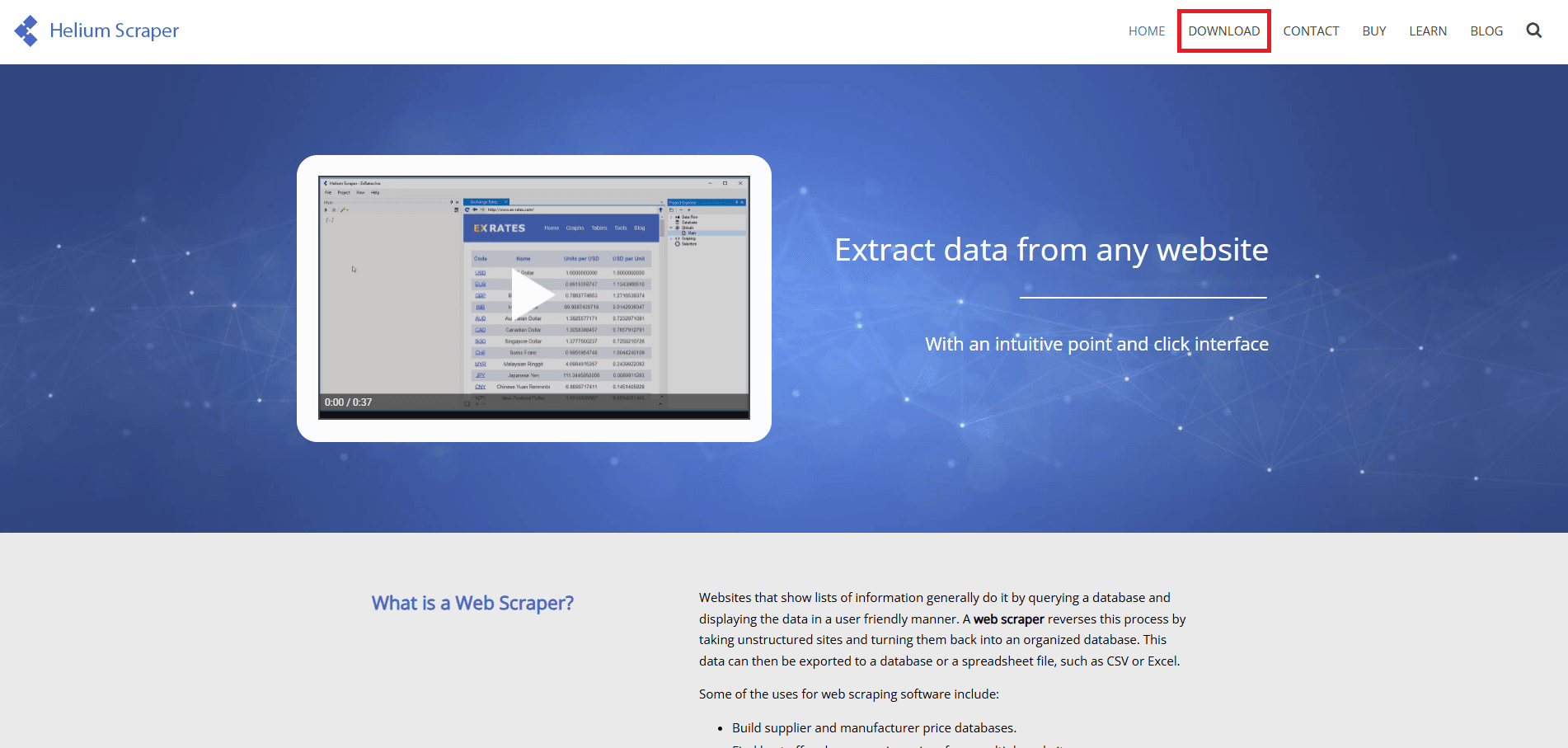
Step 2: Open The Proxy List
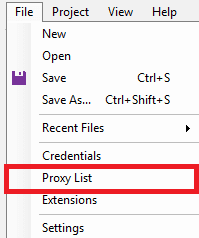
Once the download is finished, open the app and go to the top menu, click File, and select Proxy List.
Step 3: Add Your Proxy Details
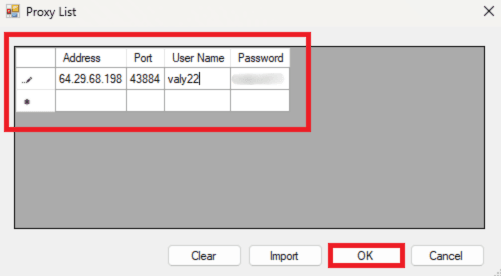
When the Proxy List window open, you can paste your proxy host into the address field and enter the port number. If you use authentication, fill in your proxy username and password; if you rely on IP whitelisting, leave those fields empty. Click on OK to save it.
Step 4: Enable Proxies
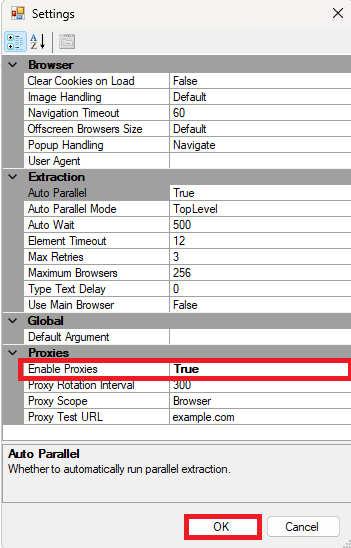
Now it's time tell your project to use this proxy. Go to the top menu, click Project, and choose Settings.
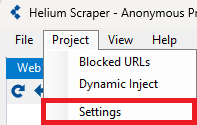
In the settings window, open the Proxies section, change Enable Proxies from False to True, and decide whether the proxy should apply only to the built in browser or to everything in the project. Then, just click on OK to save and activate them.
Step 5: Test Your Connection
For the final step, to confirm the integration, you can use Helium Scraper’s browser to visit a website that shows your proxy's IP address.
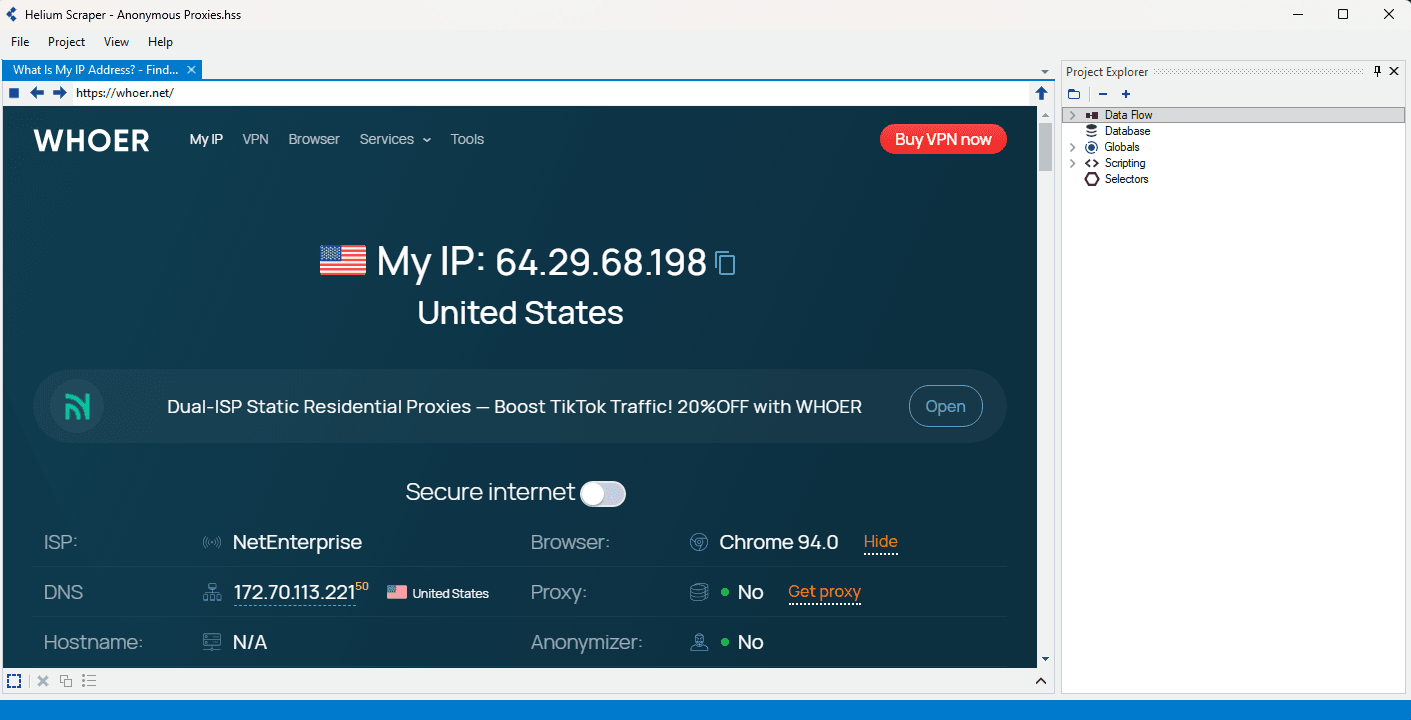
And that’s it, your Anonymous Proxies are now connected to Helium Scraper and ready to power your scraping.
Wrap Up
As you've seen in this guide, if you want to Anonymous Proxies' residential proxies into Helium Scraper is simple but really powerful since you will be able to enjoy fewer blocks, smoother runs and cleaner data in your scraping projects.
If you want to explore more ways to use our proxies with other tools and platforms, keep an eye on our integration guides. And, of course, if you ever get stuck or would like input on what configuration would best suit your needs, feel free to reach out to our support team.

Buy Backconnect Proxies
Rotating IPs on every request. Scale scraping and automation without manual IP management.
More web-scraping-tool Proxy Integrations
See more web-scraping-tool integrations that work seamlessly with Anonymous Proxies.

Proxy Integration With WebHarvy
This integration tutorial will show you how to set up Anonymous Proxies' residential proxies in WebHarvy and scrape data smoothly with fewer blocks.

Proxy Integration With Apify
Learn how to integrate Anonymous Proxies with Apify for secure and seamless web scraping. Protect your IP and overcome anti-scraping measures with ease.

Proxy Integration With Octoparse
In this guide, you'll learn how you can enhance your web scraping efficiency by integrating Anonymous Proxies with Octoparse. Forget about IP bans and secure every data extraction process.