

Proxy Integration With Antik Browser
Learn how to connect Antik Browser with Anonymous Proxies in minutes for safer browsing, stable profiles, and clean IP separation.
What is Antik Browser?
Antik Browser is built for people who need more than a single “one-size-fits-all” browser. It gives you the ability to spin up multiple distinct profiles, each with its own setup and browsing state, so you can jump between accounts or projects without constant logouts, mix-ups, or accidental overlap. On top of that, Antik lets you fine-tune key identity signals, like device type, language, and timezone, so every profile stays coherent and feels like it belongs to a real user environment.
This is why Antik is popular for workflows like social media management, e-commerce, research, and other multi-account tasks where tracking and blocks can become a problem. And for an even cleaner setup, many users pair Antik profiles with proxy servers, so each profile not only has its own fingerprint, but also its own IP and location for stronger separation.
Why Use Anonymous Proxies With Antik Browser?
A strong Antik setup is not only about fingerprints, it is also about the connection each profile uses. If multiple profiles share the same public IP, they can still look related, even when cookies and browser storage are kept separate. That is why using Antik Browser with Anonymous Proxies is a must. YYou can give each Antik profile its own residential IP, pick a country or city that fits your targeting or testing needs and keep sessions steady by using one proxy per profile instead of rotating nonstop.
If you want your setup to feel the most “normal” to websites, residential proxies are usually the smartest option. Because they come from real ISP networks, your traffic tends to look like it is coming from everyday users rather than automated infrastructure. Of course, that does not make you invisible, but it can significantly reduce flags and friction.
How to Set Up Anonymous Proxies With Antik Browser?
Step 1: Download Antik Browser
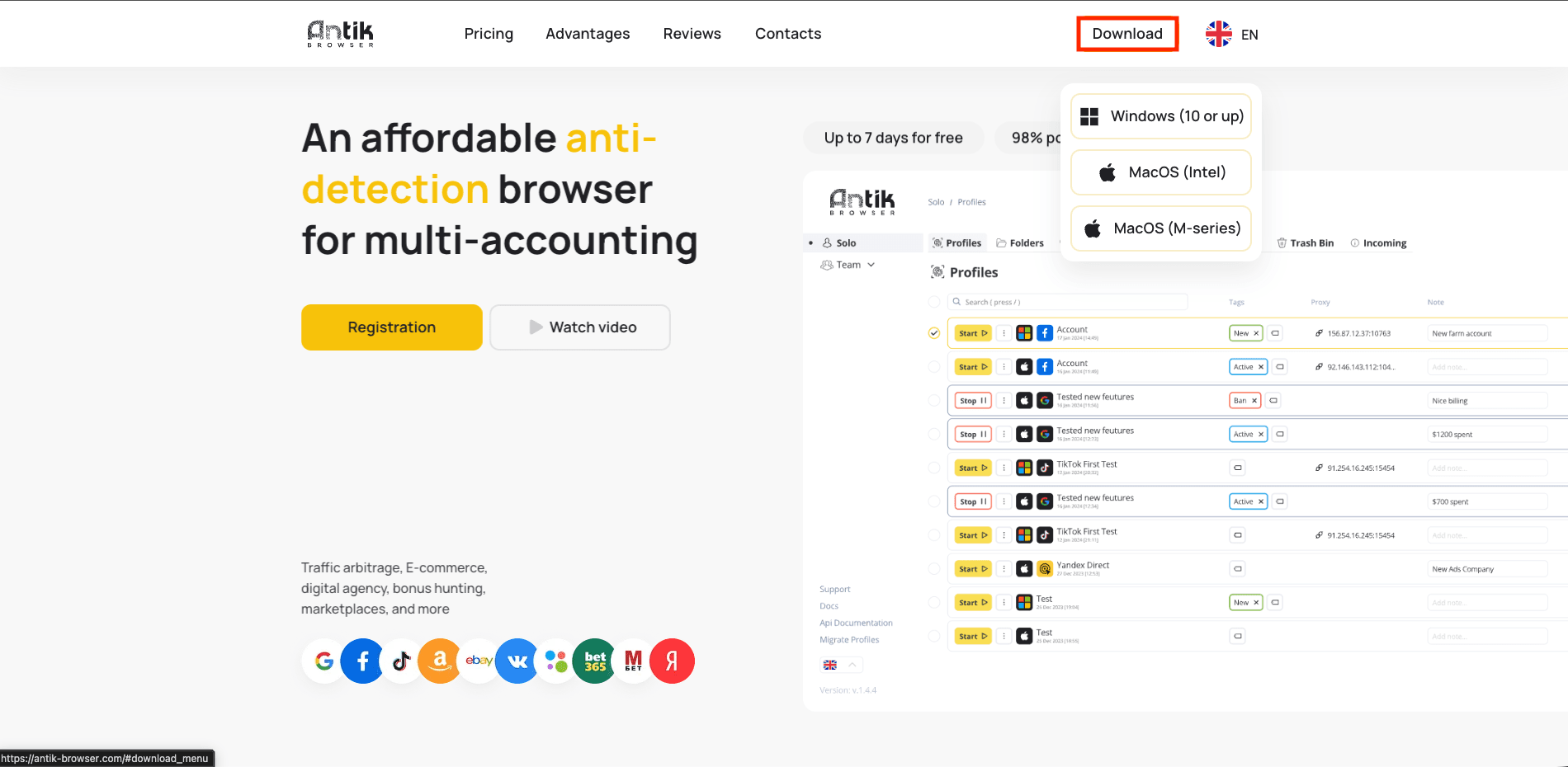
To start, go to the Antik Browser website, click on Download and choose your installer based on the OS you have.
Step 2: Log in to your Antik account
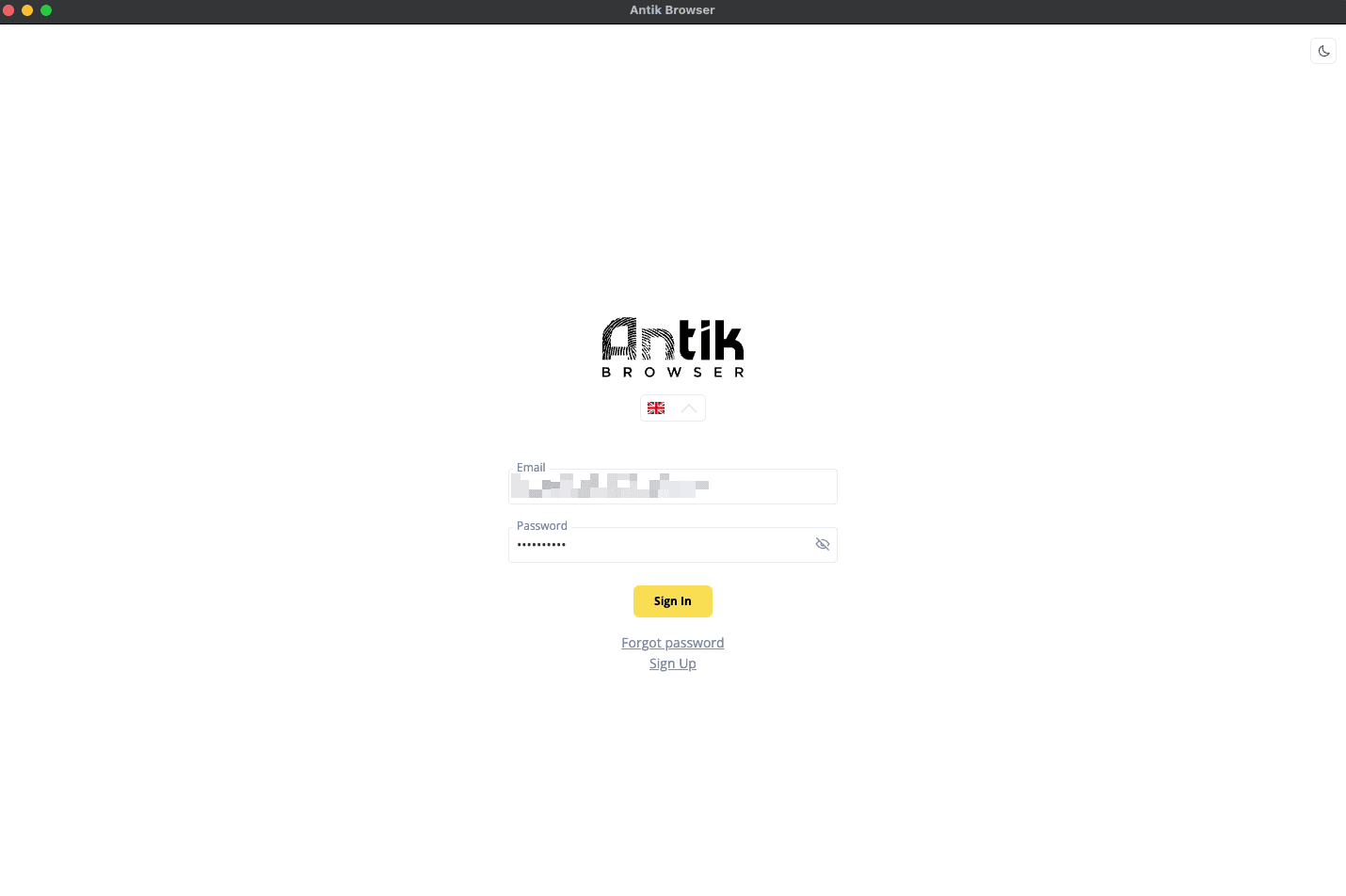
Once it's installed, run it, then sign in to your account.
Step 3: Create profile
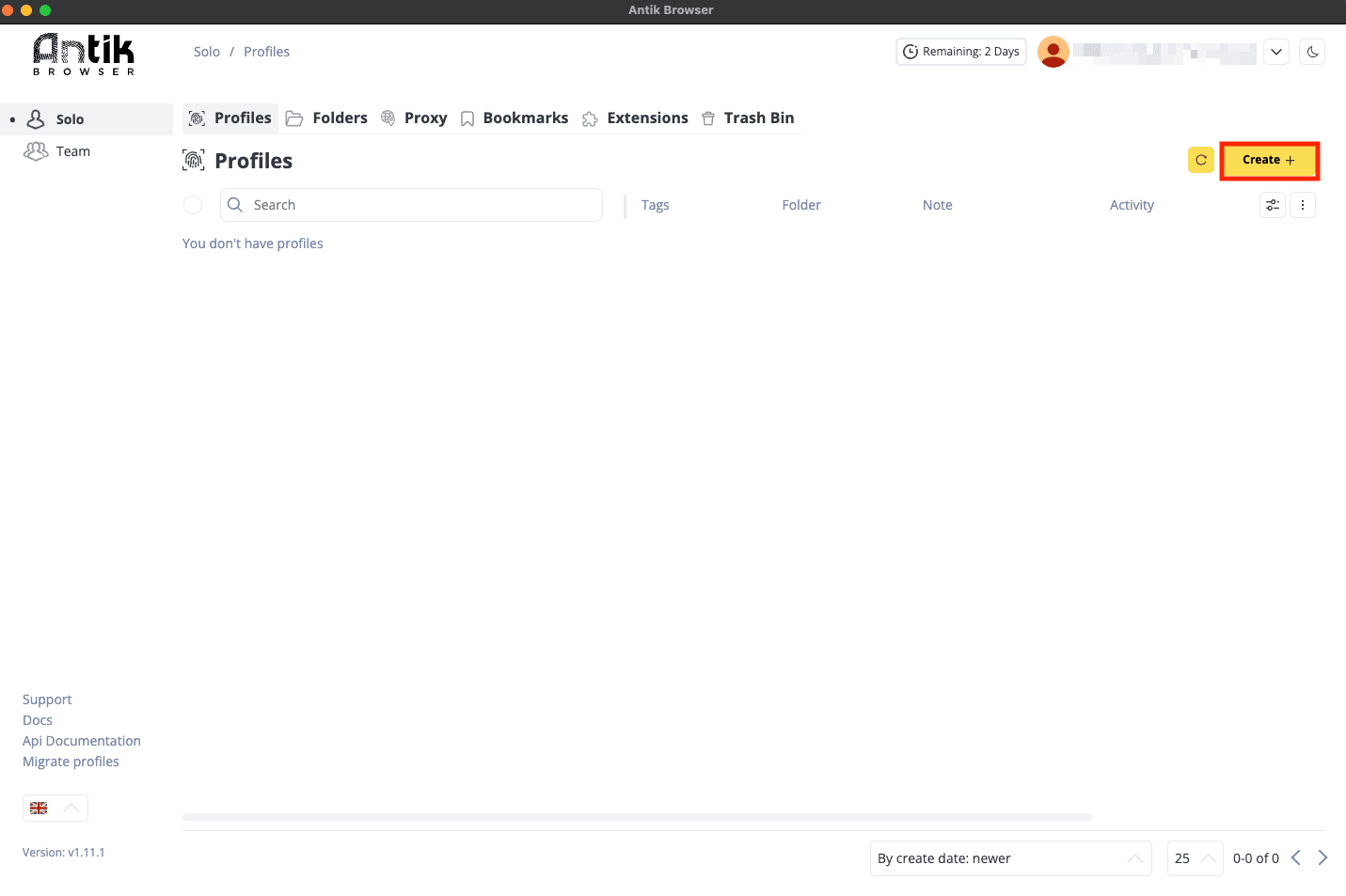
After you sign in, open the Profiles tab, then click on Create + in the top-right corner.
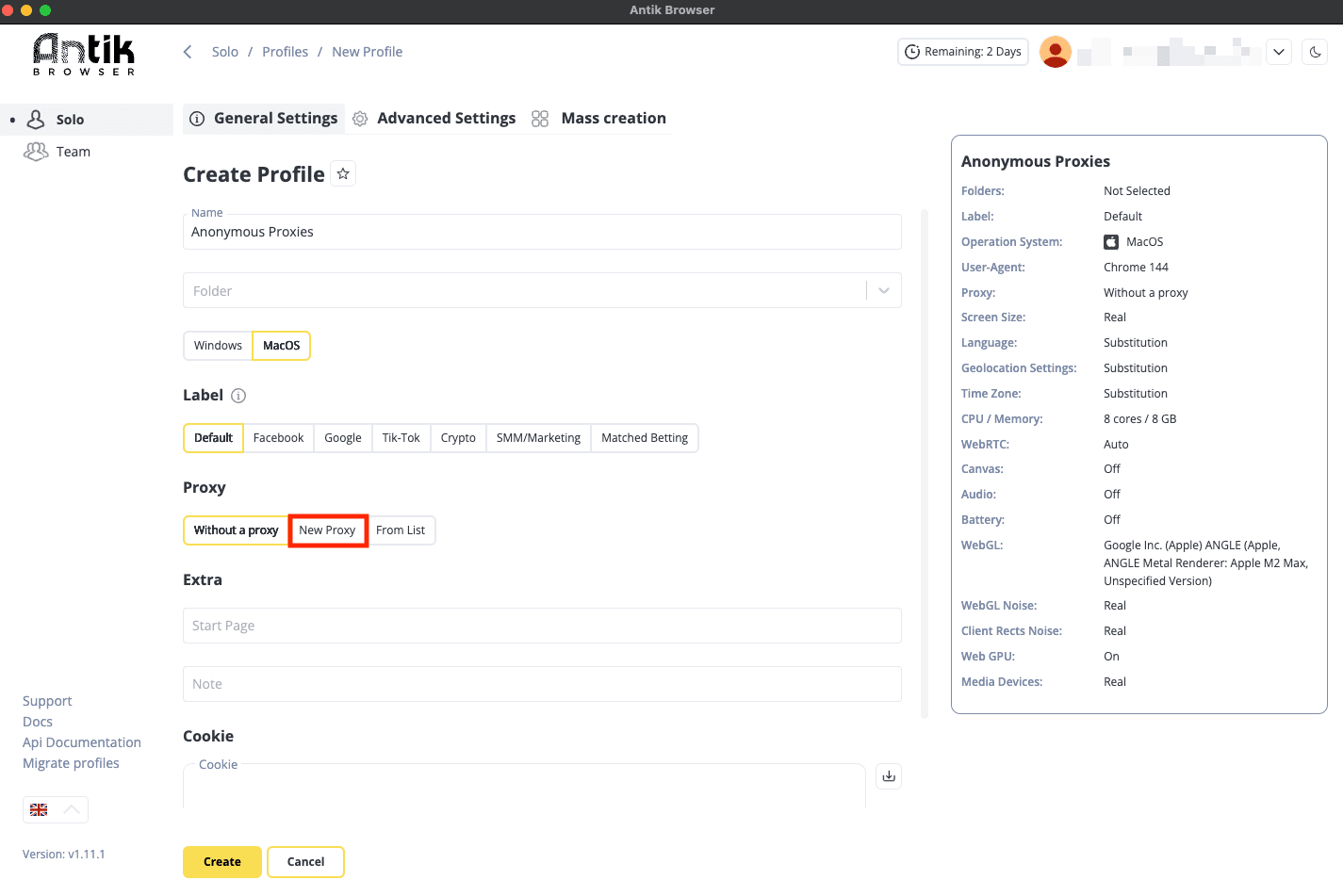
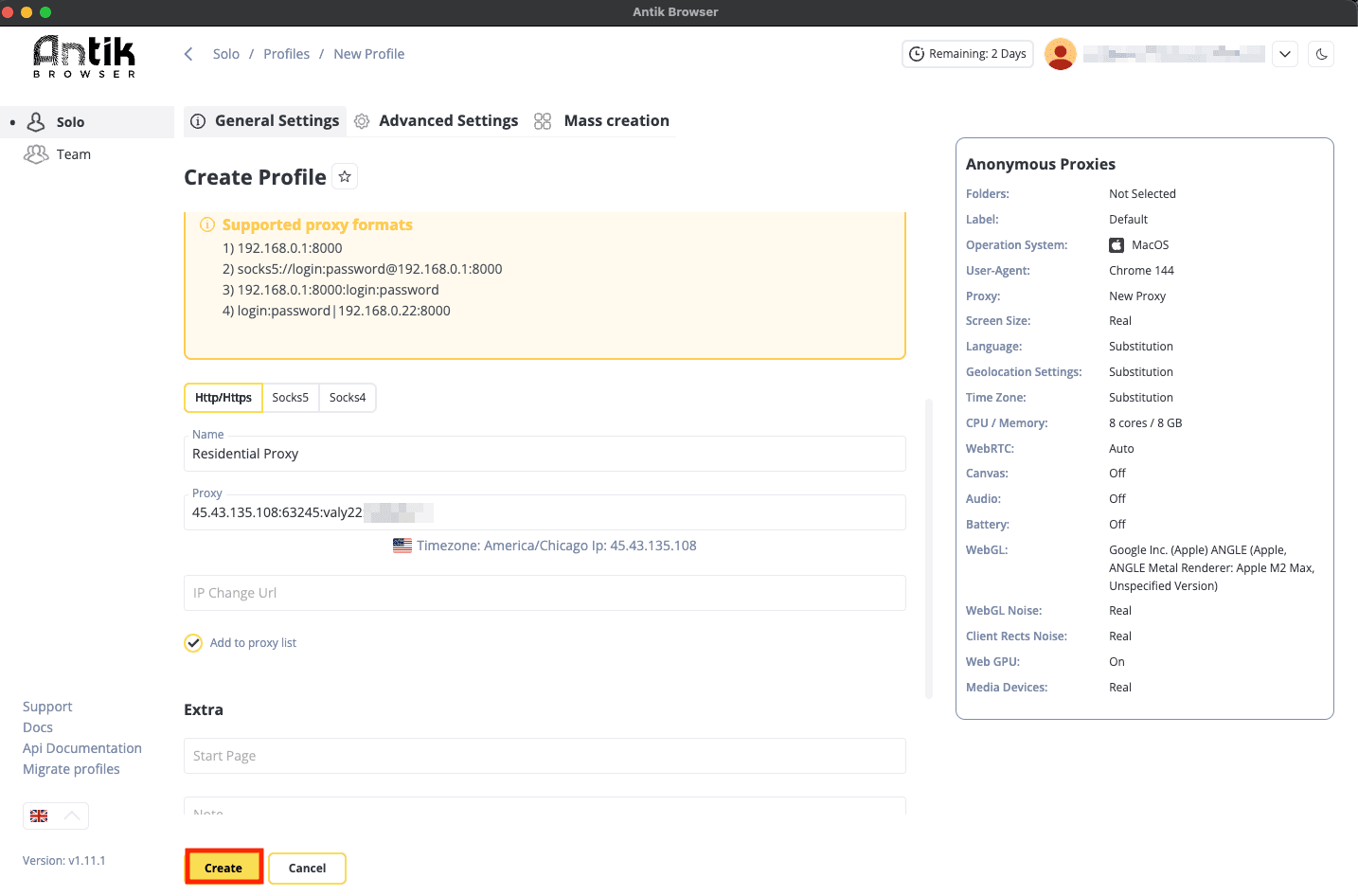
Once you are in the Create profile window, you can add a profile name and select the OS preset (Windows or macOS) to match the device identity you want. Then, Scroll to Proxy and select New Proxy.
Step 4: Add proxy
Once you clicked on New Proxy, you'll need to enter your proxy details from Anonymous Proxies Dashboard in the format IP:PORT:USERNAME:PASSWORD if you enabled authentication, if not, just put your details in this format IP:PORT. After you've filled all the required fields, click on Create to save the profile.
Step 5: Start profile
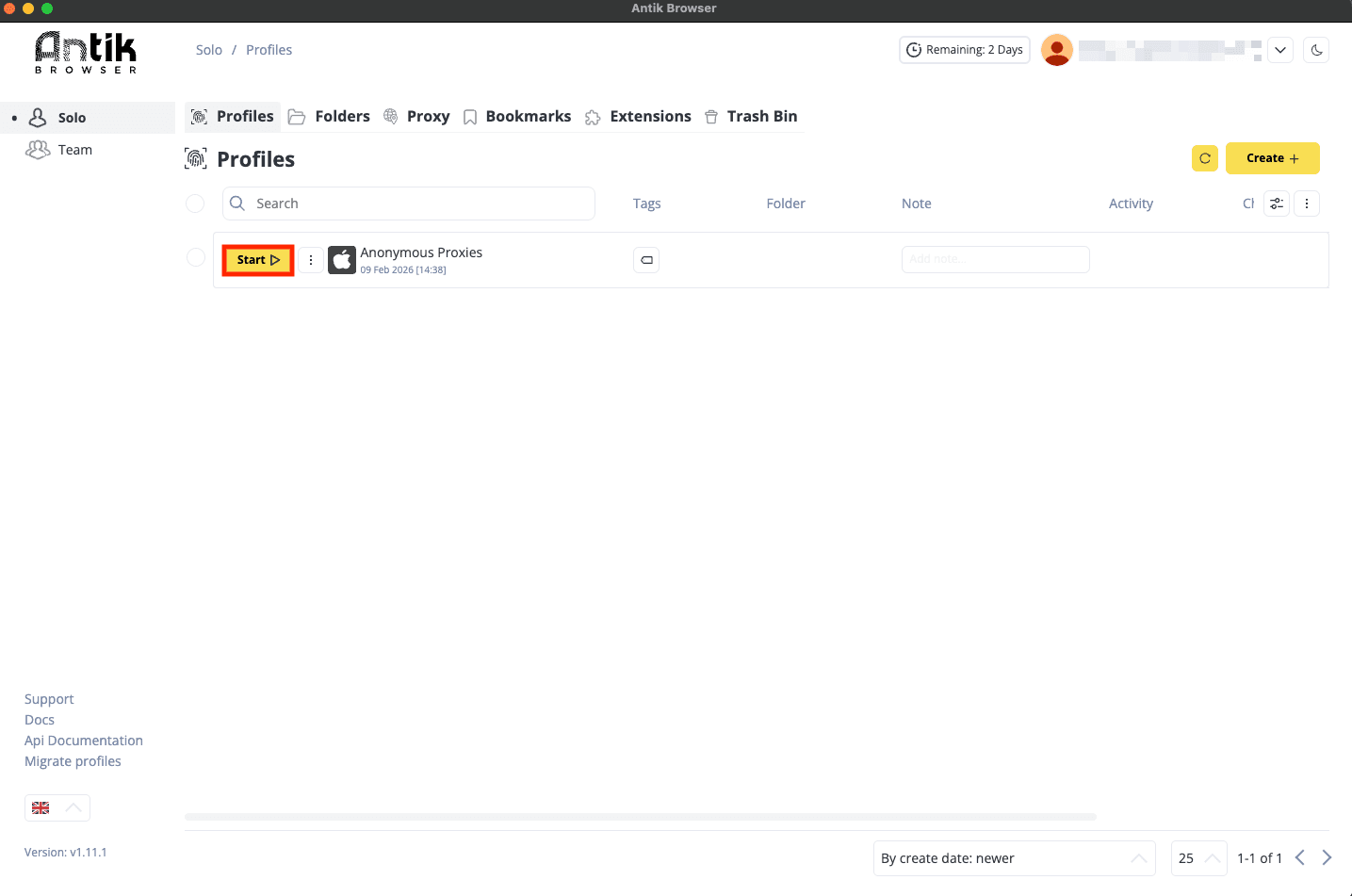
When you are back in the Profiles section, find your new entry and press Start.
Step 6: Confirm the proxy is working
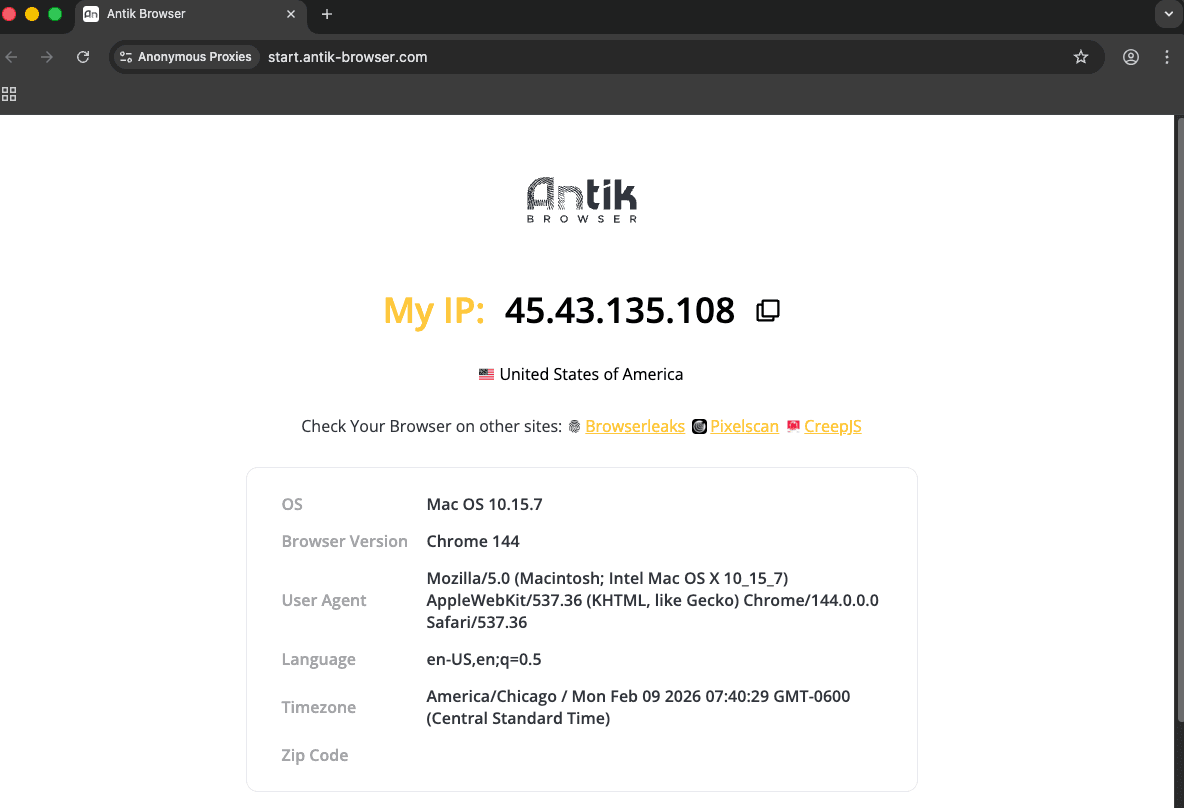
Antik Browser will open a new browser window which will show you the proxy's IP address you've entered in the setup.
Wrap Up
That’s pretty much it. Once your proxy is added and your profile launches with the right IP, you’re ready to work in Antik with a cleaner, more consistent setup. If something feels off, like the proxy won’t connect or the location does not match, don’t waste time troubleshooting blindly. Just reach out to our support team and they’ll help you sort it out quickly. And if you’d like more hands-on tutorials like this for other anti-detect browsers and tools, take a look at our integrations page.

Buy Backconnect Proxies
Rotating IPs on every request. Scale scraping and automation without manual IP management.
More antidetect-browser Proxy Integrations
See more antidetect-browser integrations that work seamlessly with Anonymous Proxies.

Proxy Integration With Kameleo
Learn how to set up Anonymous Proxies' residential proxies with Kameleo for automation, web scraping, and easier multi-account management.

Proxy Integration With Lalicat
Learn how to integrate Anonymous Proxies' residential proxies with Lalicat to manage multiple accounts with ease and browse in anonymous way.

Proxy Integration With ClonBrowser
Learn how to set up Anonymous Proxies’ residential proxies in ClonBrowser to manage multiple social media accounts smoothly and browse more privately.

Proxy Integration With Octo Browser
This integration tutorial will show you how to connect Anonymous Proxies in Octo Browser for safer multi-accounting and scraping in just a few minutes