How to Set Up Proxies With Octo Browser?
If you want to set up a proxy in Octo Browser, don't panic because it is really simple and does not take an eternity. Once you have your proxy details ready from your proxy provider, you can add them in just a few steps. Also, the setup is the same whether you use datacenter, residential, or mobile proxies. Below, I’ll show you exactly how to connect Anonymous Proxies' residential proxies in Octo Browser.
Step 1: Download Octo Browser
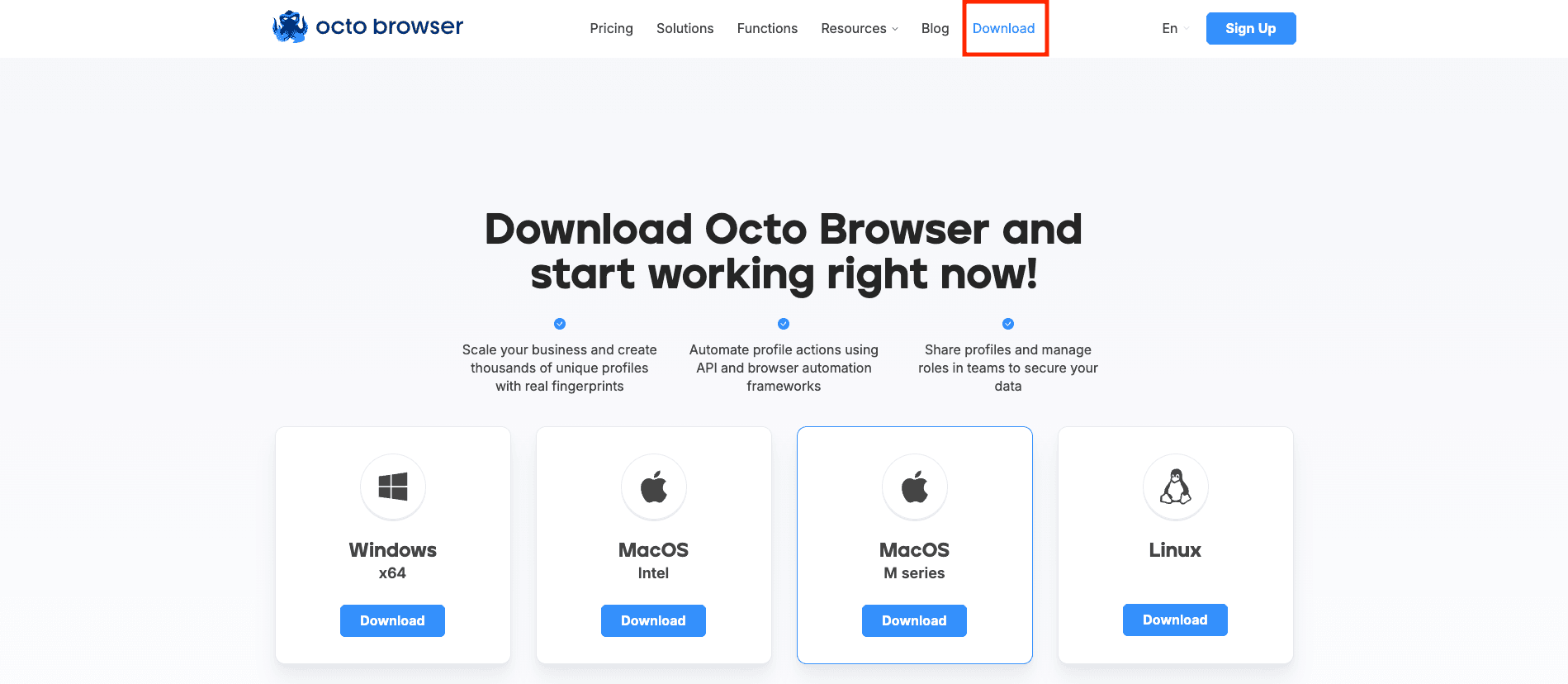
The first thing you need to do is go to the official Octo Browser website and click on Download section, then choose the version that matches OS and install it.
Step 2: Open the Proxies section
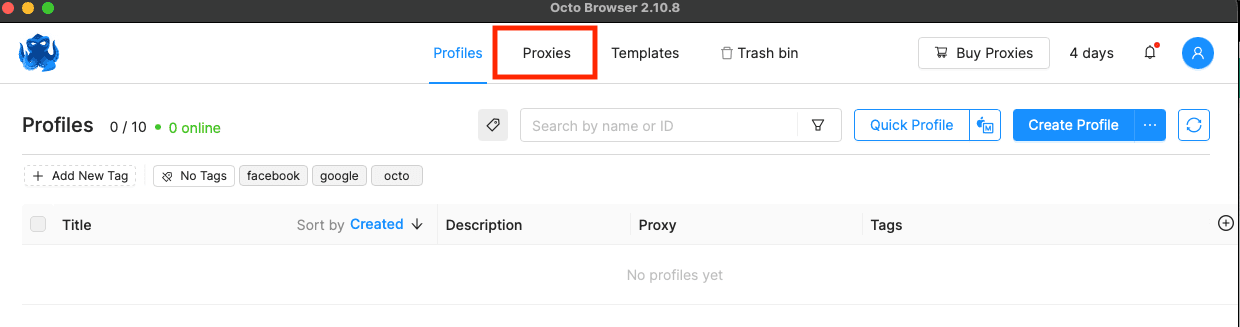
Once Octo Browser is installed, open it and click on the Proxies tab.
Step 3: Click Add Proxy
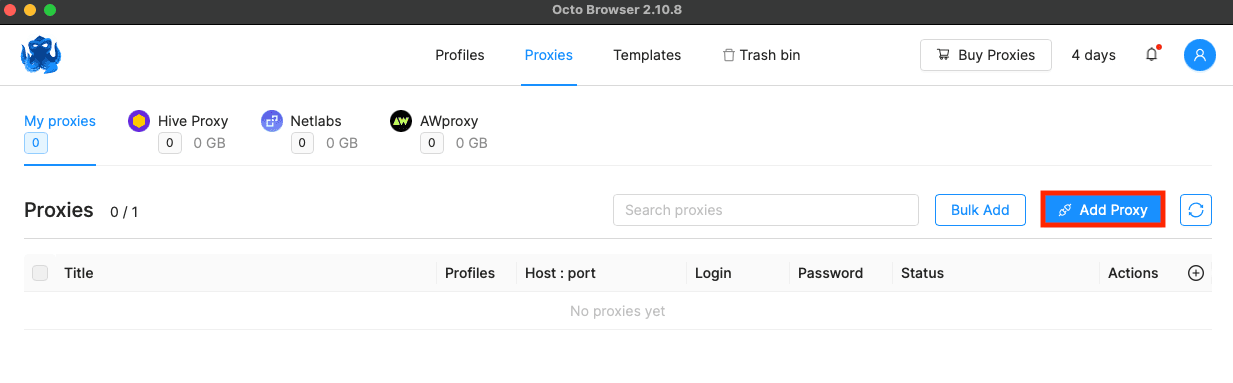
When you are Inside the Proxies section, click Add Proxy.
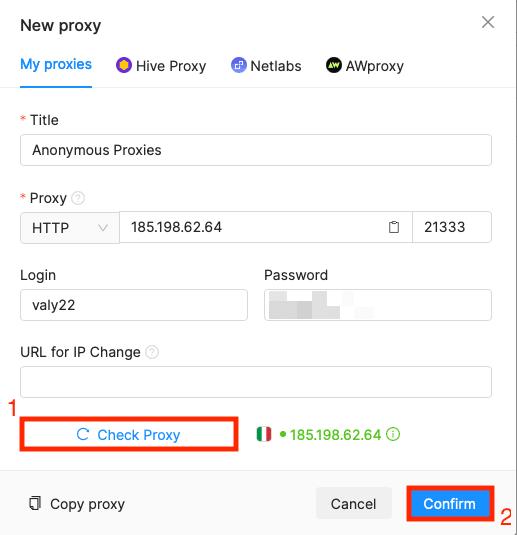
Step 4: Input proxy details
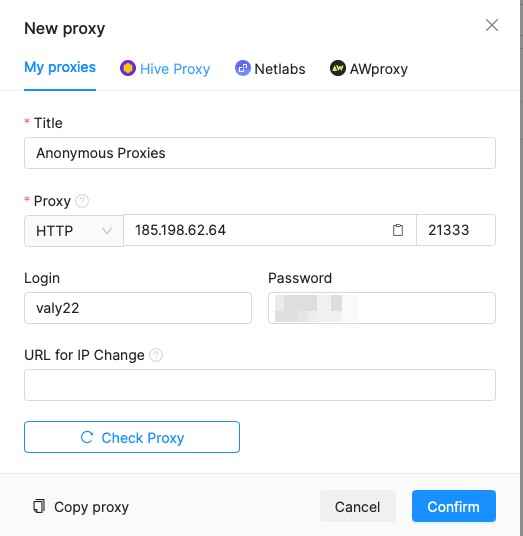
Now, it's time to paste your proxy credentials from Anonymous Proxies dashboard into the required fields. Be sure that you select the right protocol that you are going to use, and if you use authentication don't forget to enter the username and password which you can find in our dashboard. If you've whitelisted your IP, then you can skip this step.
Step 5: Check proxy connection
Once you entered all the required details, click on Check Proxy to make sure the connection works, then on Confirm to save the proxy.
Step 6: Create profile
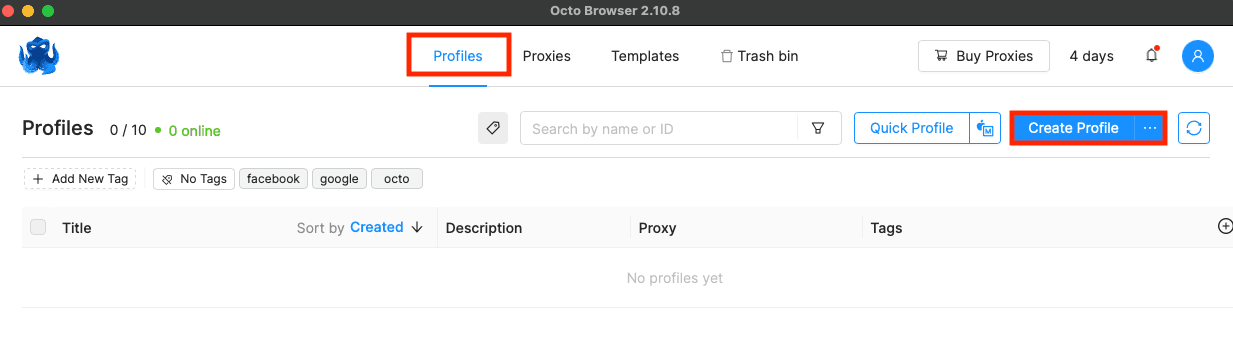
Now, you'll need to go back to the Profiles section and click Create Profile.
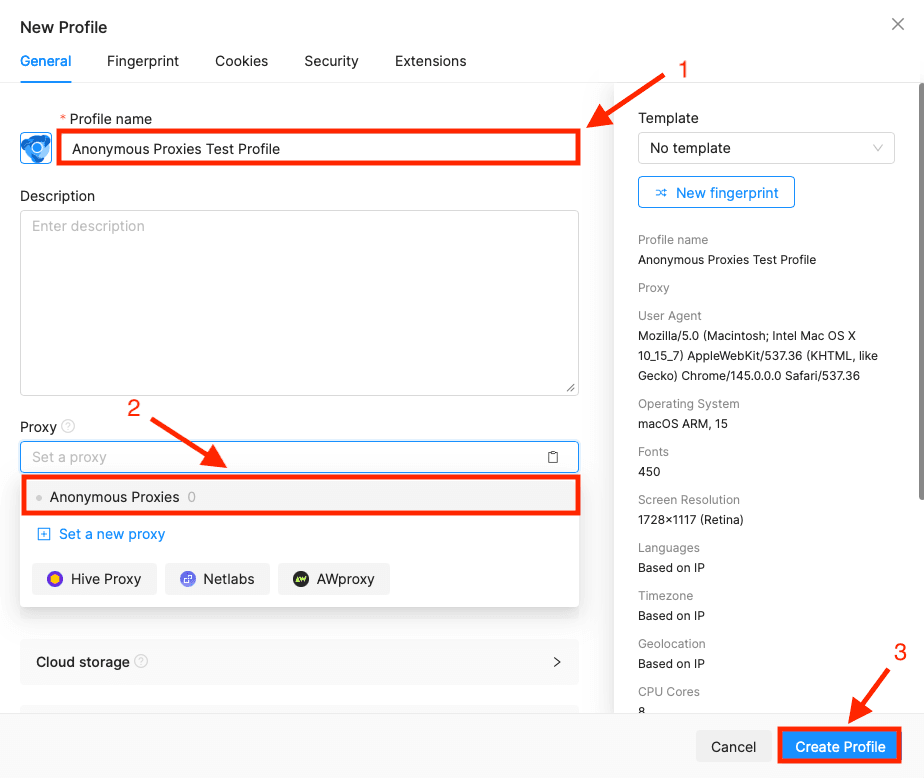
In the new profile window, you can name your profile, then ensure that you select the proxy you just added and click Create Profile to save the setup.
Step 7: Start the profile
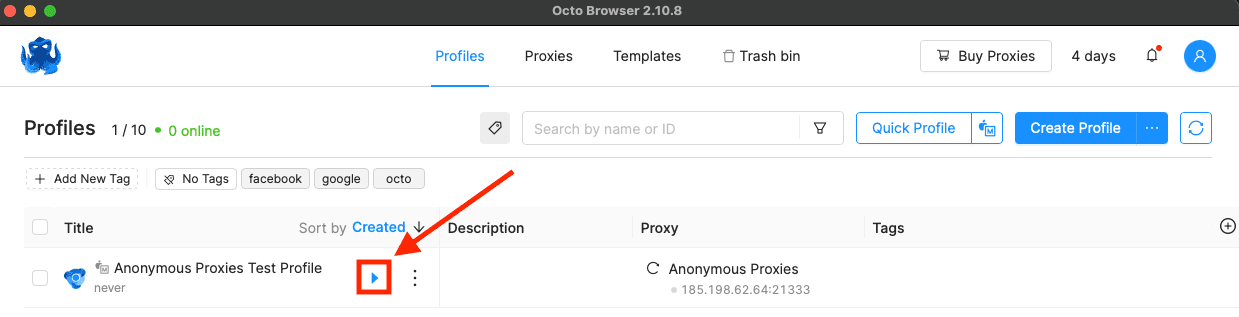
After you save it, click the Start button launch the profile.
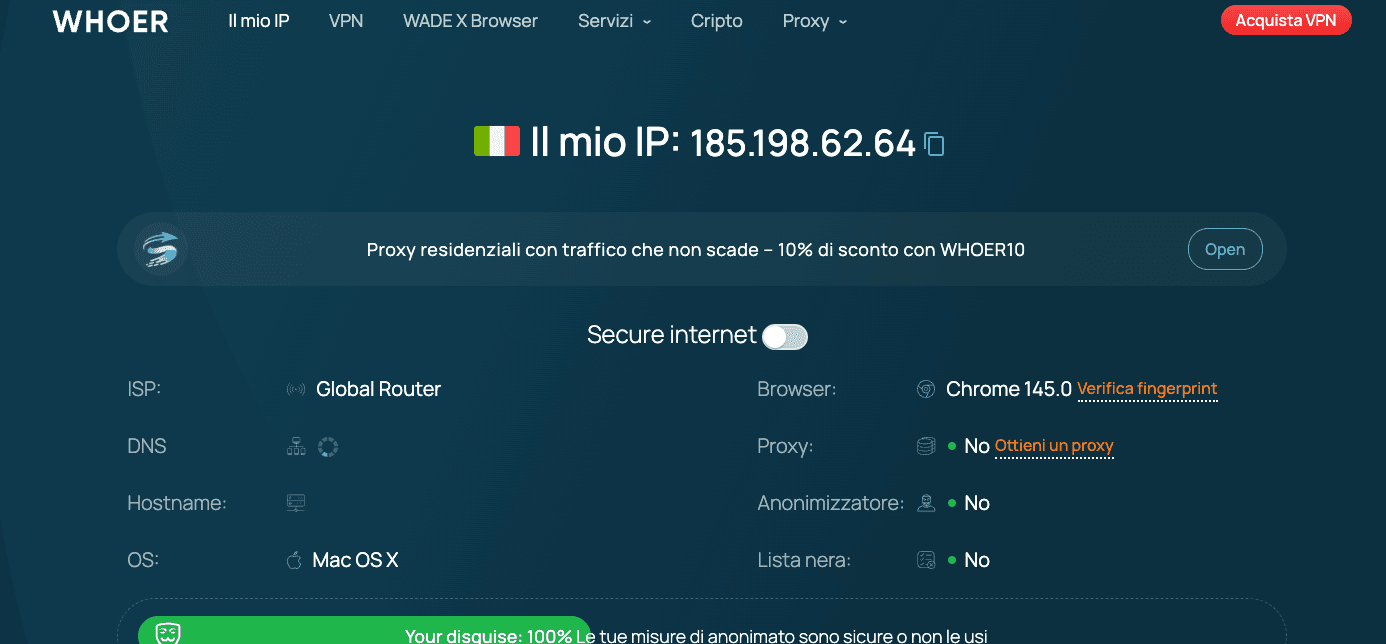
Step 8: Check your IP
For the final step, you can open an IP checker site inside the running profile and confirm that the IP looks the same as the one you've set up.
Wrap Up
That's it! Now the Octo Browser profile you've just set up will have its connection routed through Anonymous Proxies' residential proxies.
If you encounter any problems or have any questions related to the setup, you can contact our support team which will always be here to help you. And if you want to see more integration tutorial with other anti-detect browser or other tools, you can visit our integration page.