

Proxy Integration With Maskfog
This guide will show you how to set up Anonymous Proxies in Maskfog Browser to manage multiple accounts, handle geo-restrictions, and automate tasks.
What is Maskfog?
Maskfog is an anti-detect browser built for people who manage more than one account and need each session to stay separate. Instead of using one browser identity for everything, you create individual profiles. Every profile keeps its own cookies, storage, and fingerprint settings, so accounts are less likely to get linked together.
It’s especially useful when you’re switching between stores, ad accounts, social profiles, or research sessions all day. You open the profile you need, do your work, and close it, without your other profiles “bleeding into” that session.
Maskfog Features
- Isolated browser profiles so sessions stay separated
- Fingerprint controls to help each profile look unique
- Easy profile management for handling lots of accounts without chaos
- Proxy support per profile so every identity can use its own IP
- Team options and activity logs for shared setups and accountability
Setting Up Anonymous Proxies With Maskfog
Before we get into the steps, open your Anonymous Proxies dashboard and copy your proxy details somewhere easy to paste. Moreover, for this guide, we’ll use a residential proxy since this type of proxy is generally the best option for creating a natural environment during your sessions.
Step 1: Download Maskfog
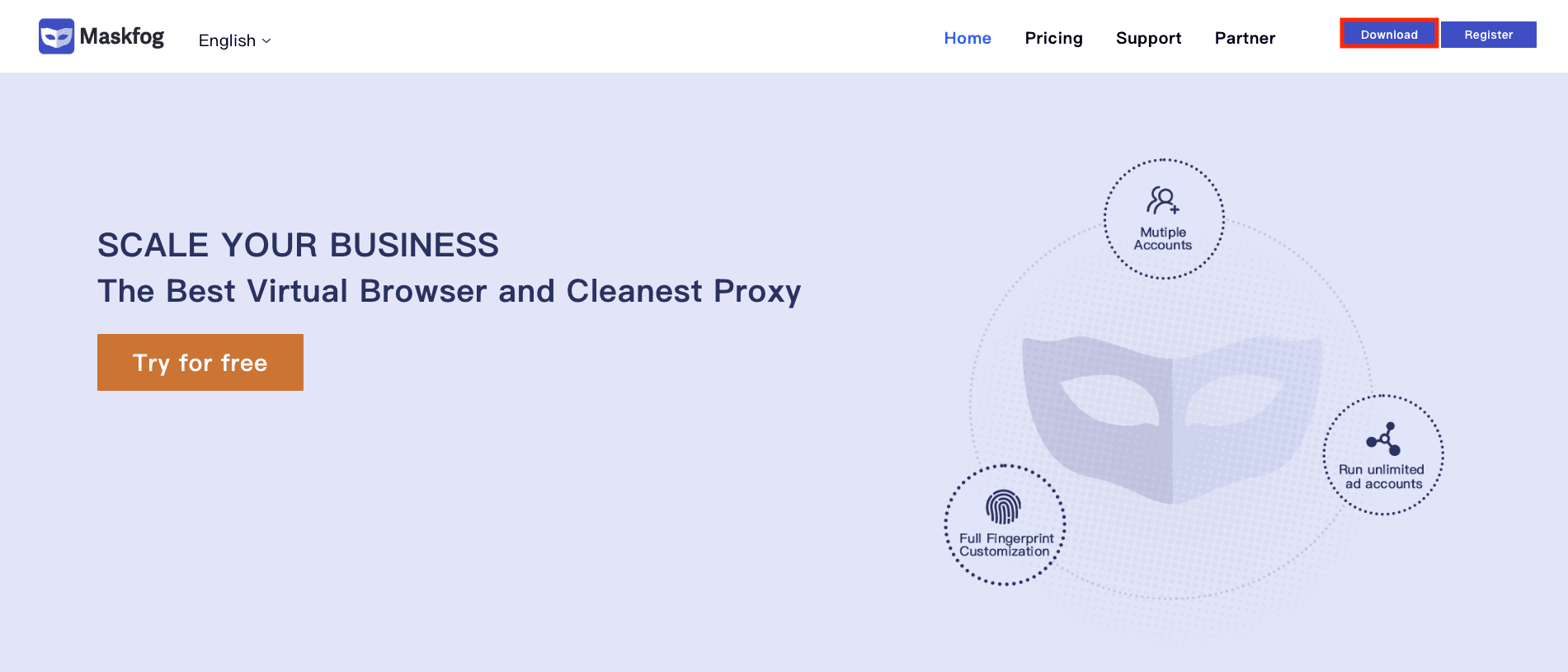
For the beginning, you go to the official Maskfog website, click Download, and install the version that matches your operating system.
Step 2: Log in to Maskfog
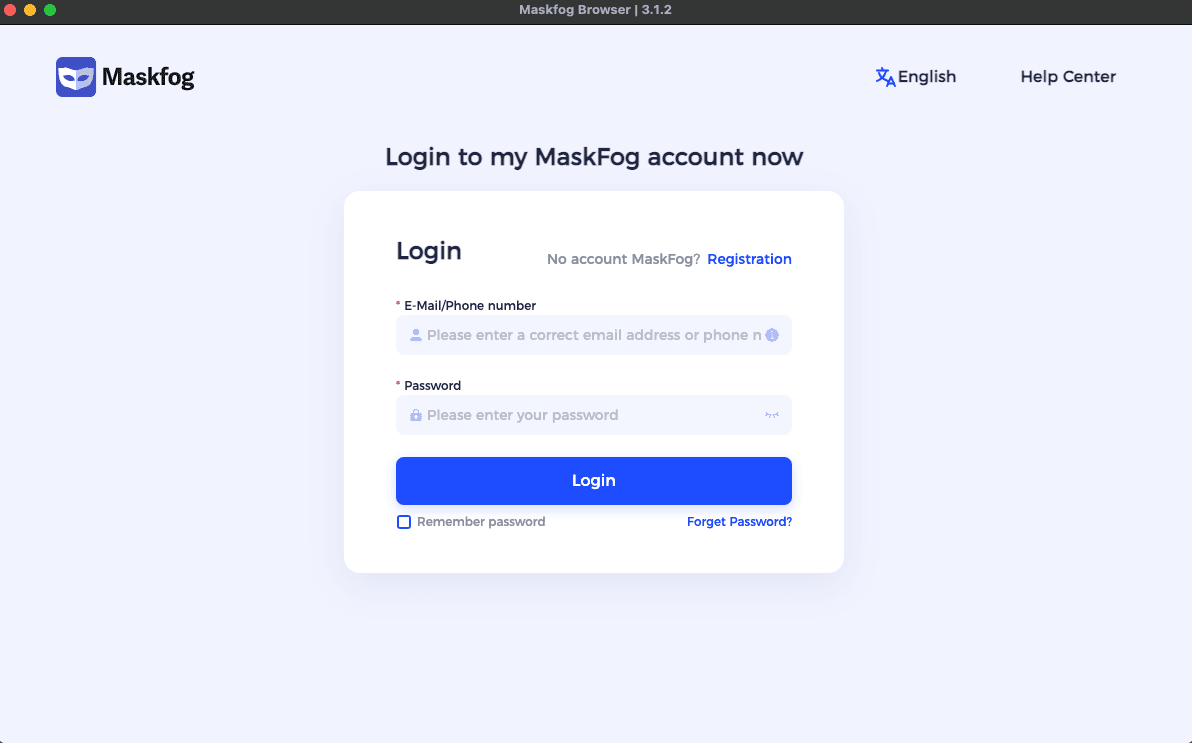
Once the download has finished, open the app, and log in to your Maskfog account if you already have one, if not create a new one by clicking on Registration.
Step 3: Create a new profile
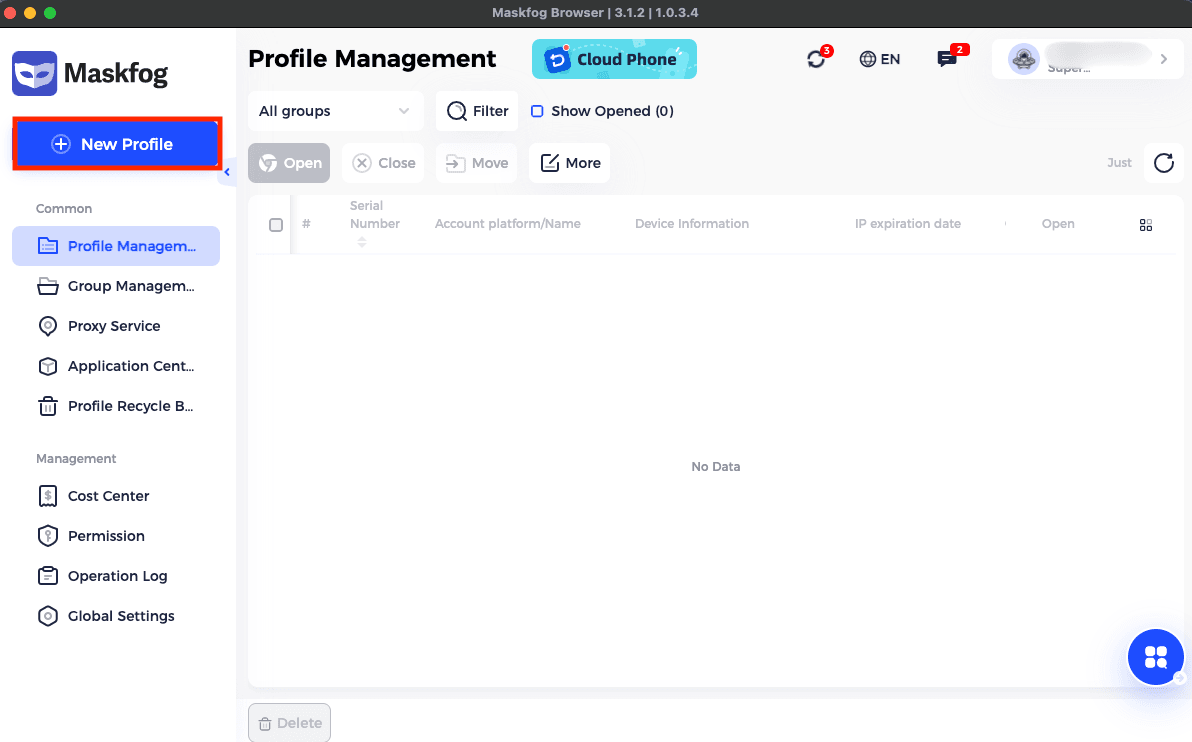
Once you log in, you'll be inside the dashboard and you'll need to click on New Profile.
Step 4: Open the proxy settings in the profile
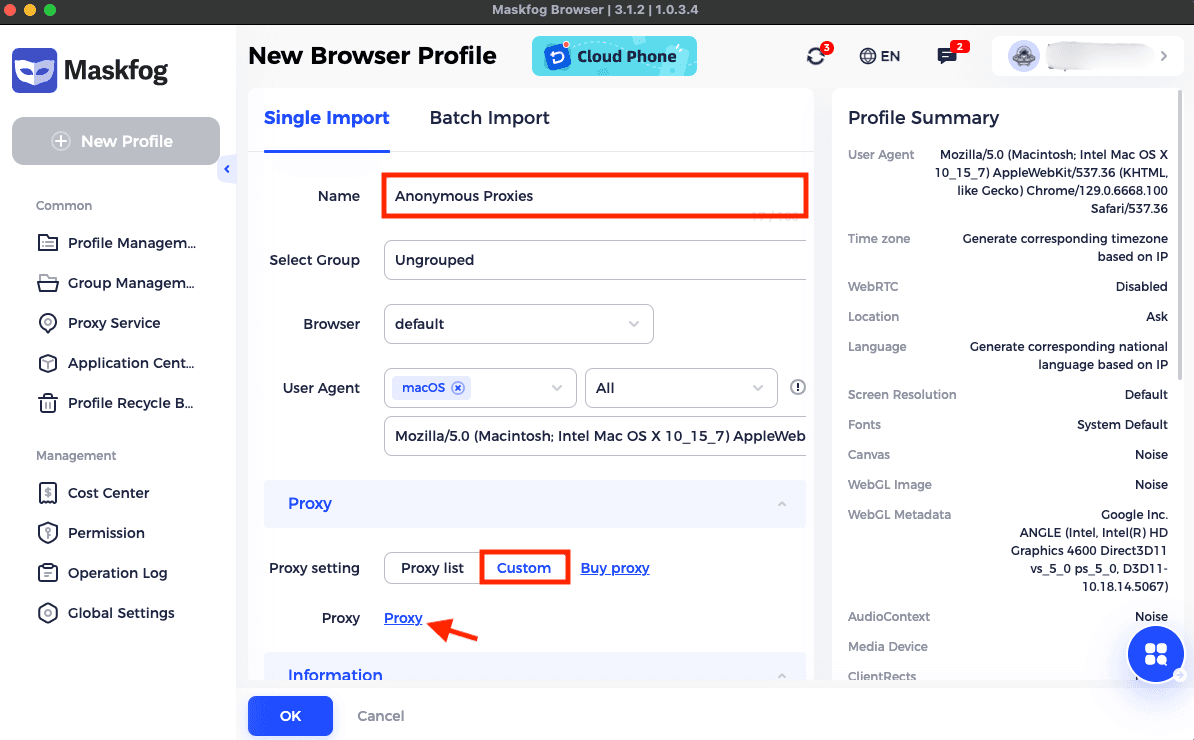
After this, inside the new profile window, name your profile, scroll to the Proxy section, choose Custom, then click Proxy to connect your own proxy.
Step 5: Add Proxy
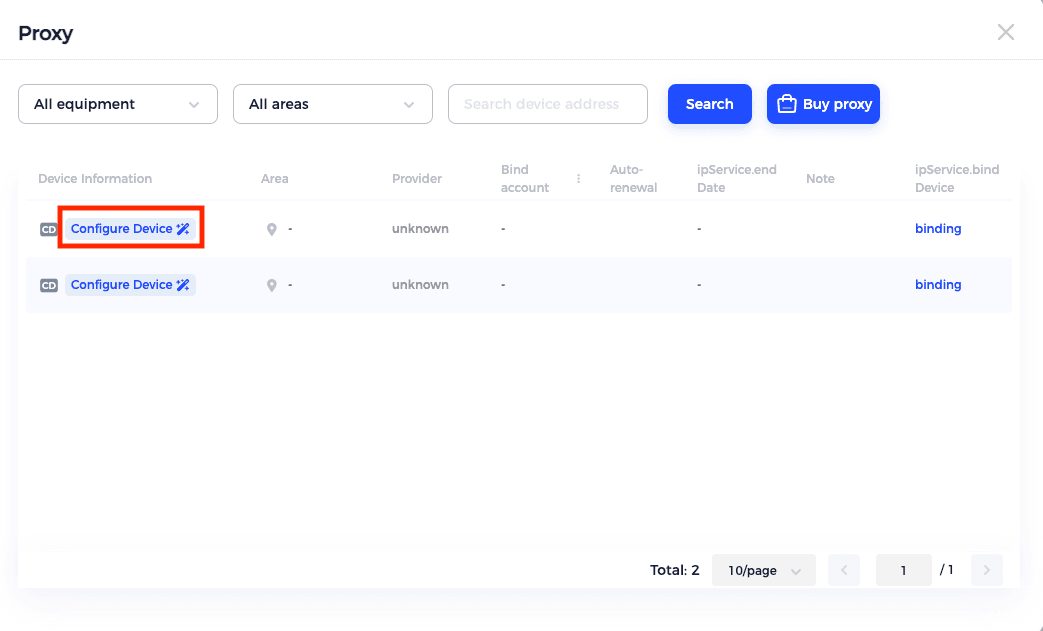
A new window will open where, Next,in the left menu, you'll need to click Configure Device to add your proxy server.
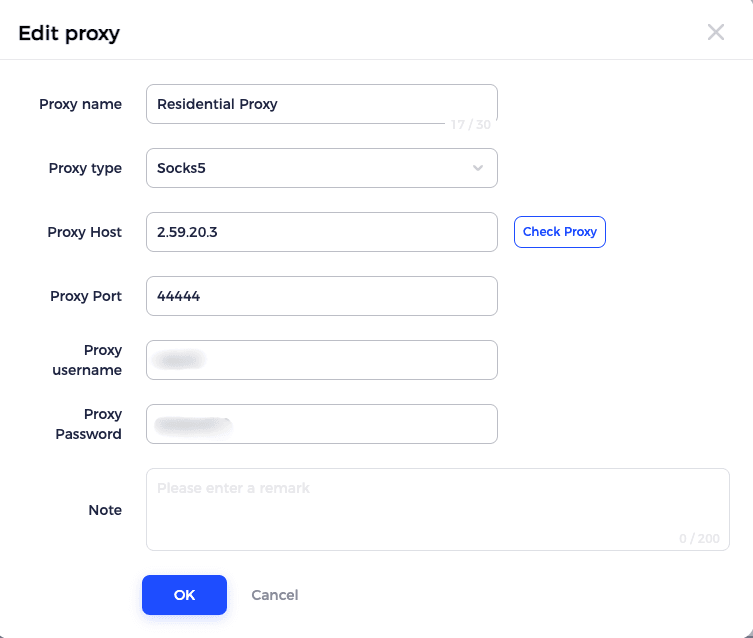
Then, in the Edit proxy window, pick the proxy type you are going to use, and paste in the required fields your proxy details.
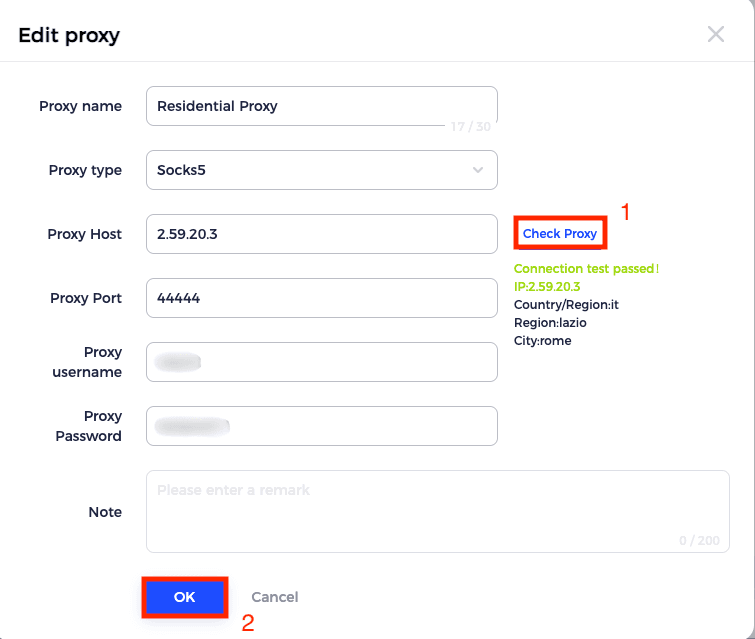
Step 6: Check proxy
Once you filled all the fields, click Check Proxy to confirm everything works.
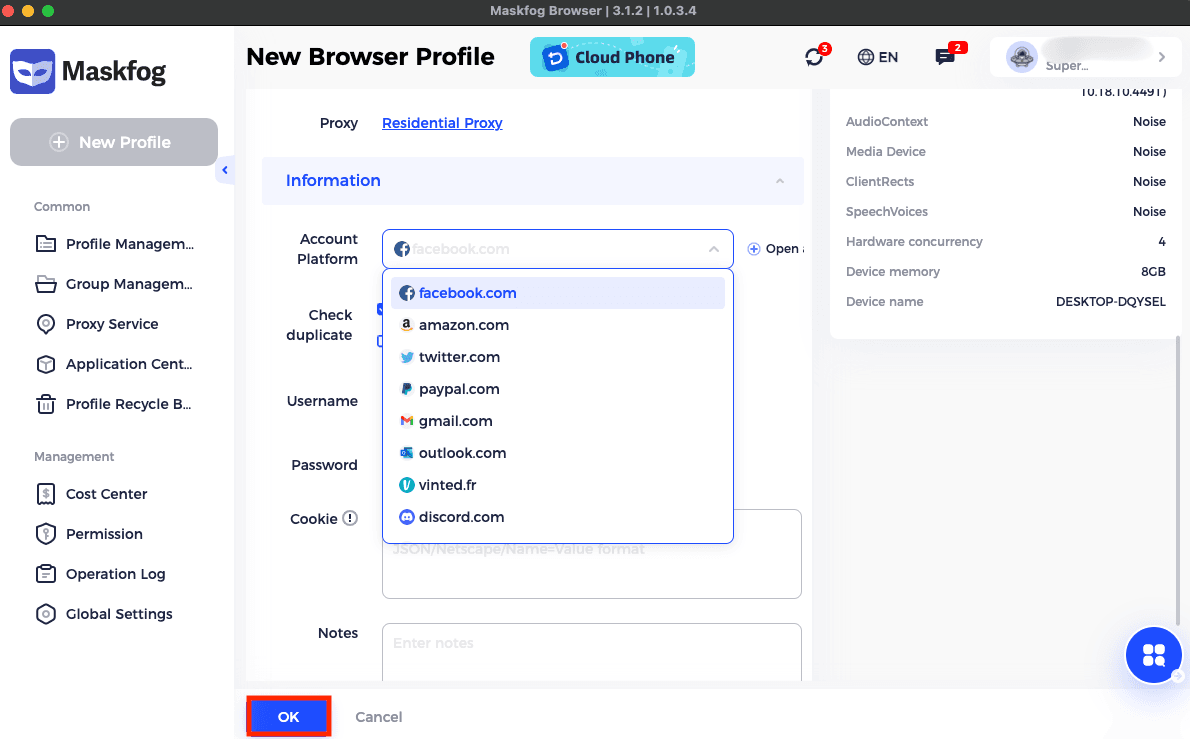
Step 7: Save profile
Go back to the profile setup and click OK to save the profile with the proxy applied.
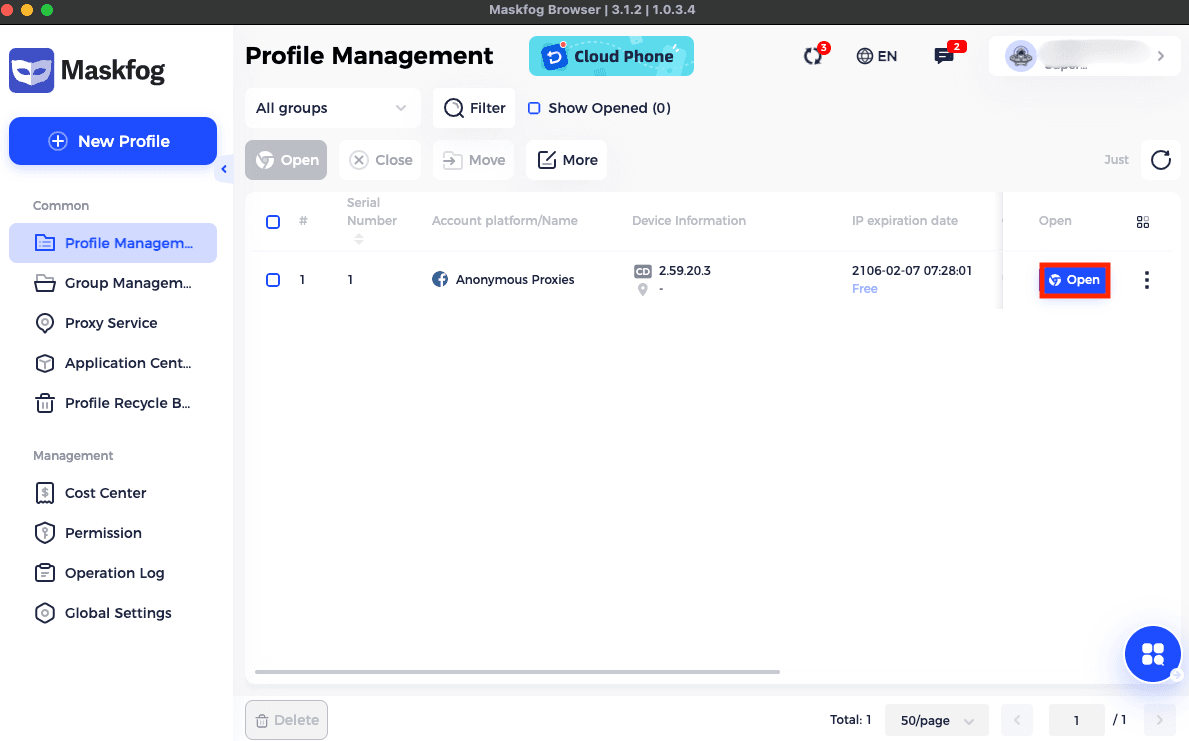
Step 8: Open profile
In your profile list, click Open to launch it. From now on, that Maskfog profile will run through the proxy you configured.
Conclusion
As you can see, connecting Anonymous Proxies residential proxies to Maskfog is quick and simple. Once it’s set, your profiles run on real home-style IPs, so it will be way easier to browse privately, manage multiple accounts, and scrape with fewer interruptions.
If anything doesn’t work during setup or have any proxy related questions, just reach out to our support team and we’ll help you get it sorted. If you want to see more integration tutorials with other antidetect browser, feel free to visit our integrations page.

Buy Backconnect Proxies
Rotating IPs on every request. Scale scraping and automation without manual IP management.
More antidetect-browser Proxy Integrations
See more antidetect-browser integrations that work seamlessly with Anonymous Proxies.

Proxy Integration With Kameleo
Learn how to set up Anonymous Proxies' residential proxies with Kameleo for automation, web scraping, and easier multi-account management.

Proxy Integration With Lalicat
Learn how to integrate Anonymous Proxies' residential proxies with Lalicat to manage multiple accounts with ease and browse in anonymous way.

Proxy Integration With ClonBrowser
Learn how to set up Anonymous Proxies’ residential proxies in ClonBrowser to manage multiple social media accounts smoothly and browse more privately.

Proxy Integration With Octo Browser
This integration tutorial will show you how to connect Anonymous Proxies in Octo Browser for safer multi-accounting and scraping in just a few minutes