

Proxy Integration With ixBrowser
In this guide, you'll learn how to set up ixBrowser with Anonymous Proxies, the perfect combo for safely managing multiple accounts without worrying about platform detection.
What is ixBrowser?
ixBrowser is a permanently free anti-detect browser. With our excellent fingerprint isolation technology, our fingerprint environment has a very high pass rate under the detection of third-party detection websites Pixelscan and Iphey. Whether it is a cross-border e-commerce person or an online marketer, it can easily manage multiple independent accounts, while avoiding platform detection and ban. At the same time, users can create independent profiles and invite team members for free and unlimited, which greatly saves operating costs and operating time.
IXBrowser Features:
- Secure Cloud Storage: Store all profile data on secure cloud servers for easy access from any device while keeping sensitive information truly safe.
- Customizable Digital Profiles: Create unique digital fingerprints for each profile. You will be able to manage multiple accounts, each with its own identity and browsing behavior.
- Extension Compatibility: You can access and install any Chrome Web Store extension across profiles.
- Batch Profile Operations: With just a couple of clicks, you can create, export, copy, edit, or open thousands of browser profiles-perfect for large-scale account management.
- Team Collaboration: Now, you can assign profiles to team members with multi-role support for an easy account management in a shared environment.
- Flexible Cookie Management: Seamless import and export of cookies across profiles for session continuity.
IXBrowser’s free version is packed with features most users need—create up to 10 profiles daily, open them up to 100 times and enjoy custom extensions, profile transfers and member permissions. For just $3.99 a month, the paid plans unlock advanced tools like fingerprint control, batch commands, API access and cloud storage. Even the Enterprise plan, with all features, is only $19.99 monthly and this makes IXBrowser an incredibly affordable and powerful solution compared to other solutions.
Set up Anonymous Proxies with ixBrowser
Below, you'll find a few simple steps to integrate Anonymous Proxies with IXBrowser.
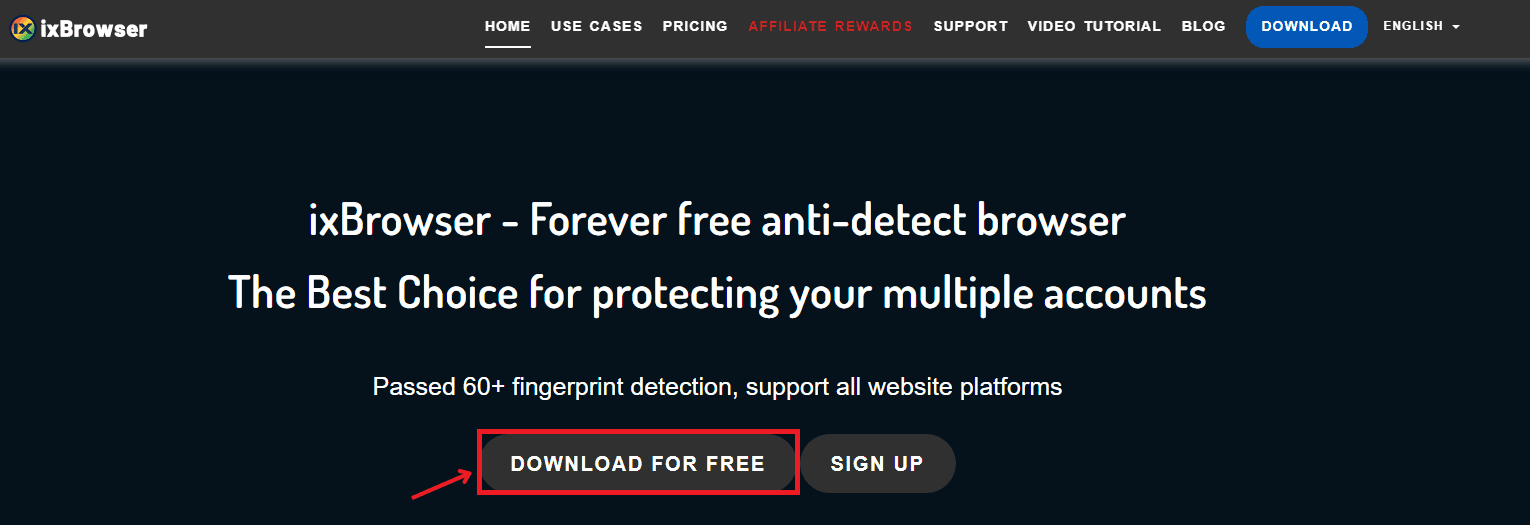
Step 1: Download ixBrowser
First, download the ixBrowser software from the official website.
Step 2: Log in to ixBrowser
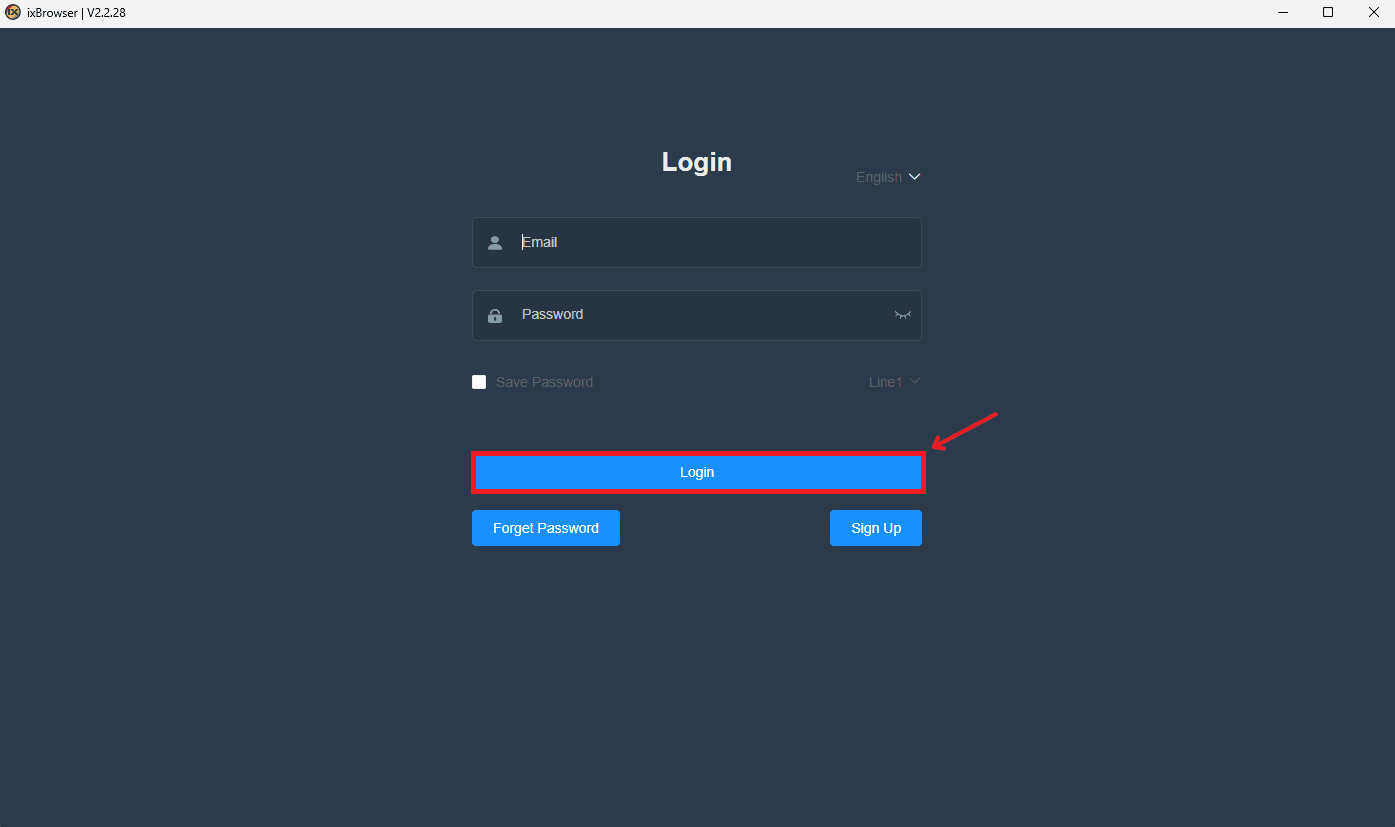
Once you installed ixBrowser, open the application. You’ll be greeted by a login screen where you need to enter your credentials to access your account. Simply type in your email and password, and click on the "Login" button. If yoo don't have an account you can create one for free.
Step 3: Create a New Profile
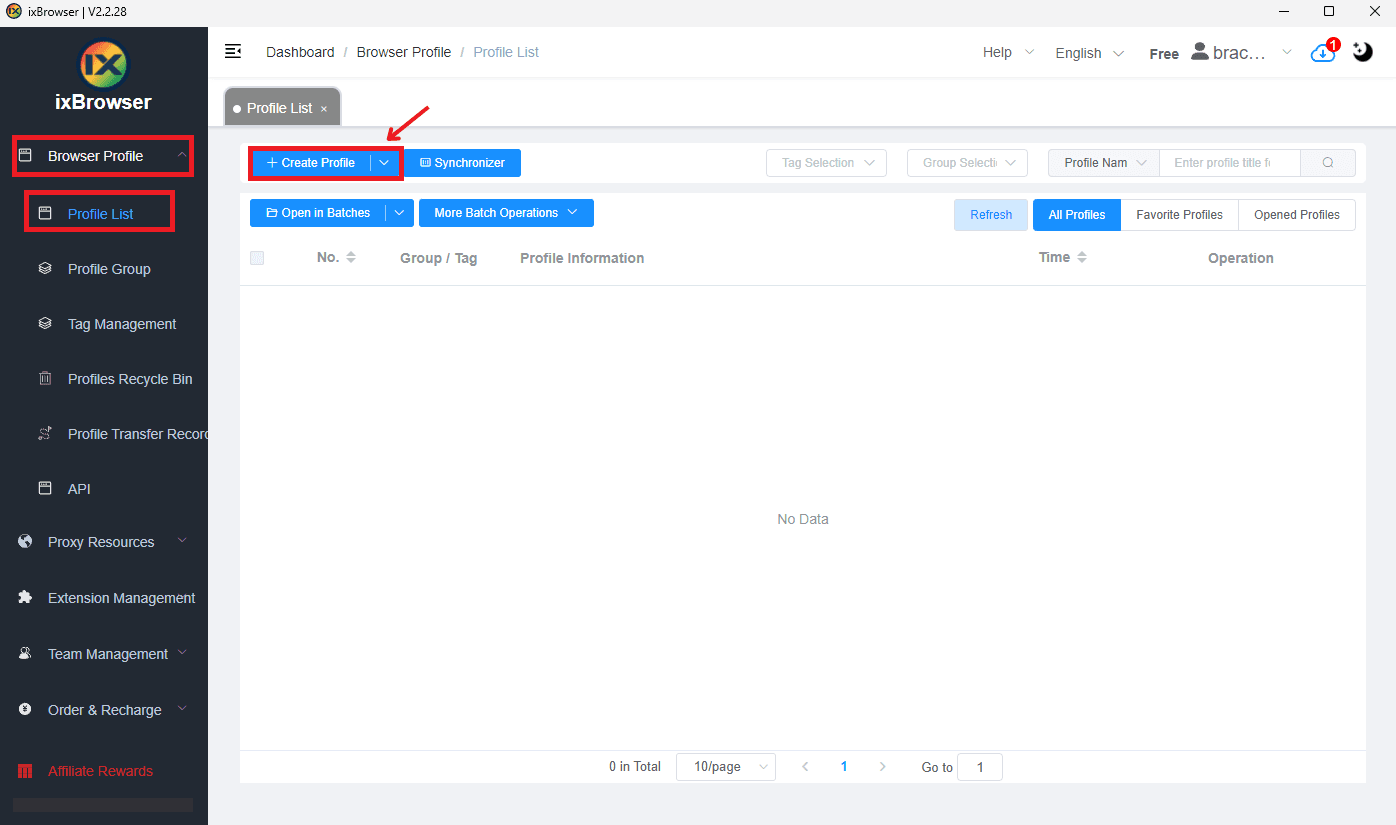
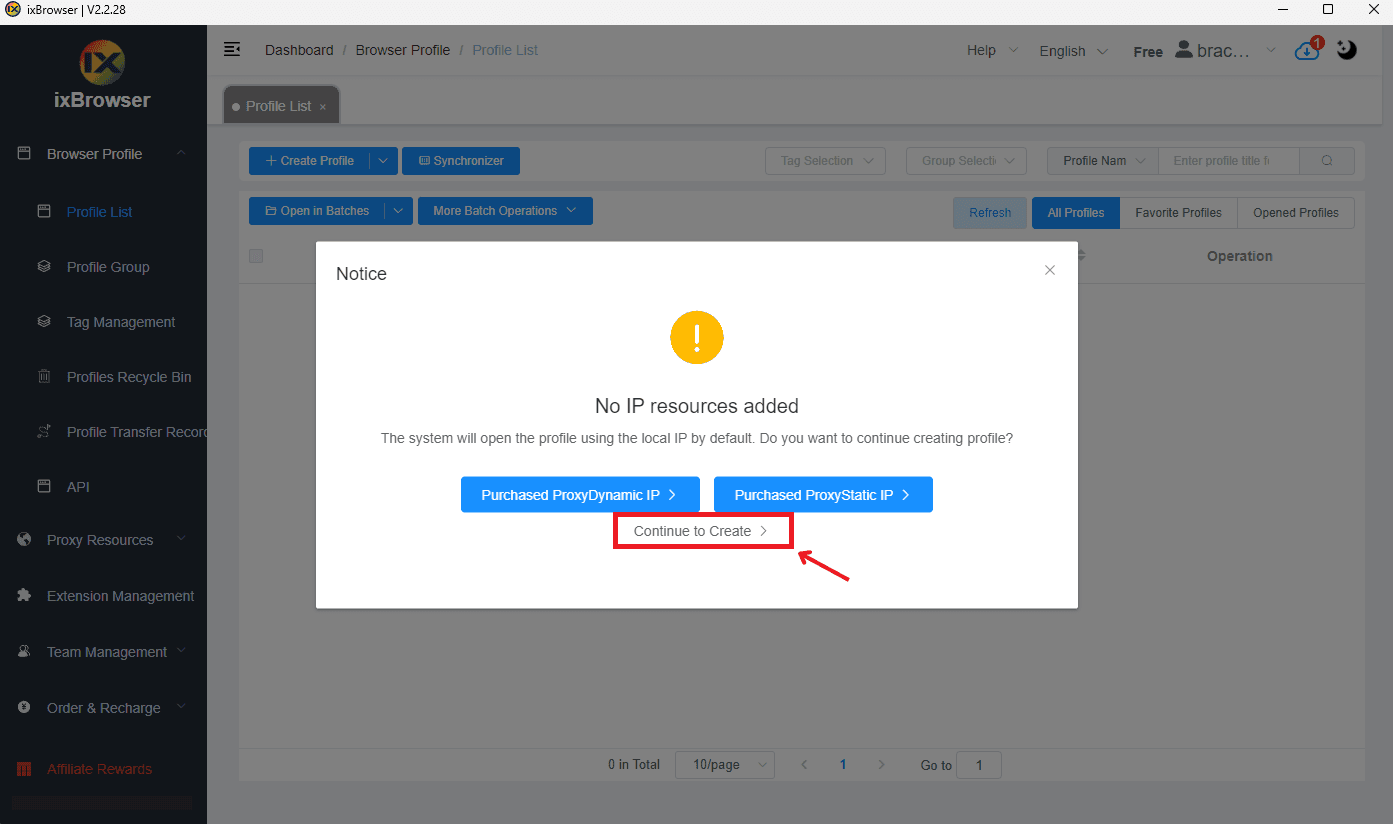
Once logged into ixBrowser, head over to the "Profile List" section found on the left sidebar. In this section, you’ll see a blue "Create Profile" button at the top of the page. Click on this button to start creating a new profile. If you start creating a profile without selecting a proxy first, ixBrowser may show a reminder. For this guide, we’ll be using a proxy from Anonymous Proxies, so simply click “Continue to Create” to move ahead with a custom proxy setup.
Step 4: Enter Profile Information
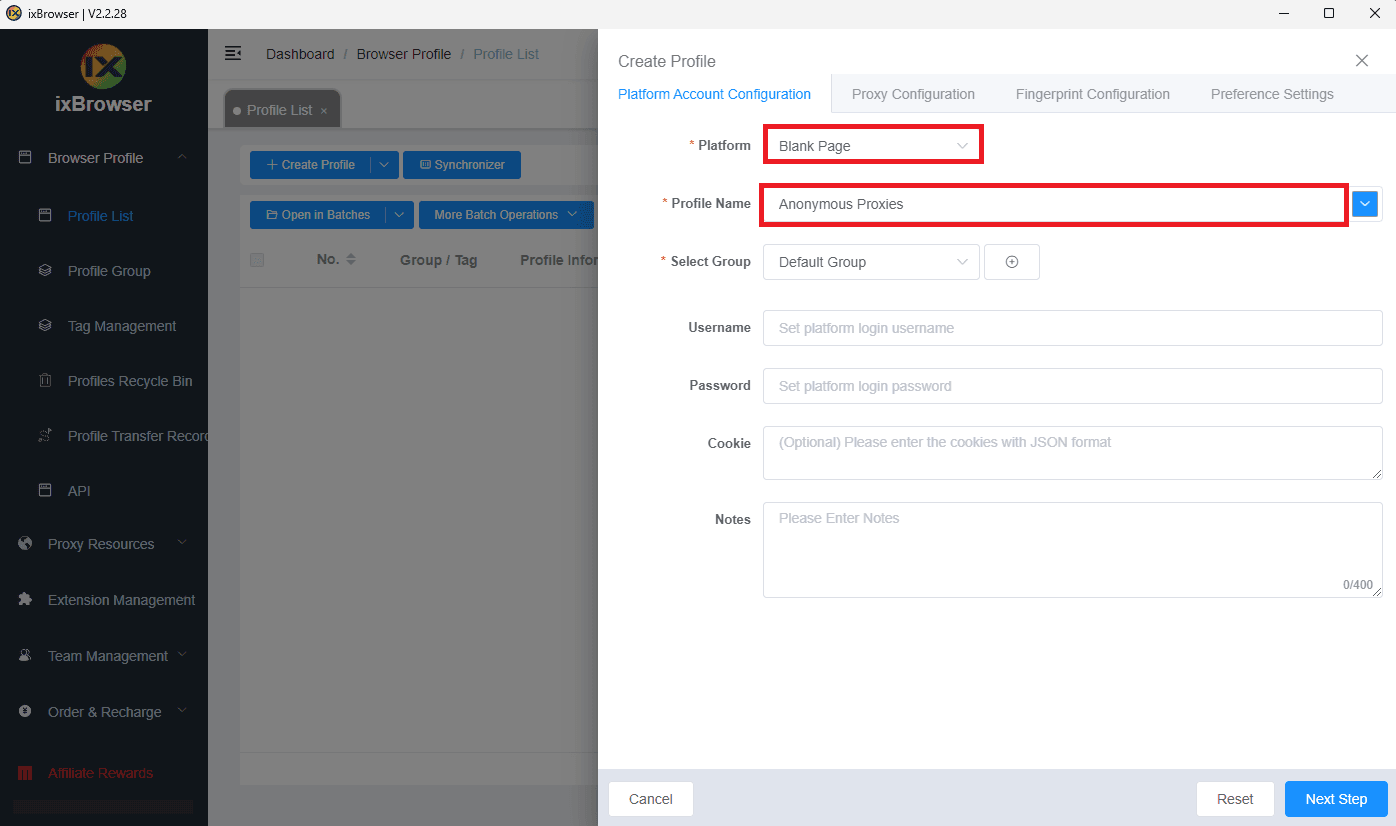
In the profile creation menu, begin by filling in the basic profile details under the "Platform Account Configuration" tab. For "Platform," select "Blank Page" if you are not configuring a profile for a specific platform or service. Next, you need to enter a name for "Profile Title".
Step 5: Configure Proxy Settings
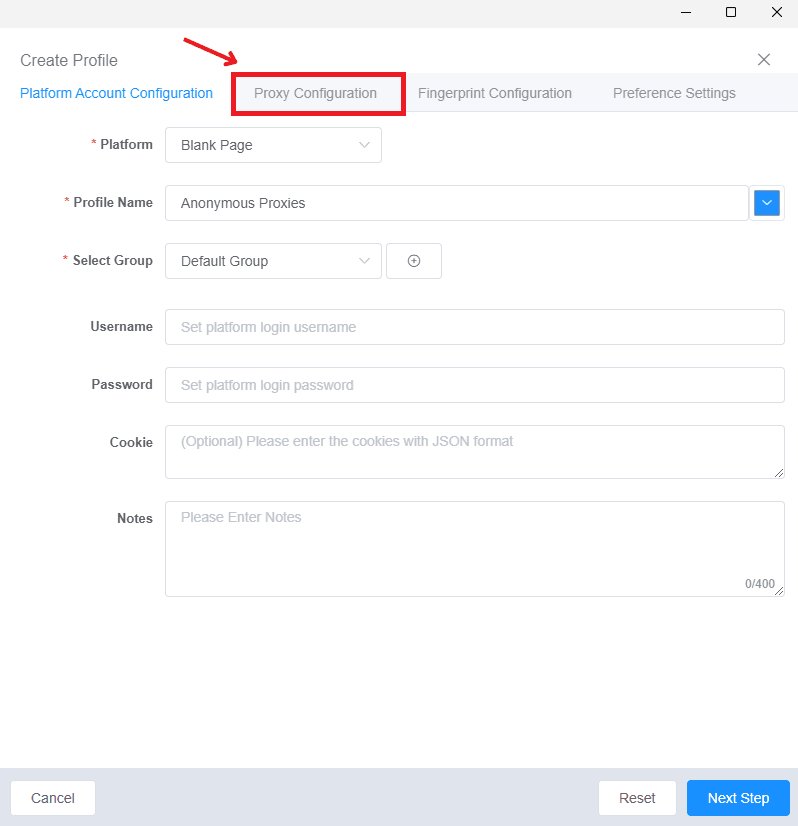
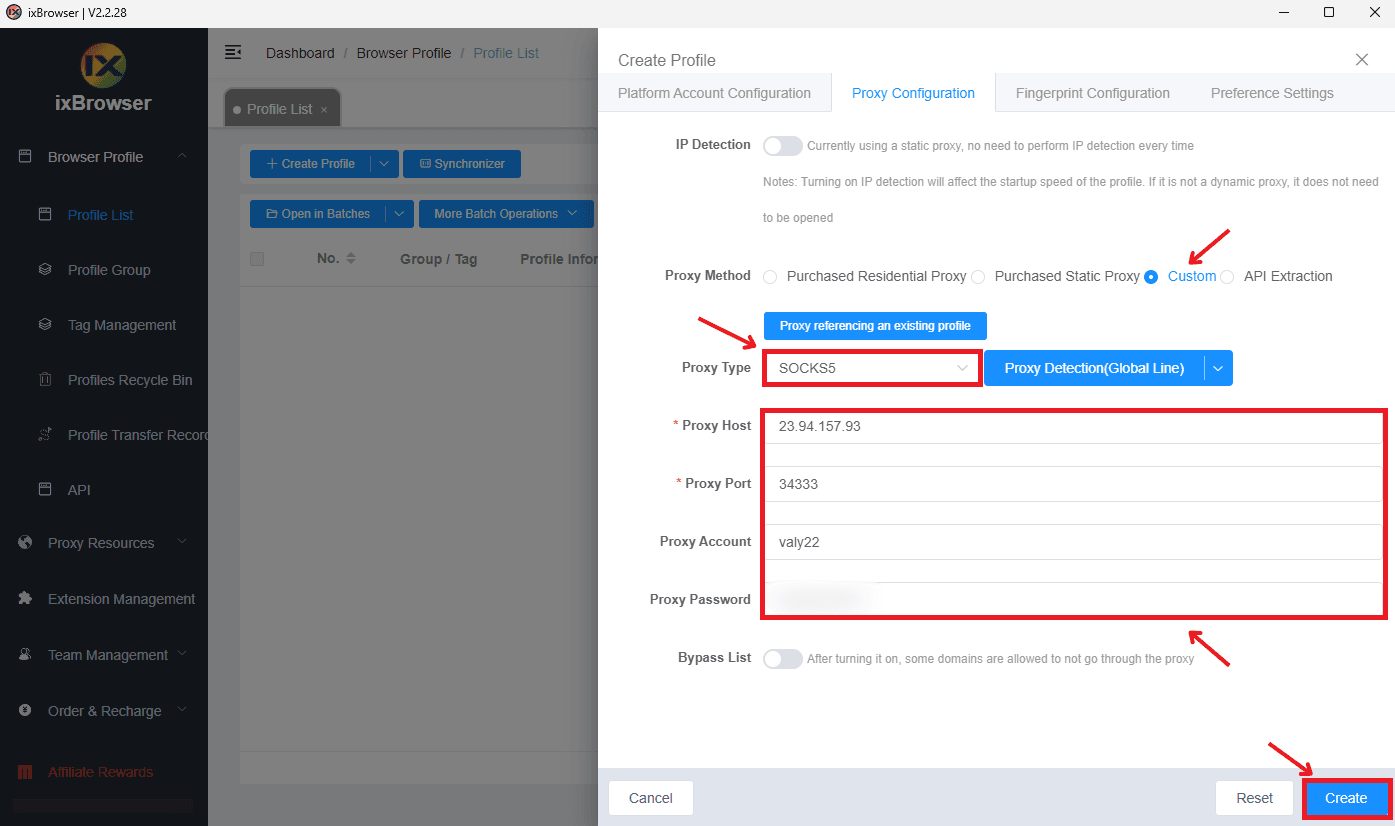
Once, you've filled these fields switch to the "Proxy Configuration" tab. In line with "Proxy Method," select "Custom" to enable manual proxy entry.
Step 6: Enter Proxy Credentials
There you need to select a proxy type. I'm going to us SOCKS5 for this example. Then you need to enter your proxy credentials, your username and password you used when you created your profile on Anonymous Proxy dashboard. Once, you've filled all fields, you just need to click on the "Create" button to save the profilee.
Step 7: Open the Profile
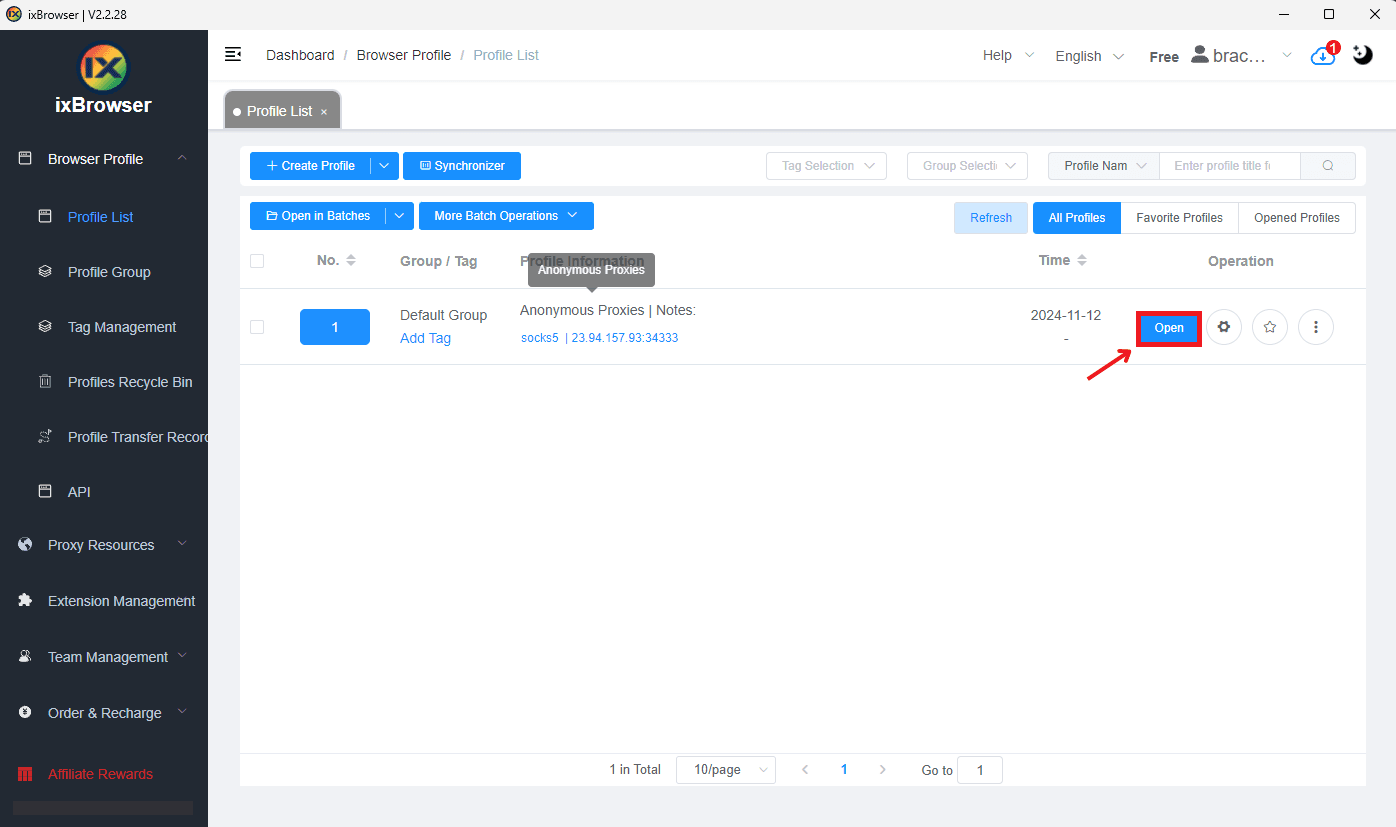
You are gonna be returned to the "Profile List" section where you should now be able see the profile you've just created. Now, all what remains is to click on the "Open" button. You'll see that a browser window will open and it will contain info about your browser profile and IP.
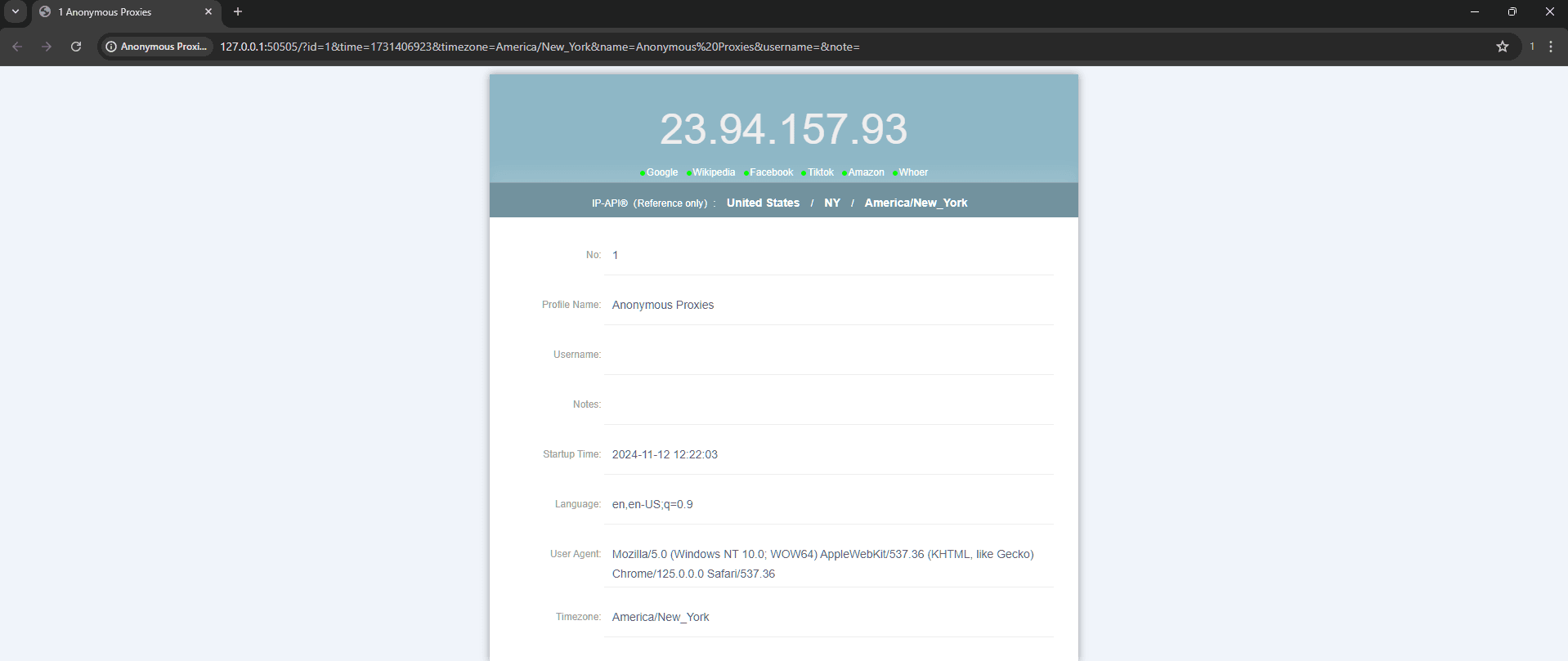
That's it! Now you can create as many new profiles as you want to complete all of your missions.
Conclusion
You’re all set with ixBrowser! Remember, the reliability of your anonymous browsing depends on the quality of your proxies. But you don't need to worry about this because if you'll use our high-quality residential or datacenter proxies you won't encounter any problem in your online activities and you are gonna remain totally anonymous.
Moreover, if you have any questions or have problems with the guide, you can contact our support team or use the live chat on the right side of your screen. If you want to see more integration guides, you can check out our proxy integrations page.

Buy Backconnect Proxies
Rotating IPs on every request. Scale scraping and automation without manual IP management.
More antidetect-browser Proxy Integrations
See more antidetect-browser integrations that work seamlessly with Anonymous Proxies.

Proxy Integration With Kameleo
Learn how to set up Anonymous Proxies' residential proxies with Kameleo for automation, web scraping, and easier multi-account management.

Proxy Integration With Lalicat
Learn how to integrate Anonymous Proxies' residential proxies with Lalicat to manage multiple accounts with ease and browse in anonymous way.

Proxy Integration With ClonBrowser
Learn how to set up Anonymous Proxies’ residential proxies in ClonBrowser to manage multiple social media accounts smoothly and browse more privately.

Proxy Integration With Octo Browser
This integration tutorial will show you how to connect Anonymous Proxies in Octo Browser for safer multi-accounting and scraping in just a few minutes