

Proxy Integration With Incogniton
This guide will show you how to integrate Anonymous Proxies with Incogniton for smoother multi-account management, safer browsing, and fewer bans.
What is Incogniton?
Incogniton is a powerful anti-detect browser created for those who need to work with multiple online identities. It's valued by businesses, digital marketers, and people who have to browse the internet without leaving any digital footprints that lead back to the them. Incogniton allows you to create different browser profiles that will act independently. Each of these profiles have their digital footprint and they are perfect for tasks like social media management, e-commerce research and for testing ad campaigns.
Incogniton has pricing plans for everyone, from casual use to large enterprises, so you will definitely find what fits your needs. But, if you want to remain fully anonymous when you use Incogniton you must combine it with high-quality residential proxies. With these reliable proxies, each browser profile will have unique and stable connection, which reduce your detection risk to 0.
How To Set Up Anonymous Proxies with Incogniton?
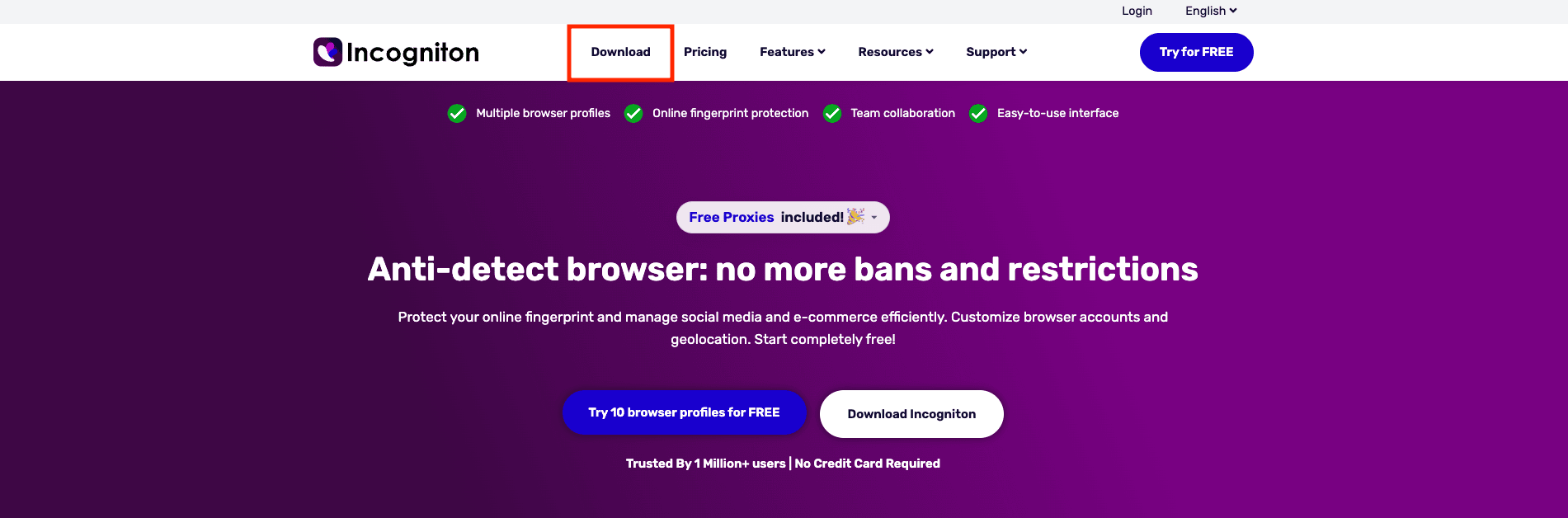
Step 1: Download and Install Incogniton
Firstly, visit the official Incogniton website and download the Incogniton app based on your operating system. Once you install the app, launch it.
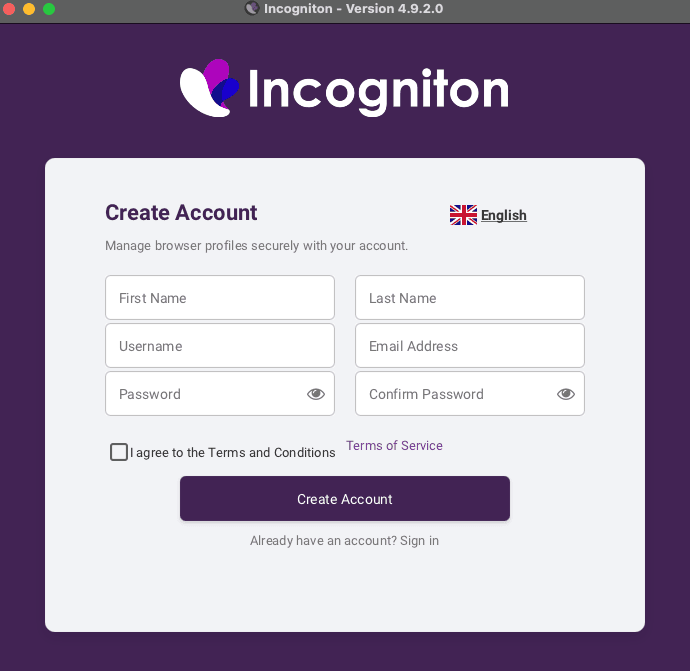
Step 2: Create an Account on Incogniton
When you open the app, you’ll see a login screen. If you’re new to Incogniton, select "Create a free account" and follow the registration steps. If you already have an account, simply enter your credentials to log in.
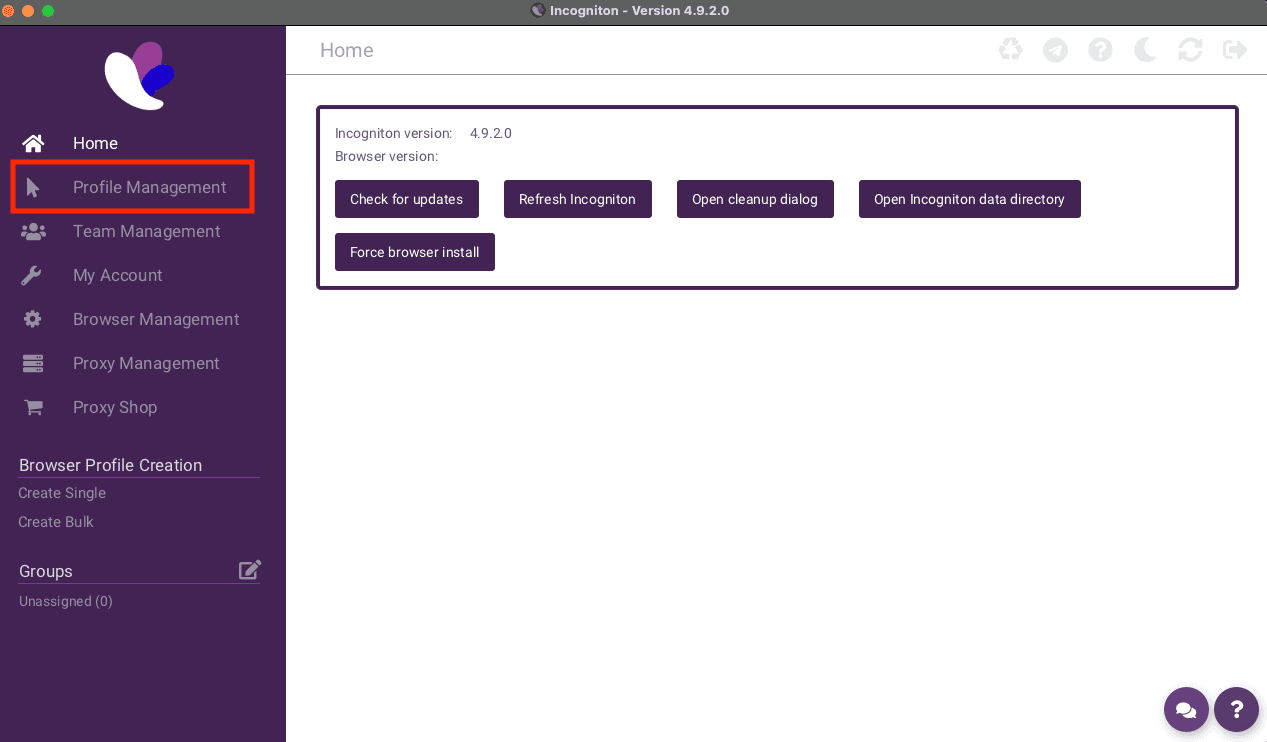
Step 3: Navigate to Profile Management
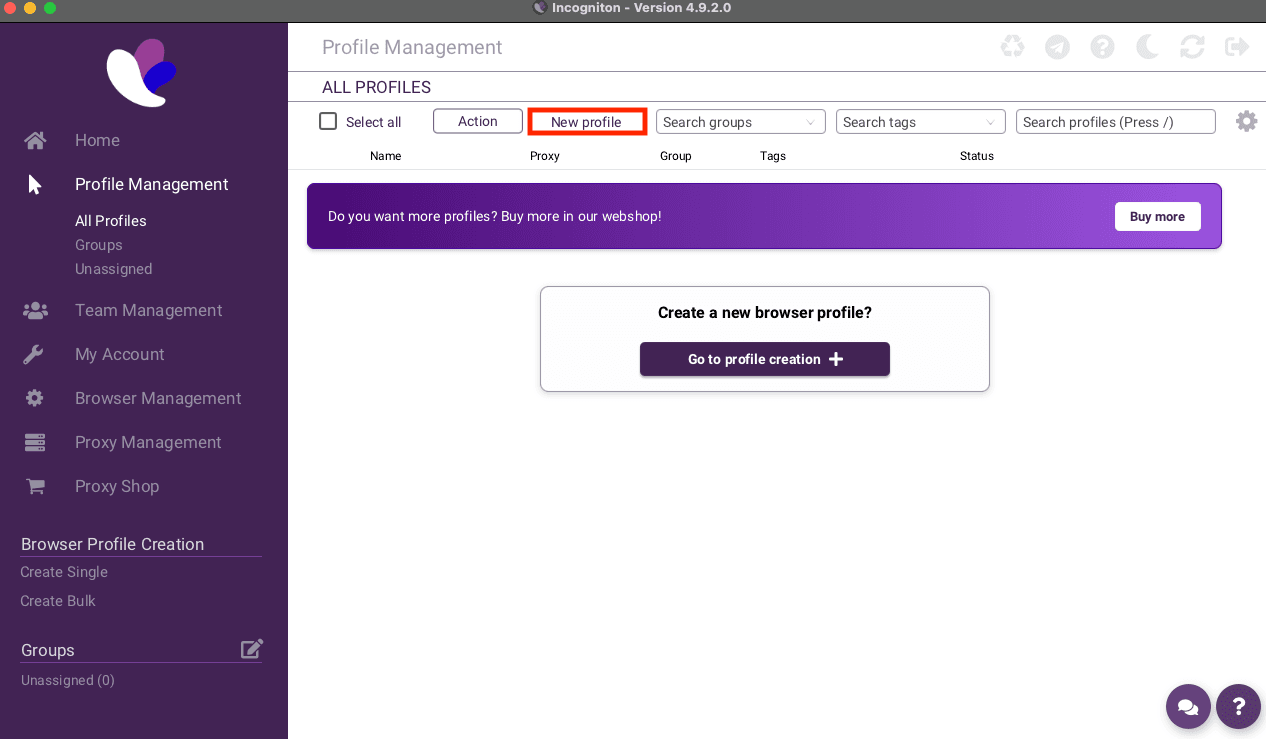
After logging in, head over to the Profile Management section on the left sidebar. Once, you got there you need click on New Profile.
Step 4: Set Up Proxy in Profile Settings
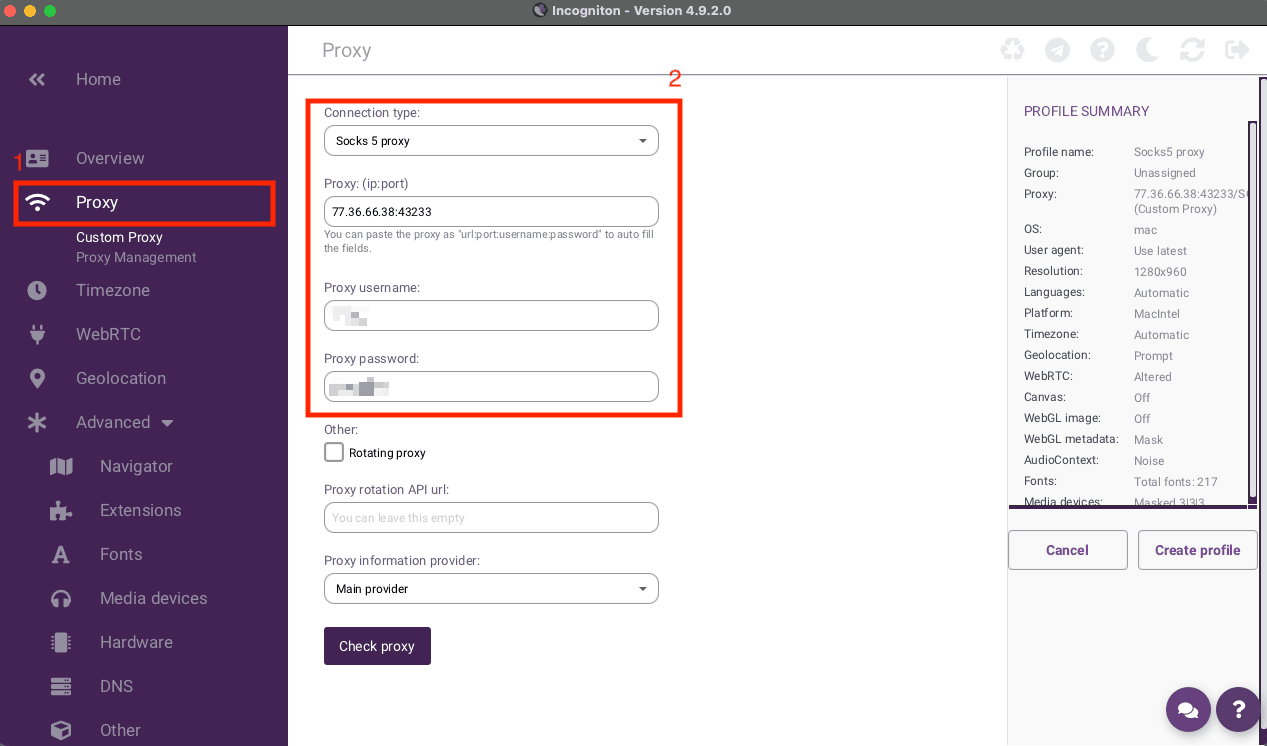
Now, you should see a Proxy setting in the left sidebar, when you see it just click on it. Here, select your Connection Type from the dropdown menu, which typically is either HTTP or SOCKS5, depending on what you want for the moment. In this example, I'm going to use SOCKS5 proxies. Enter the Proxy IP and Port in the fields provided, formatted as "IP:Port." If your proxy requires authentication, be sure to fill in the Proxy Username and Password fields with the information given by your provider. If your IP is whitelisted, there is no need to introduce your authentication credentials.
Step 5: Test the Proxy Connection
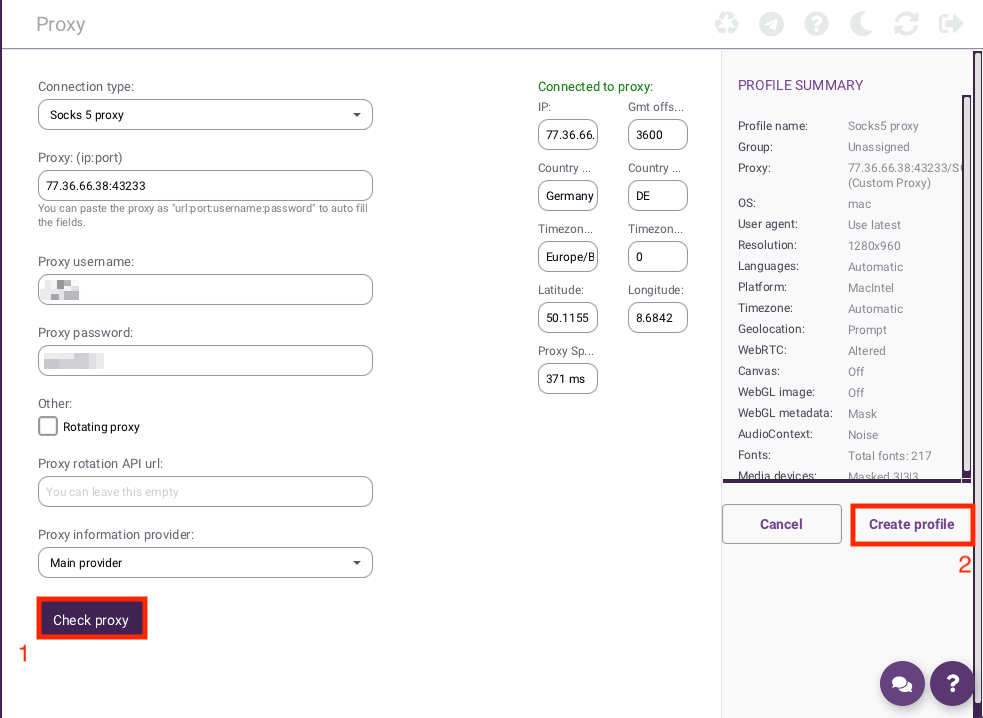
Once you’ve entered all the proxy details, click on Check Proxy to verify the connection. Incogniton will check if the proxy settings are correct and notify you if the connection is active. If there’s an error, double-check if the IP, port, username and password that you entered are correct. Once you see that your connection is alright, you can click on Create Profile to save your profile.
Step 6: Start the Profile
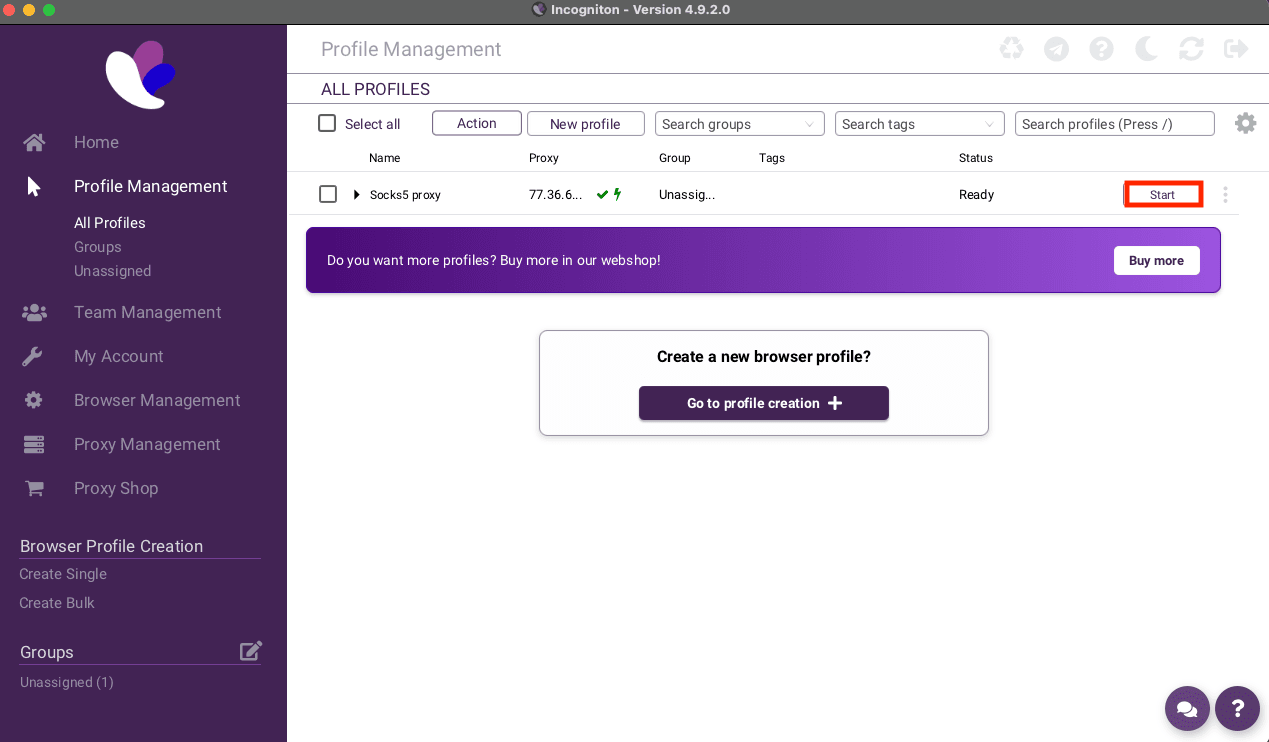
Now you are gonna be returned to the Profile Management section, where your newly created profile will be listed. All what remain right now is to click Start next to the profile name.
Conclusion
That’s it! You should now be able to integrate Anonymous Proxies with Incogniton without any problem. If you couldn't integrate our proxies with Incogniton, you can simply get in touch with our team and they are going to resolve your problem. If you want to see more guides with other antidetect browsers, feel free to visit our integrations page.

Buy Backconnect Proxies
Rotating IPs on every request. Scale scraping and automation without manual IP management.
More antidetect-browser Proxy Integrations
See more antidetect-browser integrations that work seamlessly with Anonymous Proxies.

Proxy Integration With Kameleo
Learn how to set up Anonymous Proxies' residential proxies with Kameleo for automation, web scraping, and easier multi-account management.

Proxy Integration With Lalicat
Learn how to integrate Anonymous Proxies' residential proxies with Lalicat to manage multiple accounts with ease and browse in anonymous way.

Proxy Integration With ClonBrowser
Learn how to set up Anonymous Proxies’ residential proxies in ClonBrowser to manage multiple social media accounts smoothly and browse more privately.

Proxy Integration With Octo Browser
This integration tutorial will show you how to connect Anonymous Proxies in Octo Browser for safer multi-accounting and scraping in just a few minutes