

Proxy Integration With Hidemium
Learn how to set up Anonymous Proxies' residential proxies in Hidemium to run multiple accounts and browse geo-targeted content with fewer blocks.
What is Hidemium?
Hidemium is an antidetect browser built for multi-account management. Instead of running everything inside one standard Chrome session, Hidemium lets you create separate browser profiles, each with its own cookies, storage, fingerprints, and network route. This separation matters because many platforms connect accounts through shared device signals. With Hidemium, each profile behaves like a distinct environment, so you can switch between identities without cross-contamination.
Hidemium Features
- Fingerprint database and spoofing. Think of this as giving each profile its own “device identity.” Instead of recycling the same setup over and over, you can pull from a large fingerprint pool and fine-tune key signals so every profile looks like it belongs to a real, everyday user.
- Automation (no-code friendly). When you’re repeating the same actions across multiple accounts, it gets old fast. Hidemium’s drag-and-drop automation helps you turn those routines into simple workflows, so you spend less time clicking and more time actually getting things done.
- Enhanced anonymity. Hidemium is built to reduce the little clues that websites use to connect sessions. With stronger handling of cookies and session data, plus network-level routing options, profiles stay cleaner and less “linkable” to each other.
- Customizable browser environment. You’re not stuck with one generic browser setup. You can adjust important environment details (like device-style and display-related parameters) so each profile feels consistent, natural, and believable.
- Proxy integration. Adding proxies is straightforward, and you can assign a dedicated IP per profile. That’s useful for keeping logins stable, matching locations, and avoiding the mess that happens when different accounts share the same network footprint.
- Multiple profile management. Hidemium makes it easy to create and organize lots of separate profiles. Each one runs as its own little world, so your accounts don’t mix sessions, cookies, or settings by accident.
How to Set Up Anonymous Proxies With Hidemium
Before we get started, open Anonymous Proxies dashboard and grab your proxy details. Once everything is ready, follow the step-by-step guide below to have your setup ready in just a few minutes.
Step 1: Download and install Hidemium
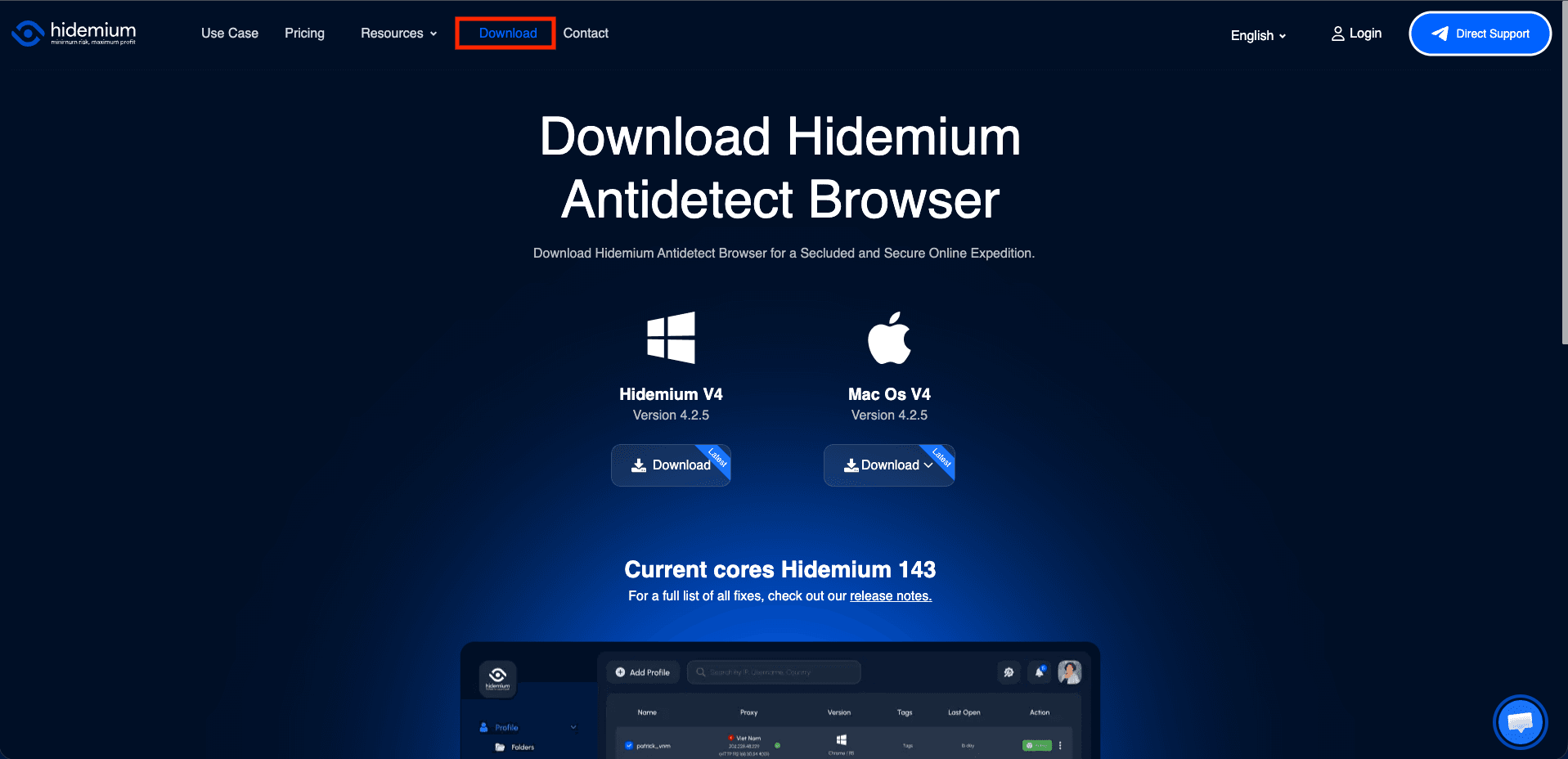
Now, go to the official Hidemium website and click on the Download button. On the download page, you have the options for both Windows and MacOS (M and Intel chips) operation systems.
Step 2: Sign in to your Hidemium account
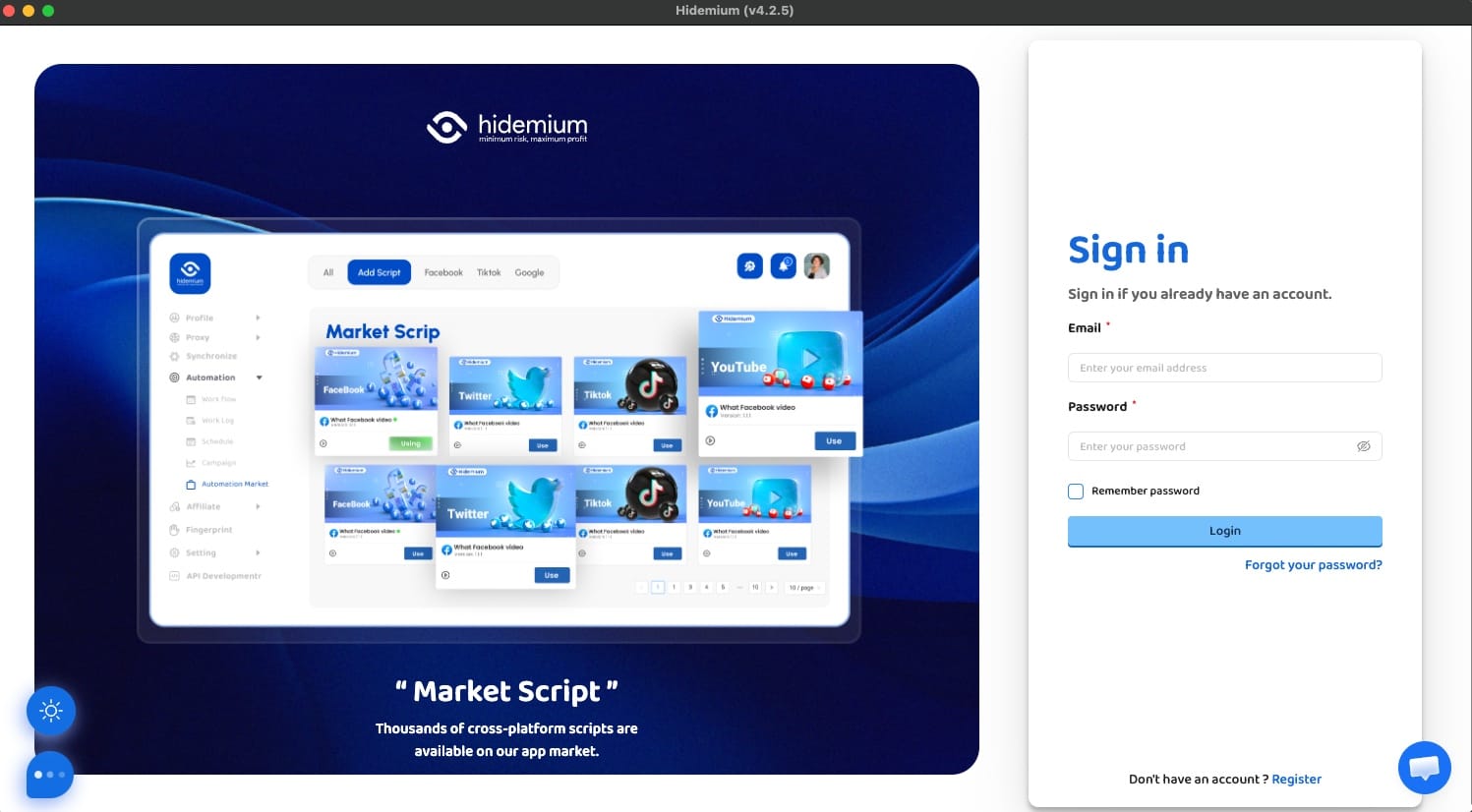
When you're done with the download, open Hidemium, then log in to your account. If you are a new user just click on Register to make a new profile.
Step 3: Create a new browser profile
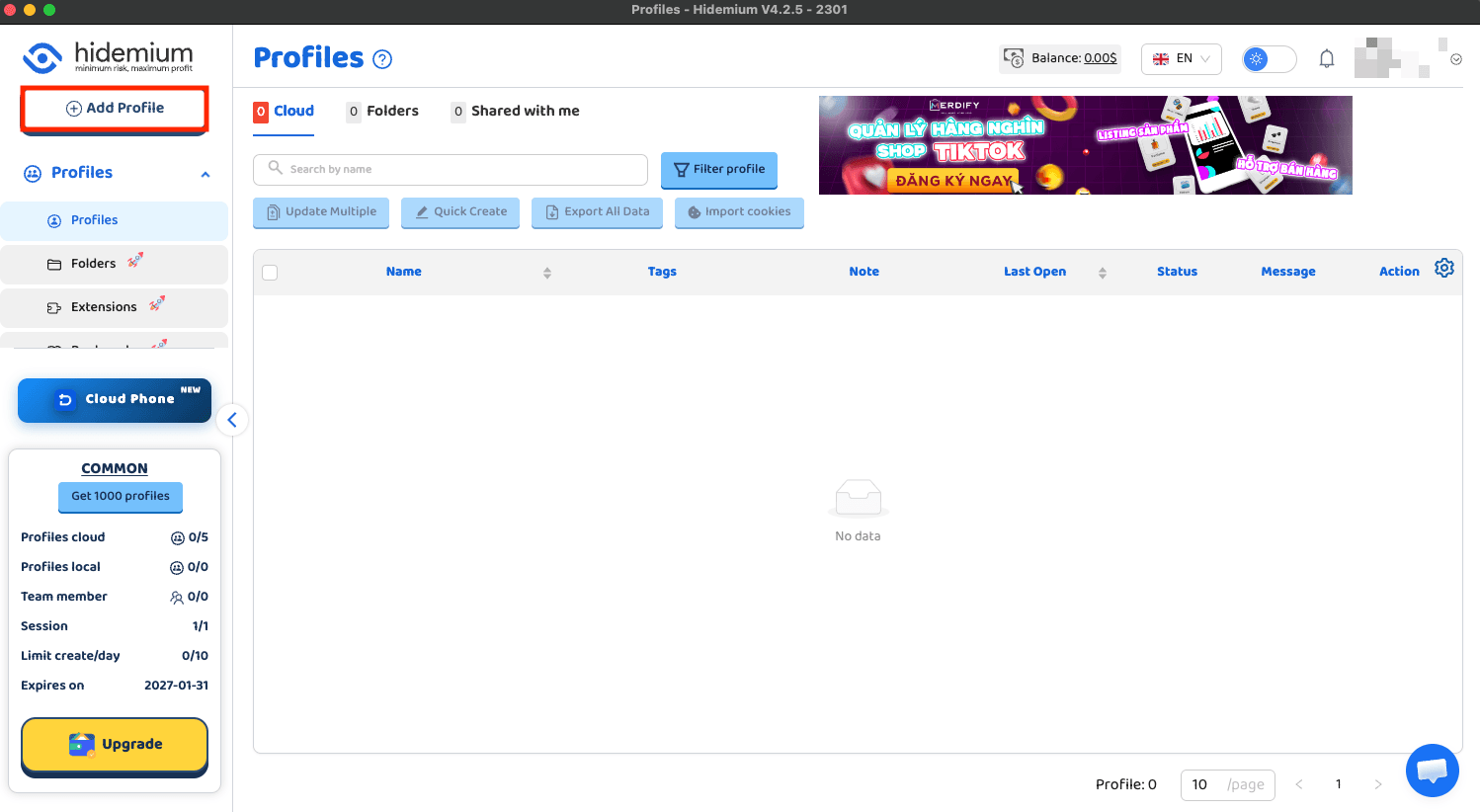
Once you’re in, you’ll land on the main dashboard. Here, open the Profiles section and click on Add Profile. You can also give it a name to find your profiles faster based on your tasks.
Step 4: Configure proxies
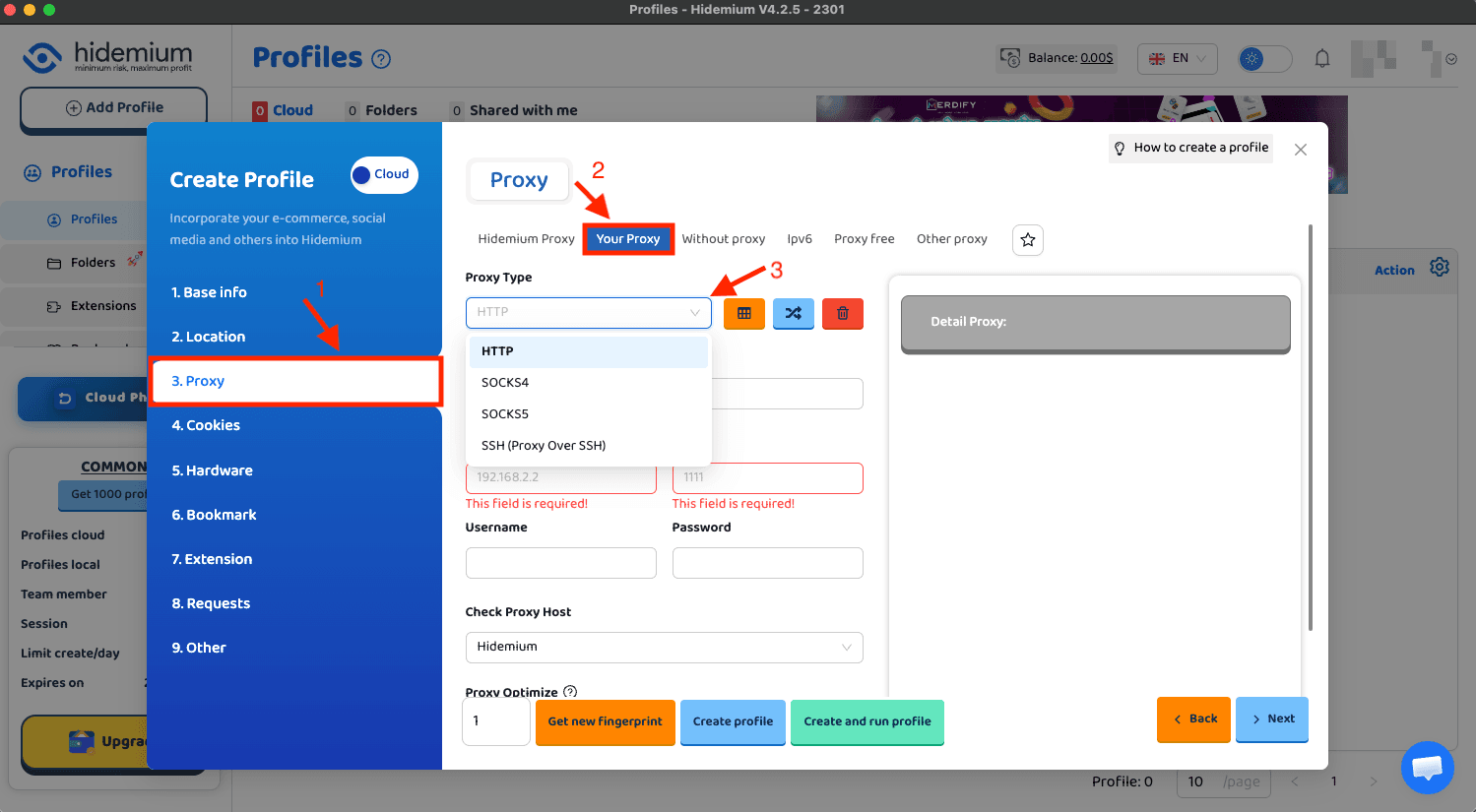
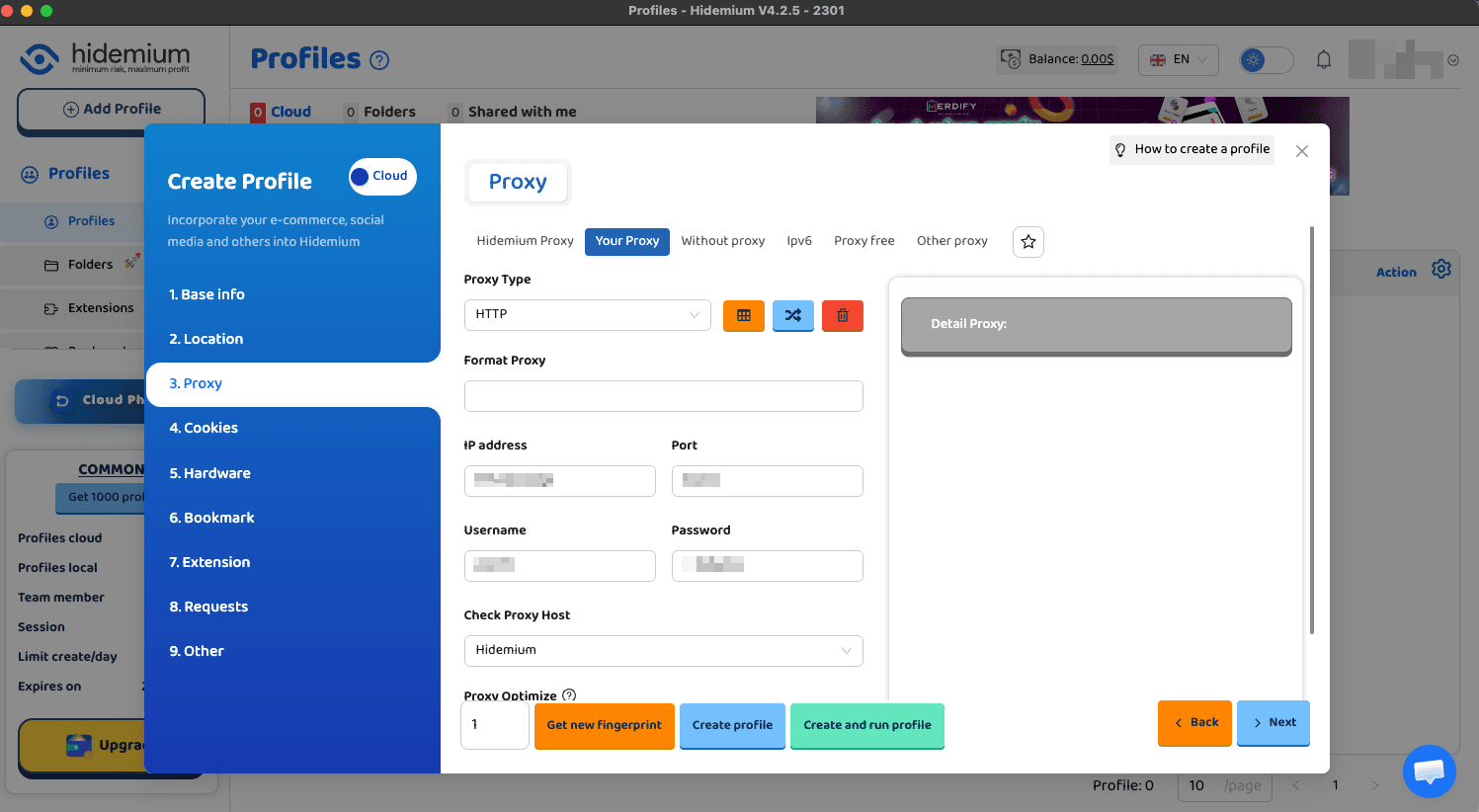
When you are in the profile editor, click on Proxy in the left-side and select the proxy type you will use.
Step 5: Add proxy server
Once you chose the proxy type, it's time to enter the details of your residential proxy from Anonymous Proxies dashboard. You can also paste your proxy in the format host:port:username:password in the field where it says Format Proxy.
Step 6: Check proxy
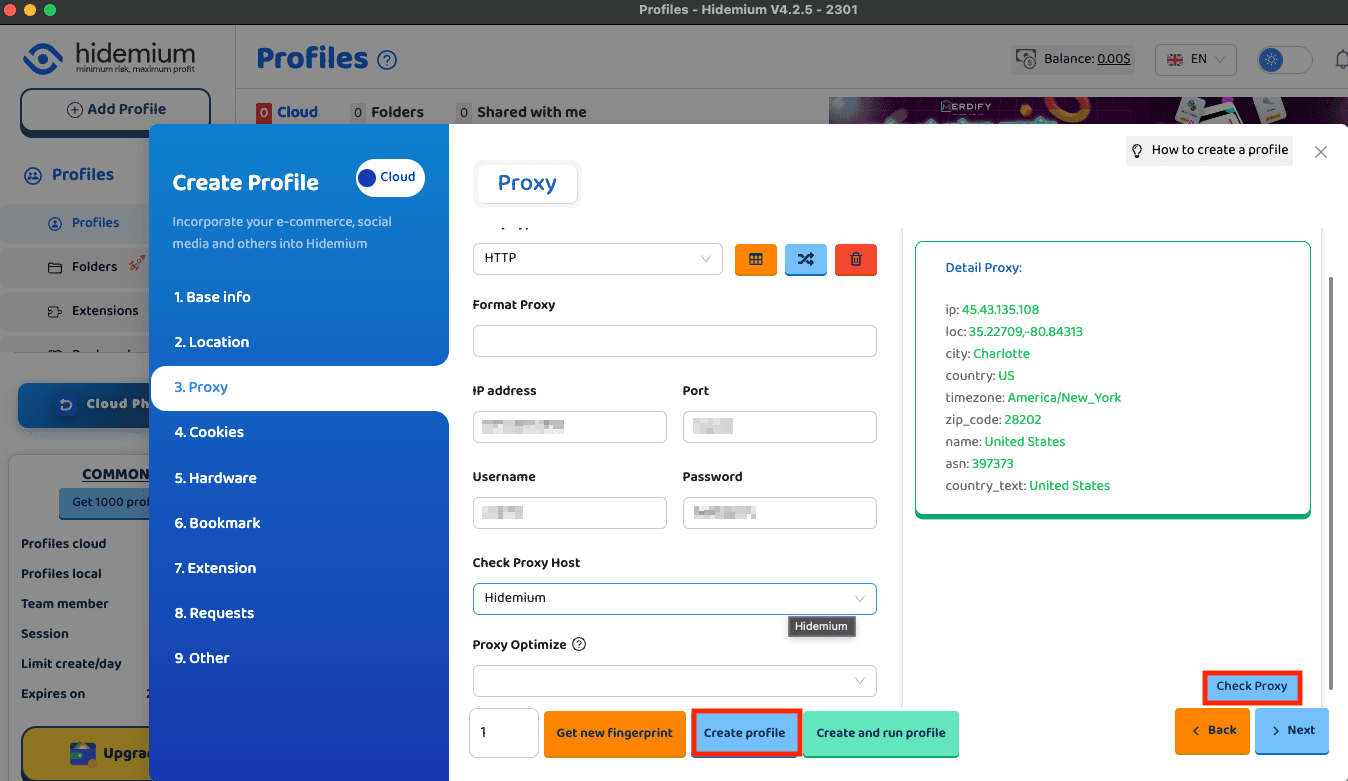
Once you entered all of your proxy's details, click on Check Proxy. If everything is alright, Hidemium should display the outgoing IP and location. Then, just click on Create Profile.
Step 7: Start profile
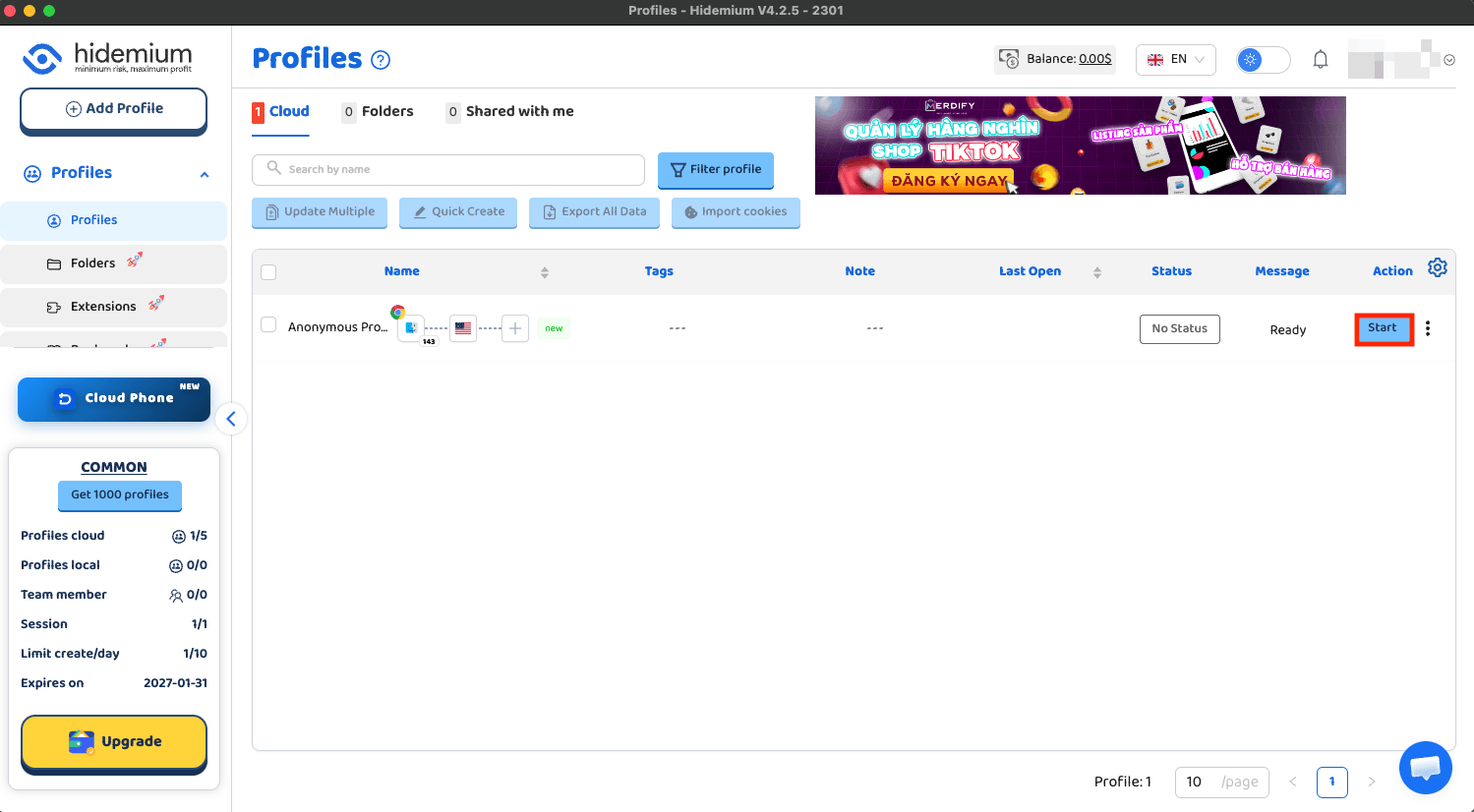
You'll be taken to the profiles list where all what's left is to start the profile.
Step 8: Verify your IP
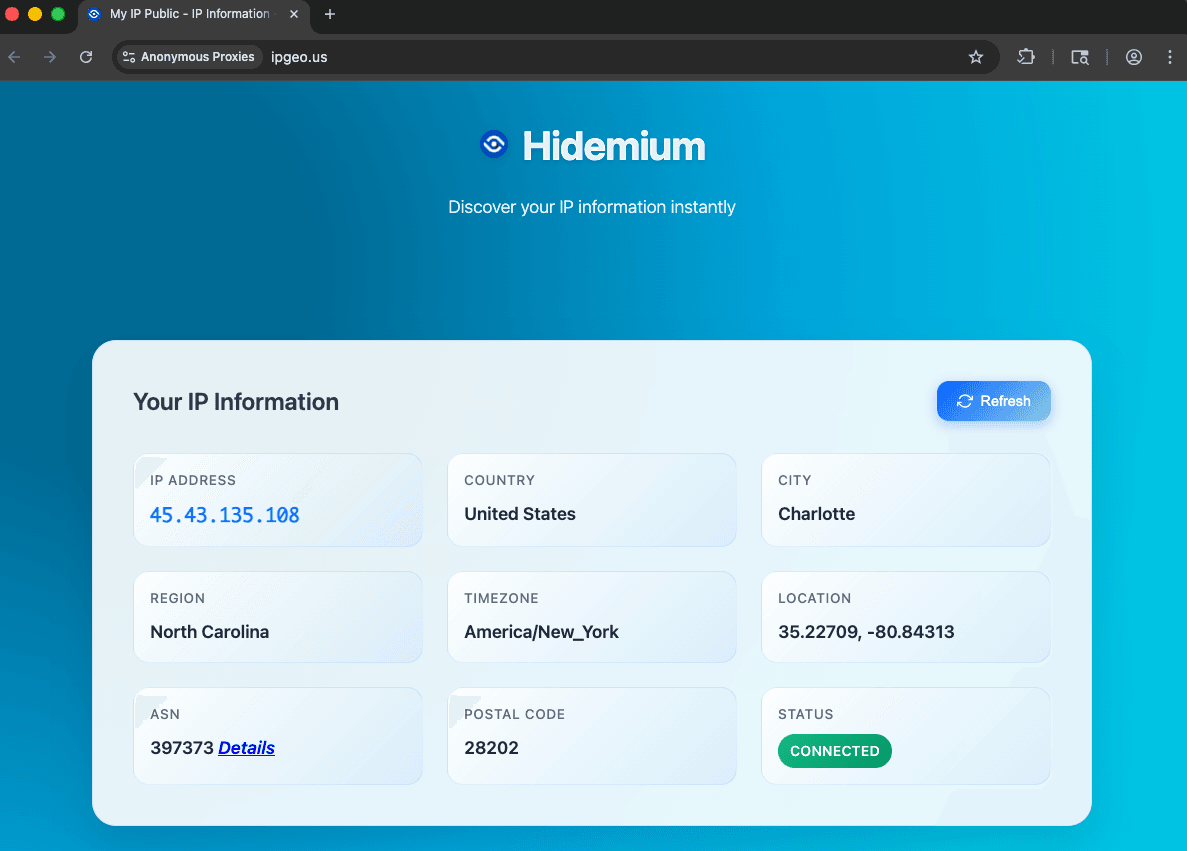
After the profile opens, visit an IP checker page and confirm the IP matches the proxy you just added. If the IP and location look right, you’re done. Your Hidemium profile is now running through your Anonymous Proxies.
Conclusion
As you've seen, combining Anonymous Proxies' residential proxies with Hidemium gives you a cleaner account management and dependable geo-targeted browsing, without the usual annoying headaches.
If you have any question, please contact our support team which will assist you with any problem you've got. And if you want to see more tutorials with other antidetect-browsers, feel free to visit our integrations page.

Buy Backconnect Proxies
Rotating IPs on every request. Scale scraping and automation without manual IP management.
More antidetect-browser Proxy Integrations
See more antidetect-browser integrations that work seamlessly with Anonymous Proxies.

Proxy Integration With Kameleo
Learn how to set up Anonymous Proxies' residential proxies with Kameleo for automation, web scraping, and easier multi-account management.

Proxy Integration With Lalicat
Learn how to integrate Anonymous Proxies' residential proxies with Lalicat to manage multiple accounts with ease and browse in anonymous way.

Proxy Integration With ClonBrowser
Learn how to set up Anonymous Proxies’ residential proxies in ClonBrowser to manage multiple social media accounts smoothly and browse more privately.

Proxy Integration With Octo Browser
This integration tutorial will show you how to connect Anonymous Proxies in Octo Browser for safer multi-accounting and scraping in just a few minutes