

Proxy Integration With GoLogin
Handle multiple accounts with ease and overcome any IP restriction with GoLogin. Perfect for any marketer, researcher or data-driven pro.
What is GoLogin?
GoLogin is a powerful browser profile management tool that allows you to handle multiple online identities with ease and anonymity. By masking your IP address and spoofing your digital fingerprint, GoLogin allows you to create thousands of isolated browser profiles where each has its cookies, cache, and device settings. Besides tihs, each profile will appear as a unique user.
You can customize over 30 parameters like CPU threads, RAM, and screen resolution to mimic real devices and evade detection. Being perfect for digital marketing, e-commerce, dropshipping, betting, web scraping and social media management, GoLogin is essential for tasks that require multiple accounts.
It can also be used by developers who want to test a website from the perspective of a visitor. Moreover, it is compatible with Windows, Linux, and macOS and it supports teamwork because it allows you to manage profiles and proxies together with custom access rights.
GoLogin is a paid service offering four subscription plans, but it includes a free 7-day trial so users can try out its features. During this trial, you can set up three profiles per account, each of which requires proxies to operate smoothly. Thankfully, with our reliable proxies, you can easily configure and manage these profiles without a hitch.
How To Set Up Anonymous Proxies with Gologin?
1.Download GoLogin
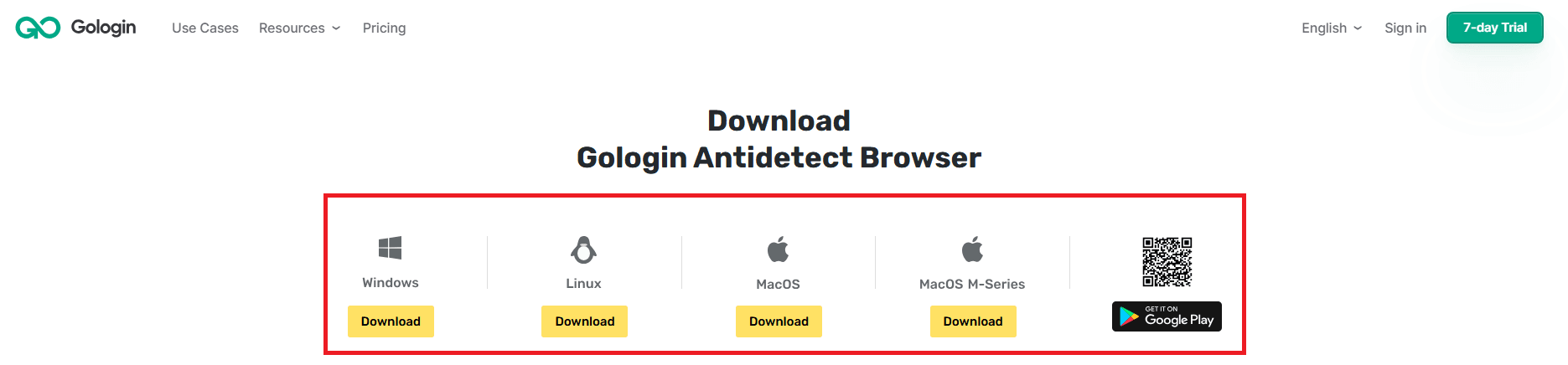
To download the latest version of GoLogin for your operating system, simply click here and choose the right version for your device. In this guide I am going to use the Windows version.
2.Create An Account
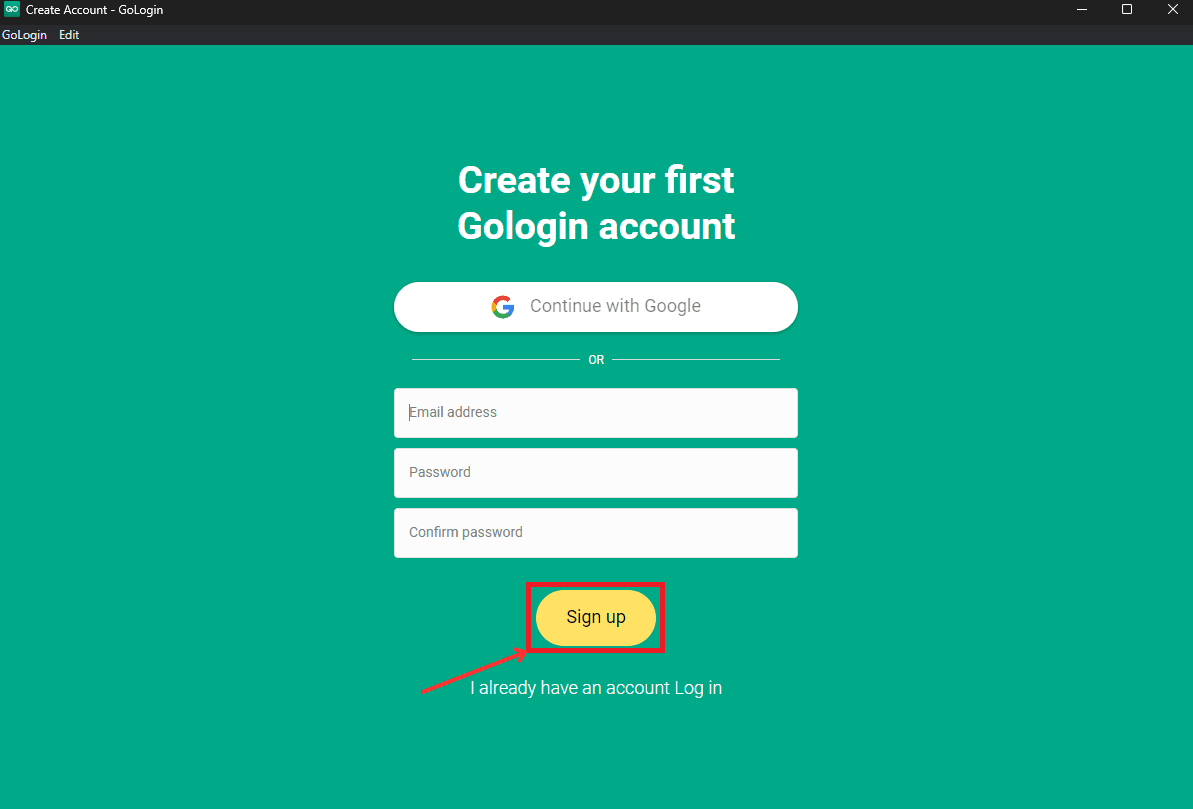
After the download is finished, you just need to open GoLogin and create a new account using Google or your email. If you already have one, just log in to jump into the world of anonymous browsing.
3.Create a New Profile
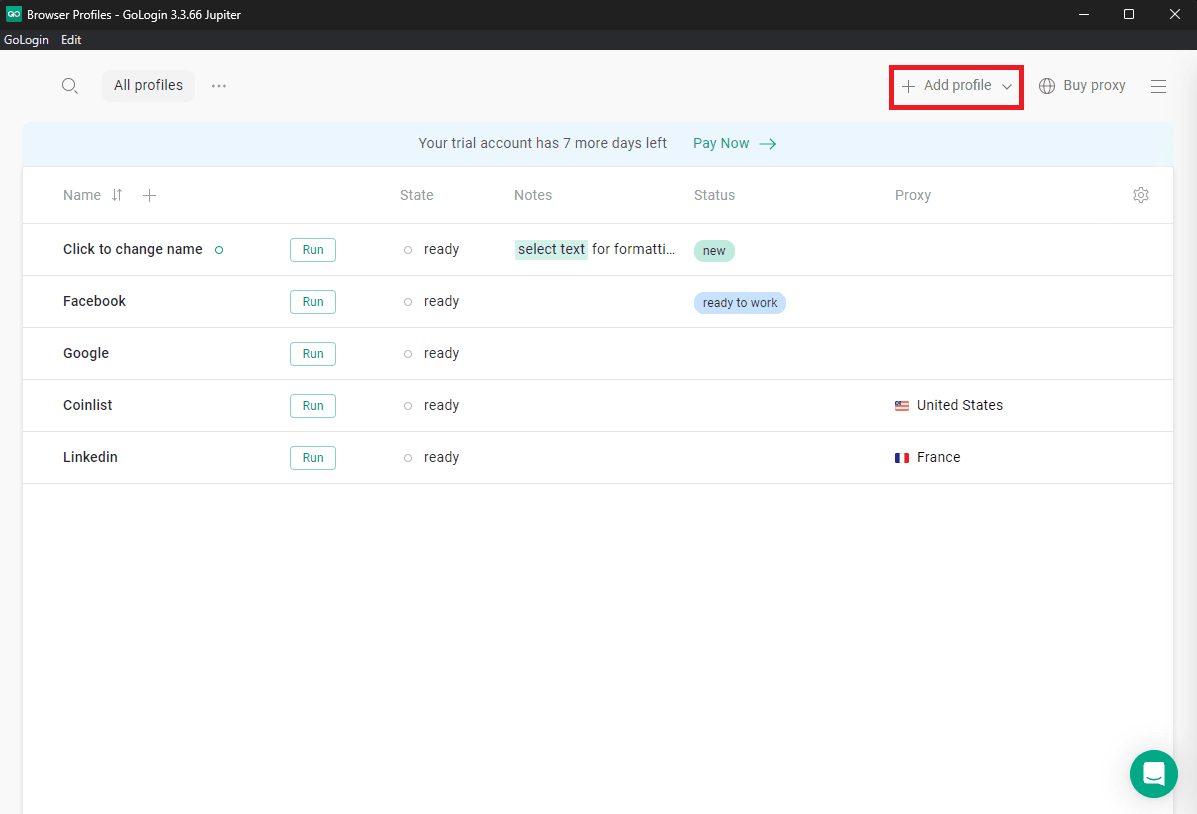
After you created your account and you logged in you should see in the top right corner a button which says "Add Profile", when you see it just click on it.
4.Set Up Your Profile and Proxy
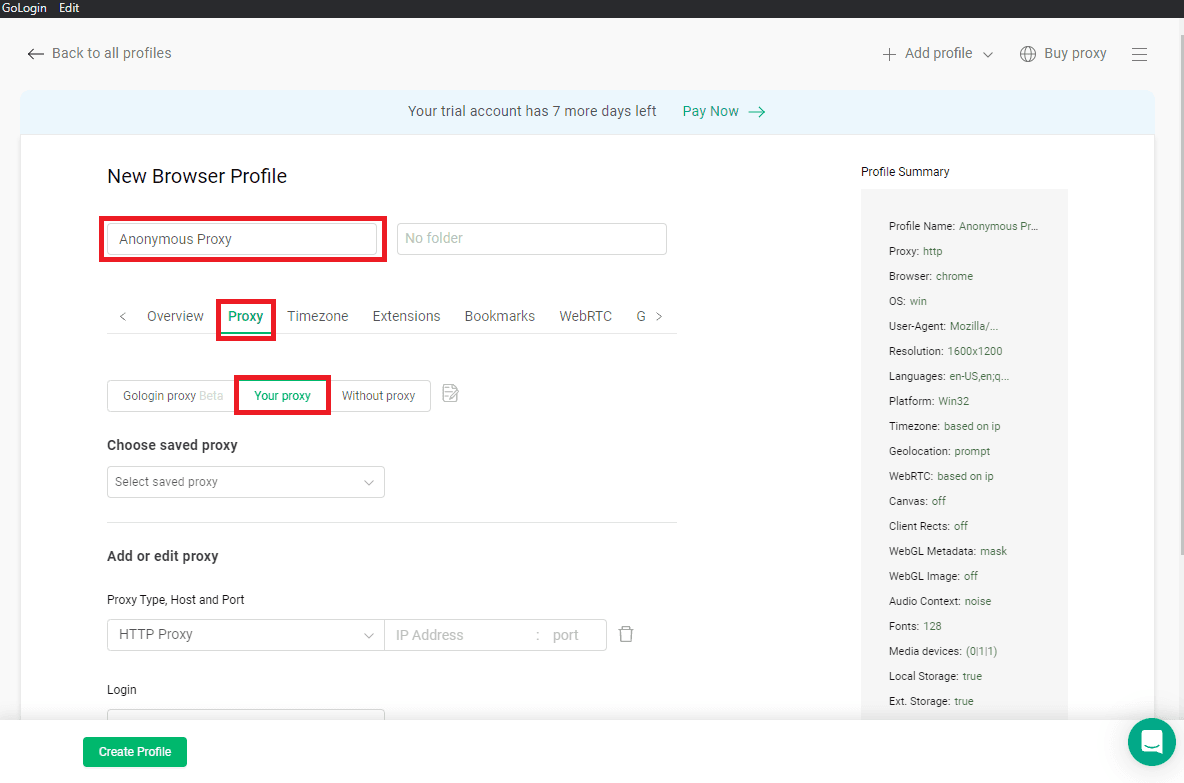
After clicking on "Add Profile" a dialog box will open and there you can you give your profile a unique name, then head to the Proxy tab and click on the Your Proxy button.
5. Enter Proxy Details
After setting your profile name and selecting “Your Proxy” in the Proxy tab, it’s time to enter your proxy details:
- Proxy Type: Choose between HTTP, HTTPS, or SOCKS5. In this example, I'm going to use the SOCKS5 protocol.
- Host and Port: Enter the Proxy Host (e.g.,
23.94.157.93) and Port (e.g.,34333) provided by your proxy service. - Login and Password: For authentication, enter the same credentials you use in Anonymous Proxies dashboard.
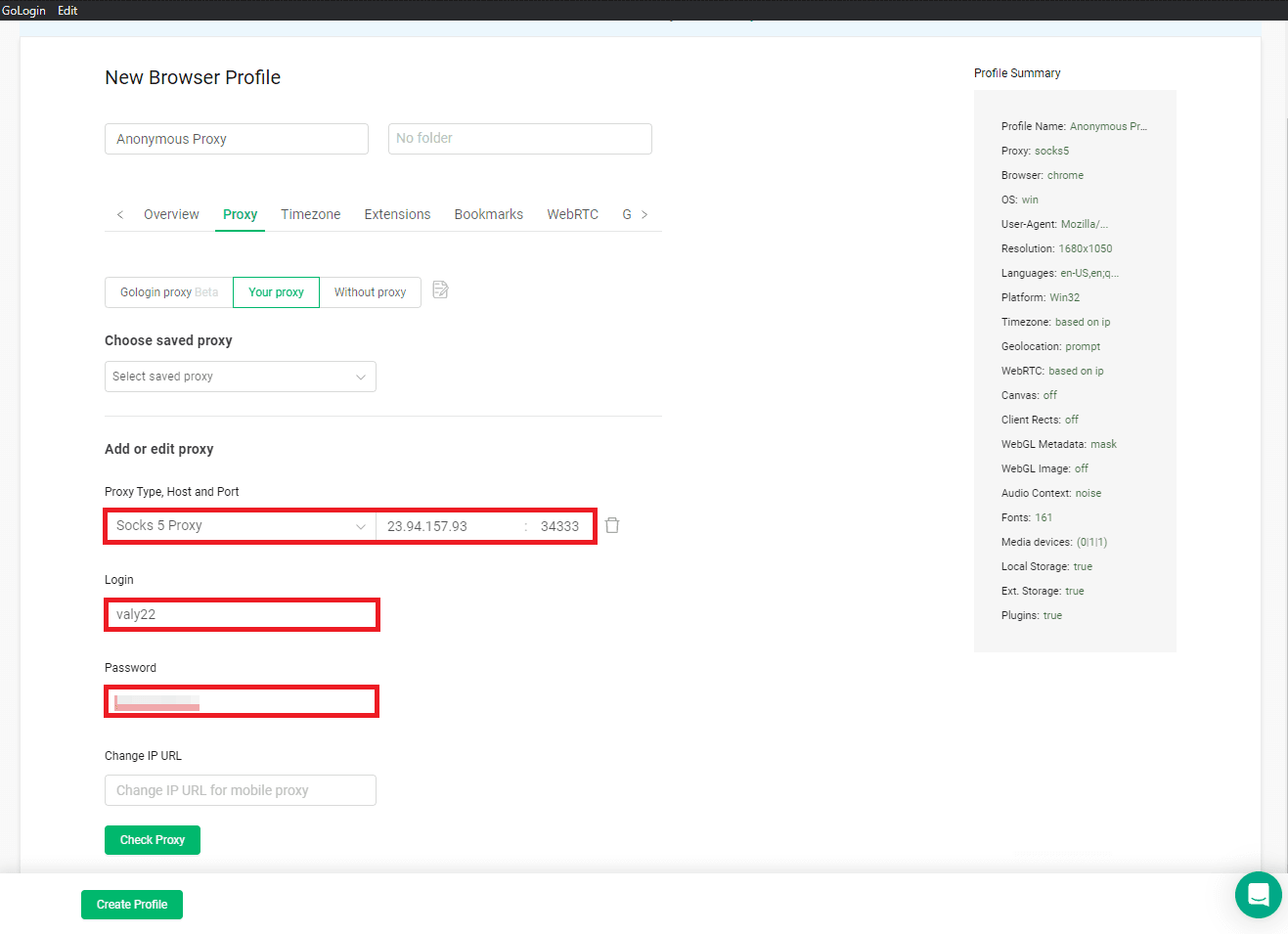
6. Check Proxy and Create Profile
Click Check Proxy after filling in all of your proxy information to verify everything is working as it should. You will find that if everything is set up properly, you’ll see an updated IP address, geolocation and proxy protocol. Now, what remains is to click on the Create Profile button in the bottom left corner, which saves these settings and completes the setup in order to enable you to start using the new profile for safe and private browsing.
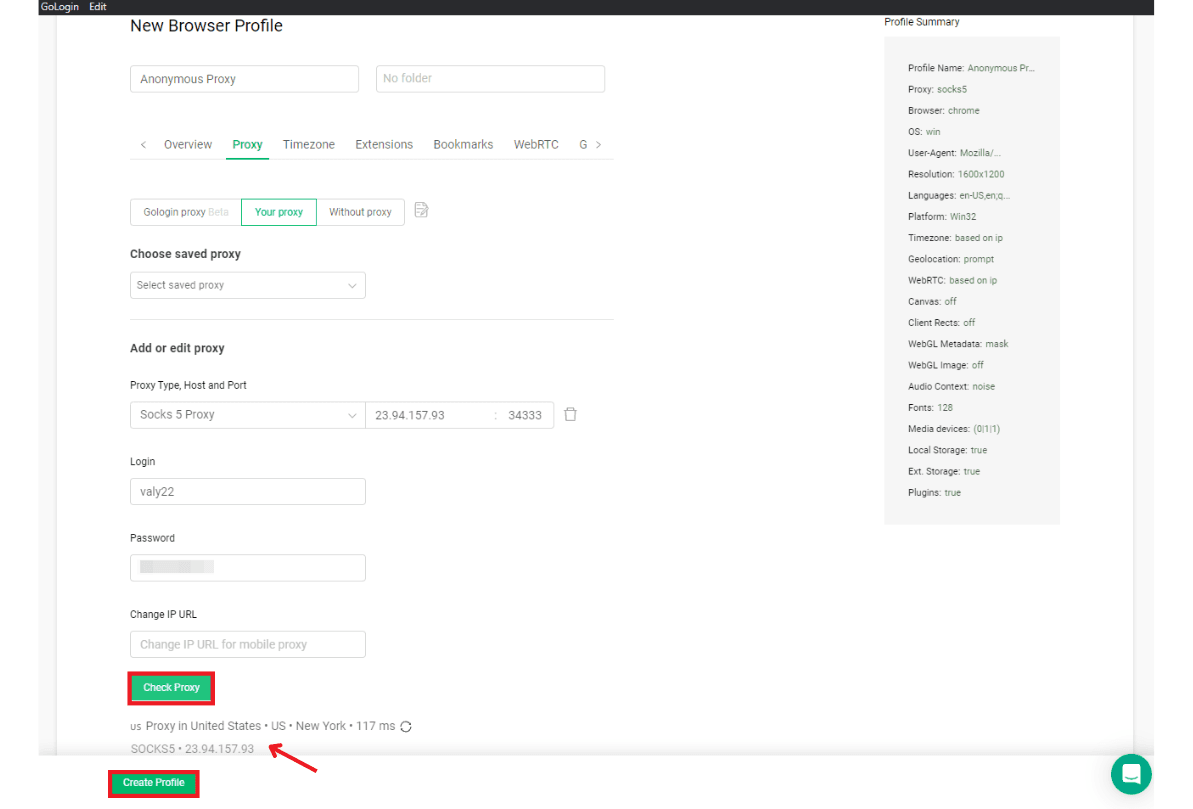
7.Run the Profile
After creating your profile, it’s time to put it into action. You just need to find the profile you've just created and then click on Run.
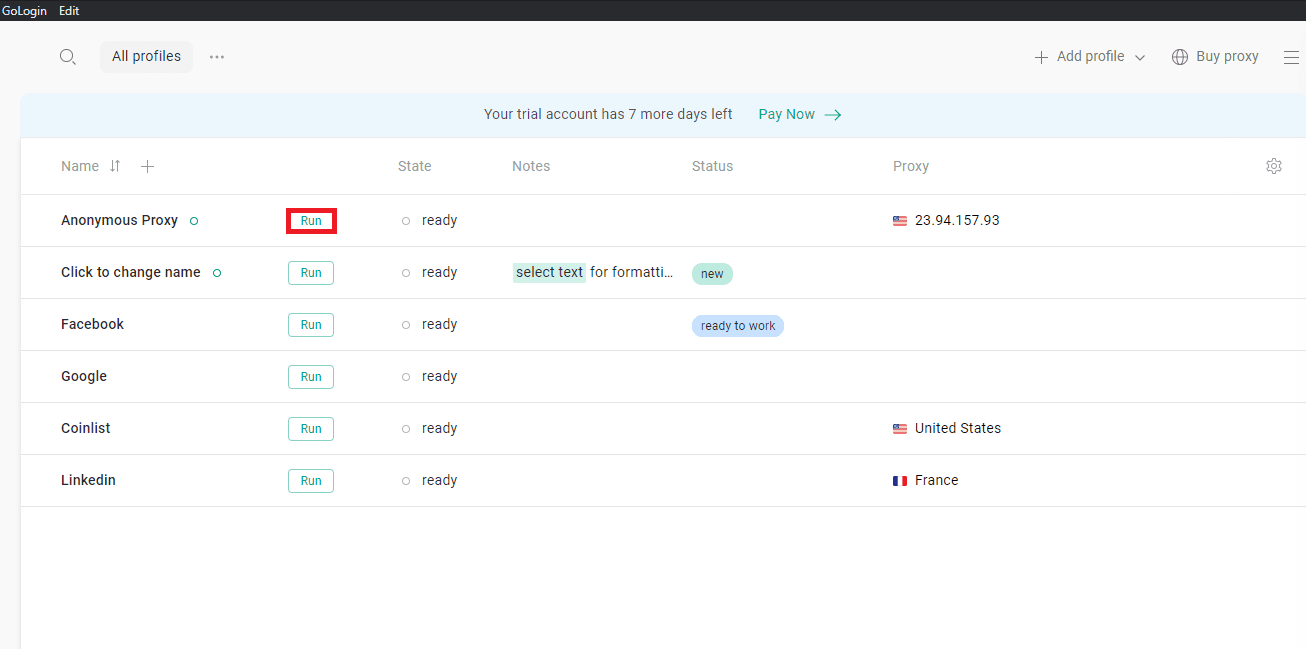
8.Browse Anonymously
With your profile now active, you can seamlessly use your GoLogin software in complete privacy.
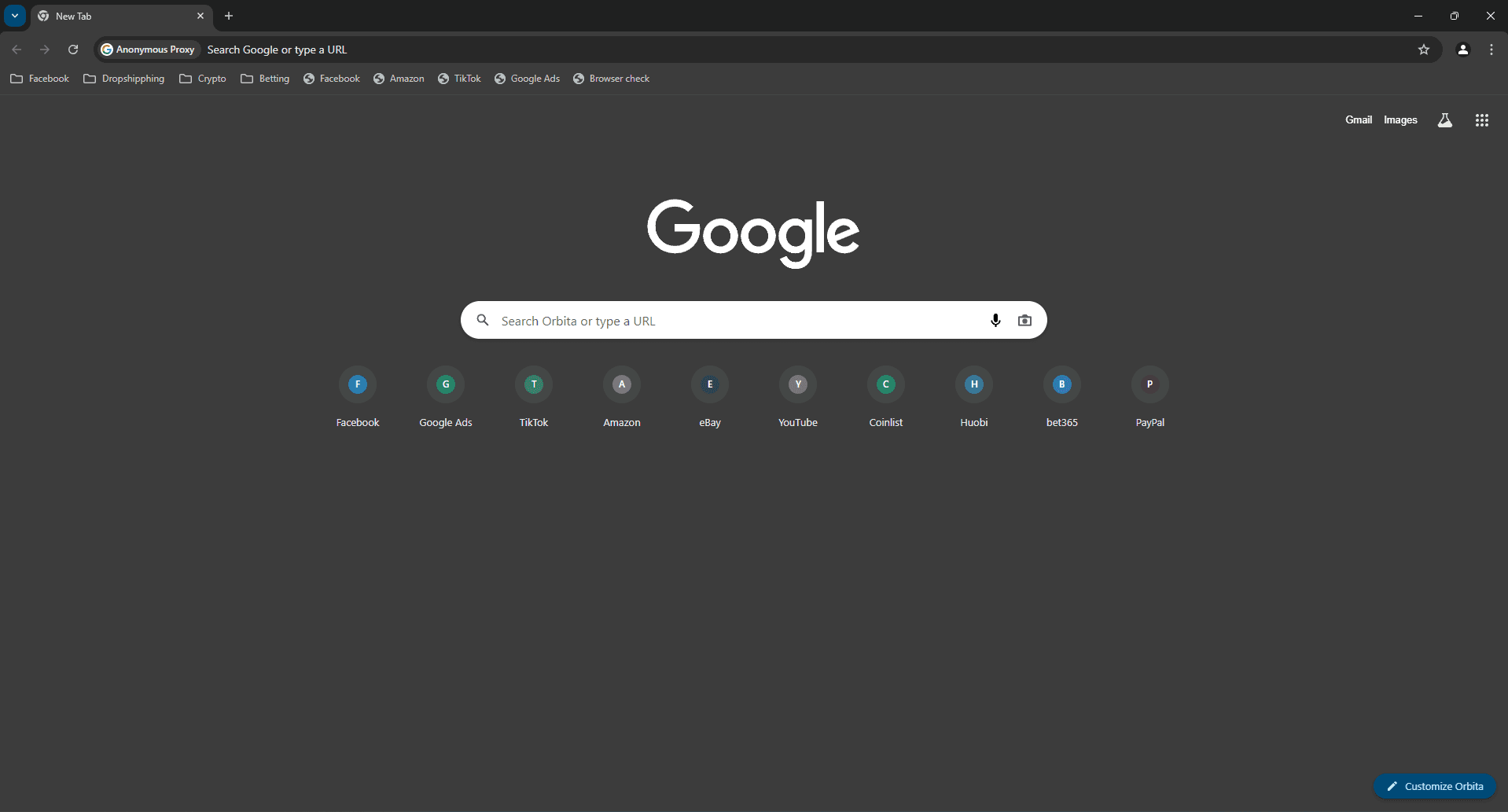
And there you go! You’re now ready to browse freely and continue all your online activities with peace of mind.

Buy Backconnect Proxies
Rotating IPs on every request. Scale scraping and automation without manual IP management.
More antidetect-browser Proxy Integrations
See more antidetect-browser integrations that work seamlessly with Anonymous Proxies.

Proxy Integration With Kameleo
Learn how to set up Anonymous Proxies' residential proxies with Kameleo for automation, web scraping, and easier multi-account management.

Proxy Integration With Lalicat
Learn how to integrate Anonymous Proxies' residential proxies with Lalicat to manage multiple accounts with ease and browse in anonymous way.

Proxy Integration With ClonBrowser
Learn how to set up Anonymous Proxies’ residential proxies in ClonBrowser to manage multiple social media accounts smoothly and browse more privately.

Proxy Integration With Octo Browser
This integration tutorial will show you how to connect Anonymous Proxies in Octo Browser for safer multi-accounting and scraping in just a few minutes