

Proxy Integration With Ghost Browser
This integration tutorial will show you how to use Anonymous Proxies' residential proxies in Ghost Browser for multi-account work and scraping.
What Is Ghost Browser?
Ghost Browser is a Chromium-based browser designed for people who need to handle more than one online session at once. Rather than logging in and out all day or keeping track of a pile of incognito windows, you can spin up separate, color-labeled identities inside the same browser. Each identity keeps its own cookies, local storage, and login details, so your accounts stay neatly separated.
Why Pair Anonymous Proxies With Ghost Browser?
- Keep sessions truly separate: You can assign a different proxy to each Ghost Browser identity, so every account runs through its own IP and stays neatly separated from the others.
- Check locations without guessing: Need to see what a page looks like in another country or city? Proxies make it easier to view region-based content, compare local search results, and test geo-specific pages.
- Make day-to-day work smoother: If you’re bouncing between clients, brands, or projects, sticking to the same identity and IP setup helps everything feel more consistent and reduces annoying mix-ups.
- Add an extra layer of control: Proxies put a buffer between your sessions and the internet, which can be helpful for routine research and general browsing operations where you want more privacy and stability.
How to Set Up Anonymous Proxies With Ghost Browser?
Before you start, log in to your Anonymous Proxies dashboard and keep these details ready to copy and paste in our step-by-step guide:
- Proxy host (IP or hostname)
- Proxy port
- Proxy username (if enabled)
- Proxy password (if enabled)
Once you have these details ready, you can continue with the guide below. For this guide we will use a residential proxy, since its always a good option if you need authenticity for your tasks.
Step 1: Download Ghost Browser
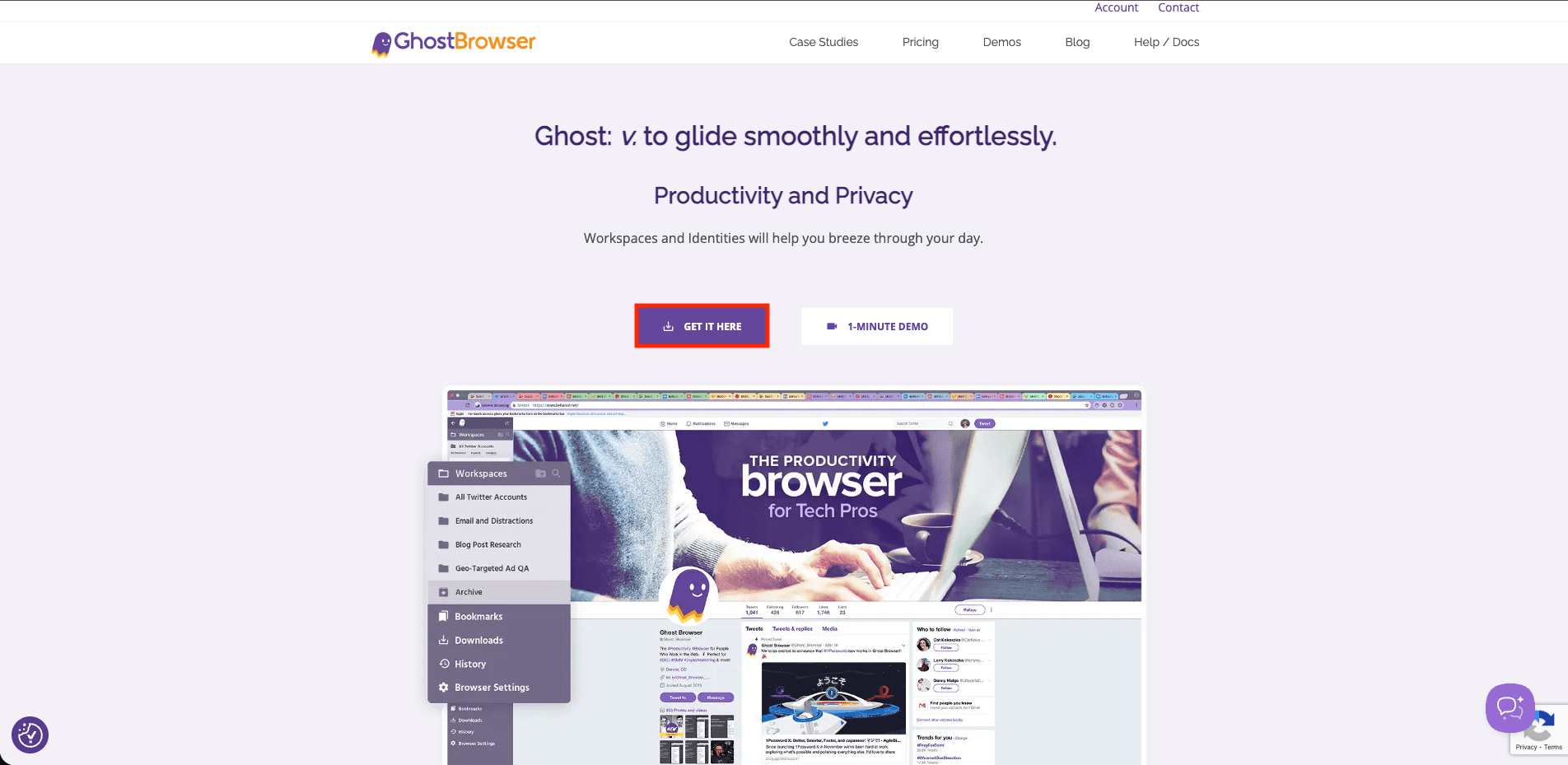
First, we'll need to go to the Ghost Browser website and click the "Get it here" button to download the app.
Step 2: Open Ghost Proxy Control
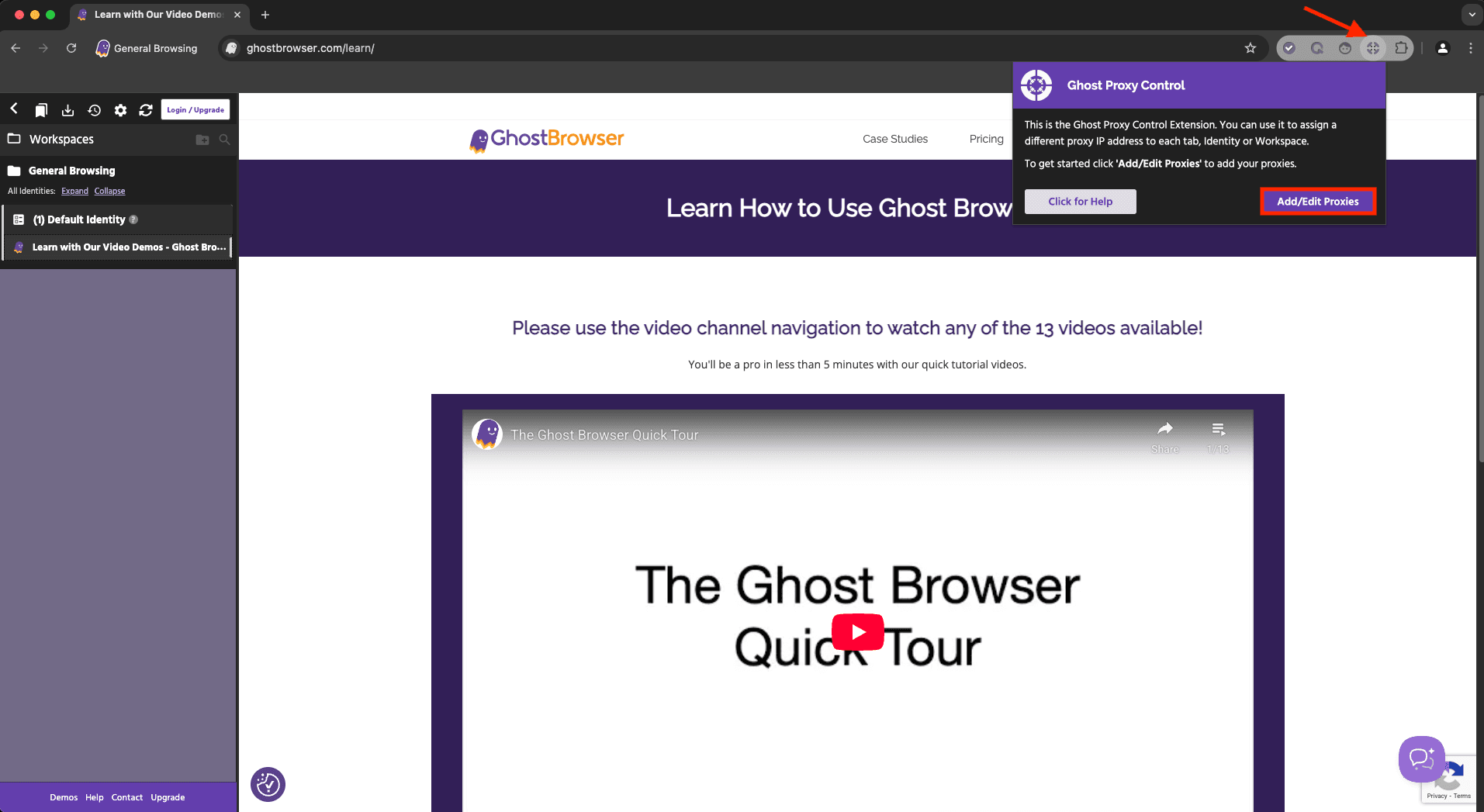
Once the Ghost Browser is downloaded, go to the upper right corner to find the Ghost Proxy Control extension icon and open it. Then, just click on "Add/Edit Proxies".
Step 3: Add Proxy
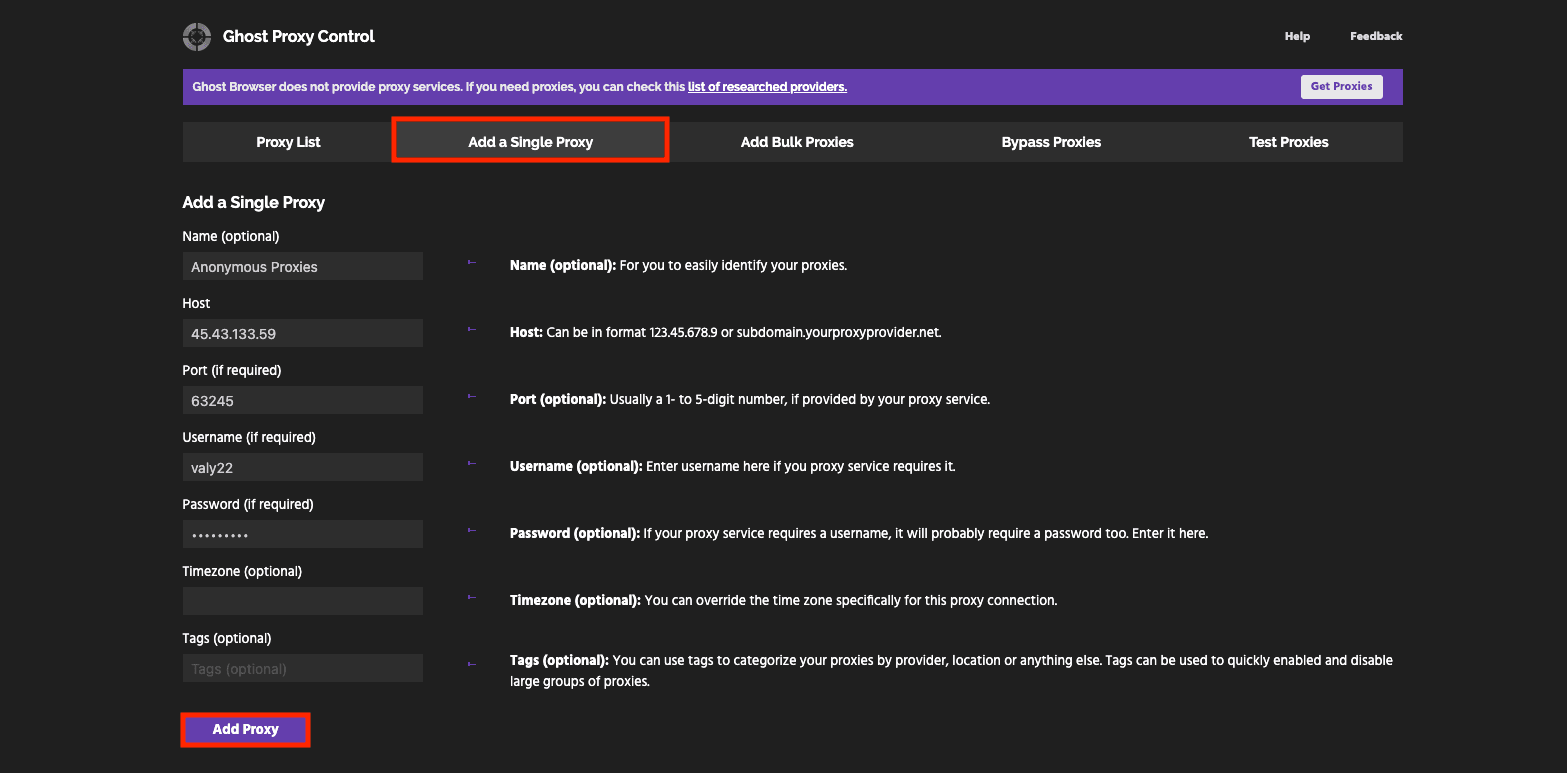
A new window will open. Here, you need to click on "Add a Single Proxy", name your profile if you want, paste your proxy server details from Anonymous Proxies dashboard, then click on "Add Proxy" to save it.
Step 4: Enable Proxy
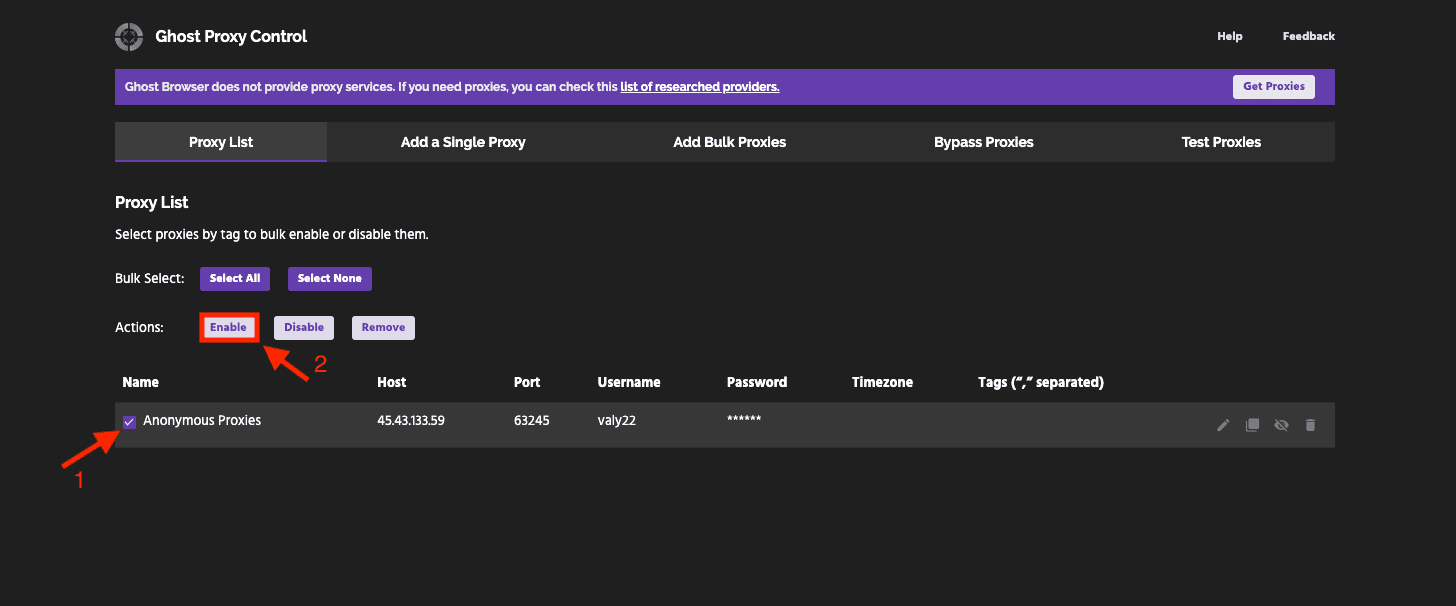
After you did this, you'll be taken to the Proxy List tab. Now, you'll need select the proxy you want to work with, select the box next to it and click "Enable" to use the selected proxy.
Step 5: Test Proxy
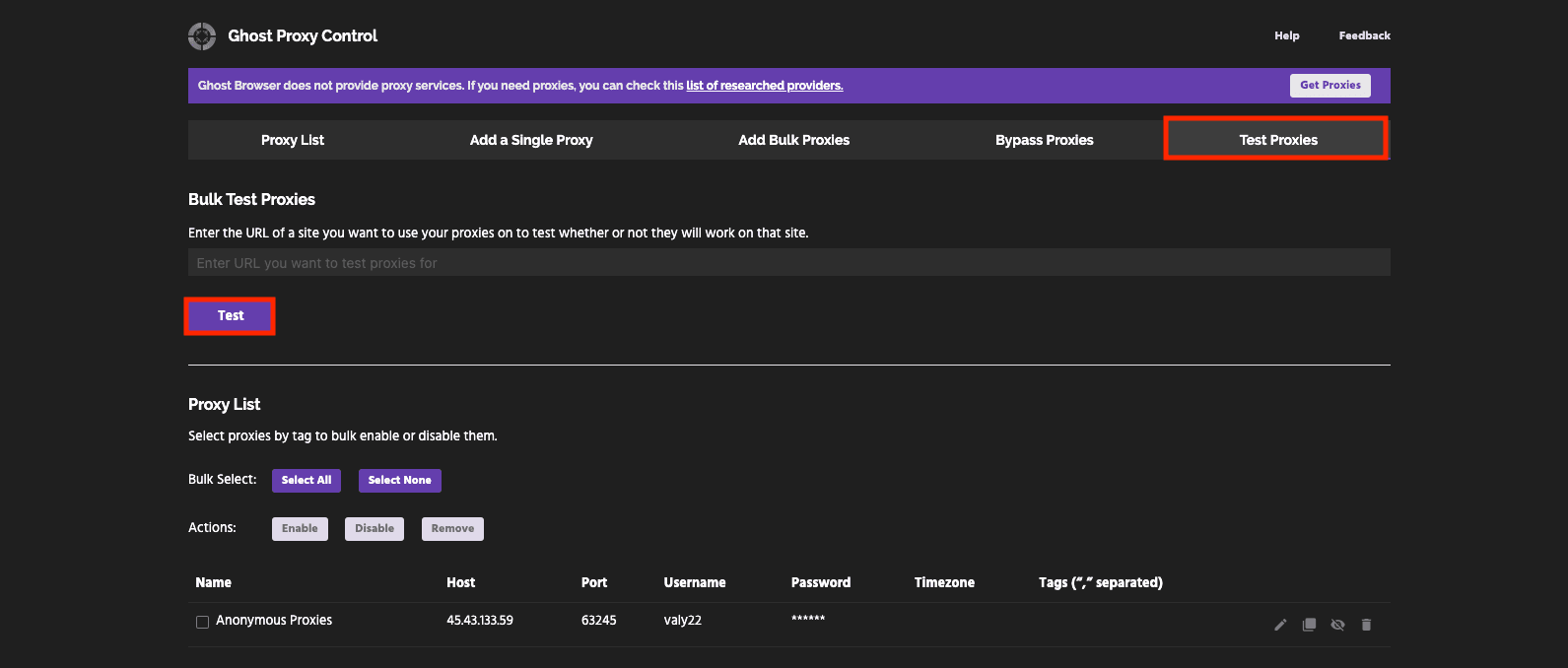
In order to confirm that everything is working properly, go to the "Test Proxies" tab and paste the URL from the website that you would like to use with your proxy server, then click on "Test". If your test was successful, you will be able to proceed with using this proxy without problems.
Wrap Up
As you've seen above, if you want to integrate Anonymous Proxies with Ghost Browser, the setup is pretty straightforward.
If you have any problems with the setup or any question related to proxies, don't hesitate to contact our support team, and if you want to see more integration guides between our proxies and other 3rd party tools, check our integrations page.

Buy Backconnect Proxies
Rotating IPs on every request. Scale scraping and automation without manual IP management.
More antidetect-browser Proxy Integrations
See more antidetect-browser integrations that work seamlessly with Anonymous Proxies.

Proxy Integration With Kameleo
Learn how to set up Anonymous Proxies' residential proxies with Kameleo for automation, web scraping, and easier multi-account management.

Proxy Integration With Lalicat
Learn how to integrate Anonymous Proxies' residential proxies with Lalicat to manage multiple accounts with ease and browse in anonymous way.

Proxy Integration With ClonBrowser
Learn how to set up Anonymous Proxies’ residential proxies in ClonBrowser to manage multiple social media accounts smoothly and browse more privately.

Proxy Integration With Octo Browser
This integration tutorial will show you how to connect Anonymous Proxies in Octo Browser for safer multi-accounting and scraping in just a few minutes