

GenLogin Proxy Integration
This step-by-step guide shows you how to integrate Anonymous Proxies' residential proxies with GenLogin for secure and seamless profile management.
What Is GenLogin?
Genlogin is a powerful, user-friendly Antidetect browser platform designed for anyone looking to automate online tasks without writing a single line of code. Whether you’re juggling multiple social media profiles, scaling up your marketing operations, or streamlining day-to-day workflows, Genlogin has you covered. Its advanced technology emulates distinct device fingerprints for each profile you manage, making it significantly harder for platforms to detect that multiple accounts belong to the same user.
Beyond its core browser features, Genlogin also offers the Genlogin Store which is a marketplace for purchasing, sharing, and monetizing custom scripts, making it an all-in-one solution for secure and efficient browser automation.
How to Set Up Anonymous Proxies with Genlogin
Step 1: Download Genlogin
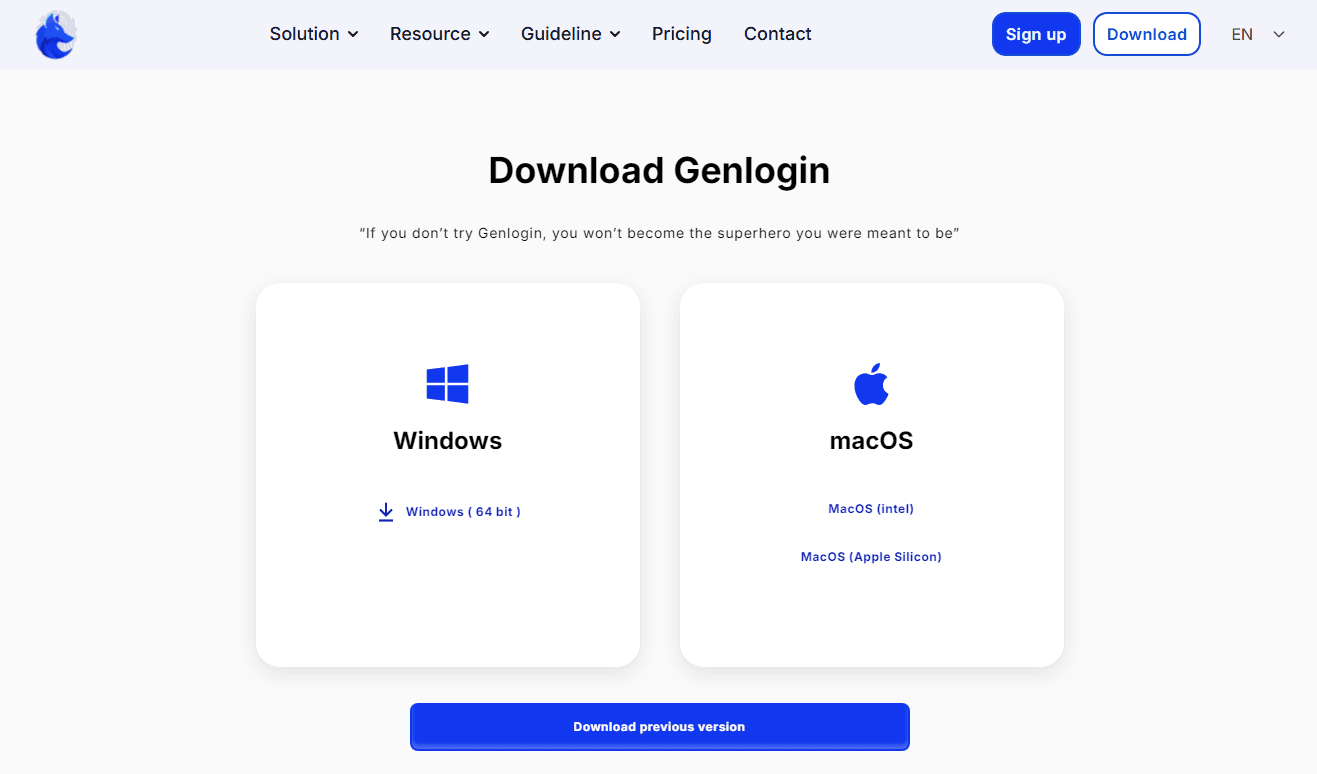
Go to the official Genlogin website and download the appropriate version for your computer. In this tutorial I will use the Windows version.
Step 2: Log in to Genlogin
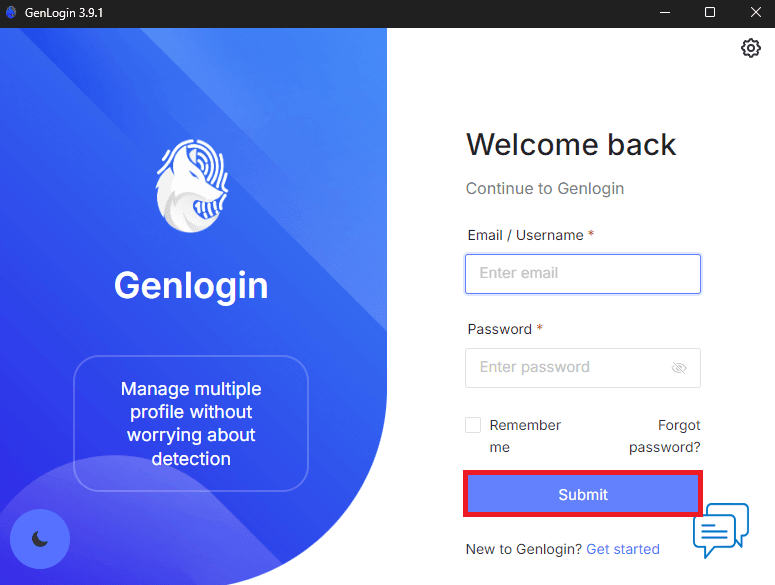
Once you install Genlogin, launch the application. Here you'll need to input your login details if you already created an account and if you didn't just click on Get Started.
Step 3: Create a New Profile
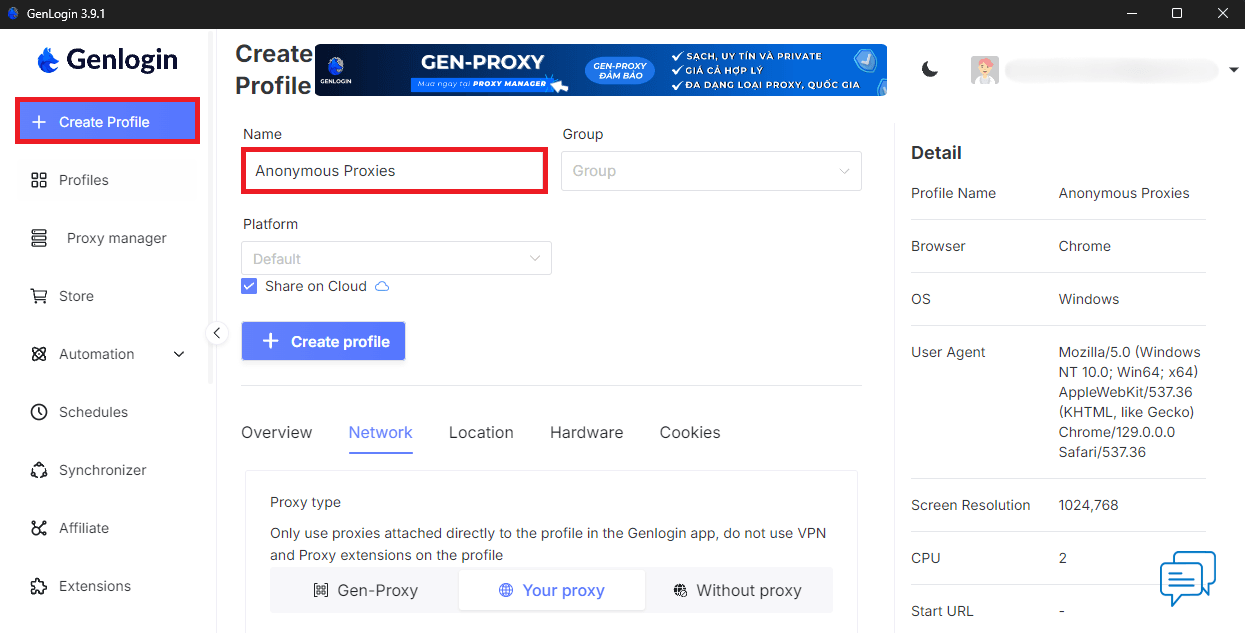
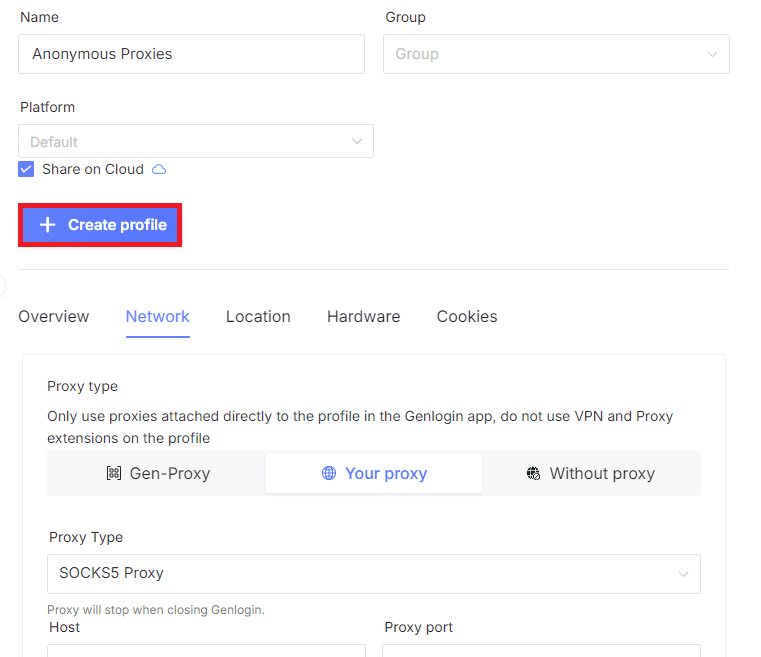
Once you are logged in, click on Create Profile button which is located on the left-hand menu. Here, you should give your profile a name. You can just leave platform selection at default unless you specifically need to make a change, and optionally tick Share on Cloud if you'd like access to your profile across multiple devices.
Step 4: Input Proxy Details
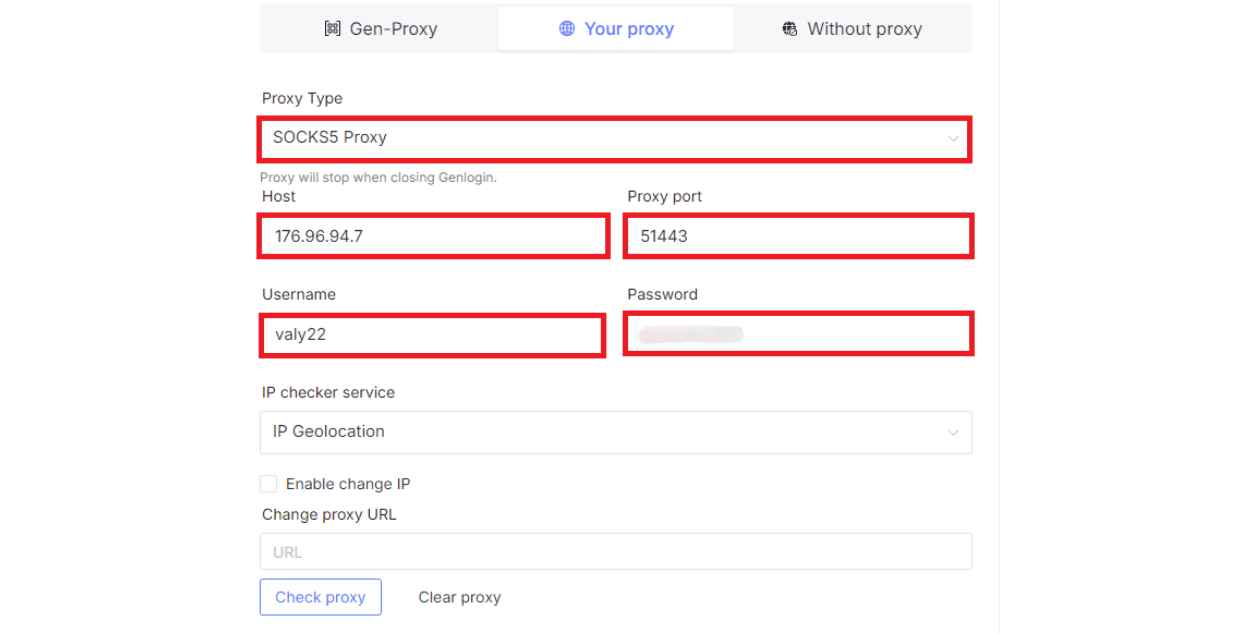
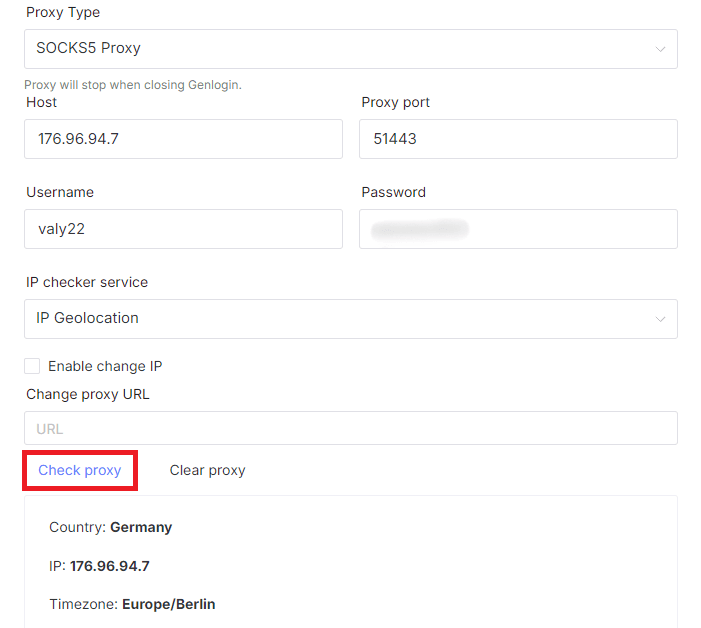
Now go to the Network tab, click on Your Proxy , and then set the type of proxy that you will use. Here you'll need to take the login credentials from the Anonymous Proxies Dashboard and simply fill in the following fields:
- Host: The IP address of your proxy.
- Proxy Port: The port number your proxy uses.
- Username: Your username from the Anonymous Proxies Dashboard.
- Password: And the last one, input your password.
Step 5: Test the Proxy Connection
Once you’ve entered these details, click the Check Proxy button. If everything’s correct, Genlogin will confirm the proxy’s functionality by displaying its country and IP information.
Step 6: Save the Profile
Review all the details you’ve entered and then click on Create Profile.
Step 7: Start the Profile
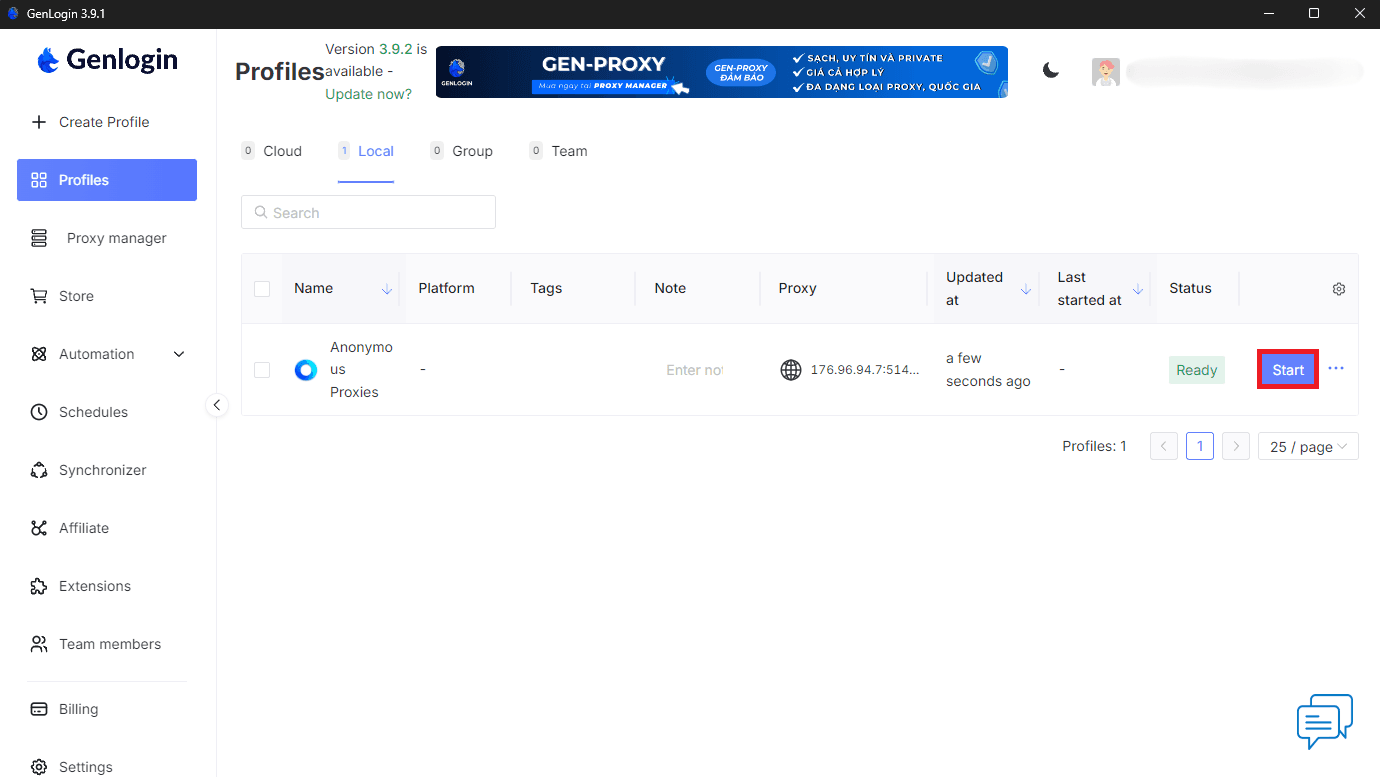
Go back to the Profiles list and find the one you have just created. Them just click the Start button to launch it.
Wrap Up
And that’s it! You’ve successfully integrated Anonymous Proxies with Genlogin.
If you have any further questions or have problems integrating Anonymous Proxies with Genlogin, you can contact our support team to help you.
And if you want to see more integration tutorials, be sure that you check out our integrations page.

Buy Backconnect Proxies
Rotating IPs on every request. Scale scraping and automation without manual IP management.
More antidetect-browser Proxy Integrations
See more antidetect-browser integrations that work seamlessly with Anonymous Proxies.

Proxy Integration With Kameleo
Learn how to set up Anonymous Proxies' residential proxies with Kameleo for automation, web scraping, and easier multi-account management.

Proxy Integration With Lalicat
Learn how to integrate Anonymous Proxies' residential proxies with Lalicat to manage multiple accounts with ease and browse in anonymous way.

Proxy Integration With ClonBrowser
Learn how to set up Anonymous Proxies’ residential proxies in ClonBrowser to manage multiple social media accounts smoothly and browse more privately.

Proxy Integration With Octo Browser
This integration tutorial will show you how to connect Anonymous Proxies in Octo Browser for safer multi-accounting and scraping in just a few minutes