

Proxy Integration With BitBrowser
This tutorial will show you how easy it is to set up Anonyomus Proxies with BitBrowser in just a few simple steps.
What is BitBrowser?
BitBrowser is a cutting-edge anti-detect browser designed for individuals and businesses that require a secure and isolated browsing environment. Its core function is to enable smooth account management on any platform without the risk of getting flagged or banned. In essence, it allows the creation of separate browser profiles, each with a different digital fingerprint, ensuring your activities are untraceable and not linked from one another.
Be it management of social media accounts, e-commerce, or advertising campaigns, BitBrowser is the perfect tool to help maintain anonymity and ease your work.
Keep in mind that BitBrowser comes with 10 free browser profiles in its package, but to fully take advantage of it, it's essential to pair it with our residential proxies.
How to Set Up Anonymous Proxies with BitBrowser
Step 1: Download BitBrowser
First thing you need to do is to install the BitBrowser version that matches your operating system. For this tutorial, I will use the Windows version.
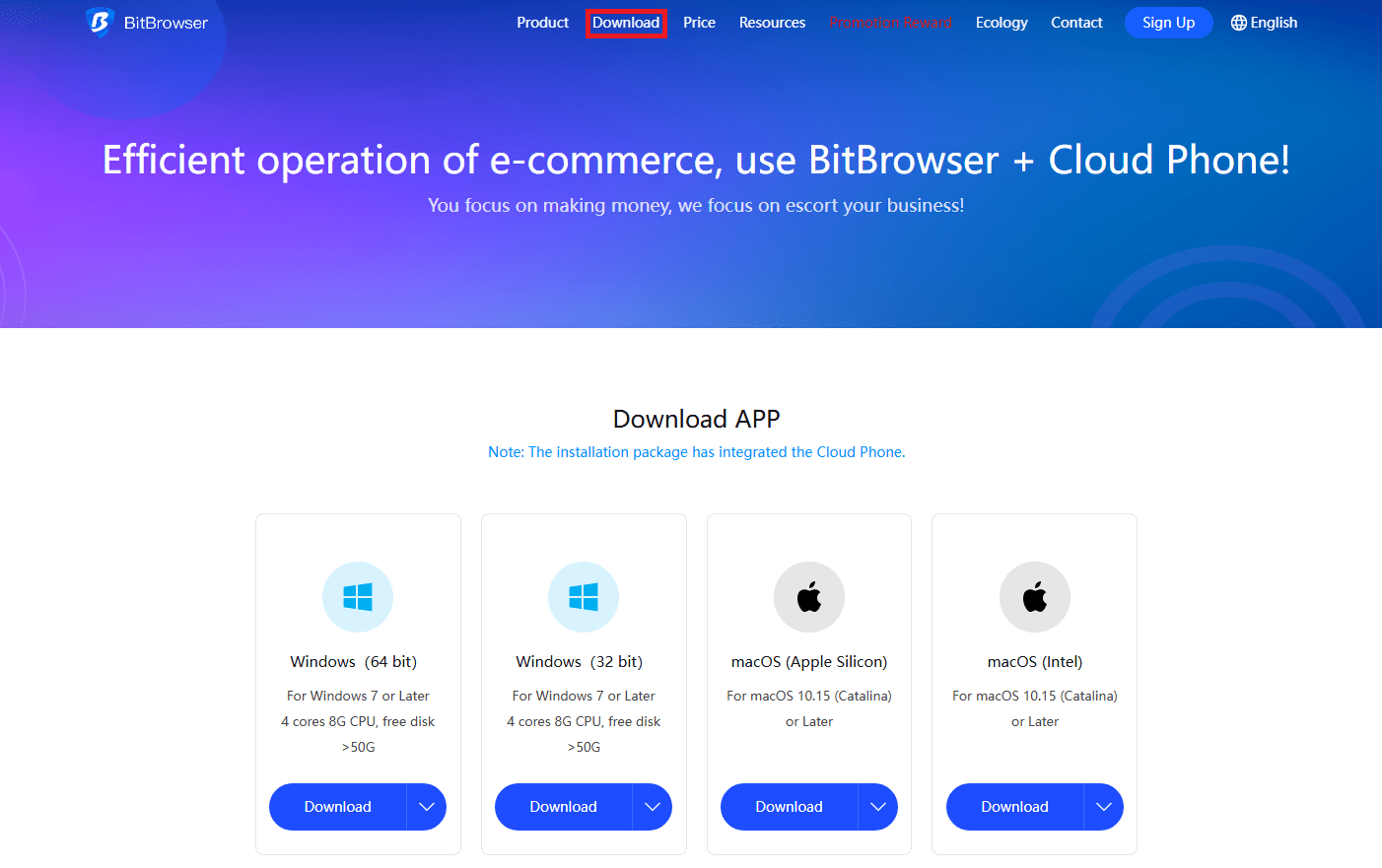
Step 2: Log In and Go to the Browser Profiles Section
Once you downloaded BitBrowser, you need to log in into your account. Once logged in, you’ll be able to access their dashboard.
Now, you need to click the "Browser Profiles" button.
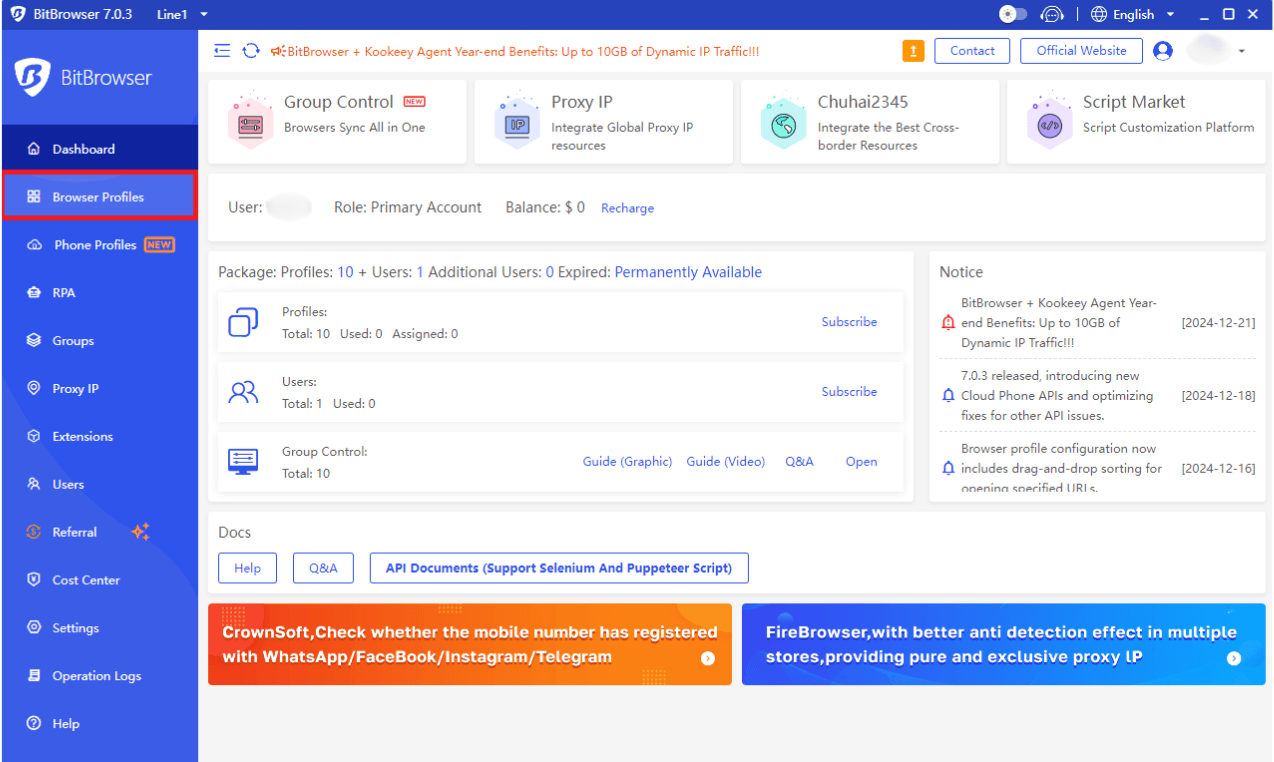
Step 3: Create a New Profile
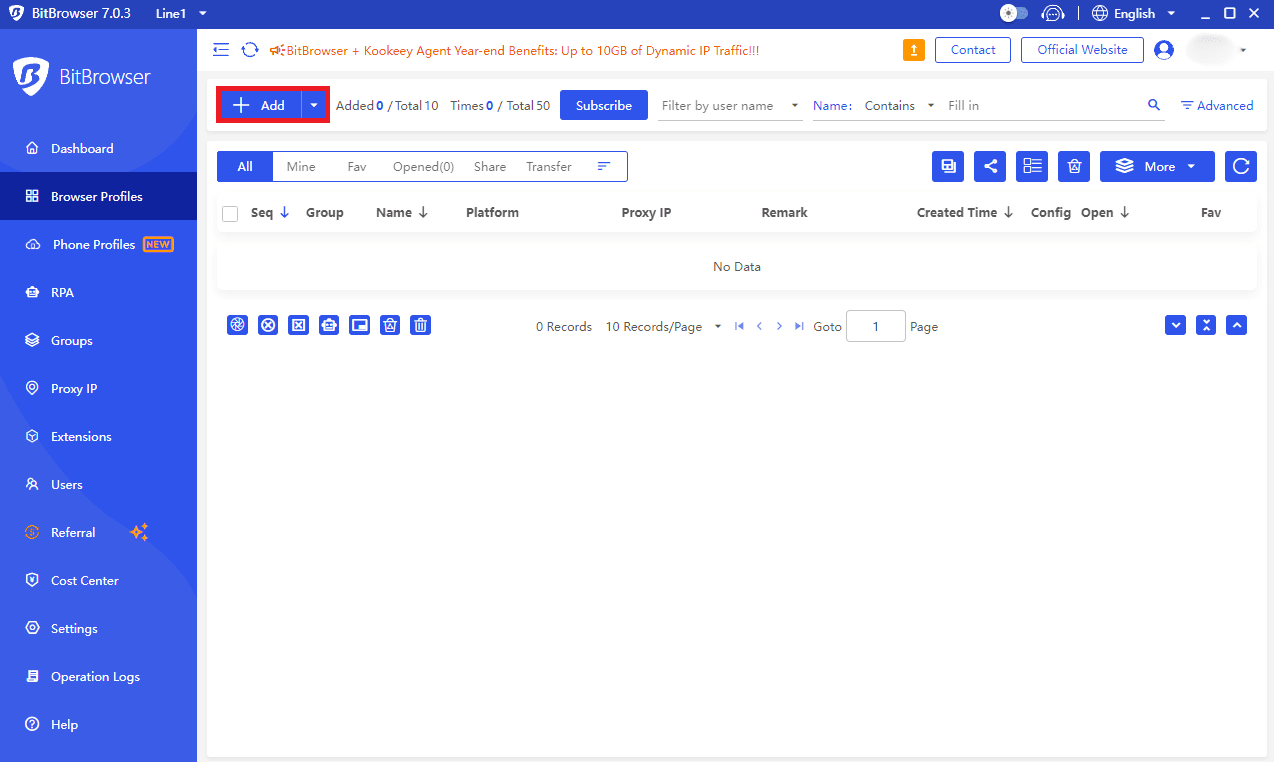
Once you are on the "Browser Profiles" page, you need to click the “Add” button to add a new BitBrowser profile.
Here, you can name your profile, assign it to a group for better organization and adjust other parameters if needed. Once you've completed these fields(optional), you can scroll down to the proxy configuration section.
Step 4: Configure the Proxy Settings
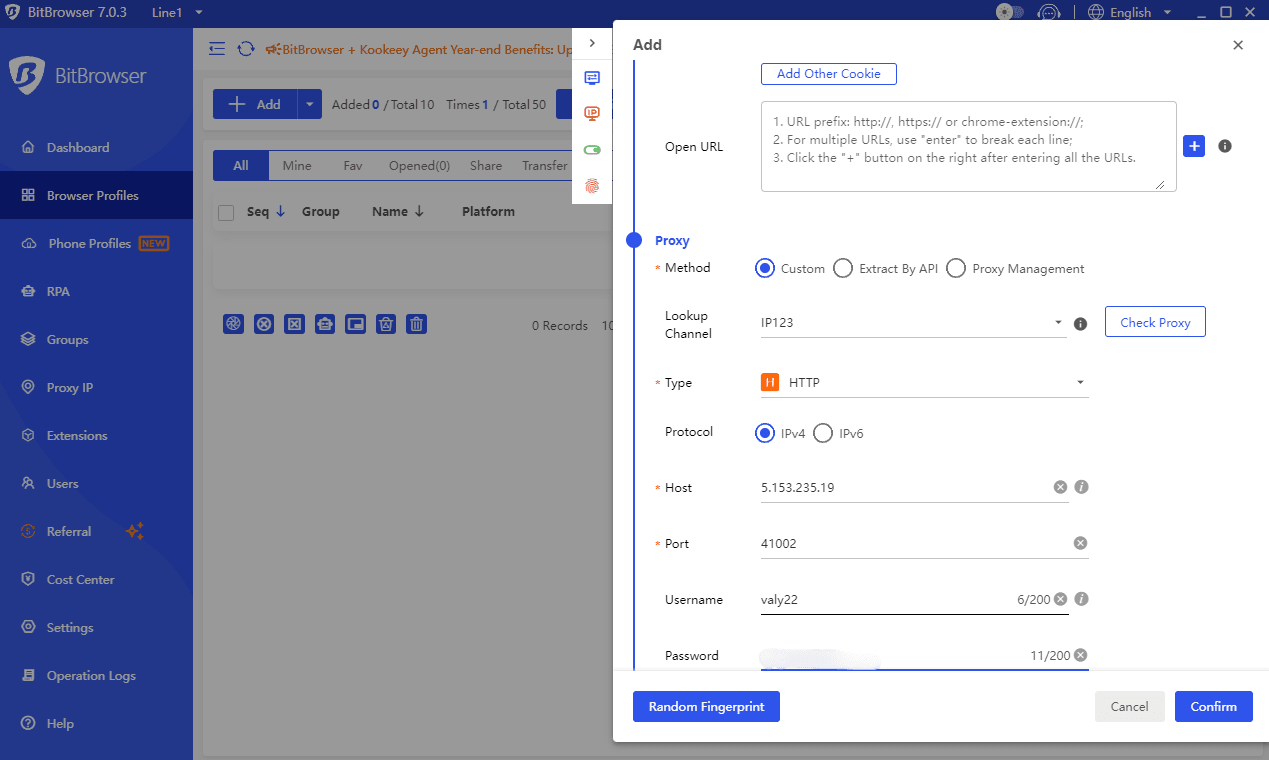
Here, you need to select the "Custom" option to input your proxy details manually. Before you do this, be sure that you go to Anonymous Proxies Dashboard to see all of your credentials. Then you just need to fill these fields out:
- Proxy Type: Select what type of proxy you want to use. For example: HTTP, HTTPS or SOCKS5, etc.
- Protocol: In the protocol section be sure that you choose IPv4.
- Host: Input the proxy’s IP address.
- Port: Enter the port number associated with the proxy.
- Username and Password: If you have enabled proxy authentication in the dasboard, be sure to input the username and password fields with the credentials from the dashboard, if you whitelisted your IP, then feel free to skip this part.
Now, just click on "Confirm".
Step 5: Open BitBrowser Profile
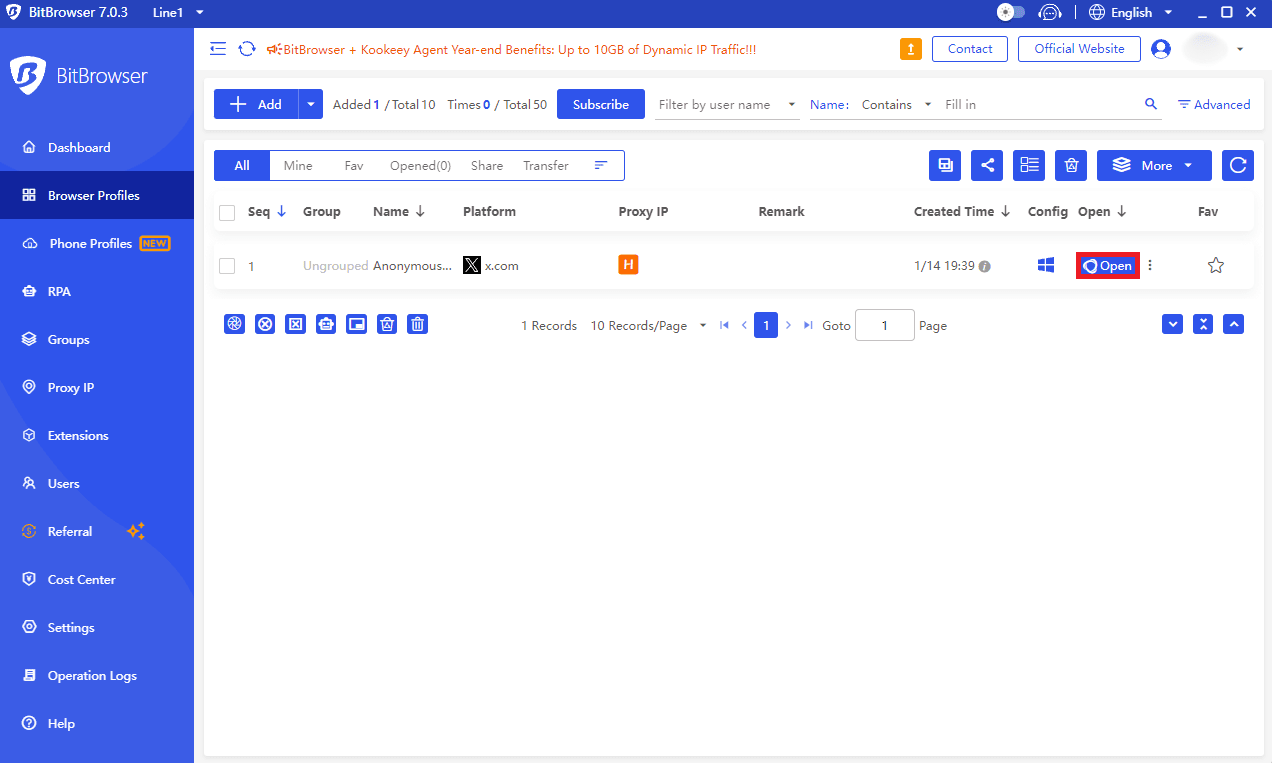
Your new profile will now appear in the Browser Profiles list.
To use it, be sure that you click the “Open” button next to the profile.
Step 6: Test the Proxy Connection Within the Browser
For the final step, be sure that the opened browser matches your IP. If it's a fit, then you are good to go.
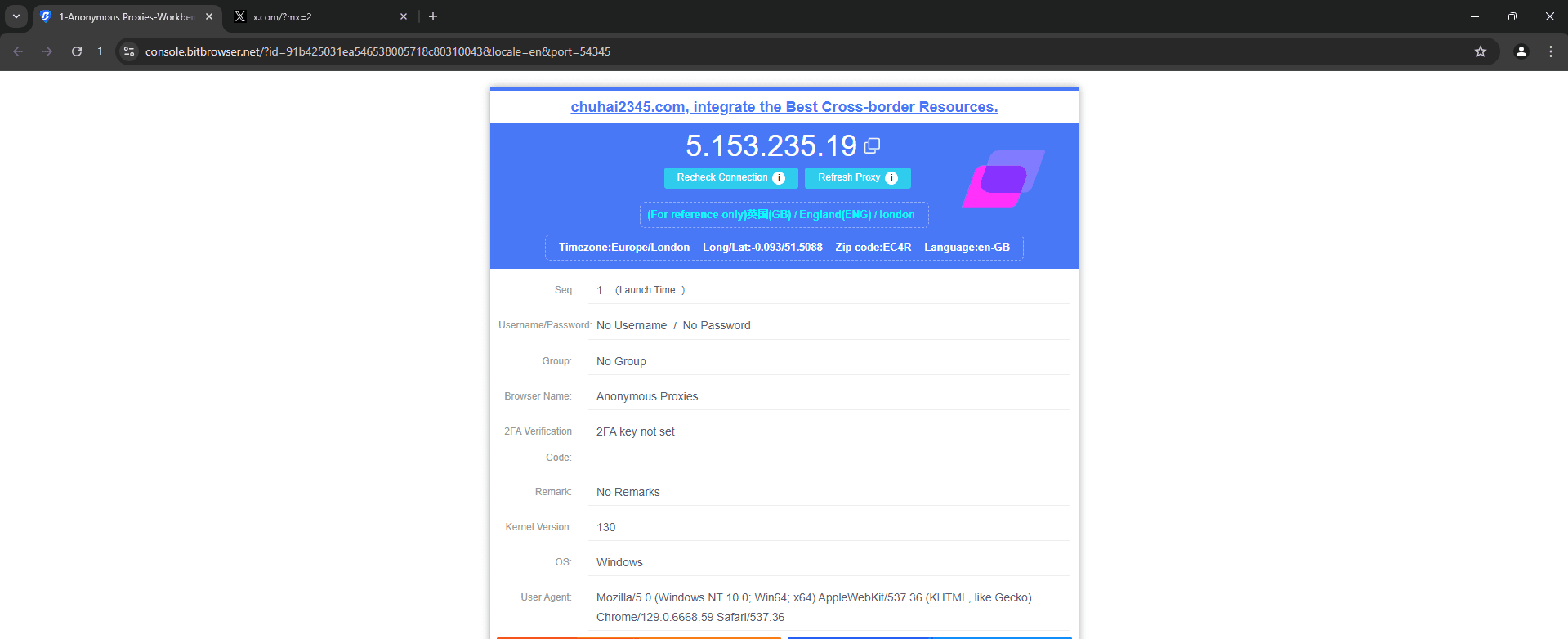
And that's it! Now you've successfully integrated Anonymous Proxies with BitBrowser.
Conclusion
By combining BitBrowser with our high-quality residential proxies, you can rest assured that your management of multiple accounts will become a breeze. Whether you want to scrape data or ease your e-commerce operations, BitBrowser will make it a no-effort job for you.
For more integration tutorials, be sure to check our integrations page.
If you have any questions about how to integrate Anonymous Proxies with BitBrowser or any other issues, feel free to contact our 24/7 support team that is here for you.

Buy Backconnect Proxies
Rotating IPs on every request. Scale scraping and automation without manual IP management.
More antidetect-browser Proxy Integrations
See more antidetect-browser integrations that work seamlessly with Anonymous Proxies.

Proxy Integration With Kameleo
Learn how to set up Anonymous Proxies' residential proxies with Kameleo for automation, web scraping, and easier multi-account management.

Proxy Integration With Lalicat
Learn how to integrate Anonymous Proxies' residential proxies with Lalicat to manage multiple accounts with ease and browse in anonymous way.

Proxy Integration With ClonBrowser
Learn how to set up Anonymous Proxies’ residential proxies in ClonBrowser to manage multiple social media accounts smoothly and browse more privately.

Proxy Integration With Octo Browser
This integration tutorial will show you how to connect Anonymous Proxies in Octo Browser for safer multi-accounting and scraping in just a few minutes