Proxy Helper: Step-by-Step Setup Guide for Chrome
Looking for a simple way to route your browser traffic through a proxy without dealing with hidden settings? Proxy Helper is a free lightweight Chrome extension that makes switching proxies feel easy and fast. In this guide you will learn exactly what it is, how to set it up in Chrome, why it is useful for privacy and workflows, and the smartest tips to keep things stable and speedy.
Valentin Ghita
Technical Writer, Marketing, Research
Mihalcea Romeo
Co-Founder, CTO
What Is Proxy Helper?
Proxy Helper is an extension for your browser that allows you to configure your proxies directly in the toolbar. Instead of searching in the system preferences to set a proxy, you just click the extension icon, plug in the proxy details, and enable it. The extension can manage per-site rules, username and password authentication, and allows for one-click switching to each of your proxies when the task changes.
Think of it as a control panel for how Chrome connects to the web. When you need a new IP for research, ad verification, social media management, or testing geolocation, you pick the proxy profile you want and refresh your tab. When you finish, you swap back to direct connection in one click.
How To Set Up Proxy Helper in Chrome - Step-By-Step
Before we go into details, be sure that you are logged in to the Anonymous Proxies Dashboard, then simply follow these steps and you will be ready in a couple of minutes.
Step 1: Grab Proxy Details
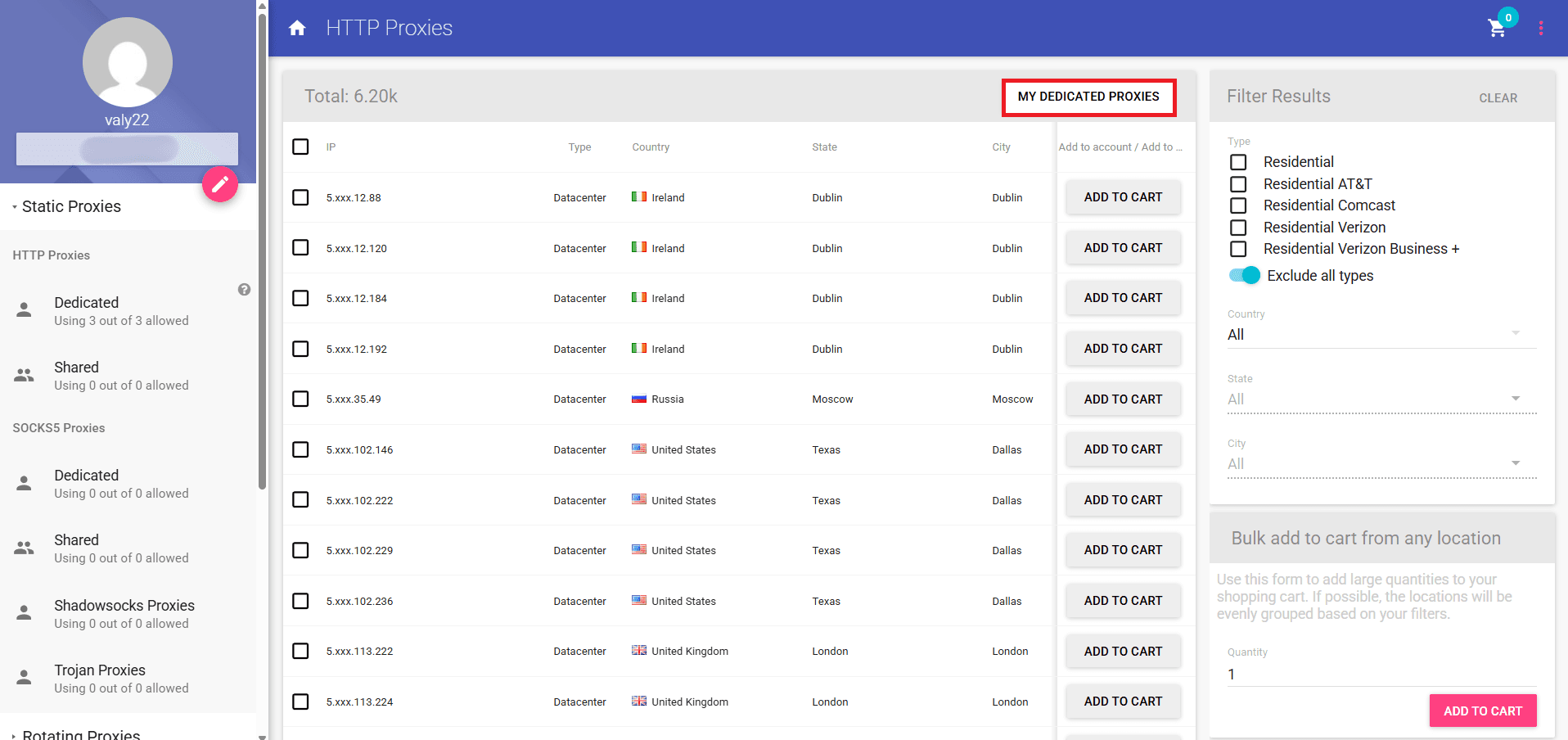
Once you are logged in the Anonymous Proxies Dashboard, you'll need to click on Static Proxies, select HTTP Proxies and then click on My Dedicated Proxies.
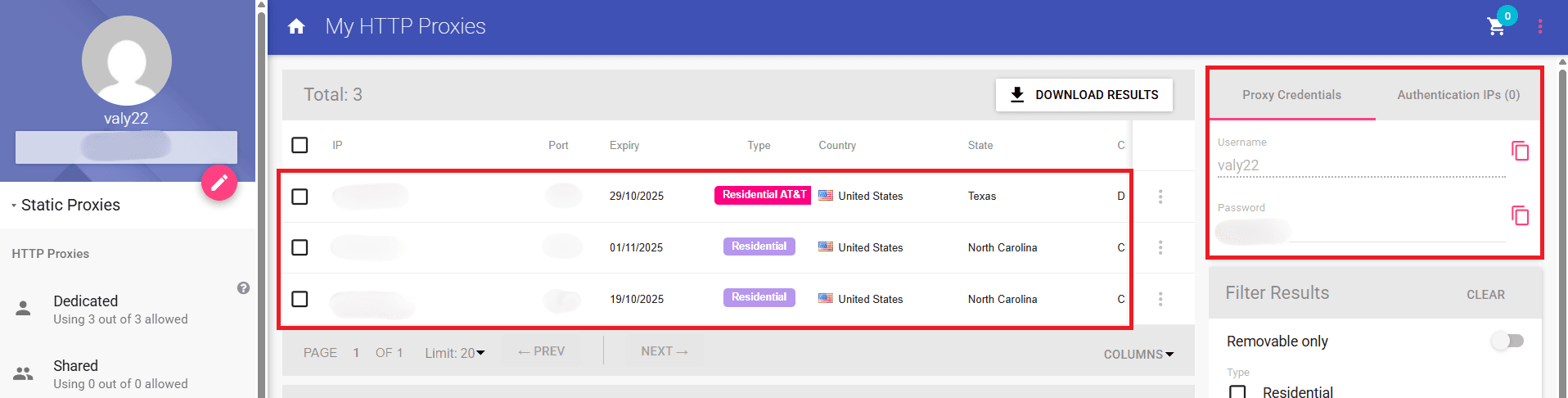
Once you clicked on My Dedicated Proxies you will be able to see all of your proxy details, including the username and password you are going to use if you enabled authentication. For this example we will use a static residential proxy.
Step 2: Add Proxy Helper
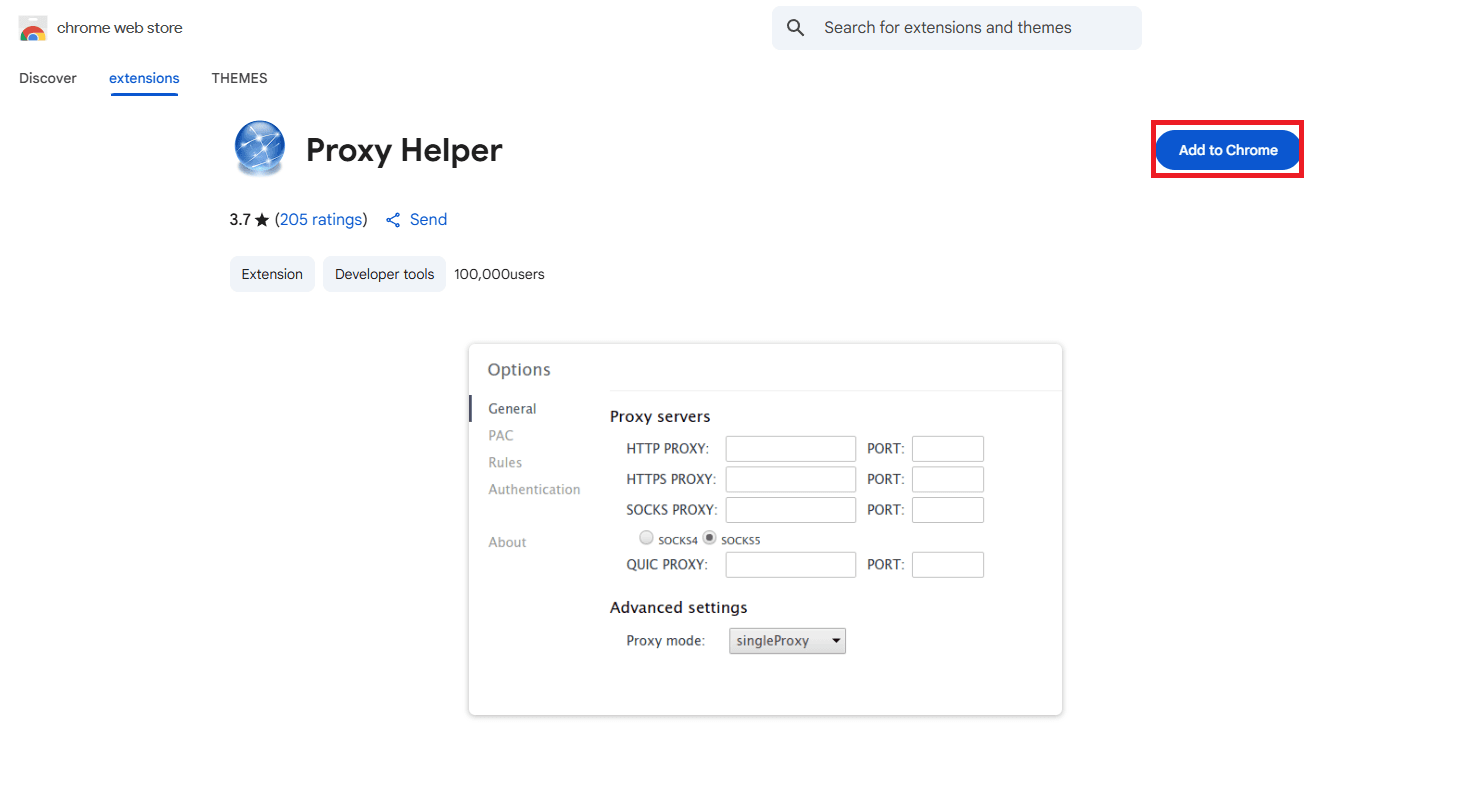
Now that you have your proxy information, you will need to install the Proxy Helper extension from the Chrome Web Store. Once you reach the Chrome Web Store, search for Proxy Helper and click Add to Chrome and then confirm the dialog box. Once completed, pin the extension to your toolbar.
Step 3: Input Proxy Details
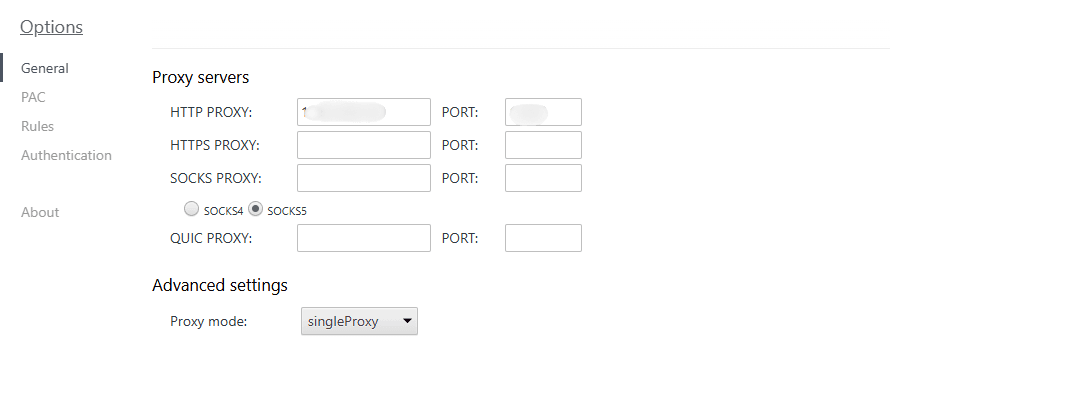
Once you pinned your extension, uou'll need to click on the Proxy Helper icon, go to Options, then General. If you purchased an HTTP proxy, put the proxy IP and port from your dashboard in the HTTP PROXY field. Leave Proxy Mode set to singleProxy. If you purchased a SOCKS5 proxy instead of HTTP, select SOCKS5 and put the IP and port for that proxy.
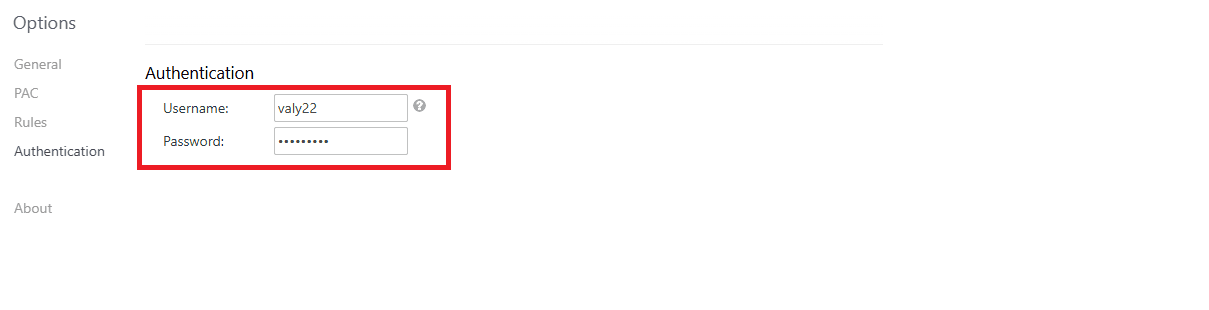
Step 4: Enter Proxy Credentials
After you put entered the proxy's IP and port, you'll need to enter its credentials in the Authentication tab. If you've whitelisted your IP from the Dashboard, you can skip this step.
Step 5: Select Profile
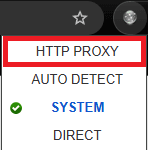
Once you entered the required credentials for authentication, just click the Proxy Helper icon in your toolbar and switch the mode to HTTP PROXY so Chrome routes traffic through the proxy you just configured.
Step 6: Verify IP
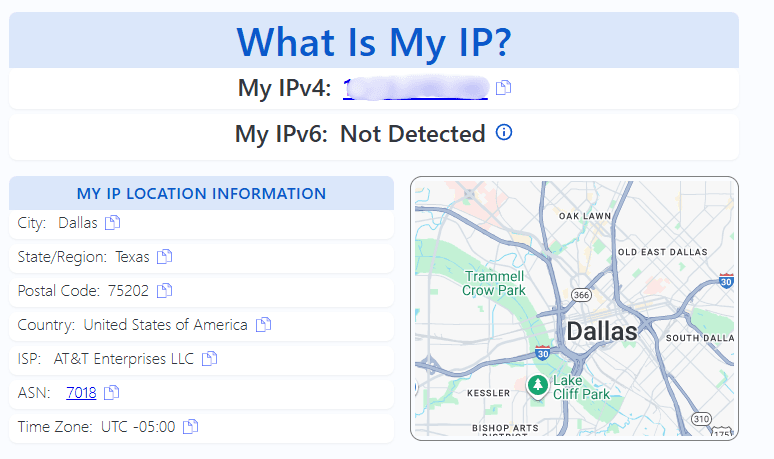
For the final step, you can open a fresh tab and visit an IP checker site to see that your traffic is routed through your proxy IP.
Why Would You Use Proxy Helper?
If you work online, Proxy Helper quickly becomes a quiet lifesaver. First, it mainly helps with privacy since your IP address will remain hidden and your traffic will be routed through the proxy's IP.
It is also perfect for e-commerce location testing. You'll be able to see localized prices, currencies, shipping calculators, tax estimates, inventory gates, and promo eligibility exactly as shoppers in each country see them.
Ad verification gets easier too. You can view creatives in a target region, follow landing pages, and confirm that tracking behaves the way it should.
Managing multiple accounts becomes far less stressful with Proxy Helper. You just need to assign a unique proxy and IP to each Chrome profile, label profiles by region or client, so you know what connection is active, and because you'll have distinct IPs, your chances that platforms will link your accounts will be reduced.
Moreover, if you are doing market research, you can rely on Proxy Helper to avoid skewed results. Switching locations lets you see truly local SERPs, prices, and competitor pages as real users do in each market.
Pro Tips for Smoother Proxy Helper Use
Here are some tips that will help you to avoid common problems and continue to browse without hiccups.
- Match the protocol to your proxy. If your provider gives you SOCKS5, select SOCKS5. Mixing protocols can break logins or load blank pages.
- Keep profiles clean and labeled. Name each one by region and purpose, like UK Residential Research. Clear labels prevent wrong-click headaches.
- Use per-site rules. Route only what needs to be proxied. Keeping everyday browsing off the proxy frees bandwidth and minimizes accidental rate limits.
- Test before big tasks. Do a quick IP check and load a target page to confirm the session is stable.
- Choose rotation wisely. Rotate for scraping and repetitive checks. For logins and checkout flows, stick to a stable session to reduce extra verification.
- Keep a direct fallback. Maintain one profile set to Direct. If a route misbehaves, switch in a click to troubleshoot fast.
Conclusion
As you've seen above, Proxy Helper gives you a clean and fast way to control your browser’s network path without digging through operating system menus. You just need select the proxy type you need for your activities, give your profile a clear name and set your proxy, so you can distinct each profile and continue your online activities without problems.
If you encounter any issues with the setup or have question regarding to certain types of proxies, please contact our support team to guide you.

Buy Backconnect Proxies
Rotating IPs on every request. Scale scraping and automation without manual IP management.