How to Download Files With cURL: Flags, Proxies, Fixes
Learn how to download files with cURL, from basic flags to proxy routing, bulk IP rotation, and fixes for the most common errors.
Valentin Ghita
Technical Writer, Marketing, Research
Mihalcea Romeo
Co-Founder, CTO
TL;DR: The short version
- cURL pulls files from the command line over HTTP, HTTPS, FTP, SFTP, and a few other protocols. The flags you'll actually reach for:
-O,-o,-L,-C -,-x. -Okeeps the remote filename.-orenames. Without either, binary data prints to the terminal as junk.-Lfollows redirects, which you almost always want.-C -resumes a partial transfer.- Behind auth, geo-blocks, or rate limits, route through
-x. Datacenter proxies are fast and cheap. ISP proxies hold a session. Rotating residential or mobile proxies get through stricter anti-bot stacks. SOCKS5 if you need protocols other than HTTP. - For bulk work, rotate the IP. One static proxy gets rate-limited fast, then banned. A backconnect endpoint rotates per request and that's usually enough.
- Verify the result. cURL exits 0 even if the saved file is an HTML block page or half an archive. Pull
%{http_code}with--write-out, compareContent-Lengthto the size on disk, or hash the file.
Basic cURL Download Syntax
-O (uppercase) writes the file under whatever name appears in the URL. macOS and most Linux distros ship with cURL, so this runs as is.

Windows is the awkward case. In PowerShell, curl is an alias for Invoke-WebRequest, which is a different program entirely and ignores most cURL flags. Call the binary by name:
If the URL returns a 301 or 302, that command saves the redirect headers to a file instead of the thing you actually wanted. Add -L any time you're not sure where the URL ends up.
-O vs -o: Picking the Right Flag
The two flags look almost identical and behave differently.
-O (uppercase) saves the file using the name from the URL path:
-o (lowercase) saves the file under whatever name you pass:
Without either flag, cURL prints the response body to your terminal. Fine for a text file. For a ZIP or PDF, the terminal tries to render binary and you lose the data.
If the server sends the real filename in a Content-Disposition header (most API exports do), combine -O with -J:
-J makes cURL use the filename from the header instead of the one in the URL path. -L is there because that endpoint can redirect, and the next section gets into why that matters.

Buy ISP Proxies
Dedicated IPs from real ISPs. Residential trust, datacenter speed, unlimited bandwidth.
Real-World Download Scenarios
Four flags handle most production download work.
Follow redirects with -L
Signed S3 URLs, CDN edges, and most modern download links return a 301 or 302 first. Without -L, cURL writes the redirect response to disk and that's where it stops:
Resume an interrupted download with -C -
For large files on flaky networks, never restart from zero. The -C - flag reads the local file size and asks the server for the rest:
The dash after -C is doing real work. It tells cURL to figure out the resume offset itself. If the server doesn't honor range requests, you get an error instead of a silent restart from byte zero, which is what you want.
Authenticated downloads with -u and bearer tokens
Basic auth uses -u:
Modern APIs prefer bearer tokens, which go through the -H flag:
For header-based auth and debugging the headers cURL is actually sending, see the guide on sending HTTP headers with cURL.
Bulk downloads with {} and [1-N] expansion
cURL expands brace and bracket patterns into multiple requests in a single command:
This works for any URL where the variable part follows a clean pattern. For lists that do not fit a pattern, jump to the bulk rotation section below.
Routing cURL Downloads Through a Proxy
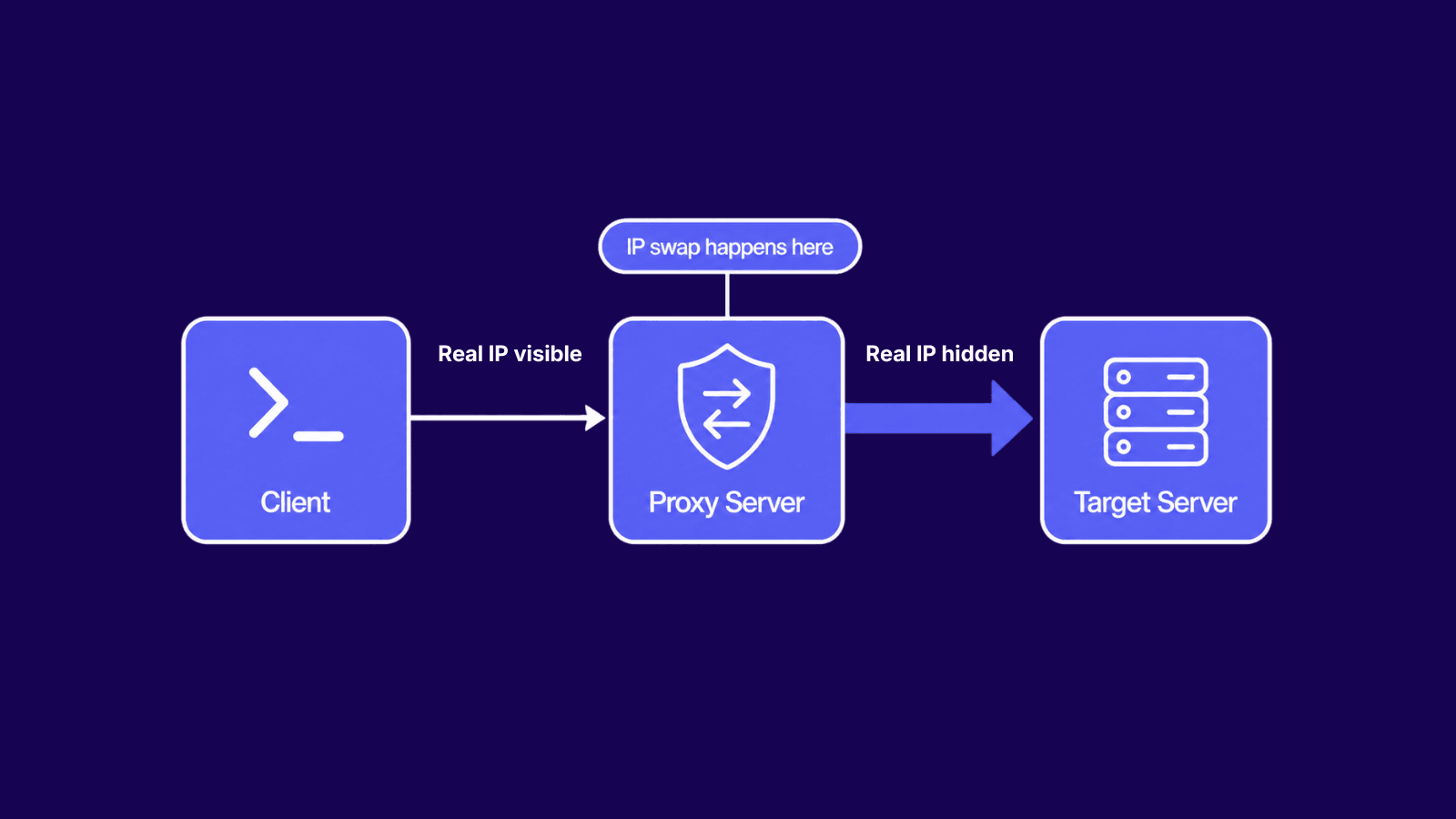
Direct downloads work fine until the server starts caring who you are. Three situations push you toward a proxy:
- The target enforces per-IP rate limits and the job is pulling more than fits inside one window.
- The file is geo-restricted and the server is in the wrong region.
- The same IP has been hitting the endpoint long enough to pick up reputation flags, and URLs that used to work are now coming back 403.
-x syntax for HTTP, HTTPS, and SOCKS5
The -x flag accepts any supported proxy URL:
The socks5h:// scheme resolves DNS through the proxy and prevents leaks. Plain socks5:// resolves locally, which can give your real location away.
Matching proxy type to download job
Not every proxy fits every download:
- Datacenter proxies move data fast on permissive targets where IP reputation is not the bottleneck.
- ISP proxies hold a session IP stable across multi-step downloads behind a login wall.
- Rotating residential or mobile proxies handle hardened targets that block datacenter ranges outright.
- SOCKS5 proxies cover non-HTTP downloads (FTP, SCP, custom protocols) where HTTP-only proxies fail.
Bulk Downloads With IP Rotation
One proxy IP buys you a few requests. After that, things break in a predictable order. The rate limiter returns 429. The WAF notices the traffic concentration and issues a temporary block. The IP lands on a reputation list shared across CDNs and stays there for days. Every retry pushes you further down that list.
A backconnect proxy endpoint avoids the whole sequence by handing out a different upstream IP on every connection. Pair it with a simple bash loop:
The loop reads one URL per line and opens a fresh proxy connection on each request, which is what makes the IP swap. The two extra flags cover the obvious edge cases: a per-request timeout so a single slow file doesn't hang the queue, and a small retry budget for flaky network errors.
For ongoing bulk work, point the loop at a Verifying Downloads and Catching Silent Failures sized to your concurrency. You want rotation on every request. Less than that and you're back to the static-proxy version above, just with extra steps.
Verifying Downloads and Catching Silent Failures
A successful cURL exit code does not always mean you saved the file you expected. It might be an HTML block page that came back as a 200. It might be half an archive. It might be a login page saved as report.csv because the session expired two URLs ago. A few checks catch most of it.
Capture the HTTP status with --write-out
This catches 403, 404, 429, and 5xx responses that would otherwise leave a junk file behind.
Compare file size against Content-Length
For files larger than a few MB, compare the size on disk to the size the server reported:
This check works only when the final server response includes a reliable Content-Length header.
For a deeper look at reading server responses, the guide on HTTP response headers in cURL walks through the rest of the useful header values.
SHA256 check when integrity matters
If the vendor publishes a checksum, verify it before using the file. This matters for software releases, production datasets, backups, and any download where silent corruption breaks something downstream.
HashiCorp Terraform is a clean example because every release ships with a SHA256SUMS file next to the archives:
Expected output:
On macOS, swap sha256sum -c for shasum -a 256 -c:
Common Errors and Fixes
403 Forbidden
The server accepted the connection and refused the request. Three causes dominate. The IP is rate-limited or on a blocklist. The User-Agent is missing or flagged. The auth header is wrong or expired. Set a browser-like User-Agent with -A "Mozilla/5.0", route through a residential or mobile proxy, and re-check your credentials.
416 Requested Range Not Satisfiable
-C - failed because the server's file changed since your partial download started. The local byte offset no longer matches the remote file. Delete the partial file and start fresh.
SSL handshake failures
The most common cause is a corporate proxy intercepting TLS, or a server using an outdated cipher. The wrong fix is -k. The right fix is to update your CA bundle or stop using a proxy that man-in-the-middles TLS. Full breakdown in the guide on ignoring SSL certificate errors in cURL.
Empty file with exit code 0
If the server returned 200 with an empty body, the response was probably gzipped and the client didn't decompress it. Add --compressed and re-run the status-code check.
Wrap Up
A few flags do most of the work in cURL, and once you know them, downloading files isn't really a thing you have to think about. The same small set handles a one-off pull and a script churning through thousands of URLs overnight. The bit nobody covers is verification, which is what keeps a working script from sitting broken for a month before anyone notices.
When a download fails, it's almost never cURL. It's the server pushing back, usually through rate limits or IP reputation. That's why you need to match the proxy type to what block you're hitting, rotate the IP at volume, and most of those failures will go away.
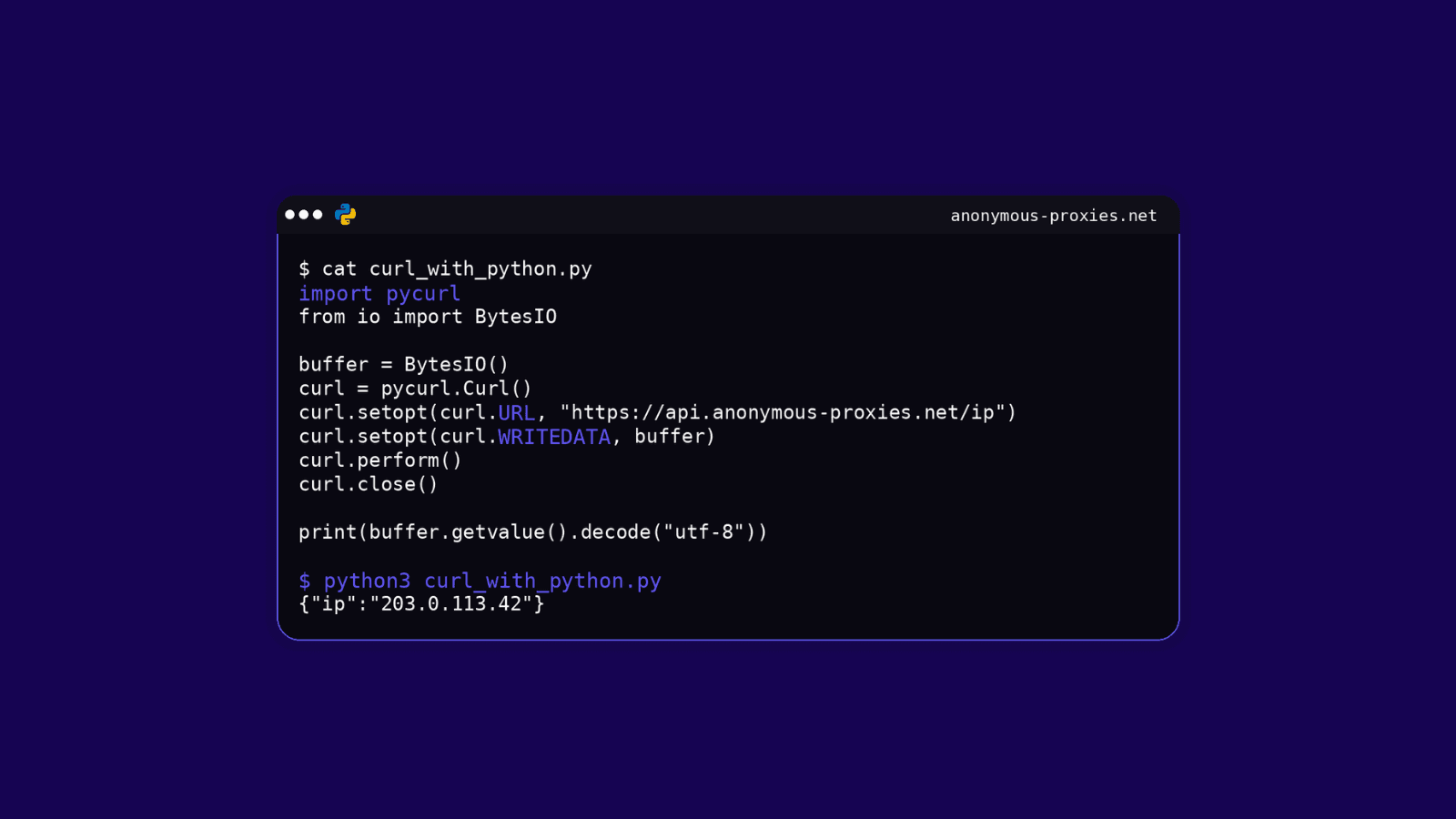
If downloads end up inside a bigger pipeline, the cURL with Python guide is where to go next.
Frequently asked questions
Frequently Asked Questions
How do I download a file with cURL on Windows?
You want curl.exe, not curl. PowerShell aliases plain curl to Invoke-WebRequest, which is a totally different program and chokes on most of the flags you'd actually pass to cURL. curl.exe -O <url> runs the binary that's been shipping with Windows since version 10.
Can cURL download an entire directory?
No. cURL transfers files one URL at a time and does not crawl. For recursive mirroring, wget -r is the right tool. With cURL, the workaround is to generate a URL list (from a server index, an API listing, or a sitemap) and feed it into a loop, exactly like the bulk rotation example earlier.
How do I download a file silently in a script?
Use curl -sS -L -O <url>. The -s flag hides the progress meter and -S keeps error messages visible. Skipping -S is tempting because it removes everything, but it also hides real failures from cron logs, which is when you most need them.
How do I limit cURL download speed?
Use --limit-rate followed by the cap. curl --limit-rate 2M -O <url> keeps the transfer at 2 MB/s. Useful when the script shares bandwidth with other services, or when you want to stay polite to a server you scrape often.
Can cURL download files in parallel?
Yes, since cURL 7.66. Pass multiple URLs in one command with -Z (or --parallel) and cURL transfers them concurrently instead of one after another. The default cap is 50 simultaneous transfers, adjustable with --parallel-max. For mixed jobs that need proxy rotation, the bash loop earlier in the article is more flexible.
How do I download a file with cURL through a proxy?
Use -x then the proxy URL. Something like curl -x http://user:[email protected]:8000 -L -O <url>. The scheme depends on what kind of proxy you're using: http:// and https:// for HTTP proxies, socks5h:// if it's SOCKS5 and you want DNS resolved on the proxy side rather than locally. For anything bulk, aim -x at a backconnect endpoint so each request goes out on a different IP.