Incogniton Browser Guide: Features, Uses, Proxy Setup
Managing more than one online account is not as simple as it used to be. Clearing cookies or switching browsers is no longer enough. Websites now look at more signals, including your browser fingerprint, session data, and IP address. When those overlap across accounts, the risk of verification, restrictions, or account links goes up.
That is why anti-detect browsers matter. They help keep browser identities separate, so each profile works like its own environment. Incogniton is one of the tools built for that purpose, combining isolated browser profiles, profile controls, and proxy support in one place.
In this guide, you will learn what Incogniton is, which features matter most, who it is best for, and why residential proxies make the setup more effective.
Valentin Ghita
Technical Writer, Marketing, Research
Mihalcea Romeo
Co-Founder, CTO
Why Anti-Detect Browsers Matter More Than Ever
A normal browser is designed for convenience, not for separating identities. It has cookies, local data, history, and session information that can be easily linked from one action to another. Well, that is good for normal browsing, but it is a problem when you need to maintain several clean environments for work.
Anti-detect browsers fix this by separating identities at a profile level. Instead of thinking of a browser as a single environment, anti-detect browsers allow you to run several profiles, each of which is like a separate user. Each profile has its own data, settings, proxy, and fingerprint. This means that accounts are not constantly associated with a single browser, and you significantly increase your authenticity.
What Is Incogniton?
Incogniton is an anti-detect browser that puts all of this into practice. It lets you manage multiple browser identities from one device without letting them link to each other.
The key difference from basic privacy tools is persistence. You're not just opening another tab or window. Each profile can be reused over time and stays stable from session to session, which makes it far more practical for real work than incognito mode or browser switching.
Beyond profile isolation, Incogniton is built for proxy integration, automation, and team workflows. That makes it relevant not only for solo users, but also for agencies, growing teams, and technical users who need control over how profiles are created and maintained.
Incogniton Features
Profile isolation that keeps sessions separate
The most important feature in Incogniton is profile isolation. Each profile is treated as its own browser environment, with separate cookies, local storage and browser state. That means one profile does not naturally leak into another, which is exactly what you want when working with multiple accounts or regions.
This is the part that makes anti-detect browsing practical. Without strong isolation, everything else becomes less useful.
Fingerprint controls that add flexibility
Incogniton does not stop at separating cookies and sessions. It also gives profiles their own fingerprint setup. New profiles come with a default unique fingerprint, and you can adjust certain settings when needed, such as timezone, WebRTC behavior, and other browser-related options.
The reason why this matters is that identity is not just defined by the IP address. You also need to have browser-level consistency. The point here is not to make things random just for the sake of making them random. The point here is to make each profile look coherent.
Proxy management built into the workflow
Proxy support is another core feature. Incogniton lets you assign a dedicated proxy to a profile, which helps define the network identity tied to that browser session. It also includes proxy management tools for adding proxies one by one or in bulk, grouping them, checking the connection, and working with rotating proxies when needed.
This saves time when you are managing more than a few profiles. Instead of entering the same details over and over, you can organize your proxies properly and keep the setup cleaner.
Cookie handling for more natural sessions
Cookie handling is easy to overlook, but it matters a lot in practice. Incogniton includes tools for importing, exporting, and managing cookies. It also supports features aimed at building more trusted-looking sessions over time.
That can be useful because a profile with some history often feels more natural than a brand-new one with no session background at all. For many workflows, session continuity matters just as much as fingerprint or IP separation.
Automation and team support for more advanced use
Incogniton also supports more advanced use cases. It offers developer-facing tools for automation, including support for frameworks such as Playwright, Puppeteer, and Selenium. So if you or your team run repeatable browser workflows, scrape the web, or test flows, it is a really useful tool.
On top of that, it also comes with team features like roles and permissions, which can be very handy if you need to give multiple people access to a profile.
Incogniton Use Cases
While Incogniton can be very beneficial in the field of digital marketing, the benefits do not stop there. It is extremely useful for those who wish to have more control, separation, and privacy in their online activities. Now, let's see what are some of its most common uses, as described below.
Manage Social Media Accounts
When you are managing multiple social media accounts in a single normal browser, it can get very messy. With Incogniton, each account has a separate profile and you won't need to waste your time trying to not get your accounts linked to each other and get blocked.
E-commerce and Dropshipping
Incogniton has uses beyond online privacy. For e-commerce sellers and dropshippers, it provides a cleaner alternative to handling different stores, accounts and market-related setups. Since you can keep each one in a separate browser profile, it will make your work way easier to organize and control.
Price Monitoring
Price monitoring depends on clean browsing conditions. Cookies, saved sessions and past activity can influence what you see. This is where Incogniton comes in. It allows teams to have separate profiles for separate markets, stores, or checks, so that one session of browsing does not interfere with another.
Affiliate Marketing
Affiliate marketers usually deal with a lot of campaigns, offers, and platforms all at once. Incogniton allows each of them to be in its own space, thus organizing the workflow.
Traffic Arbitrage
Traffic arbitrage often involves testing and scaling across several accounts and campaign setups. In that kind of workflow, stable browser profiles matter. Incogniton helps keep those profiles separate, which makes the overall setup more reliable.
Why Incogniton Works Better With Residential Proxies
Incogniton does a lot on the browser side, but it does not replace the need for a solid network identity. A profile can have isolated storage and controlled fingerprint settings, but if it still connects through the same IP as every other profile, the setup is not as clean as it could be. And that is exactly why residential proxies make sense here.
A residential proxy routes traffic through an IP address assigned by a consumer internet service provider to a real household connection. In plain language, the traffic appears to come from a normal home user rather than a cloud server or datacenter. That difference matters because server-hosted IPs are often easier for websites to recognize and filter.
This doesn't mean residential proxies are magic; they don't ensure that nothing will ever be flagged. However, they can often offer a more natural-looking network layer, especially where location consistency and detection pressure are less of an issue. Together, they can offer a more coherent picture from top to bottom.
How to Set Up Proxies in Incogniton
Now, assure that you are logged into Anonymous Proxies dashboard and have your proxy credentials ready for the setup below. In just a few minutes, you'll have your setup ready.
Step 1: Download Incogniton
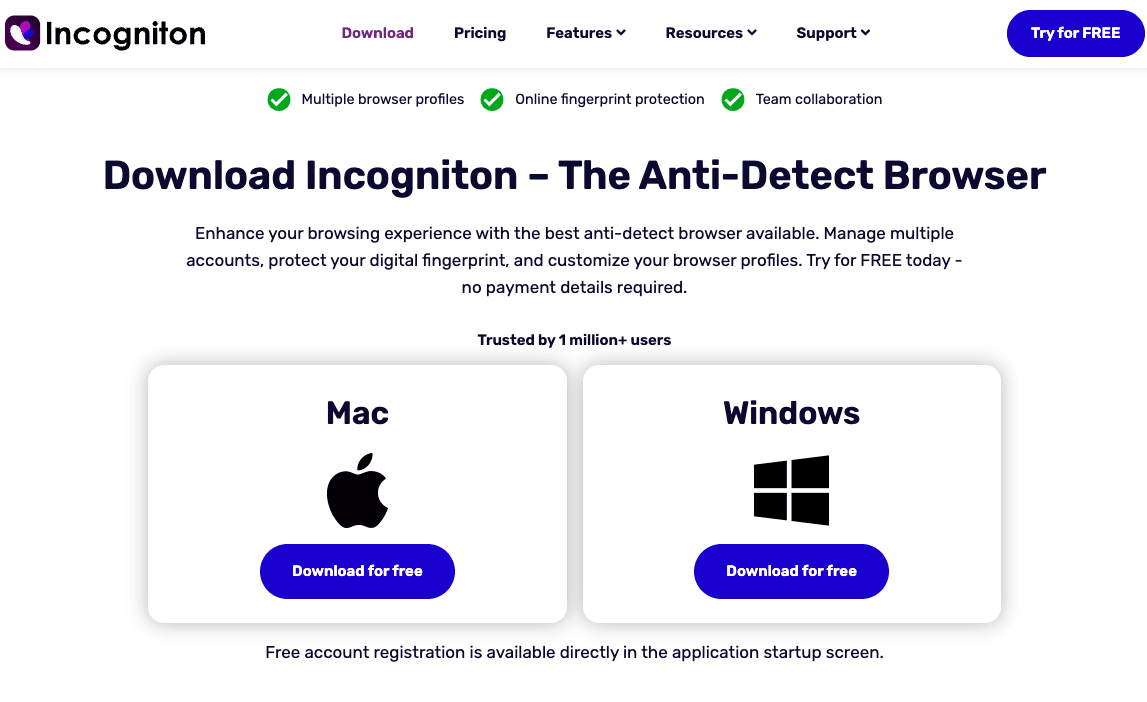
To begin, you'll need to download Incogniton from their official site. Once you chose the right version for your device, install it, open it and sign in or create an account.
Step 2: Create new profile
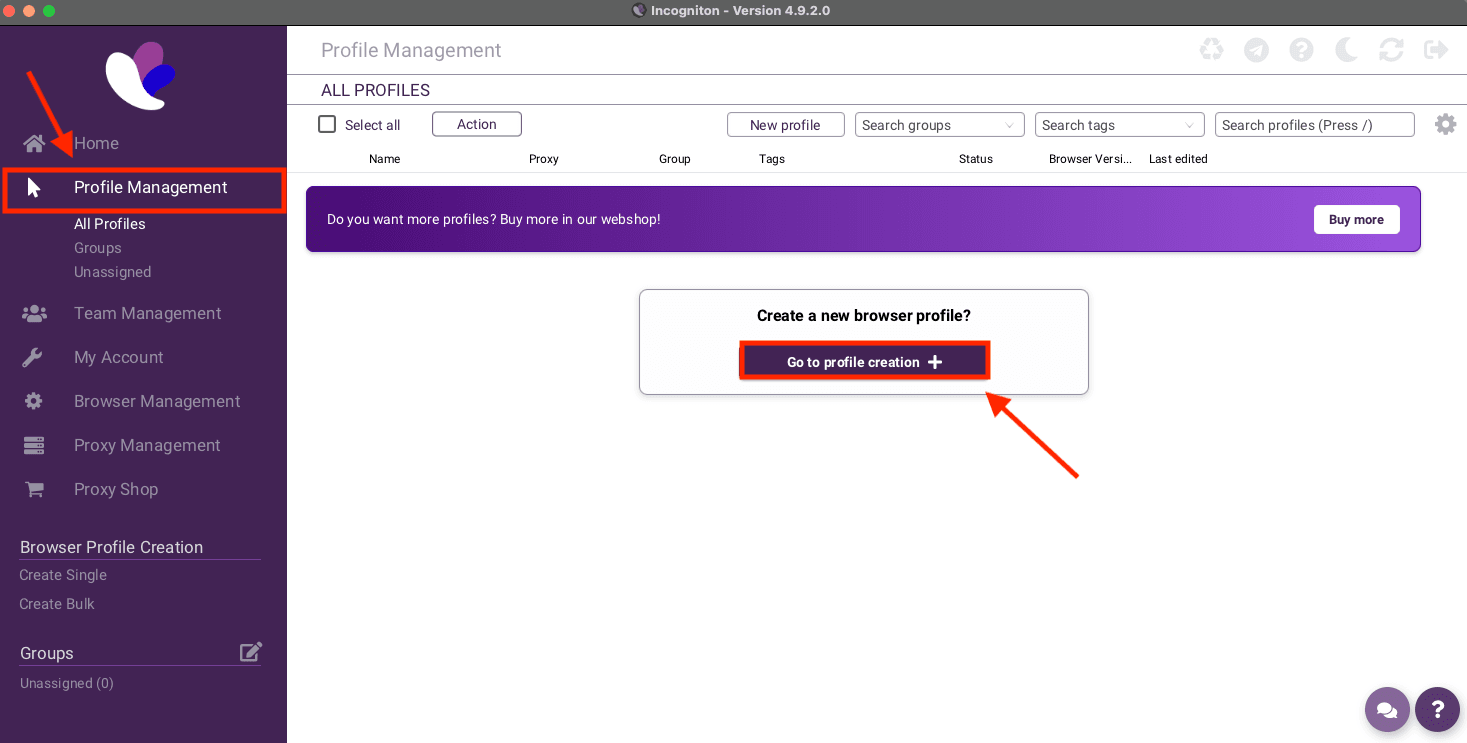
Once you are inside the app, open Profile Management from the left sidebar. Then click Go to profile creation or New profile to start setting up a fresh browser profile.
Step 3: Enter your proxy details
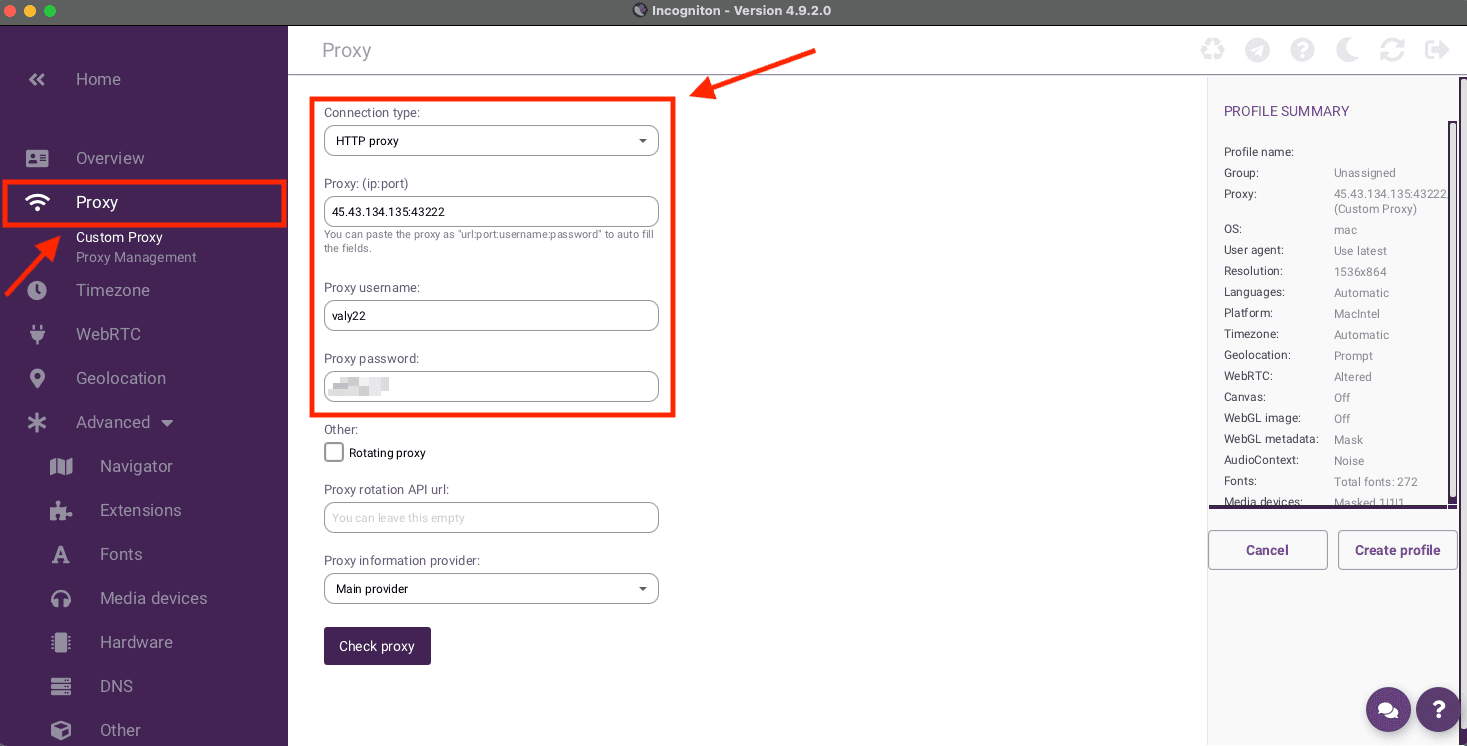
When you are inside the profile settings, open the Proxy tab. Here, choose your connection type, then enter your proxy details. If you have enabled authentication, don't forget to enter the username and password which you can find inside our dashboard.
Step 4: Check the connection
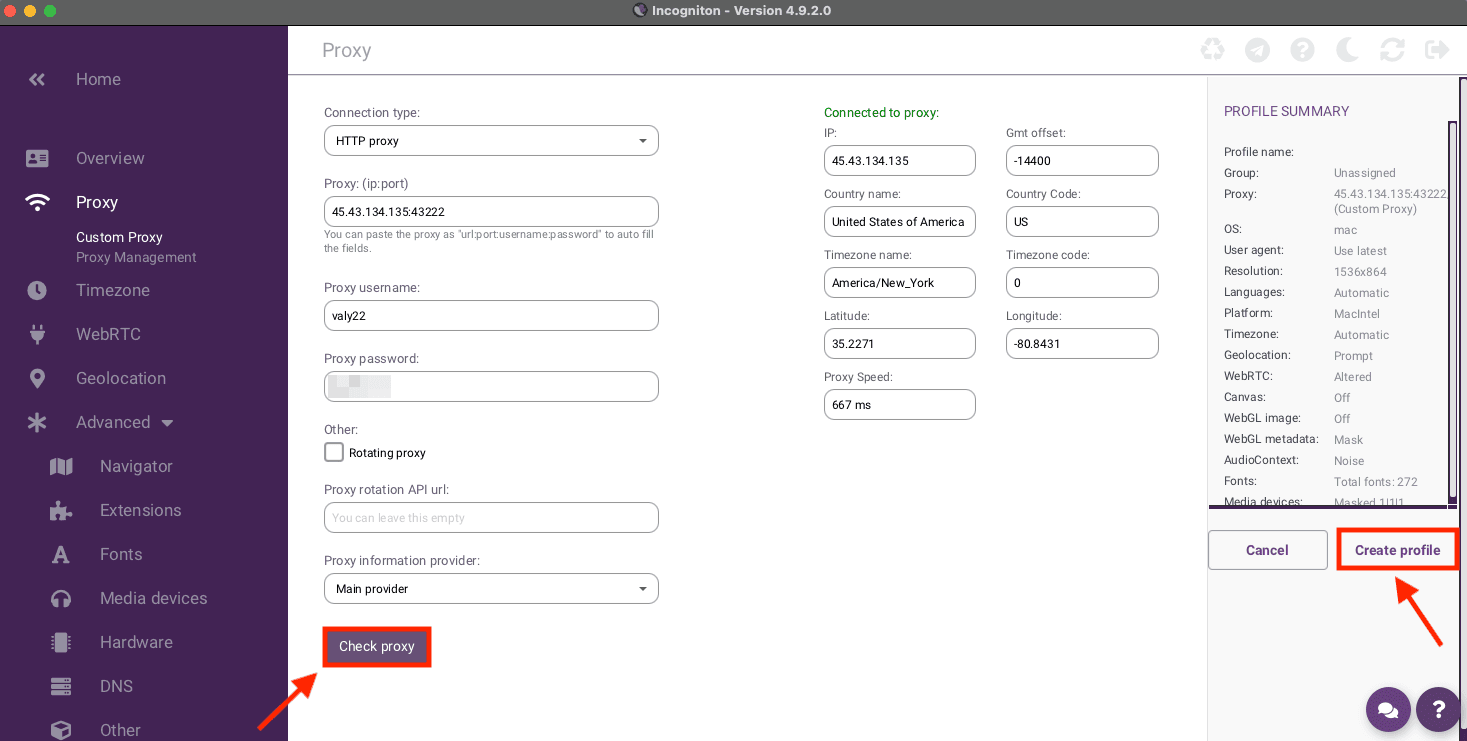
After you entered the proxy details, click Check proxy. If the connection works, Incogniton will show a succesfull message, and once you see it, click on Create profile to save it.
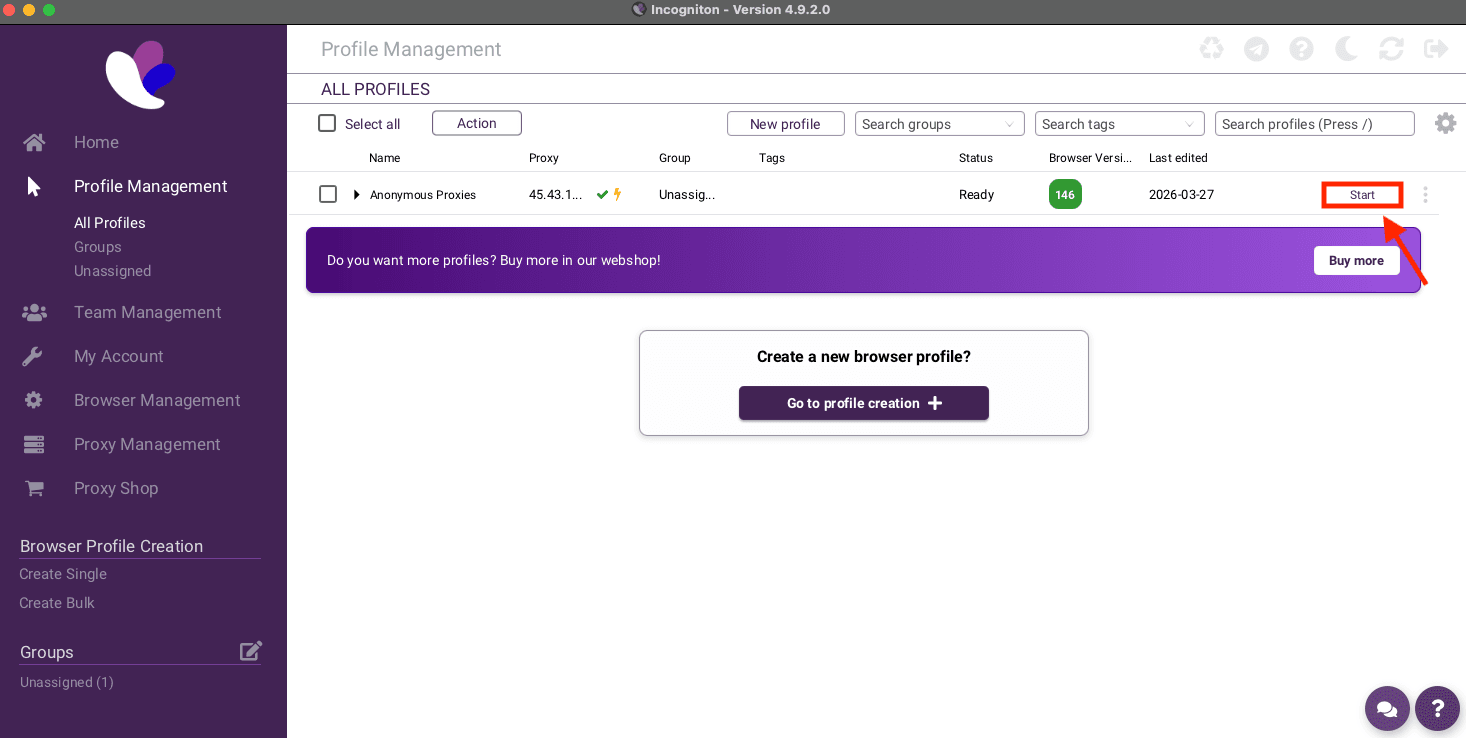
Step 5: Launch the profile
Once you save the profile, you'll be taken back to Profile management where you'll see the new profile listed there. Now, just click on Start to launch it.
Conclusion
As you’ve seen above, Incogniton gives you a simple way to manage multiple accounts and let you browse in an anonymous way. If you have any questions about setting up Incogniton with our proxies, or about our solutions in general, don't hesitate to contact our support team.