

Proxy Integration With SaleSmartly
Learn how to set up Anonymous Proxies' residential SOCKS5 proxies in SaleSmartly and keep your WhatsApp and Telegram devices on one stable IP.
What is SaleSmartly?
Customers write on WhatsApp, Telegram, Messenger, Instagram, and email, and each of those apps needs its own login and someone to watch it. SaleSmartly puts all of those conversations in one inbox that a whole team can work from.
SaleSmartly is a customer messaging platform for sales and support teams. You connect your channels once, and messages from all of them land in the same chat window, where you can assign them, translate them, answer with saved replies, or hand the first answer to an AI agent. It also keeps a profile for each customer, so the person who replies sees the earlier conversations and orders. Some channels, such as WhatsApp App and Telegram App, run on a cloud device that SaleSmartly hosts for you. That hosted device is what you set a proxy on.
SaleSmartly features
- One inbox for many channels. WhatsApp, Messenger, Instagram, Telegram, TikTok, LINE, email, and a chat widget for your website.
- Cloud devices for personal accounts. Link a personal WhatsApp, Telegram, TikTok, LINE, or Zalo account by QR code, and SaleSmartly keeps it online on a hosted device.
- Team inbox. Assign conversations to teammates, add notes, and see who is handling what.
- AI agents and workflows. Answer common questions automatically and pass the conversation to a person when it gets specific.
- Real-time translation. Read and reply in your own language while the customer keeps writing in theirs.
- Customer profiles and tags. Keep contact details, tags, and conversation history together.
- Broadcasts and reports. Send messages to a segment of contacts and track how each channel performs.
Why use Anonymous Proxies with SaleSmartly?
When you link a personal WhatsApp account, SaleSmartly logs it in on a cloud device, and WhatsApp sees that device's IP address next to your phone's. SaleSmartly lets you pick a region for the device, but the list is fixed, and its own help page warns that frequent disconnections may occur when the phone and the device sit in different regions. A custom proxy solves that: the device goes online through an IP you choose, in the country you need.
SaleSmartly's proxy form accepts one type only, SOCKS5, so an HTTP proxy won't work here. Our dedicated SOCKS5 proxies fit: each one is a static IP that only you use, with username and password login, and you pick it by country, state, or city in the dashboard.
For WhatsApp and Telegram accounts, choose a residential SOCKS5 proxy. In the dashboard these carry the Residential type, and their IPs belong to consumer internet providers such as AT&T, Comcast, Verizon, or British Telecom. A personal messaging account normally lives on a home connection like that, so a residential IP matches how the account is usually used. Datacenter SOCKS5 proxies work in the same form, but their IPs belong to hosting companies.
The IP has to stay the same. A linked device can stay logged in for weeks, and an address that keeps changing makes the account look as if it moves from place to place. Give each WhatsApp or Telegram account its own static proxy, in the country where the account is normally used, and keep it there.
How to integrate Anonymous Proxies in SaleSmartly
Before you start, you need a SaleSmartly account with a free cloud device slot (the free plan includes one) and a dedicated residential SOCKS5 proxy in the Anonymous Proxies dashboard. Keep your phone with WhatsApp nearby for the last steps.
Step 1: Get your proxy credentials
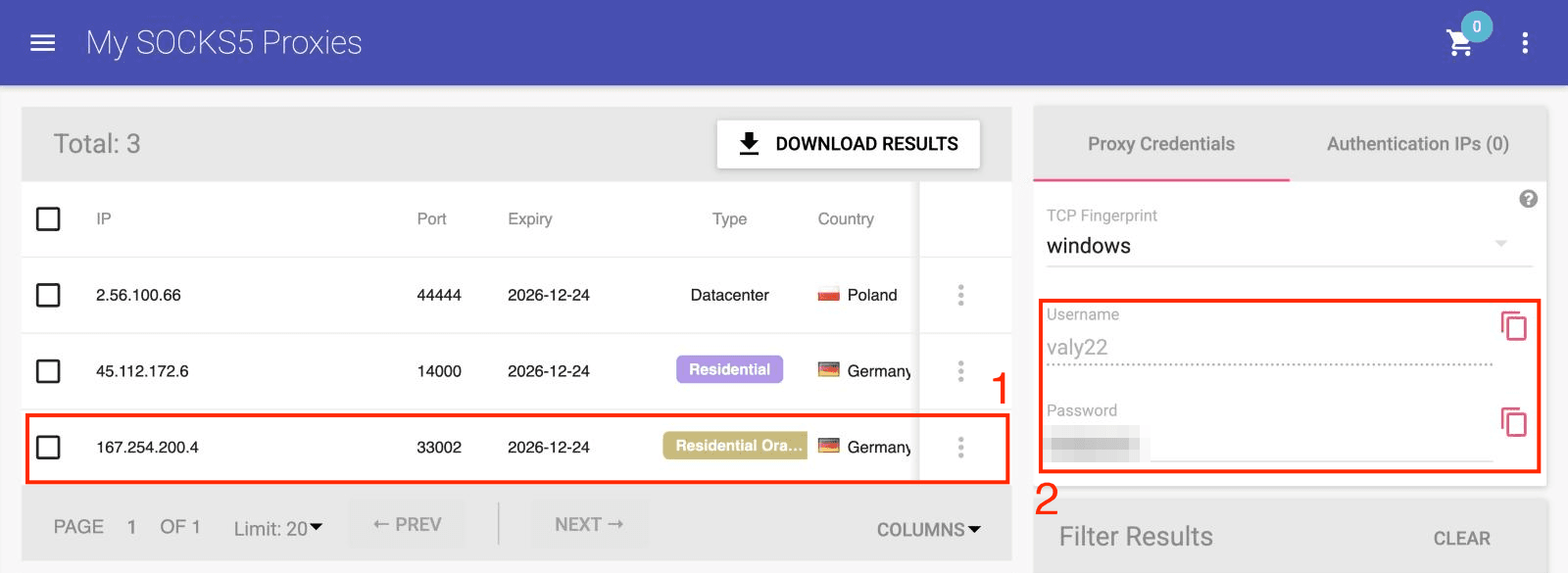
Log in to the dashboard, open the side menu, and go to Static Proxies > SOCKS5 Proxies > Dedicated, then click My Dedicated Socks. Note the IP and Port of the proxy you want to use (1). The Type column tells you whether a proxy is Residential or Datacenter. On the right, the Proxy Credentials panel shows your Username and Password (2). You'll need all four values in SaleSmartly.
Step 2: Open Connections and add WhatsApp App
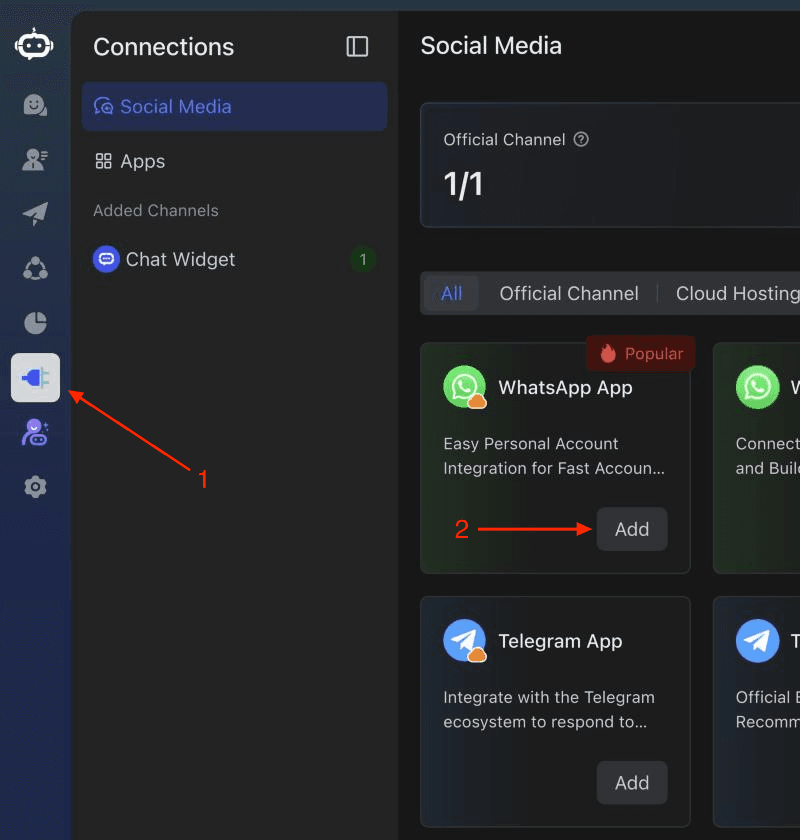
In SaleSmartly, click the Connections icon in the left menu (1). On the Social Media page, find the WhatsApp App card and click Add (2). Pick WhatsApp App, the card for personal accounts on a cloud device. WhatsApp API, next to it, is an official channel with a different setup.
Step 3: Choose QR Code Login
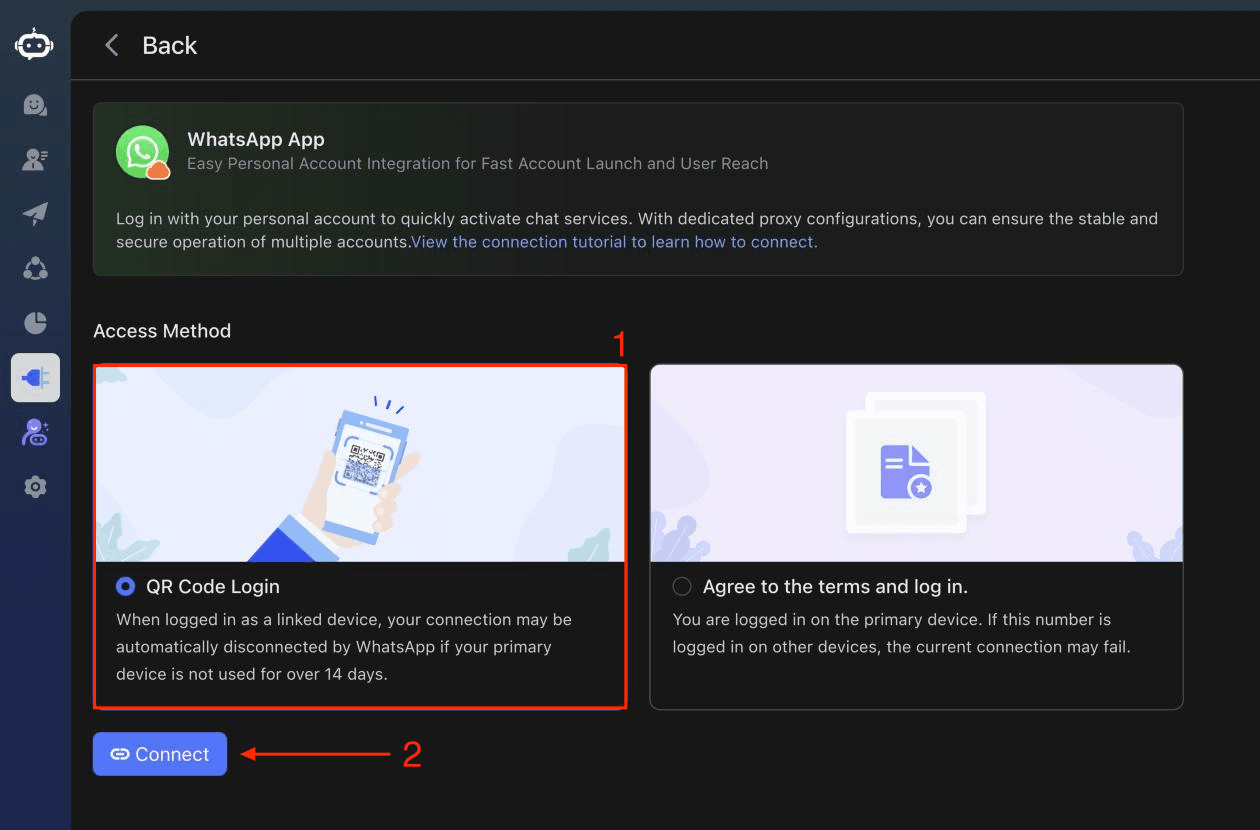
Under Access Method, keep QR Code Login selected (1) and click Connect (2). This is the option for linking a regular WhatsApp account from your phone. SaleSmartly notes on this screen that WhatsApp may disconnect a linked device if your phone isn't used for over 14 days.
Step 4: Turn on Use Custom Proxy and enter your proxy details
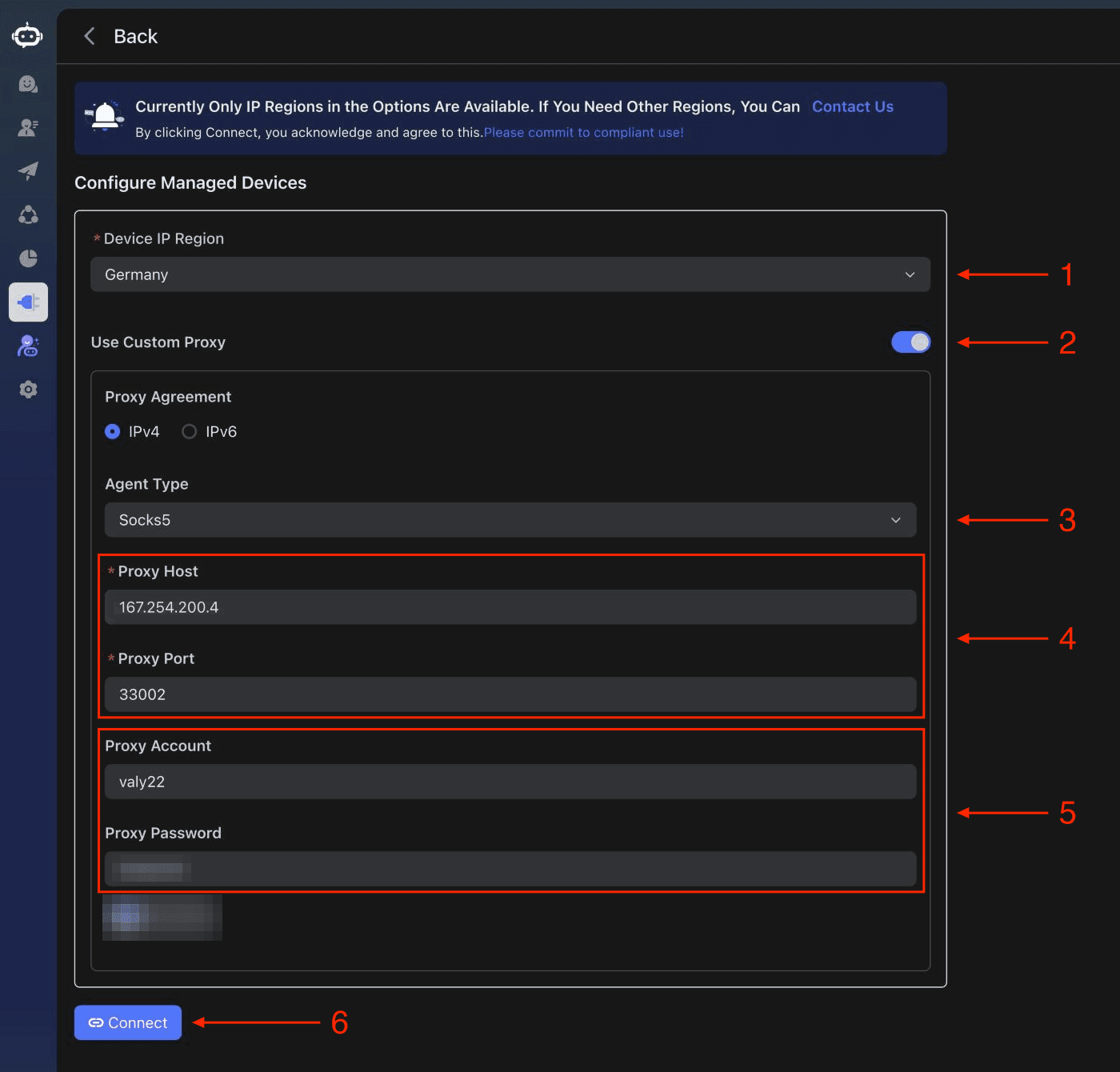
On the Configure Managed Devices screen, choose a Device IP Region (1). Pick your proxy's country, or the nearest one in the list if yours isn't there. Turn on Use Custom Proxy (2), leave Proxy Agreement on IPv4 and Agent Type on Socks5 (3). Enter the proxy's IP in Proxy Host and its port in Proxy Port (4), then your username in Proxy Account and your password in Proxy Password (5). Click Connect (6).
Step 5: Test the connection and save the device
SaleSmartly tests the proxy before it saves anything. After a few seconds you should see Successful Test Connection, with the proxy's IP and country under it (1). Check that both are the ones you expect, then click Save Agent and Activate Device (2).
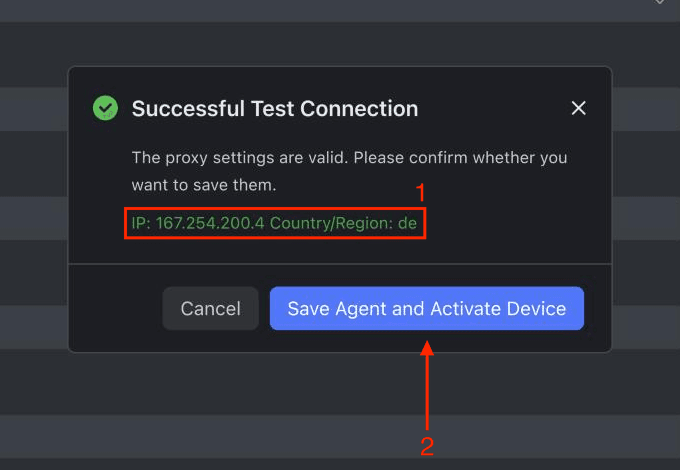
"The connection test failed" means SaleSmartly could not get through the proxy in time. Check the four values for typos first. If SaleSmartly shows "No allocatable server in the current region" after you save, it has no free device in that region: close the window, start again, and pick a neighboring Device IP Region.
Step 6: Link your WhatsApp account
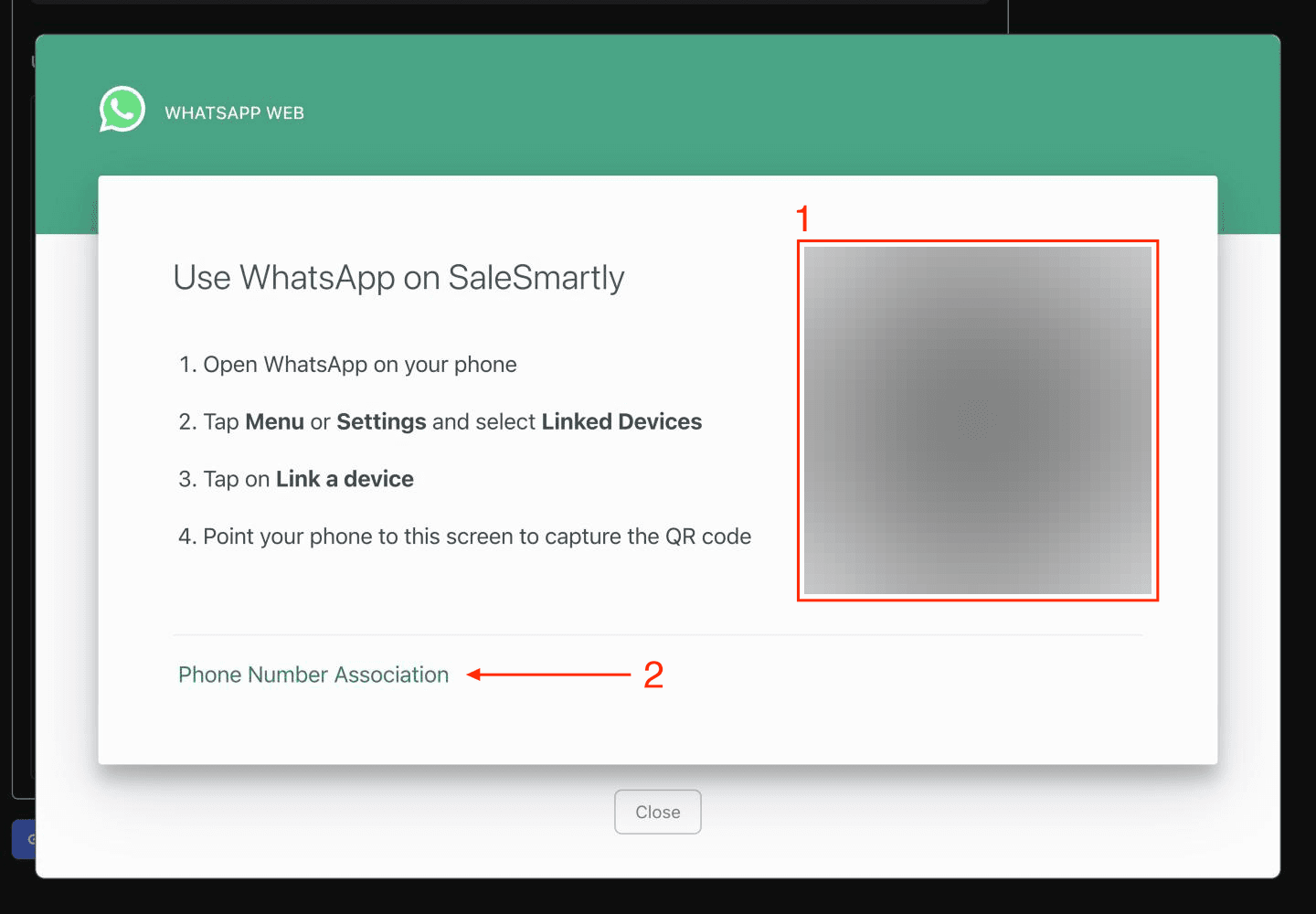
A window titled Use WhatsApp on SaleSmartly opens with a QR code (1). On your phone, open WhatsApp, go to Settings > Linked Devices > Link a device, and scan the code. If you can't scan it, click Phone Number Association (2) to link with your phone number instead.
Step 7: Check the proxy in the device list
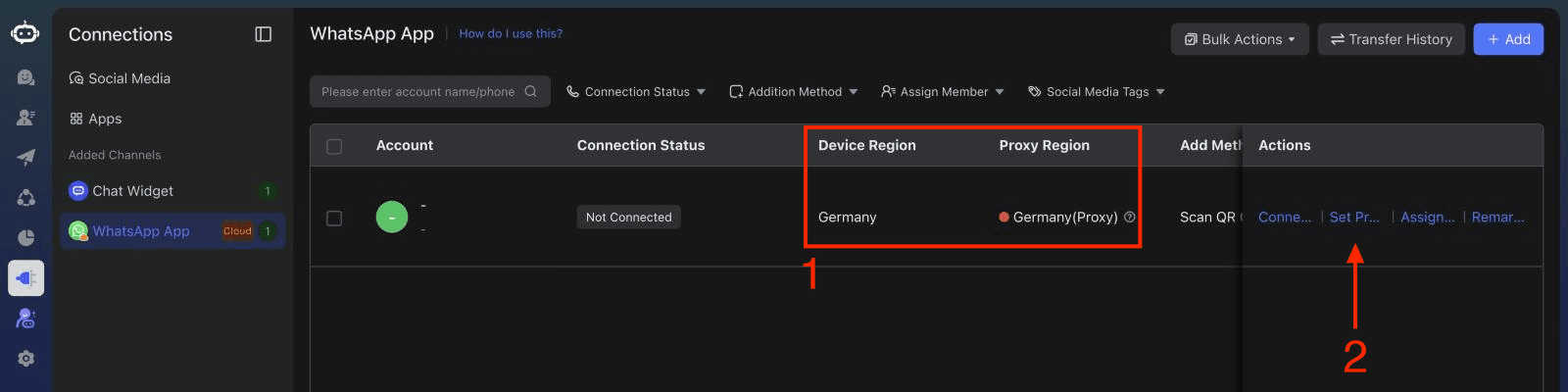
Close the window to see your device under Connections > WhatsApp App. The Device Region column shows the region you picked, and Proxy Region shows your proxy's country followed by "(Proxy)" (1). The tooltip next to it says the proxy IP takes effect once the device is connected, which happens when you scan the QR code. To switch to another proxy later, click Set Proxy in the Actions column (2).
Telegram App uses the same proxy form. Click Add on the Telegram App card, choose Verification Code Login, and you get the same Device IP Region and Use Custom Proxy fields before Add Device.
Conclusion
SaleSmartly keeps your WhatsApp and Telegram accounts online on its cloud devices, and a custom proxy decides which IP those devices use. With a dedicated residential SOCKS5 proxy from Anonymous Proxies, each account gets one static address in the country you pick, and SaleSmartly tests the proxy before it saves the device.
If you run into any problems during setup, contact our support team and they will help you out. For more guides like this one, take a look at our integrations page.

Buy SOCKS5 Proxies
Dedicated IPs, any TCP traffic, unlimited bandwidth. Works with every app that supports SOCKS5.
More web-automation-tool Proxy Integrations
See more web-automation-tool integrations that work seamlessly with Anonymous Proxies.

Proxy Integration With Python Requests
Learn how to add Anonymous Proxies' residential proxies to Python Requests for scraping, automation, rate limit bypass, and geo targeting.

Proxy Integration With Axios
This guide will show you how to add Anonymous Proxies' residential proxies to Axios in Node.js for smoother scraping, geo testing, and fewer blocks.

Proxy Integration With ZennoPoster
Learn how to use Anonymous Proxies' residential proxies in ZennoPoster to automate SERP checks and price tracking, bypass geo-blocks and stay private.

Proxy Integration With Wade
Learn how to pair Anonymous Proxies with Wade Browser to manage multiple accounts, browse anonymously, and scrape without blocks.