

Proxy Integration With Vision
Learn how to integrate Anonymous Proxies datacenter and residential proxies with the Vision anti-detect browser to run multiple accounts safely.
What is Vision browser?
Vision is an antidetect browser built for people who run many accounts and traffic sources from a single machine, but do not want platforms to link everything together. It generates a separate browser fingerprint for every profile, so each one looks like a unique real device with its own environment, cookies, and browsing history.
It is a popular choice for affiliate marketers, arbitrage and betting teams, e-commerce sellers, crypto users, and anyone who needs to work safely with large numbers of logins. Instead of juggling different physical devices or constantly cleaning up one browser, you organise everything inside Vision and let it handle the technical side of fingerprinting and session isolation. Also, Vision is available for all major desktop platforms, including Windows, macOS, and Linux.
Vision Browser Features
- Smart Fingerprints that mimic real devices and help you bypass strict anti fraud checks
- Separate, cloud synced profiles so cookies, sessions, and logs never mix
- Team spaces with role based access for agencies and distributed crews
- Built in proxy support, including SOCKS5 and UDP, for stable geo flexible connections
- Automation helpers like synchronizer and 2FA tools to speed up routine work
Vision comes with a proper trial of 4 days of full access, with up to 10 profiles and 3 users. To get the most out of it, we recommend using it with our residential proxies, so each profile runs on a clean household IP in different locations and you clearly see how your future production setup will perform.
How to set up Anonymous Proxies with Vision?
Before you touch anything in Vision, log in to Anonymous Proxies dashboard and grab your proxy details. If your want to use authentication inside Vision, don't forget to enter the username and password, and if you want to skip this part, you can whitelist your device’s IP in our dashboard.
Step 1: Download Vision
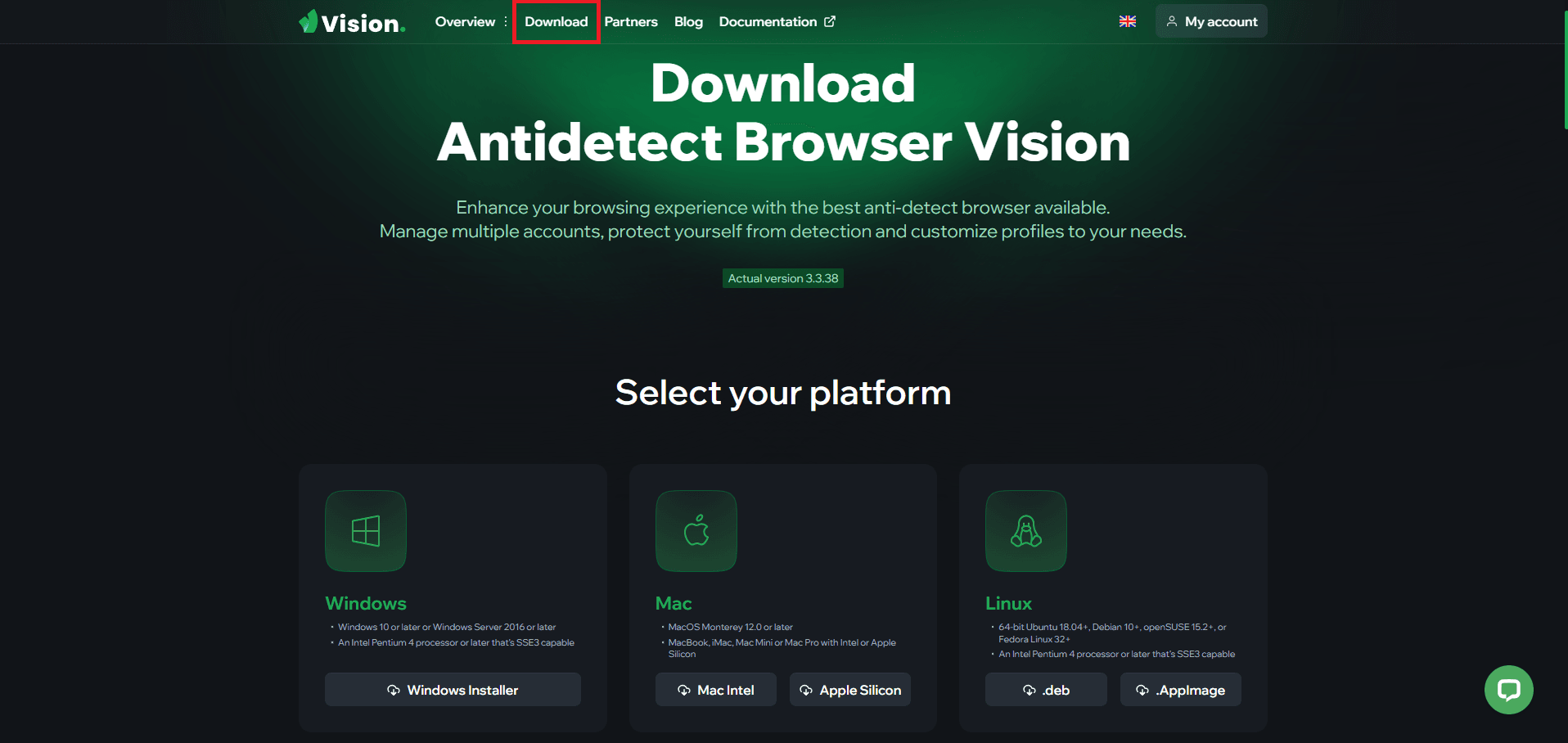
Now, for the beginning, go to the Vision website, open the Download section, and choose the version that matches your operating system.
Step 2: Log in to your Vision account
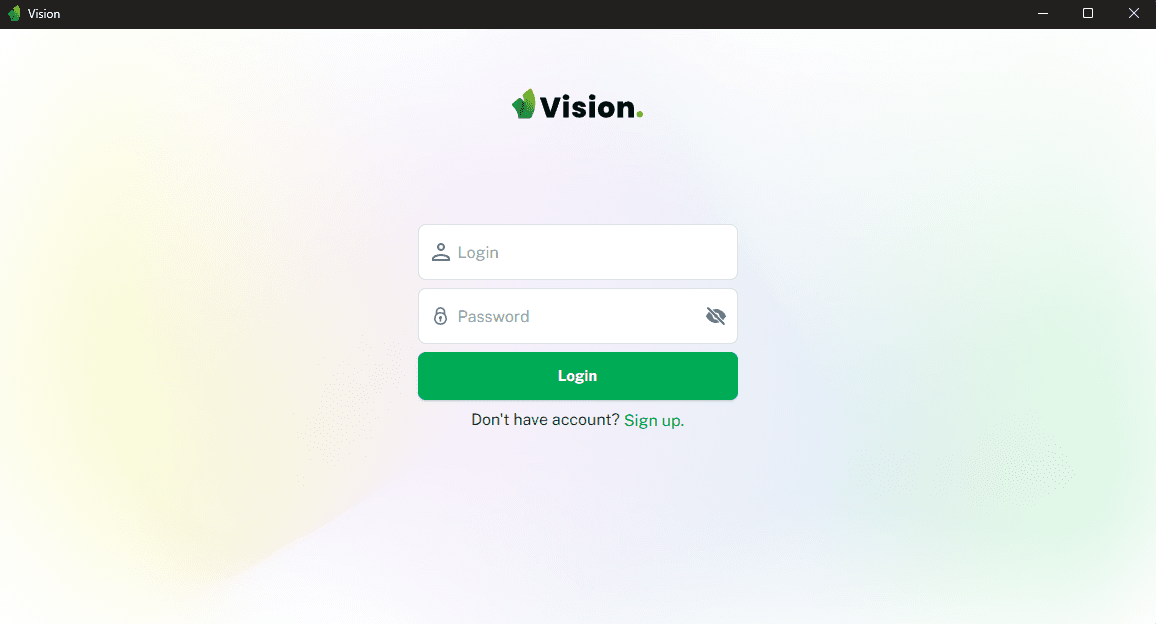
When Vision opens, you will see the login screen. Sign in with your Vision account, or create one if you are new. After logging in, you will be taken to the main dashboard.
Step 3: Create a folder
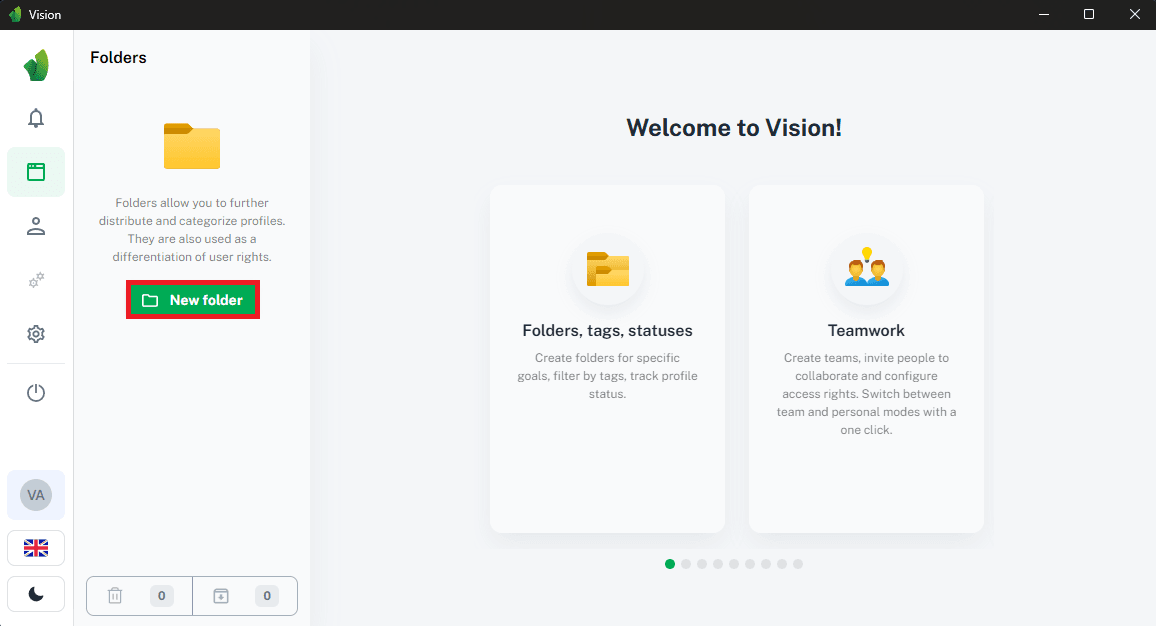
Once you are on the dashboard, on the left side, click New folder and give it a name like “Anonymous Proxies”. This will help you to keep all profiles that use our proxies neatly organised in one place.
Step 4: Add your Anonymous Proxies IP in the Proxies tab
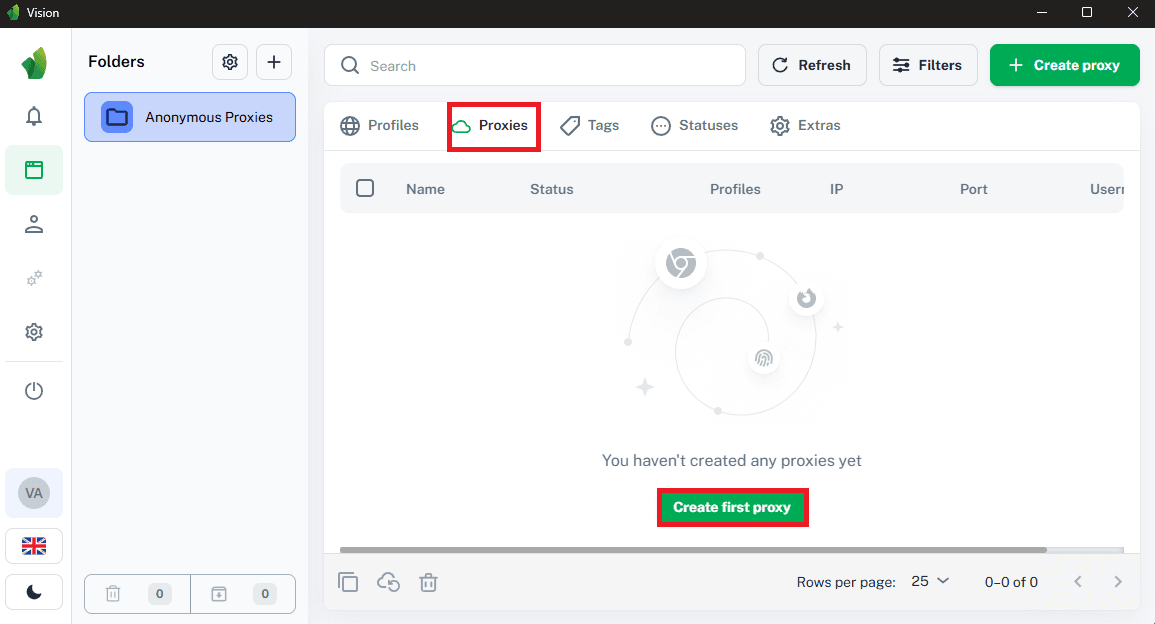
Once you created the folder, switch to the Proxies tab and click Create first proxy or Create proxy.
Enter a clear proxy name, then paste your proxy details from the Anonymous Proxies Dashboard dashboard in the format IP:PORT:LOGIN:PASSWORD and then choose the protocol of the proxy that you'll use.
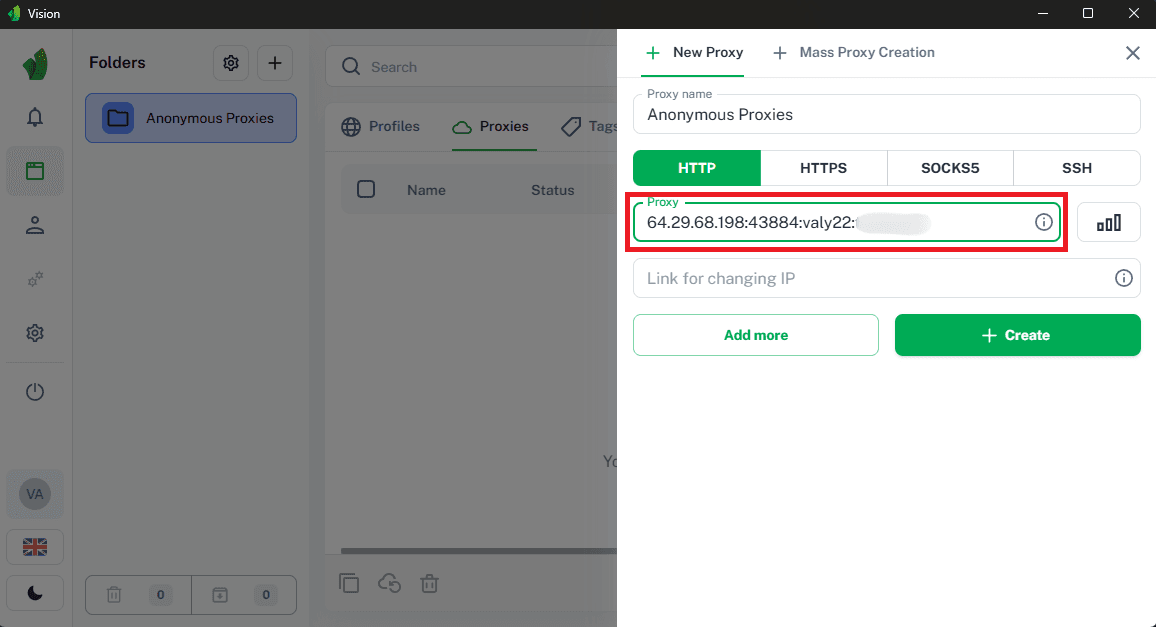
Step 5: Test and save the proxy
After you entered all the required details, click the test icon to check your connection. If the test passes, then you'll need to click on Create.
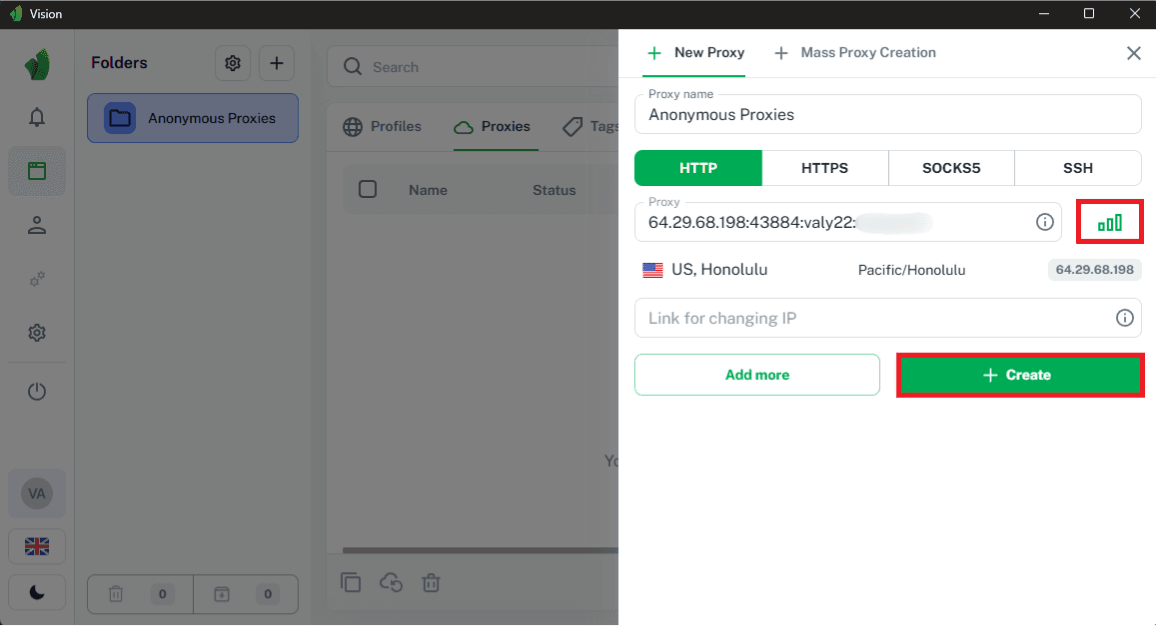
Step 6: Create a new profile and attach the proxy
Now, we will need to create a profile in which we will add our proxy. To do this, you'll need to go to the Profiles tab and click Create profile. Give your profile a name, pick the platform (for example, Windows), click on Select proxy and select the proxy we've just added.
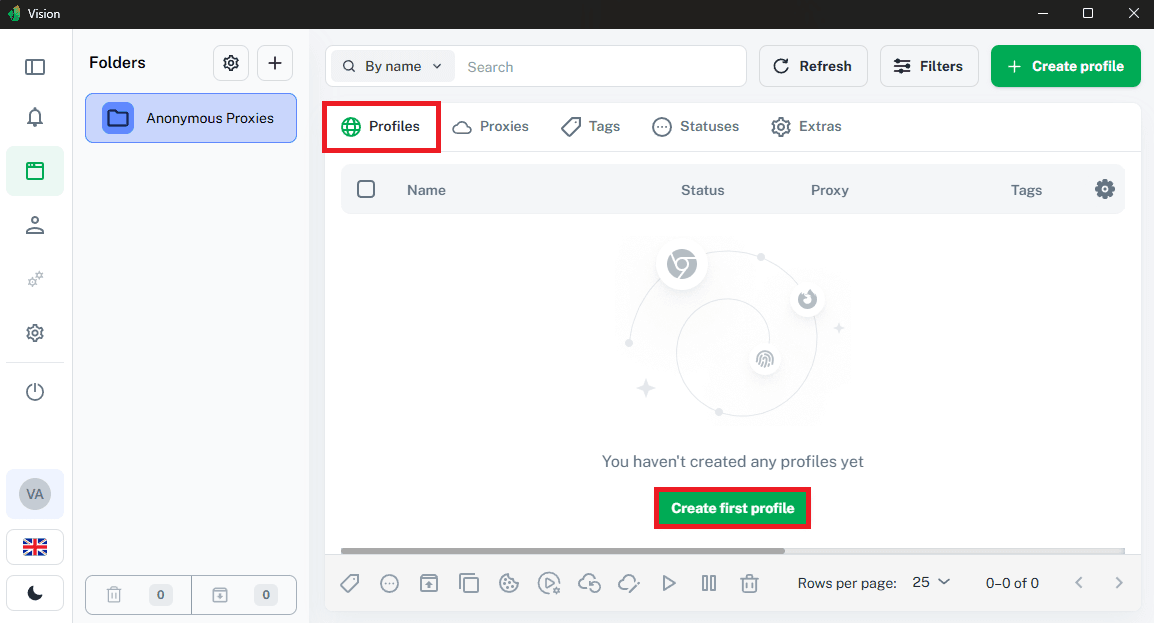
Once you did this, scroll down and click on Create profile to save it.
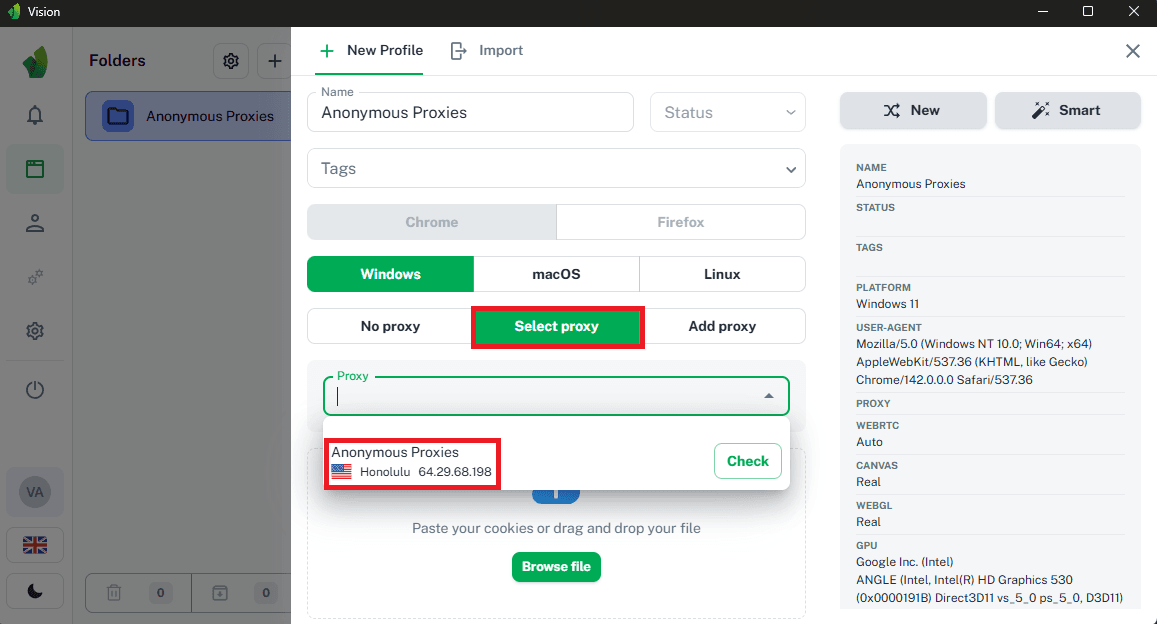
Step 7: Start the profile and browse
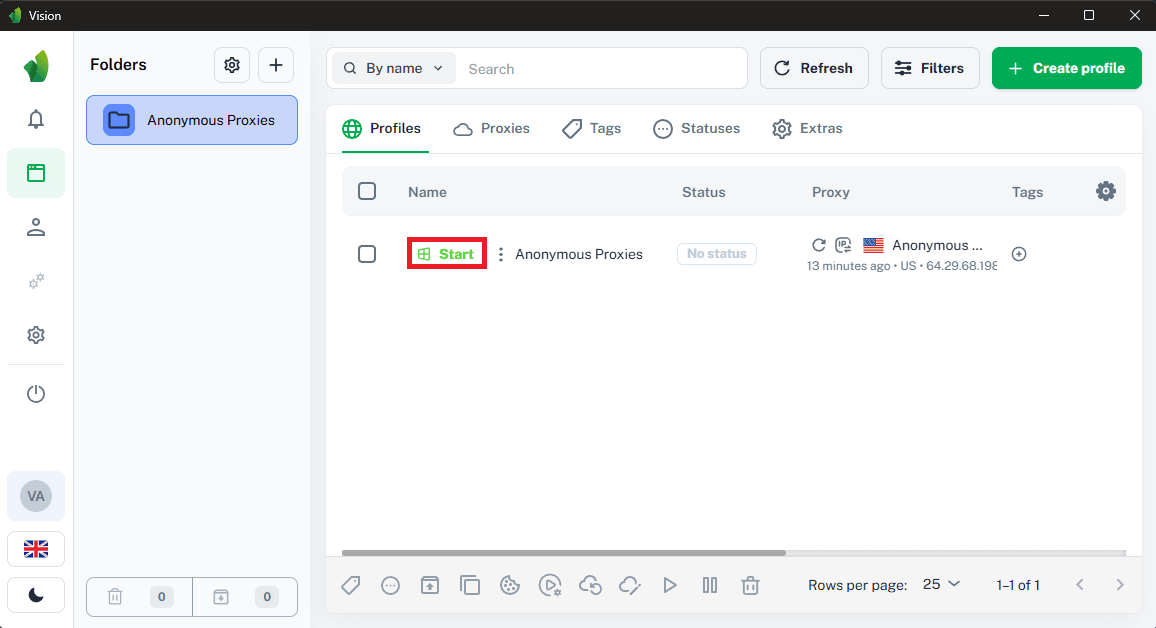
After you save it, you'll be taken to Profiles list. Now, you just need to click on Start to run your configured profile.
Wrap Up
As you've seen above, Vision makes multi account work feel much easier. You get clean, isolated profiles, realistic fingerprints, team features, and a simple interface that lets you scale without juggling devices or constantly wiping your browser.
If you want more integration tutorials with other third party tools, check out our integrations page. And if you ever have questions about setup, which proxies to use, or anything else proxy related, our support team is always here to help.

Buy Backconnect Proxies
Rotating IPs on every request. Scale scraping and automation without manual IP management.
More mobile-antidetect Proxy Integrations
See more mobile-antidetect integrations that work seamlessly with Anonymous Proxies.

Proxy Integration With Accovod
Learn how to integrate Anonymous Proxies datacenter and residential proxies with the Accovod anti-detect browser in just a few minutes.

Proxy Integration With DuoPlus
This integration tutorial will show you how to integrate Anonymous Proxies with DuoPlus to handle multiple social-media accounts with ease.

Proxy Integration With Lauth
This guide will show you how to integrate Anonymous Proxies with Lauth to make your online activities fully anonymous and secure.

Proxy Integration With GeeLark
This integration tutorial will show you how to integrate Anonymous Proxies with GeeLark, the first antidetect phone solution, in a few simple steps.