

Snapchat Proxies
Tired of Snapchat blocks, one-account limits, or slow data pulls? With our Snapchat proxy, you can navigate any geo-restriction, manage unlimited marketing accounts, automate outreach, scrape Story analytics, and keep your real location hidden.
What Is a Snapchat Proxy?
A Snapchat proxy places itself between your phone and the servers of Snapchat, using one of its own IP addresses in place of your real IP address. And once you're wearing that mask, you will appear as you are coming from a completely different spot on the map. That disguise slips past regional bans and nosey trackers in one go. Even better, the fresh IP lets you spin up extra Snapchat accounts without tripping the platform’s “one user, one account” alarm, so you can run marketing campaigns, test out content, or be able to keep personal and business profiles distinct.
Why Do You Need a Proxy For Snapchat?
Snapchat was built for casual, one-phone, one-profile fun. The moment you start treating the platform like a marketing laboratory, for example if you sping up extra accounts to test ad creatives, run giveaways, or segment audiences, the app's walls close in fast. A residential proxy is how you slip through the cracks without setting off alarms. Instead of sharing the same IP address across every profile, each login leaves Snapchat seeing a clean, household-grade IP that looks like a different user in a different neighborhood. That single swap keeps duplicate-account crackdowns, temporary locks, and permanent bans off your back, letting you manage entire fleets of profiles from one dashboard.
A fresh IP for every session also unlocks automation you’d never risk on a plain connection. Chatbots that greet new followers, scrapers that pull Story views for analytics, bulk friend-adding tools, if you tie all of these to a dedicated residential proxy address, Snapchat’s anti-spam radar will see every action as coming from a separate phone. If one account ever trips a filter, rotate to a new IP and your broader campaign keeps humming.
Privacy is another unspoken win. Snapchat’s ad stack logs your real location, carrier, and device fingerprint the second you open the app. Pushing traffic through a residential proxy replaces that personal breadcrumb trail with a generic, ISP-issued IP, scrambling the data profile marketers and trackers build on you. The same reroute bulldozes local firewalls and national bans, so you can open the app in a dorm that blocks social media or a country that censors it like China or Iran, without missing a Snap.
How To Use a Proxy With Snapchat?
Before we dive deeper, be sure that you are logged into your Anonymous Proxies Dashboard account, so you will have your proxy credentials ready to be copied. Also, if you don't want to use authentication, you can whitelist your IP directly from the dashboard.
Setting Up a Snapchat Proxy on Windows
Step 1: Grab Your Proxy Details
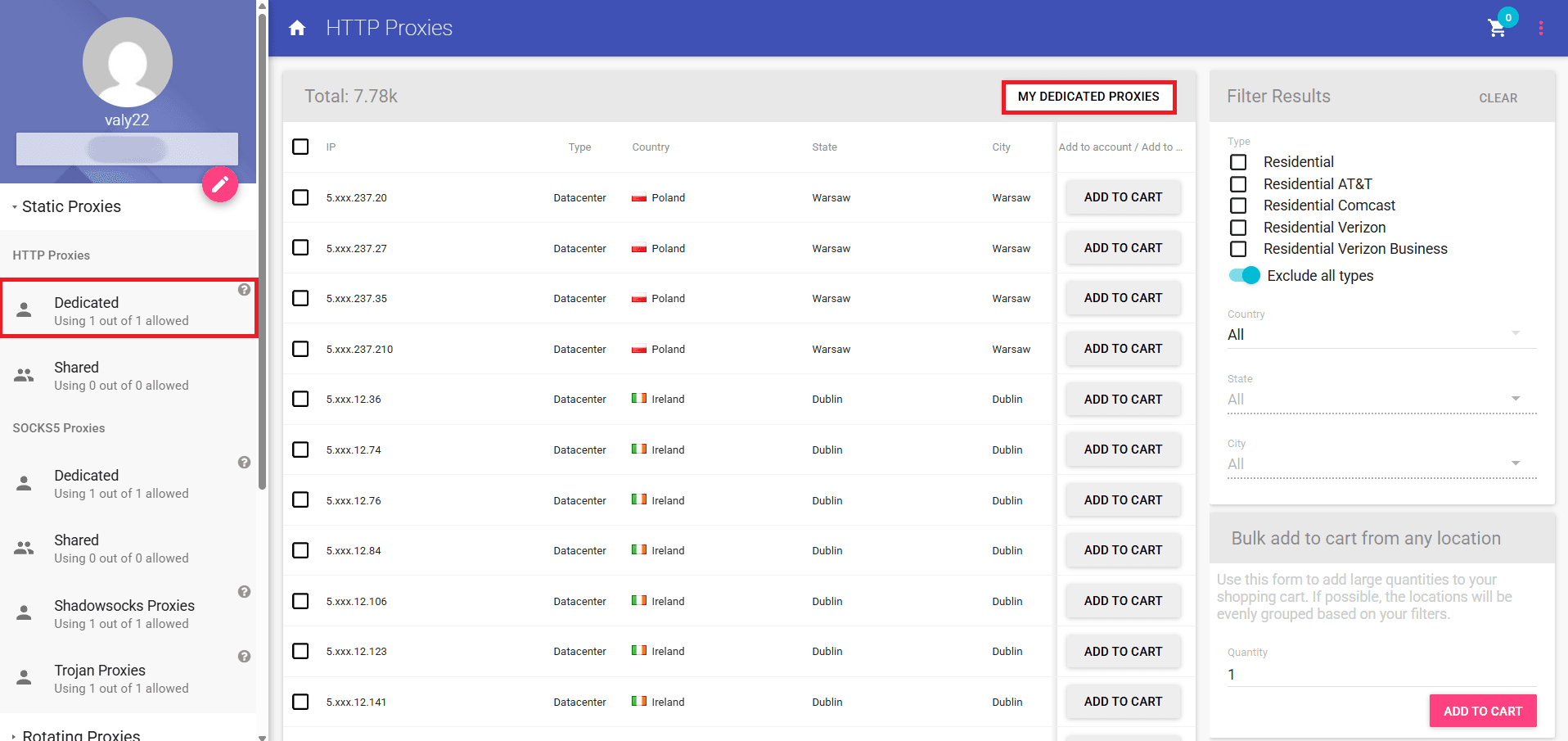
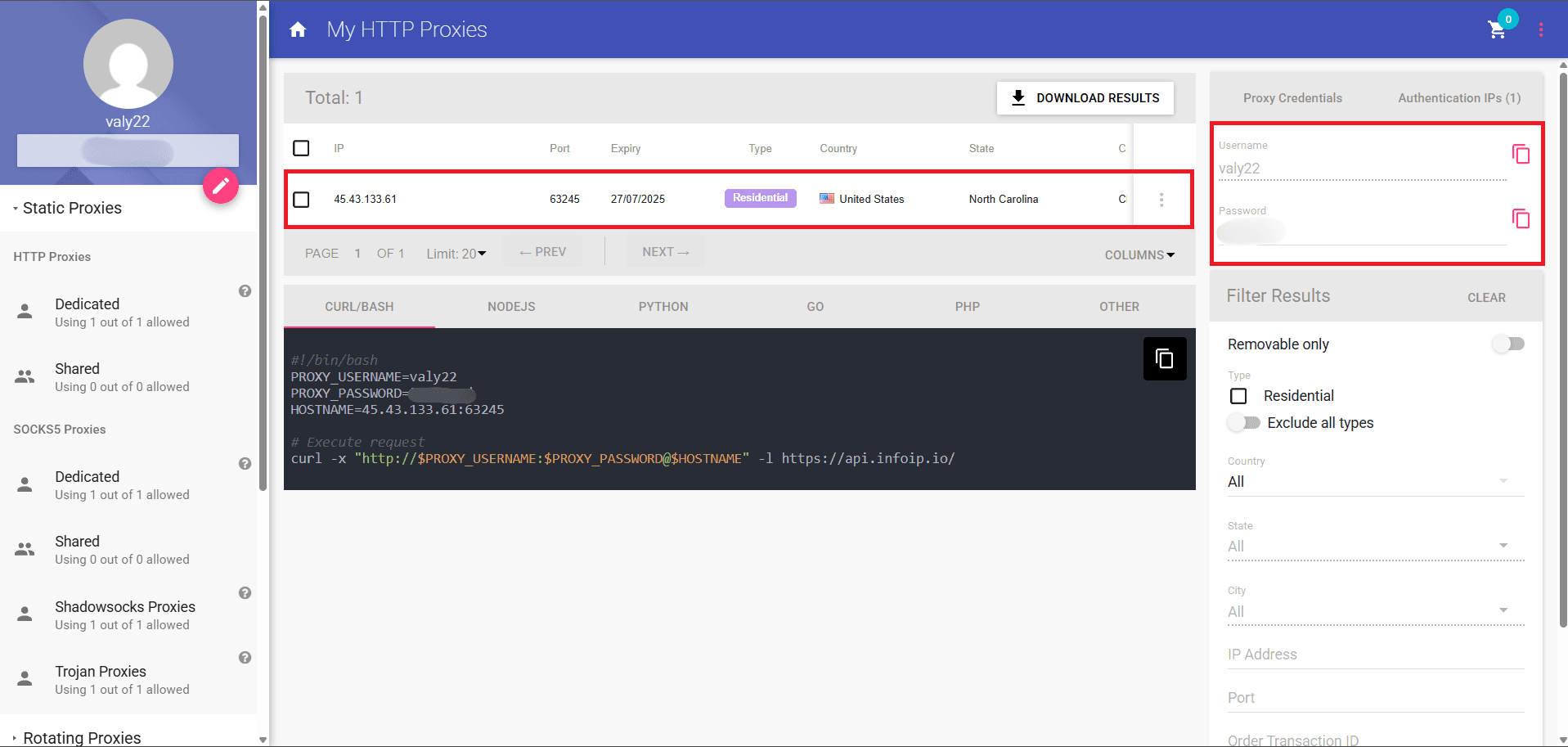
Once you log in into your Anonymous Proxies account, in the left sidebar, click on Static Proxies → HTTP → Dedicated and then, select MY DEDICATED PROXIES to see your proxy details.
Step 2: Open Windows Proxy Settings
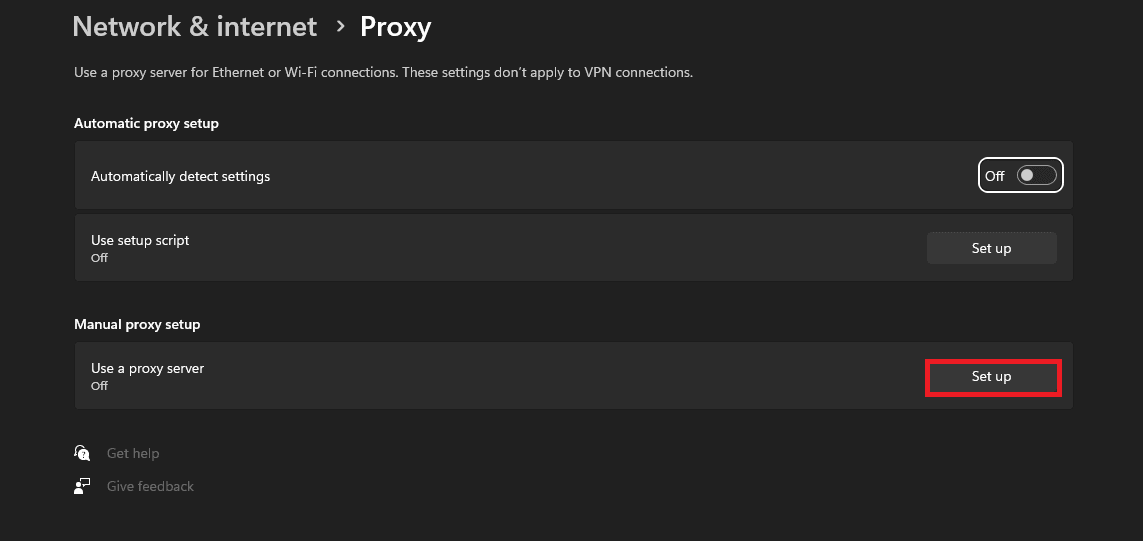
Hit Windows + I on your keyboard to bring up the Settings panel, head into Network & Internet, and select Proxy. In the Manual proxy setup section, click Set up.
Step 3: Input Proxy Credentials
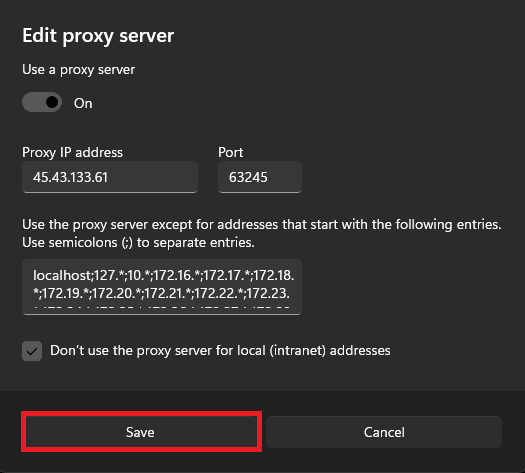
Toggle Use a proxy server to On. Paste the IP address and port you copied from the Anonymous Proxies dashboard. Leave the “Don’t use proxy server for local addresses” option checked, then press Save.
Step 4: Authenticate (If You Didn’t Whitelist Your IP)
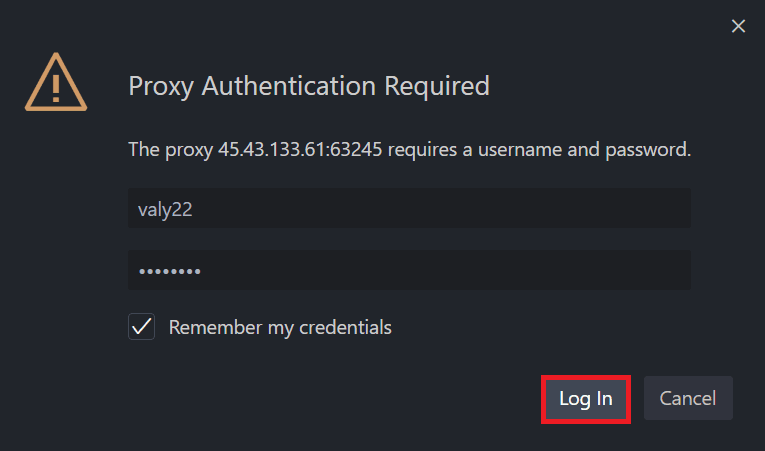
Now, a “Proxy Authentication Required” window will pop up. Here, you need to type in your username and password from the dashboard. Then, all what remains, is to tick Remember my credentials and press Log In.
Step 5: Verify the Connection
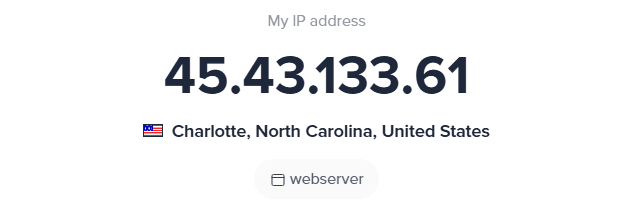
To see if the proxy is working right, be sure that you visit an IP-lookup website. You should see proxy's IP here, instead of yours.
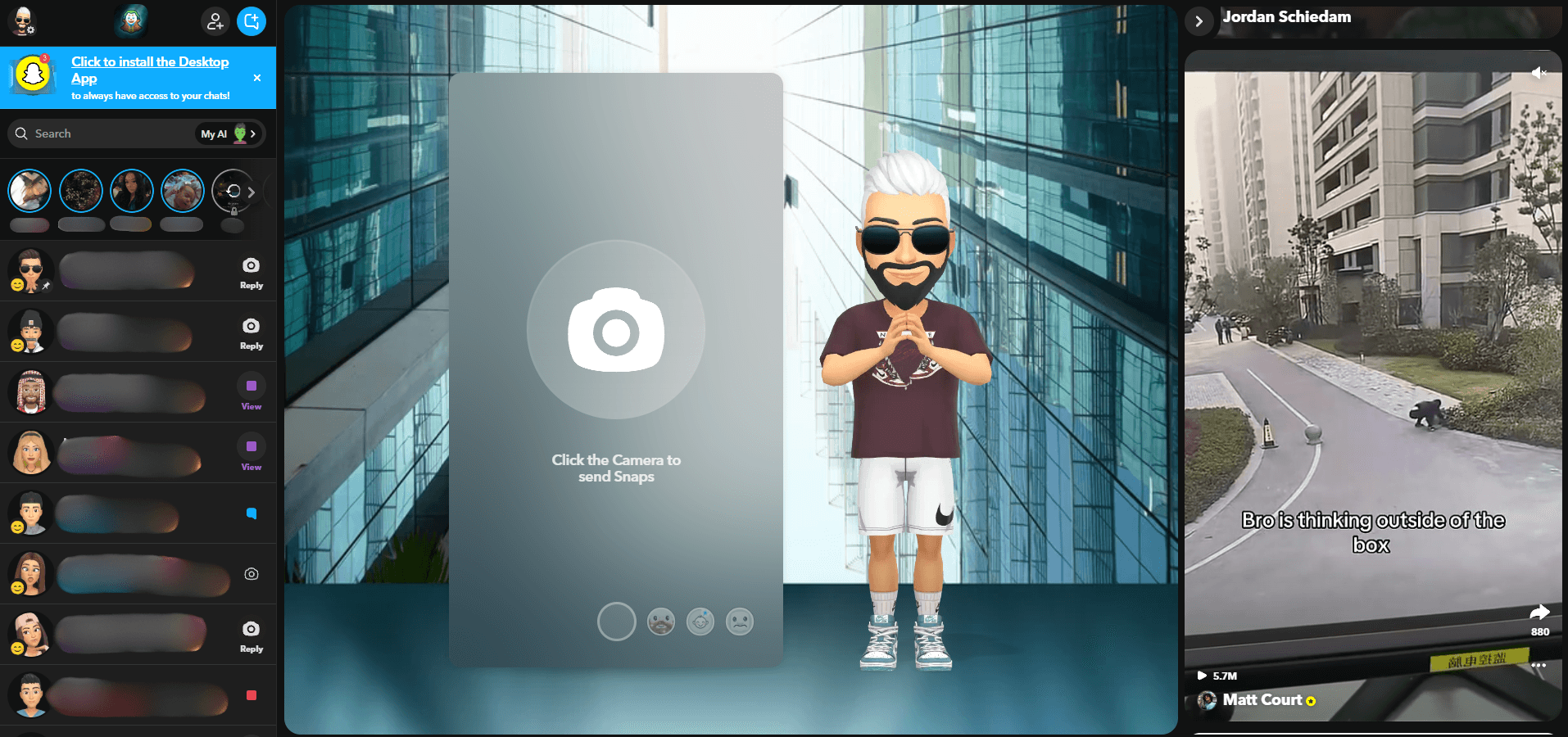
Now, open Snapchat for Web to check that the service loads and shows geofilters or ads tied to the proxy’s location.
Setting Up a Snapchat Proxy on iOS
Step 1: Gather Your SOCKS5 Details
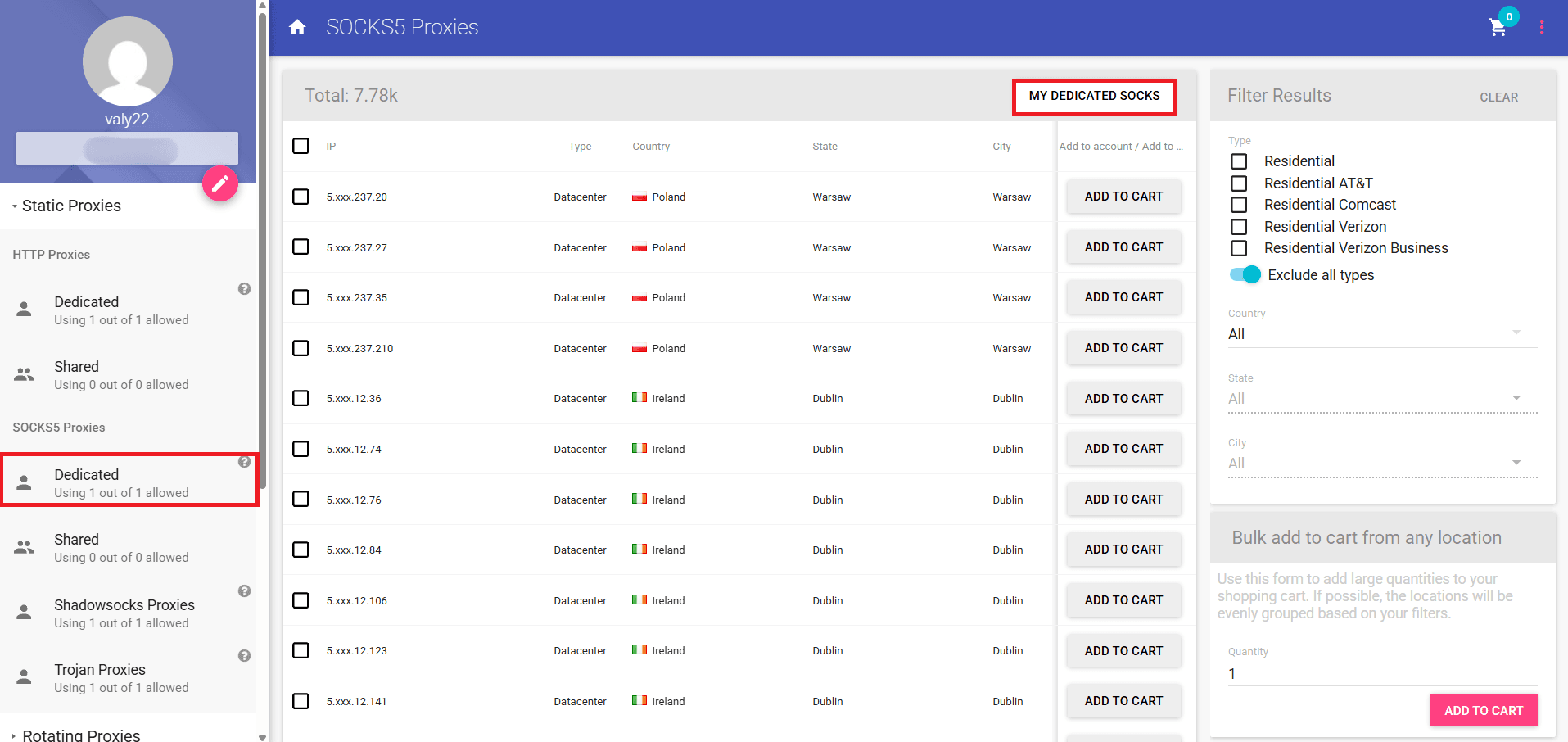
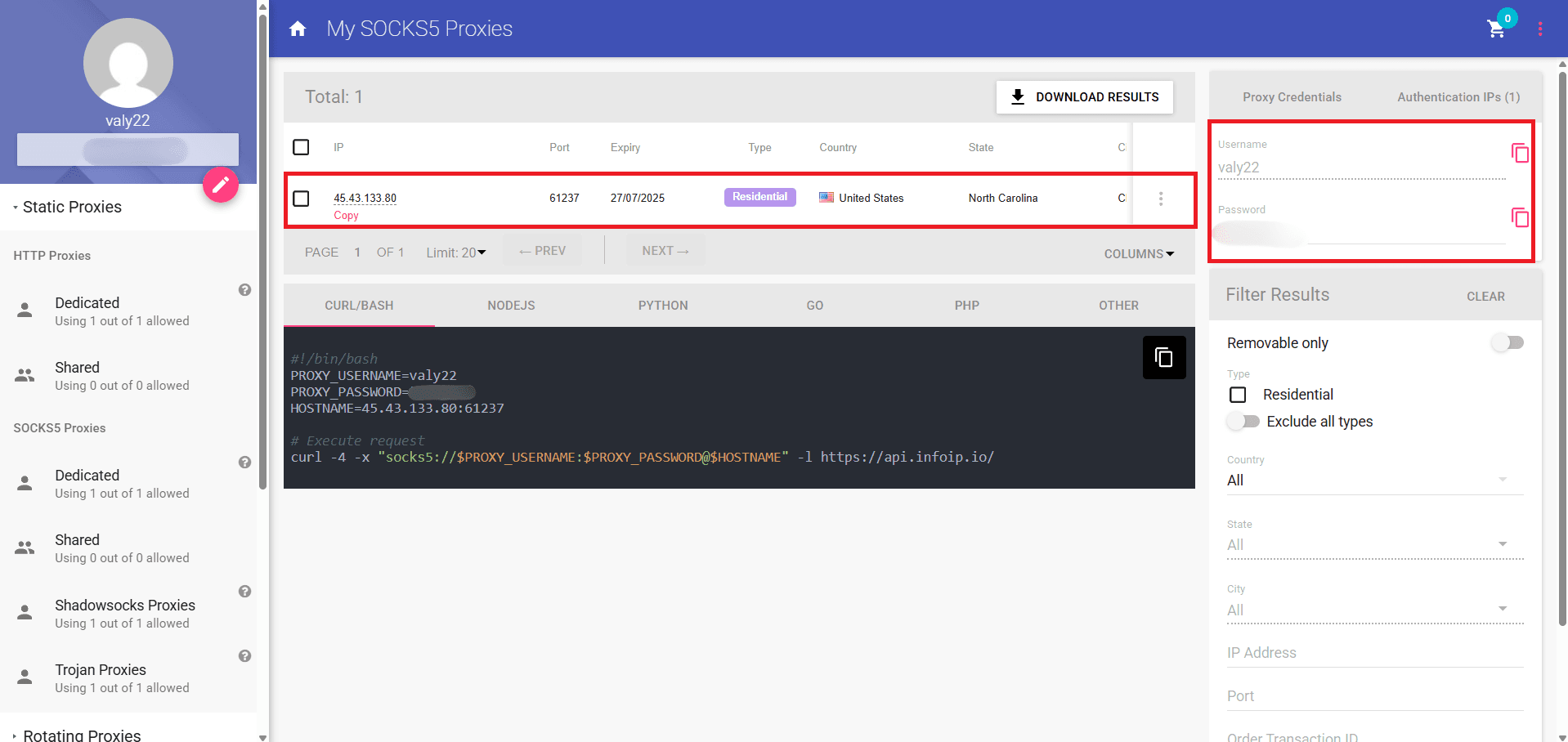
Sign in to your Anonymous Proxies account, open Static Proxies → SOCKS5 → Dedicated, and click MY DEDICATED SOCKS to reveal your proxy list. Here, you will see your SOCKS5 proxy credentials.
Step 2: Install Potatso Lite
Then, be sure that you download the Potatso app from App Store.
Step 3: Add the Proxy in Potatso
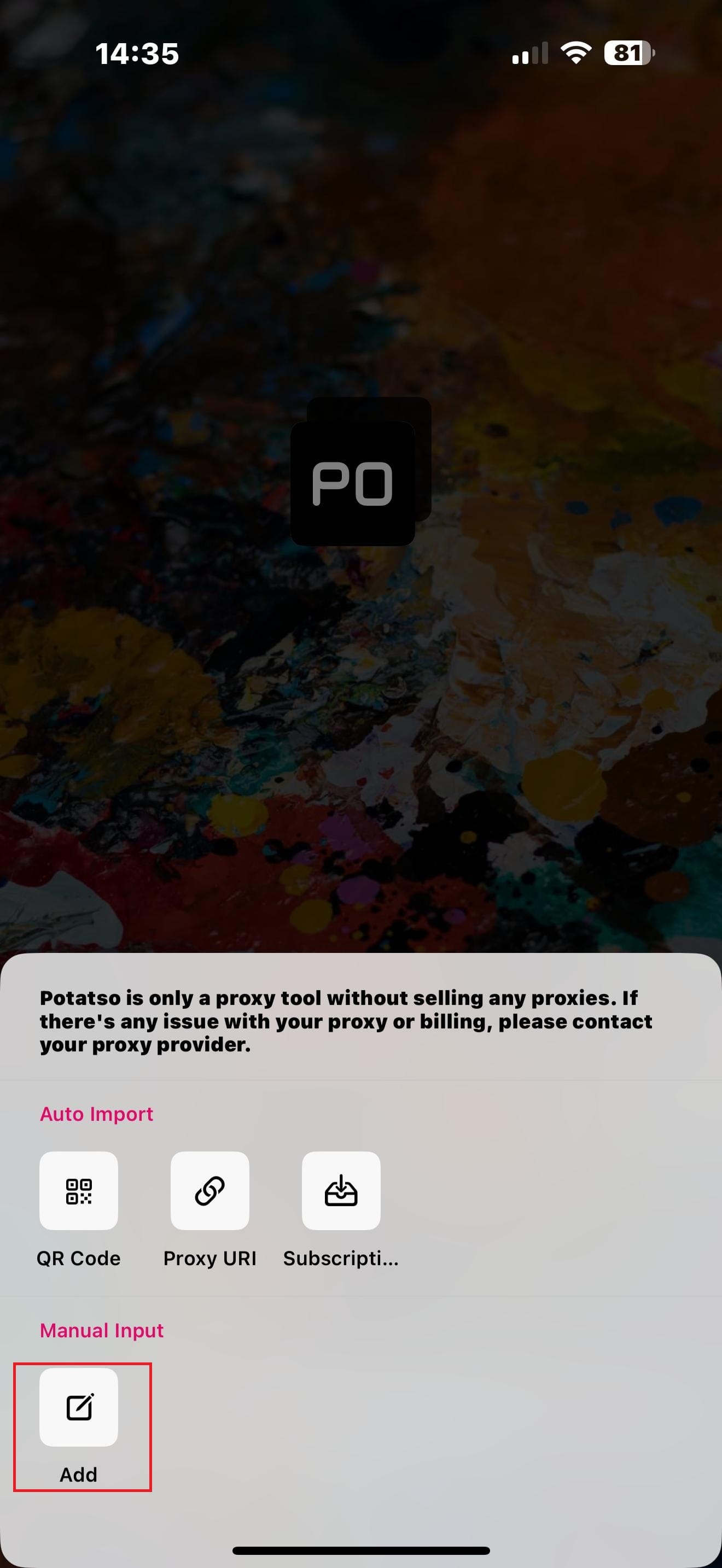
Launch Potatso, tap Add a Proxy, then under Manual Input choose Add.
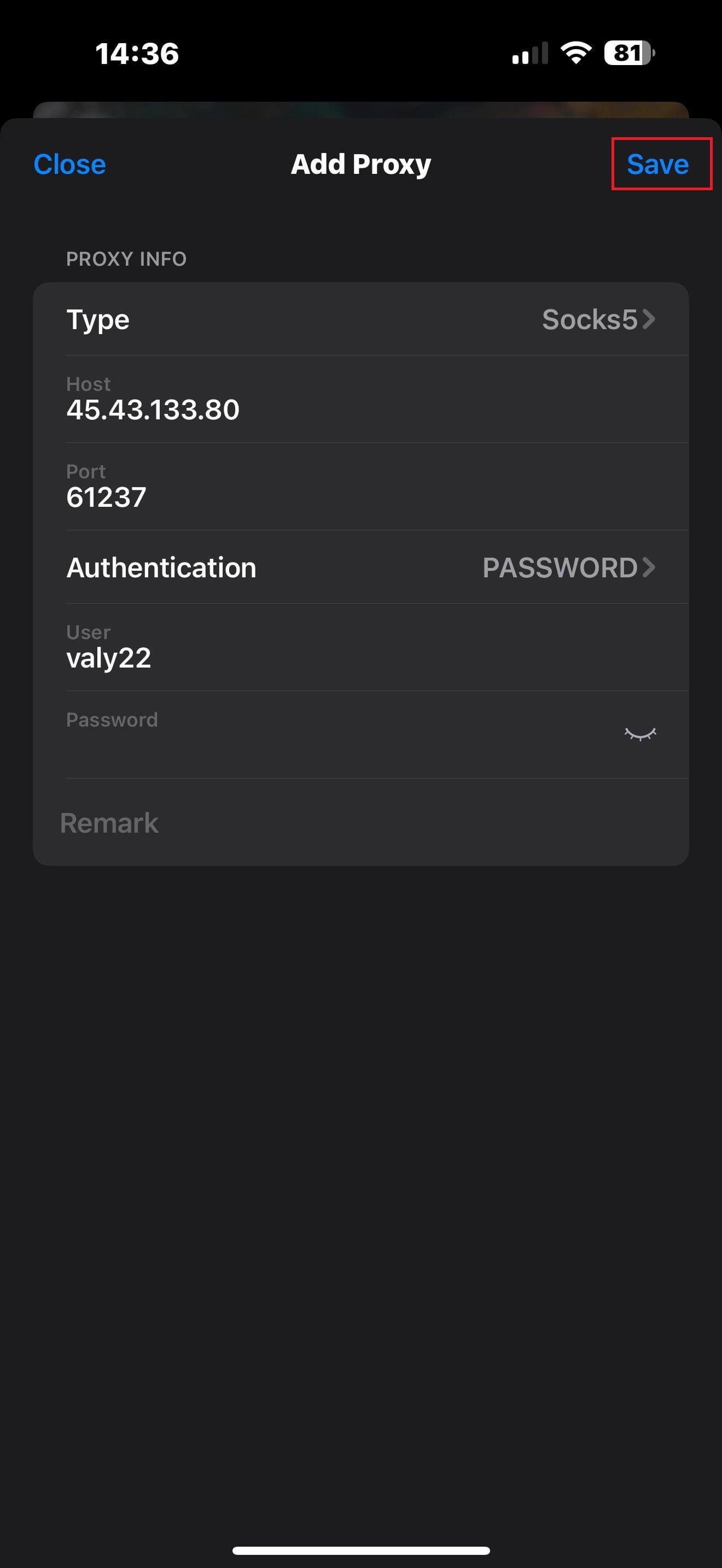
Set Type to SOCKS5, paste the proxy Host and Port, switch Authentication to Password, then enter the username and password. Now, just tap on Save button.
Step 4: Enable the Connection
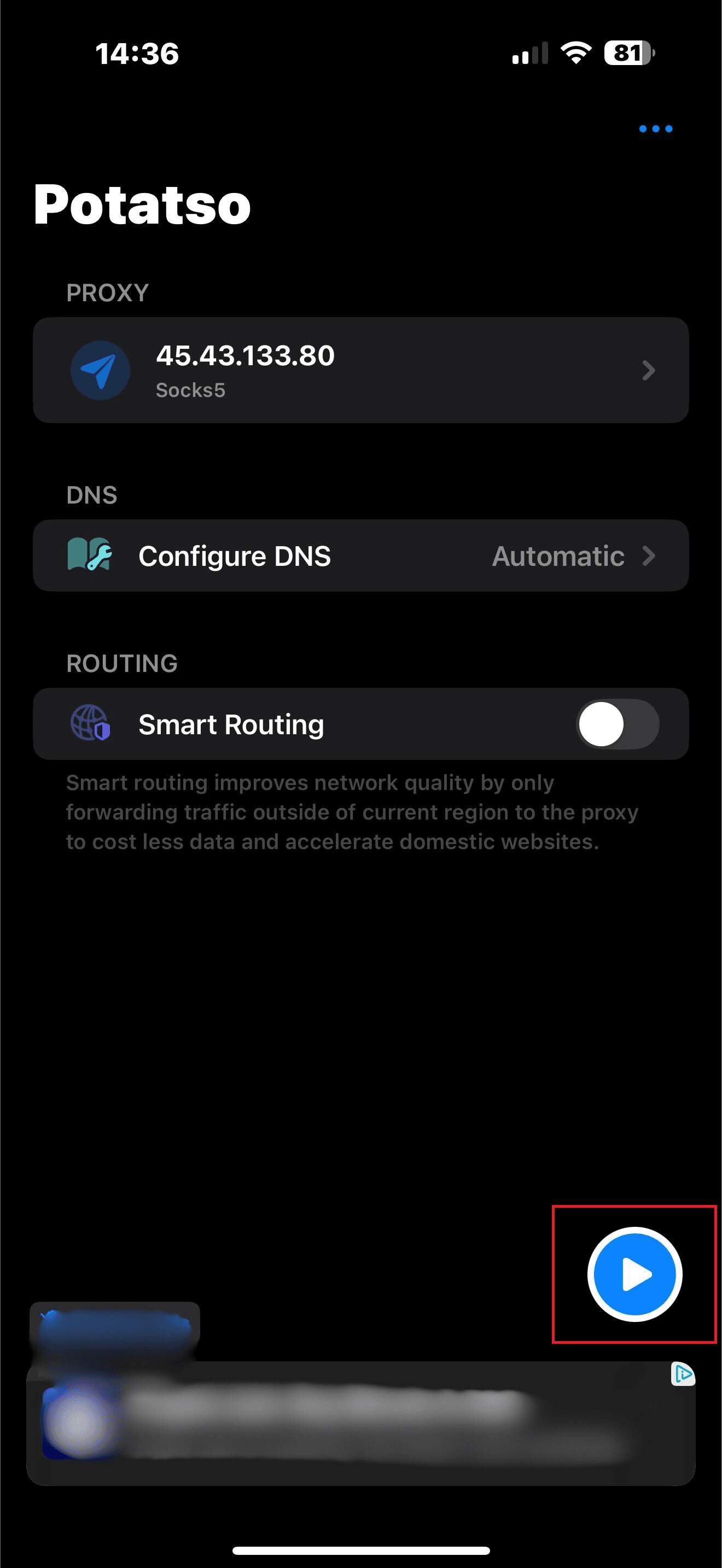
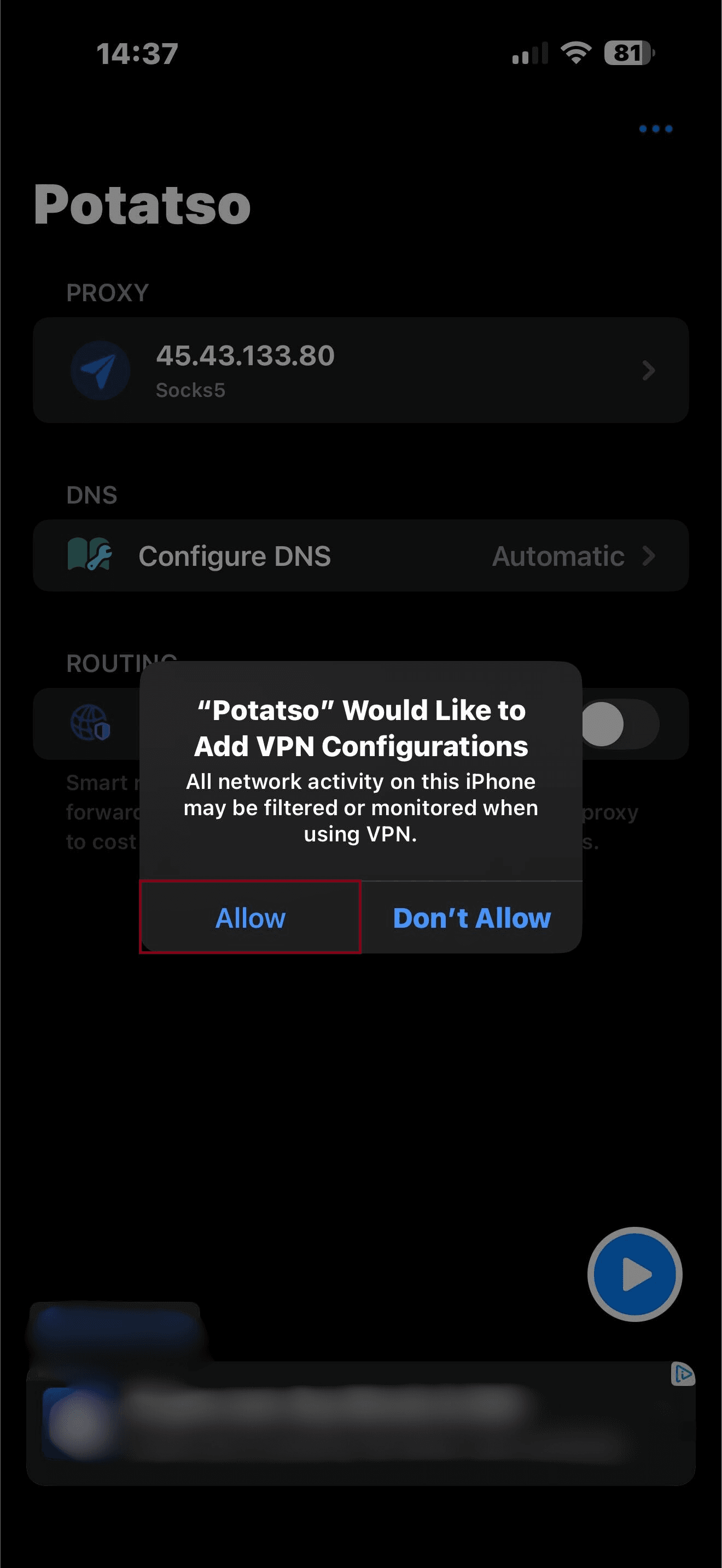
Once you did this, you should be back on Potatso’s main screen. There, just press on the blue Play button.
Once you hit the play button, a prompt for permission to add a VPN configuration should appear. Click Allow.
Step 5: Verify Everything Works
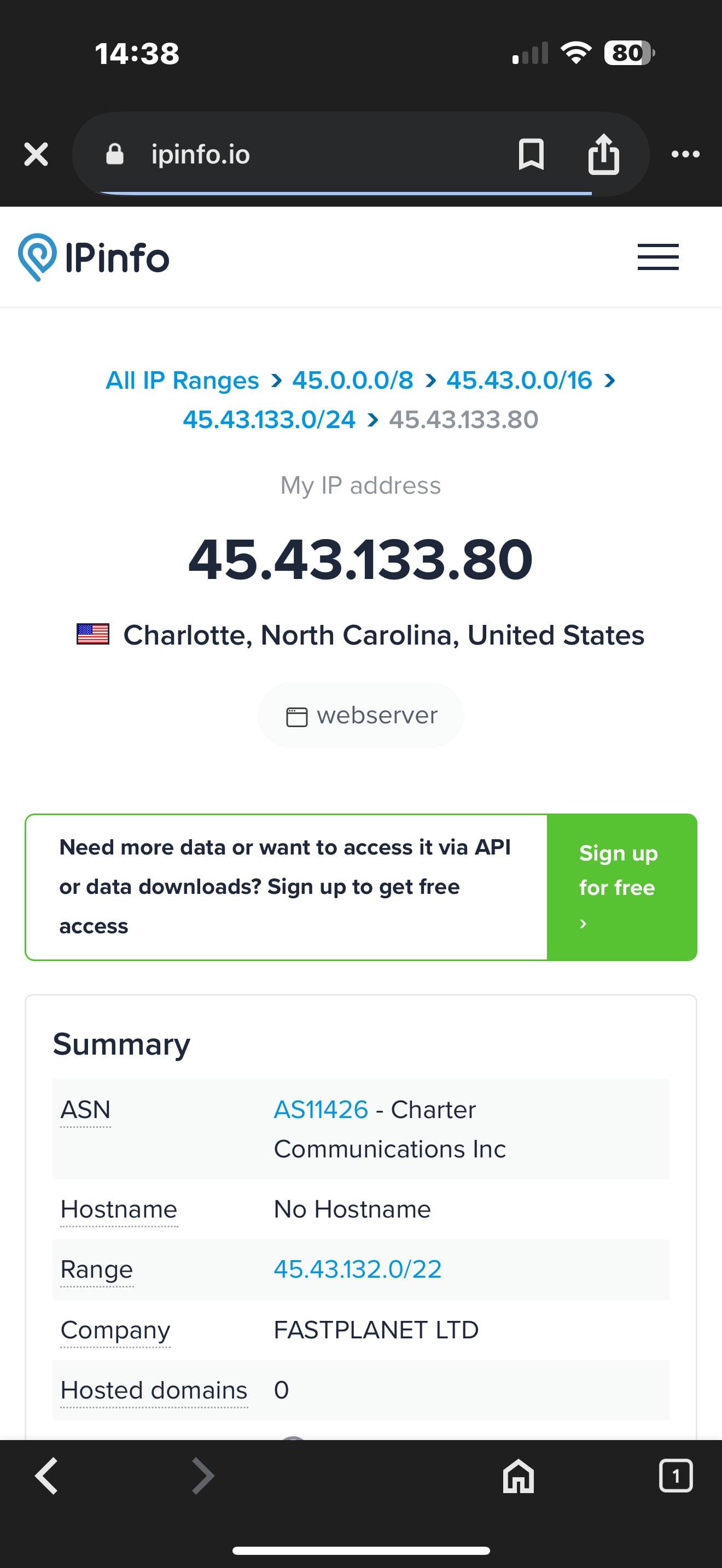
For the final step, open any browser and search “What is my IP?”. If you see the proxy’s IP, then your proxy works perfectly.
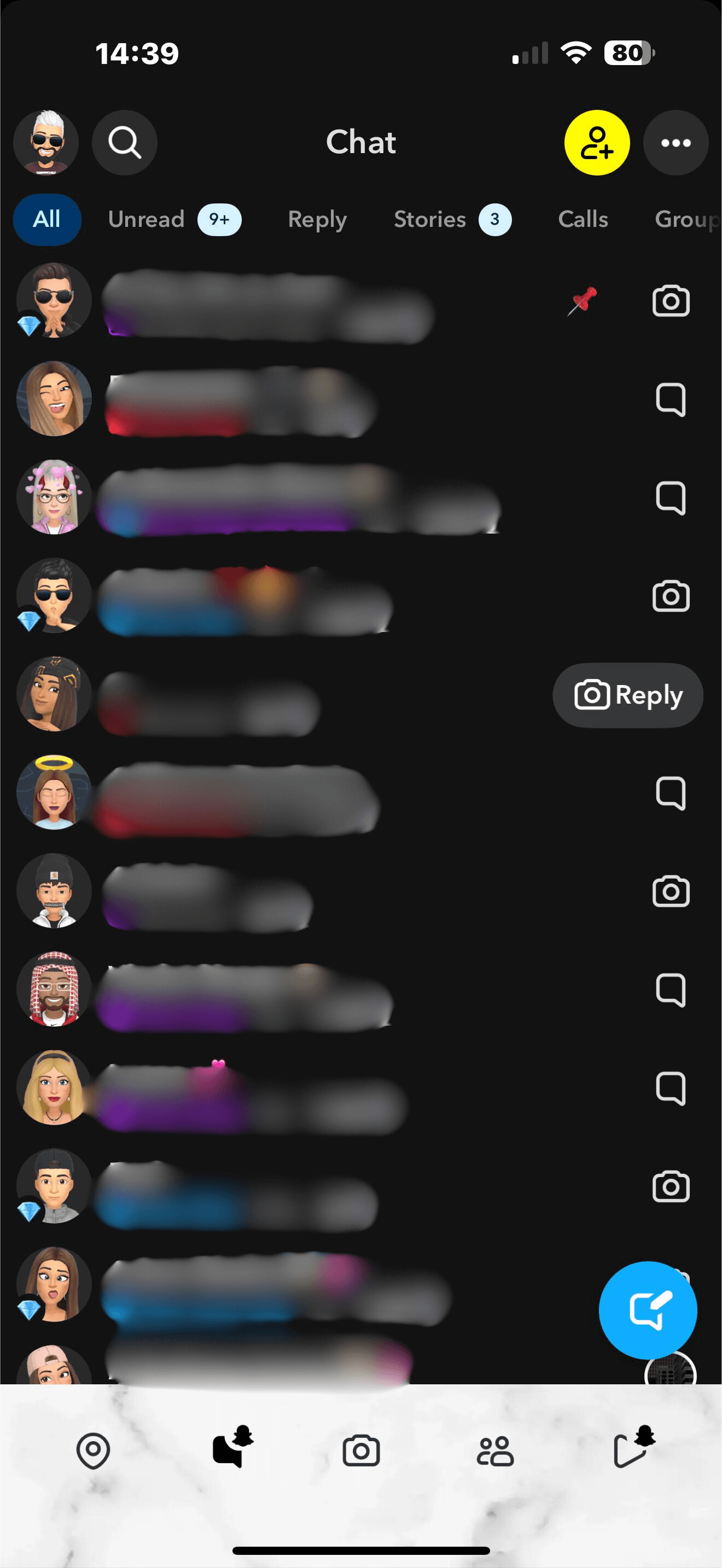
And, of course, now open Snapchat to see that any location-based filters or ads will match the proxy’s region.
Choosing the Best Snapchat Proxy
The best Snapchat proxy is a ISP SOCKS5 proxy. A residential IP looks like real home traffic, so Snapchat will trust it, the static address stays the same, keeping each account’s connection consistent and the SOCKS5 tunnel carries every Snap, Story, and call securely. With exclusive bandwidth and easy location swaps, this setup dodges bans, beats geo-blocks, and keeps multi-account marketing running fast and clean.

Buy ISP Proxies
Dedicated IPs from real ISPs. Residential trust, datacenter speed, unlimited bandwidth.
More social-media related use cases
Web Scraping
Web scraping at scale requires distributing requests across many IP addresses so your data collection stays fast, stable, and within target sites' rate limits. The right proxy type depends on your target site, budget, and volume. Residential proxies deliver the highest IP trust for demanding sites. ISP proxies give you residential-level trust at datacenter speeds. Dedicated datacenter proxies keep costs low for high-volume work.
ISP Throttling Bypass
When your ISP slows down specific traffic types - streaming, gaming, torrents, VoIP - they do it by reading what you send. Encrypted proxy tunnels make your traffic unreadable, which stops the throttle.

WatchSoMuch Proxies
Unlock WatchSoMuch with clean, static residential IPs that look like real home connections. Experience less interruptions, smooth browsing, and reliable access from the locations you need. Get clean, undetectable residential IPs, worldwide coverage with city targeting, and a stable identity for sign ins and watchlists.

TamilYogi Proxies
Are you tired of frustrating TamilYogi blocks? With a reliable TamilYogi proxy from Anonymous Proxies, you can easily overcome any restriction and continue streaming your favorite Tamil movies and shows without interruption.