How to Use cURL With Python: A Complete Guide
cURL is best known as a command-line tool for handling web transfers, but you can also use its core functionality inside Python. That matters when you want more control over requests, headers, redirects, proxies, and response handling than simpler tools usually give you. In Python, PycURL brings that lower-level cURL behavior into your code, which makes it useful for testing APIs, automating requests, and scraping pages. In this guide, you’ll see how to use cURL with Python to send different types of requests, work with proxies, and scrape website data with PycURL.
Valentin Ghita
Technical Writer, Marketing, Research
Mihalcea Romeo
Co-Founder, CTO
What Is cURL?
cURL is a tool for transferring data with URLs. Most people know it as a command-line utility, but it is also connected to libcurl, the library that handles the transfer itself.
In simple terms, cURL helps you send and receive data over the web. Now, when you use cURL with Python, you take those request-handling features and place them inside a script. So, instead of running one command at a time in the terminal, you can build a workflow that does the job for you.
Why Should You Use cURL With Python?
The main benefit is control. As I've said above, cURL handles network transfers well, and Python makes it easy to automate them. That combination works really well if you need to test API, scrape the web, download files, and much more.
It also becomes much more useful once the request is done. With Python, you can process the response right away, loop through multiple URLs, clean the data, save it to CSV, or fold it into a larger script.
Now, if you compare it with Python’s requests library, keep in mind that PycURL is a bit harder to learn. Still, that extra effort gives you more control and a setup that stays closer to cURL itself. For basic requests, requests is often the simpler choice. But for more advanced handling, like redirects or transfer settings, PycURL is the better choice. Don’t worry though, because below I’ll show you exactly how it works.
How to Use cURL with Python
For this guide, we’ll use PycURL. It lets you work with cURL features directly inside Python code.
Install PycURL
Start by installing PycURL with pip:
For the scraping examples later in the article, install BeautifulSoup too:
To run any of the examples below, save the code in a Python file and run it from your terminal with python3 filename.py. For testing, we’ll use httpbin.org, because it sends back request details in the response, which makes it easy to see exactly what your code is doing.
Send a GET Request with PycURL
A GET request is the easiest place to start. It asks a server to send data back to you.
This is the simplest way to test that your request works. Once you run it, you should see a response printed in your terminal with details of the request.

Send a Post Request with PycURL
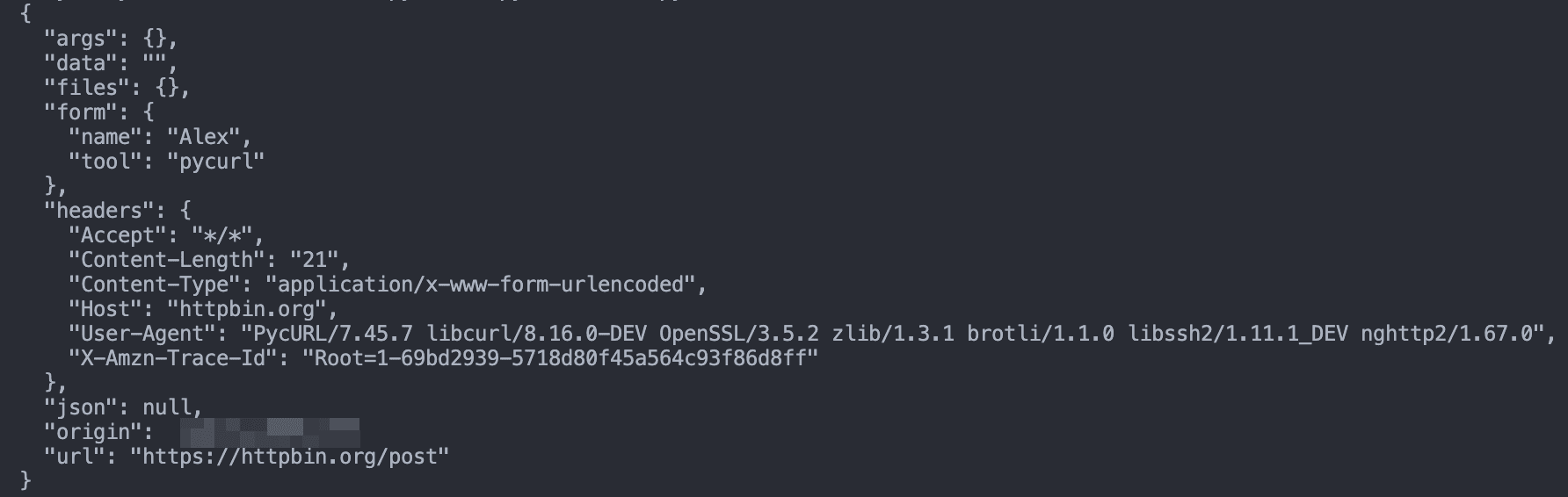
A POST request sends data to the server. You'll usually use this when you want to submit forms or send data to an API.
This example sends data along with the request instead of just asking for a page back. Just run it and you should now see the submitted values in the response.
Send JSON Data and Add Custom Headers
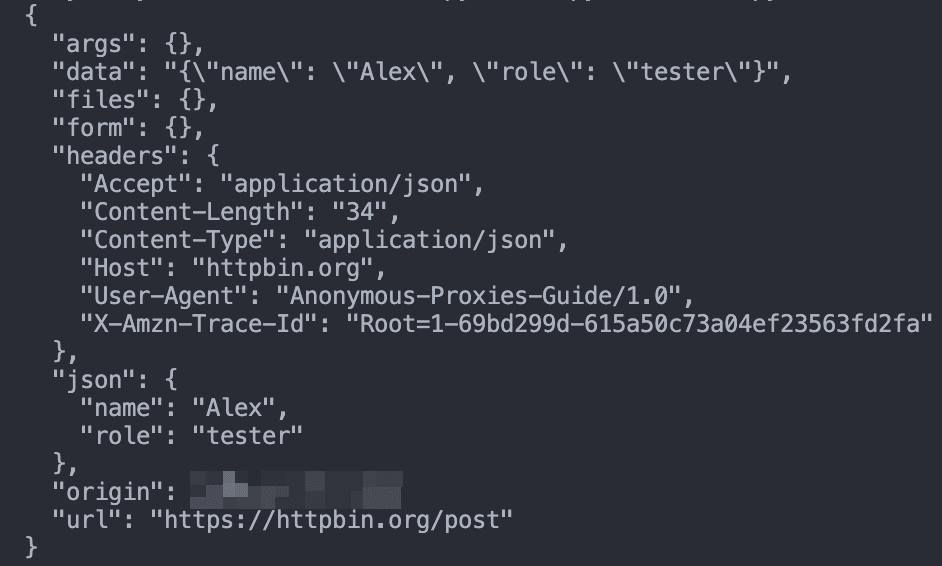
A lot of APIs expect JSON instead of simple form-style data. In that case, you should convert your data to JSON and set the right headers.
This is closer to what you’ll do when working with APIs. Run the code above and you will see the JSON data and custom headers returned in the response, so you can quickly check that everything was sent the way you wanted.
Follow Redirects and Download a File
Some URLs redirect you before sending the final content. PycURL can follow those redirects automatically.
This example follows the redirect for you and saves the final page as a file. After you run it, you should now see the downloaded file in your project folder.

Use a Proxy
If you want to route your request through another IP, PycURL can do that too. A proxy is really useful if your tasks rely on scraping, automation, testing from different locations, or you just want to reduce the chance of blocks when sending repeated requests. Now, when it comes to proxy type, residential proxies are often the better choice for stricter scraping targets because they look closer to normal user traffic. Datacenter proxies can still work very well for lighter tasks that don't require high authenticity, or cases where speed and cost matters more than stealth.
If you want to use a SOCKS5 proxy, you can change the proxy string like this:
Once you run the example with the proxy in place, the request should be routed through it. In the response, you should now see the proxy IP instead of your own.

If you enabled username and password authentication in your Anonymous Proxies dashboard, make sure you replace YOUR_USERNAME and YOUR_PASSWORD with the exact credentials shown there, and use the matching proxy host and port as well.
If you’re using IP whitelisting instead, you can leave out the username and password completely and connect with just the proxy host and port.
How to Scrape Websites with PycURL
Since you now understand how requests work, you can start to use PycURL for web scraping. Web scraping means collecting data from a website automatically instead of copying it by hand. In this setup, PycURL loads the page, and Beautiful Soup helps you read the HTML and pull out the parts you want. Don't forget to install Beautiful Soup with the command I provided above.
We’ll use books.toscrape.com for these examples. It’s a demo site made for scraping practice, and its first page shows 20 books. To keep the examples simple, we’ll scrape the first 10.
A Simple Web Scraping Example
Here is a basic example that fetches a page and prints its title:
This is a simple first example, but it shows the full process. The script loads the page, reads the HTML and pulls out the page title. If you inspect the page in your browser, you’ll see the same title inside the <title> tag.
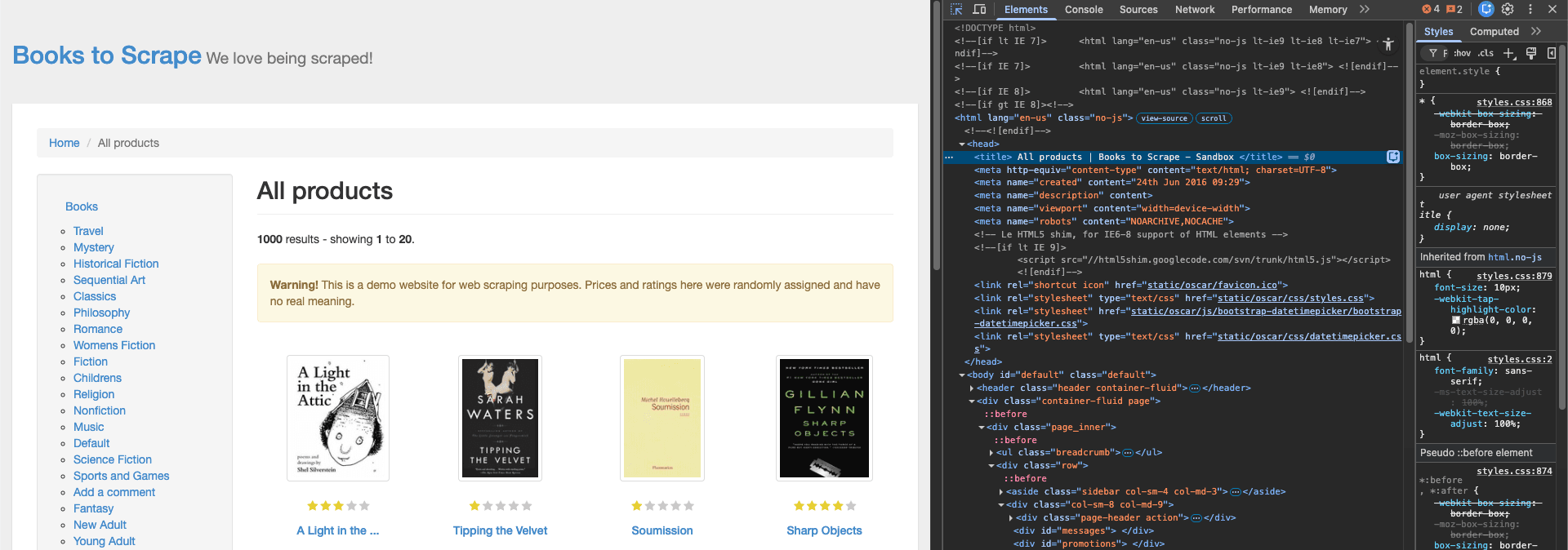
And that is exactly what the script reads and prints in the terminal as you can see below.

Scrape a Few Product Details
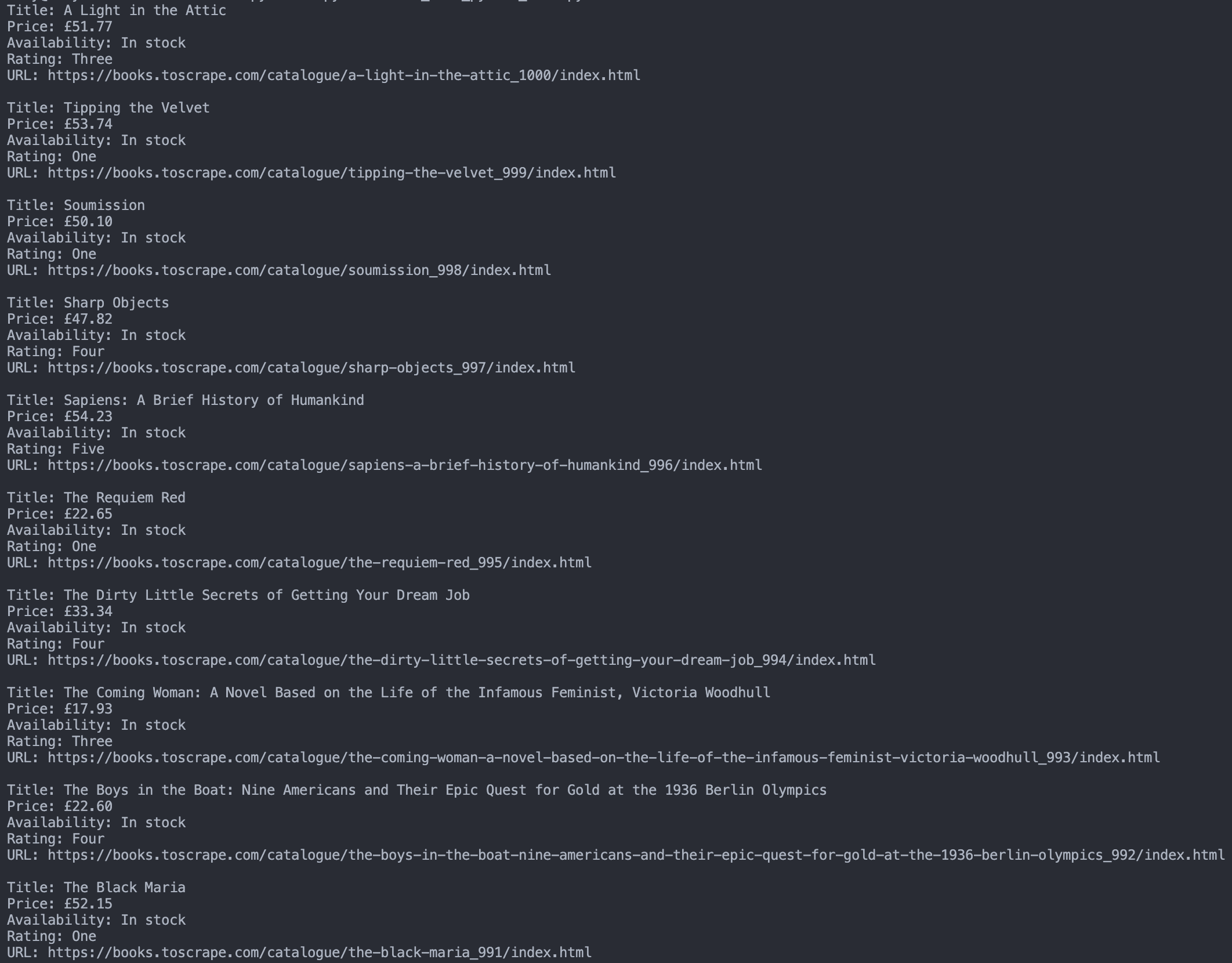
Now let’s make this more useful. The homepage shows 20 books, but for this example we’ll scrape the first 10 and pull a few extra details for each one. Along with the title and price, we’ll also grab availability, rating, and the product page URL.
We are going a step further now. Instead of pulling just one value, we collect multiple details from each book and print them in a cleaner format. You should now see the first 10 books listed in your terminal with all of that information.
Save Scraped Data to CSV
Printing the results is useful for testing, but saving them is what makes the data easier to use later, and that's exactly why we will save the data in a CSV file.
Run this code, and you should now see a books.csv file in your project folder with the scraped data saved inside.

Final Thoughts
As you’ve seen in this guide, using cURL with Python gives you a more practical way to handle web requests with extra control. If you followed this guide till now, you should be able to work with GET and POST requests, headers, JSON data, redirects, proxies, and even scraping web content using PycURL.
Now, as soon as proxies become part of the process, you’ll quickly realize that reliability matters a lot. And that’s exactly where our residential proxies can make a difference when those issues start affecting your tasks.
Also, if you have any questions or run into any issues, feel free to contact our support team and they will help you with whatever problem you've got.