

Proxy Integration With IPFighter
Learn how to set up Anonymous Proxies' rotating residential proxies in IPFighter Proxy Manager and check your IP, trust score, and leak status.
What is IPFighter?
Adding a proxy to Chrome takes a minute. Knowing whether it holds up takes longer: the IP has to change, sit in the right country, look clean to anti-fraud systems, and stay hidden when WebRTC or DNS requests go out. IPFighter covers the checking, and its free browser extension covers the setup.
IPFighter is a free IP diagnostic platform. Open the homepage and it shows your current IP, location, and ISP, a trust score for major platforms, and a flag that tells you whether the connection is detected as a proxy. Around that sit standalone tools for proxies, browser fingerprints, bot signals, and leaks. The IPFighter Proxy Manager extension stores your proxies inside Chrome and switches between them in one click, so changing IPs never means opening system network settings. People mostly use it to run separate accounts on separate IPs, test geo-targeted content, or vet a proxy before putting it to work.
IPFighter features
- IP lookup and trust score. Shows your IP, location, ISP, and how the address scores on major platforms, plus whether it's detected as a proxy.
- Proxy checker. Paste your proxies and see which ones respond before you use them anywhere.
- Browser fingerprint and bot detection. Shows what your browser reveals to websites and which signals would mark you as automated.
- DNS and WebRTC leak tests. Confirm that nothing slips out through your real connection while the proxy is on.
- Proxy Manager extension. Free and open source. Import proxy lists, remove duplicates automatically, set bypass rules for sites that should see your real IP, and match the browser's timezone, language, and geolocation to the proxy.
- Free web proxy. Browse through real residential IPs straight from your browser, with your real IP hidden and nothing to install or sign up for.
- Coupons and deals. Promo codes and discounts on proxy services, VPNs, and privacy tools, collected in one place.
Why use Anonymous Proxies with IPFighter?
IPFighter shows how clean an IP looks, but the result depends on the proxy you plug into it. Anonymous Proxies gives you authenticated HTTP endpoints that go straight into the extension's add-proxy form, with no IP whitelisting needed.
Rotating residential proxies are the natural fit here. The IPs come from real home connections, so they pass the kind of trust checks that flag datacenter ranges, and you can target a country, state, city, or ZIP code at no extra cost. That matters when your IP needs to match the region of an account or a local search result. If you need something else, ISP proxies give you a static residential IP for long-running accounts, mobile proxies make you look like a phone on a cellular network, and datacenter proxies are the cheapest and fastest option for easier targets.
Session type is the setting that matters most in a browser. A single page load fires dozens of requests, and rotating the IP on every one of them breaks logins and makes your trust score jump between checks. Use a sticky session instead. It keeps the same residential IP for up to 30 minutes, long enough for a login flow or a round of testing, and gives you a fresh one when it runs out.
How to integrate Anonymous Proxies in IPFighter
Before you start, make sure you have an active rotating residential plan in the Anonymous Proxies dashboard and Google Chrome on your computer. The same steps work in other Chromium-based browsers such as Edge and Brave.
Step 1: Get your proxy credentials
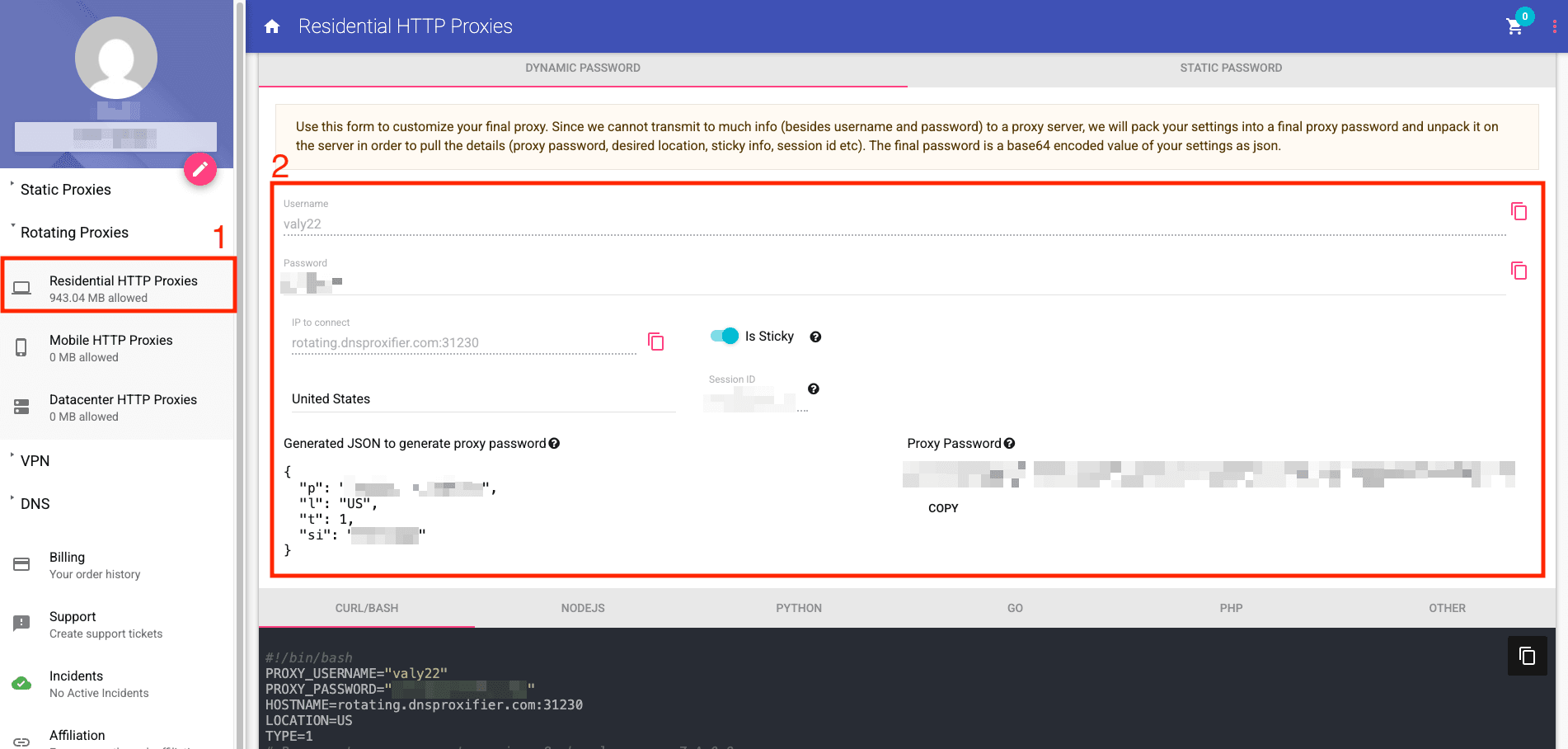
Log in to the dashboard and open Rotating Proxies > Residential HTTP Proxies. On the Dynamic password tab, choose the country you want to exit from, turn on Is Sticky, and copy the IP to connect (host and port), your Username, and the generated Proxy Password. The Proxy Password carries your location and sticky settings, so the plain Password field above it won't apply them. Keep them on one line as host:port:username:password, since the extension reads that format directly.
Step 2: Install IPFighter Proxy Manager
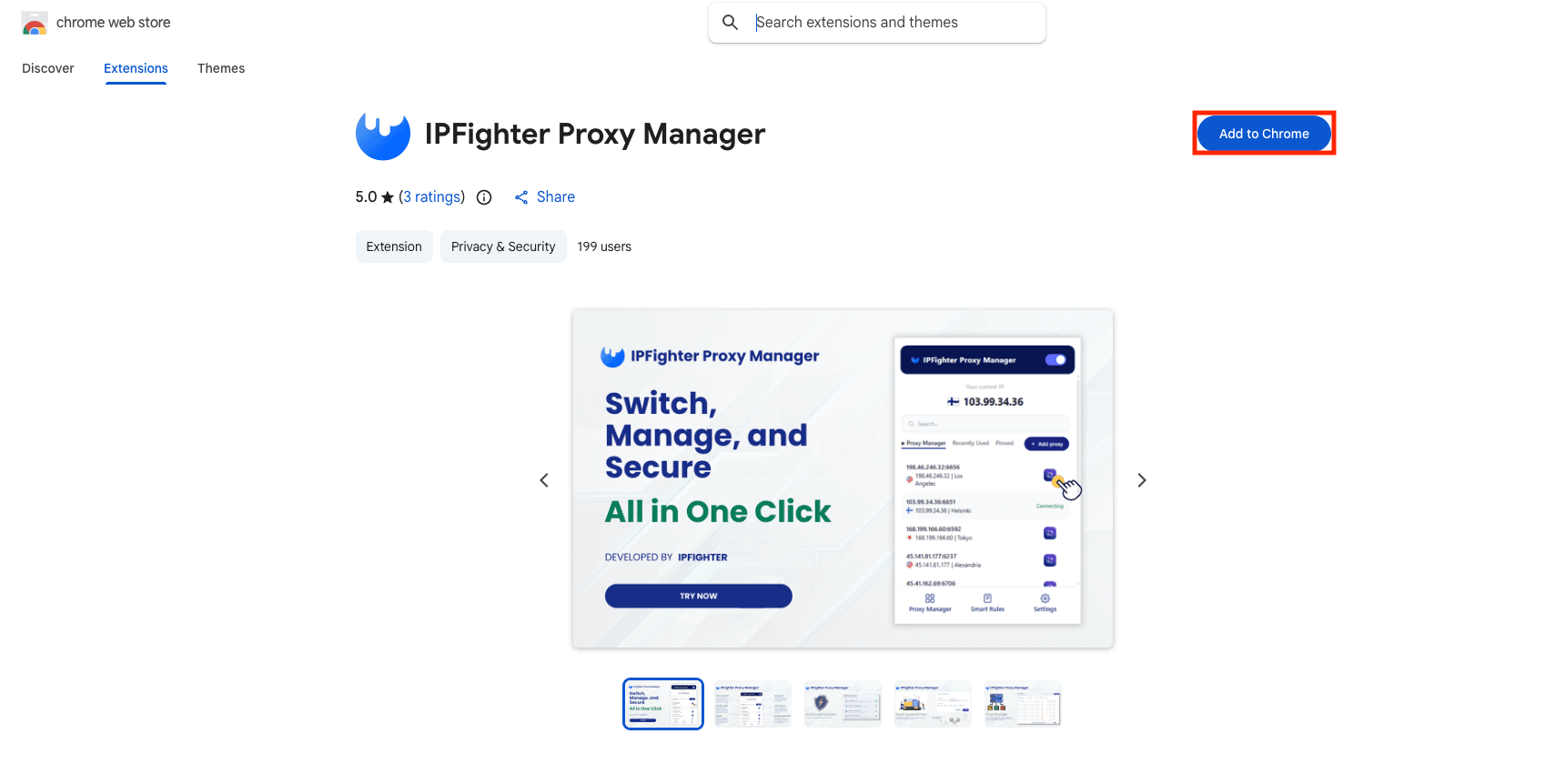
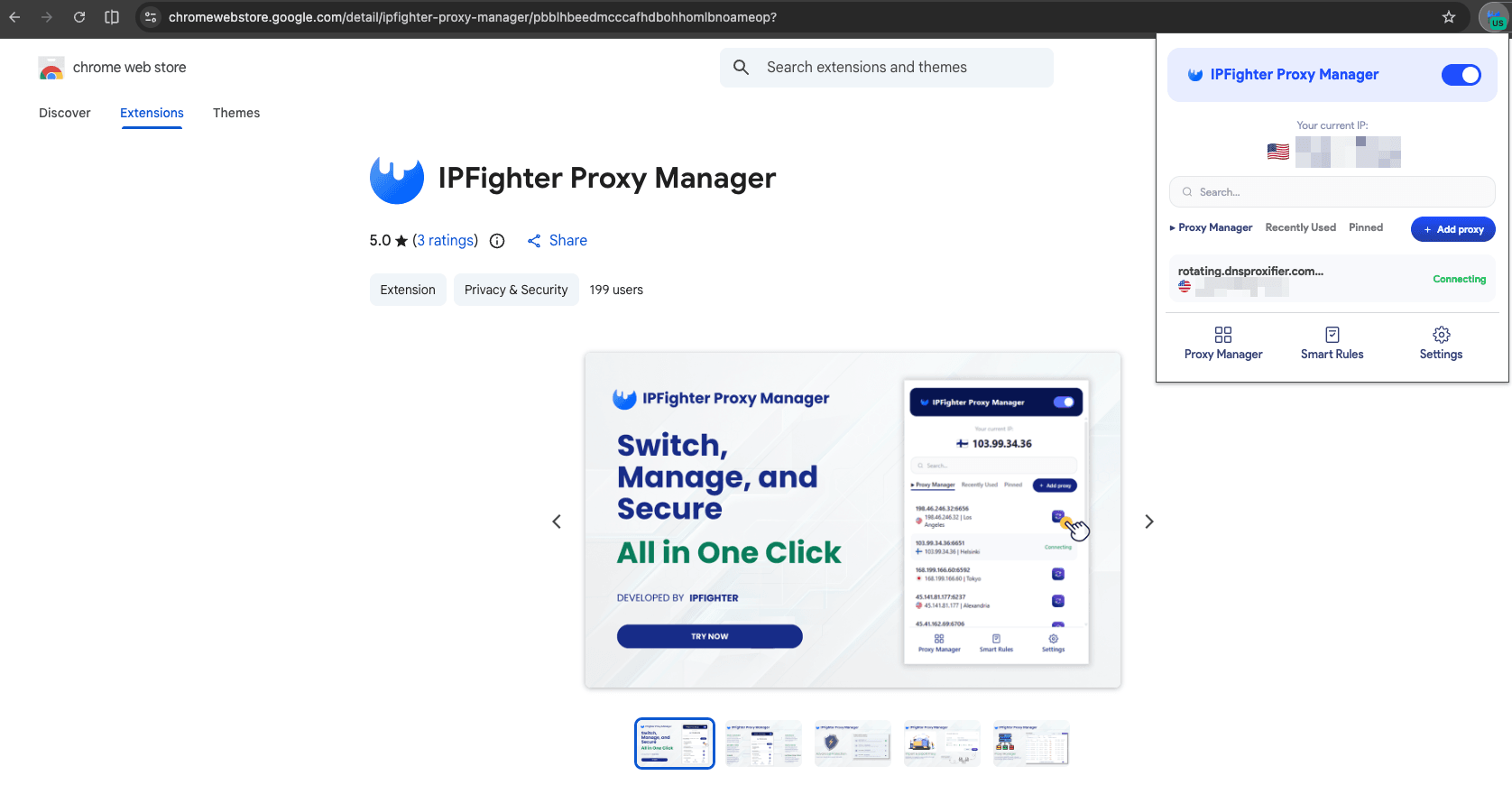
Open IPFighter Proxy Manager in the Chrome Web Store, click Add to Chrome, and confirm with Add extension. Then click the puzzle piece icon in the toolbar and pin the extension so it's always one click away.
Step 3: Open the extension and click Add Proxy
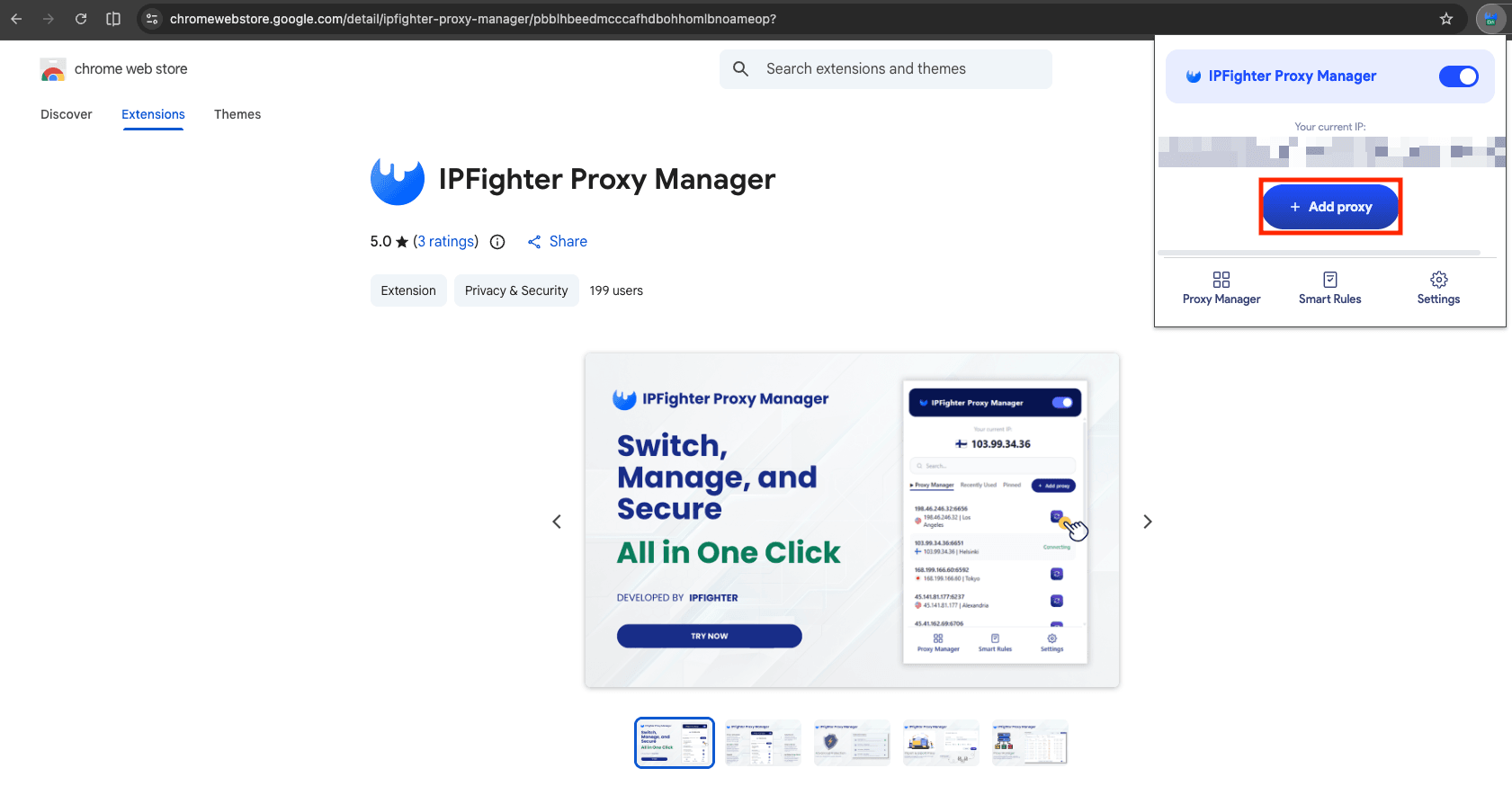
Click the IPFighter icon in your toolbar. The extension shows your current IP and location, which is still your real connection at this point. Click Add Proxy to open the configuration window.
Step 4: Enter your proxy details
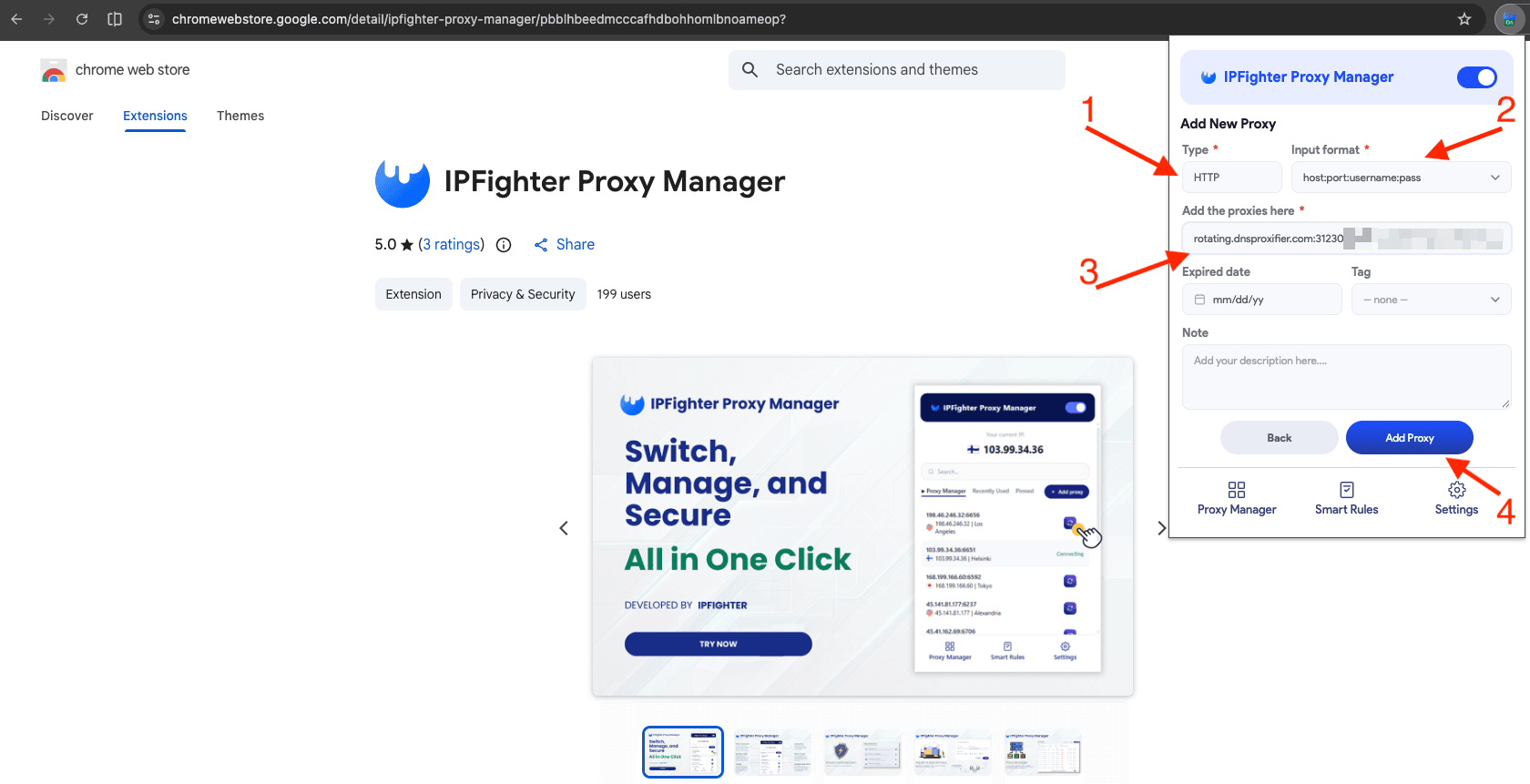
Set Type to HTTP, the protocol the extension supports. Under Input format, pick host:port:username:pass so it matches the line you copied, then paste your credentials into the text box. The extension accepts five formats, and choosing the wrong one is an easy way to end up with a proxy that won't connect. If you plan to keep several proxies, add a Note you'll recognize later, like "US sticky, ad checks". Click Add Proxy to save.
Step 5: Enable the proxy
Your proxy now appears in the list. Click it to connect and check that it's marked Connecting in green, the extension's label for the active proxy. The extension runs one proxy per browser profile at a time, so if you need two IPs side by side, set up a second Chrome profile. For sites that should keep seeing your real IP, such as your bank, add the domain to the Smart rules bypass list.
Step 6: Check your IP and trust score
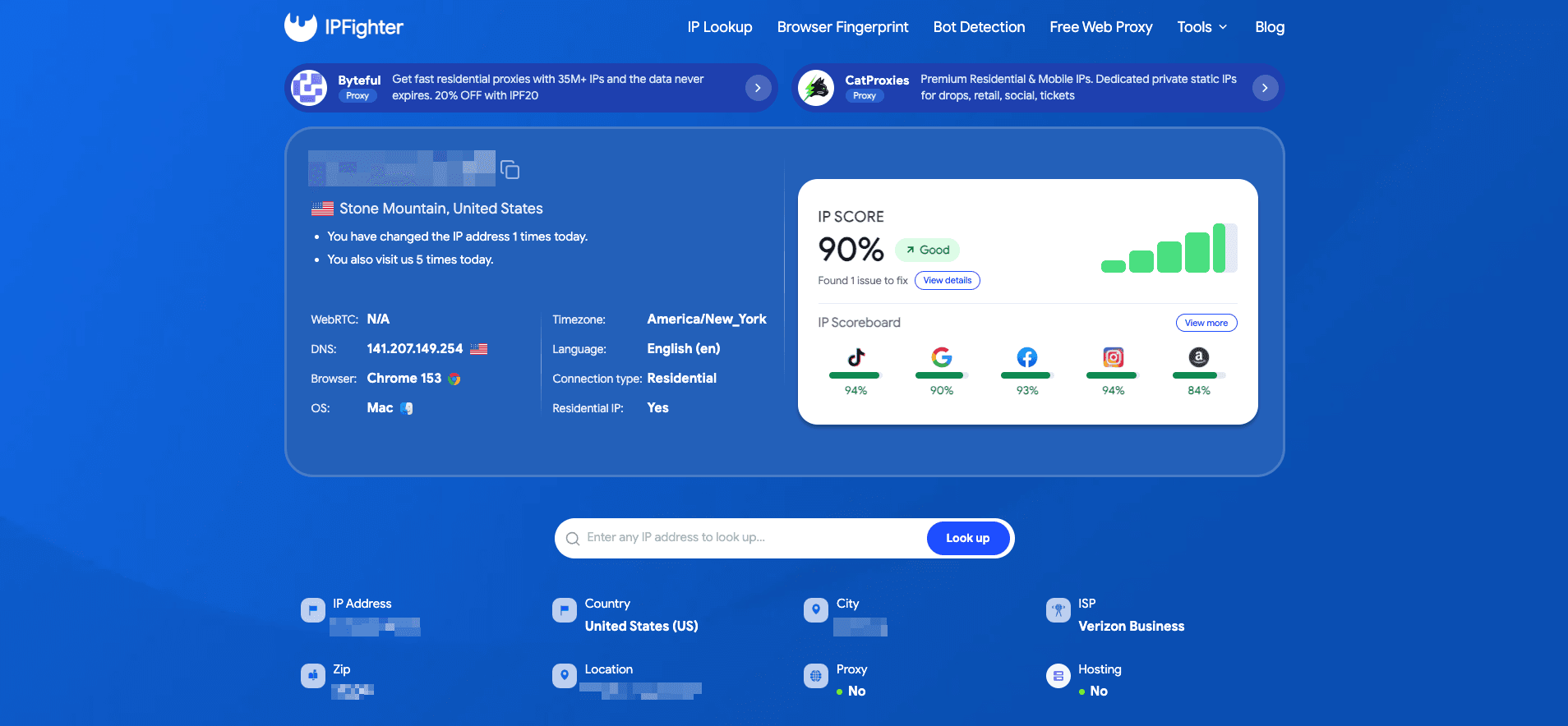
Open a new tab and go to IPFighter to check IP reputation for the new connection. Three things should line up. The IP, country, and ISP should belong to the proxy, with Connection type reading Residential and Hosting reading No. The trust scores for the platforms you plan to use should be high. And the Proxy field should read No.
If it reads a red Yes, anti-fraud systems recognize that IP as a proxy. Generate a new sticky session in the dashboard, swap it into the extension, and run the check again.
Conclusion
IPFighter puts a proxy manager and a diagnostics suite in the same place, so you can add a proxy, confirm it's clean, and close leaks without leaving Chrome. Combined with sticky rotating residential sessions from Anonymous Proxies, you get IPs that match their location and stay put long enough to finish a task.
If you run into any problems during setup, contact our support team and they will help you out. For more guides like this one, take a look at our integrations page.

Buy Rotating Residential Proxies
Real homeowner IPs that rotate on every request. Near-zero block rates for scraping and automation.
More proxy-manager Proxy Integrations
See more proxy-manager integrations that work seamlessly with Anonymous Proxies.

Proxy Integration With Potatso
Learn how to set up Anonymous Proxies' SOCKS5 proxies in Potatso for geo-targeted browsing, account separation, and private traffic.

Proxy Integration With Proxifier
Proxifier allows network applications that do not support working through proxy servers to operate through a SOCKS or HTTPS proxy and chains.