How to Unblock Discord: A Complete Step-by-Step Guide
Unable to log into Discord and seeing rate limits, surrounded by IP blocks, and/or sudden login errors? Don’t worry. Most lockouts are related to account rules, IP reputation, or network filters, and generally, there are clean alternatives that you can put in place to regain entry. In this step-by-step guide, we’ll provide a brief overview of common causes and show you how to get back in using proxies.
Valentin Ghita
Technical Writer, Marketing, Research
Mihalcea Romeo
Co-Founder, CTO
Why Discord Blocks You?
When Discord shuts you out, it usually isn’t personal, it’s just a safety check which reacts to signals that look unusual. Below are some of the most common reasons why Discord can block you.
1. Account Ban
If your activity looks suspicios and it breaks Discord's rules, for example if you spam messages, use unauthorized bots, or send unsafe links, Discord will limit you. These limitations could take the form of a straightforward warning, a temporary suspension, or a full block on your account. Because this is processed at the account level, changing devices or IPs will still carry a block on your account.
2. IP reputation or IP bans
Sometimes the path you take to reach Discord has a history. Public Wi-Fi, low-quality VPN nodes, or overcrowded proxy ranges can carry a poor reputation, so your connection may be slowed, challenged, or blocked. If the entire range is flagged, every attempt from that route can look risky, even if you are playing by the rules.
3. Network or administrator blocks
Certain networks will simply restrict Discord. Schools and workplaces do this to keep people on track or for safety compliance, and there are indeed cases where the restriction stems from ISPs blocking them intentionally, or there may simply be a restriction in your area. Generally speaking, a dependable proxy server or VPN with some advanced stealth technology will allow you to circumvent any network restrictions.
4. Browser/app hiccups
Sometimes the problem lives on your device. An outdated app, a cluttered cache, an overzealous extension, a strict local firewall, odd DNS settings, or even a system clock that isn’t synced can block the access to your Discord account.
5. Multiple accounts, one footprint
Using several accounts from the same device and network can look suspicious. When identical patterns show up in the same place, automated systems may read it as ban evasion or coordinated activity.
How to Unblock Discord?
People try all sorts of methods to get back into their Discord, like switching from Wi-Fi to mobile data, hopping to a different device, or testing to connect through a VPN tunnel. However, the most effective and easiest way to do this is through a proxy. Now, before I'll show you how you can unblock Discord in just a few minutes, be sure that you connect to your Anonymous Proxies Dashboard account.
Step 1: Pick your proxy
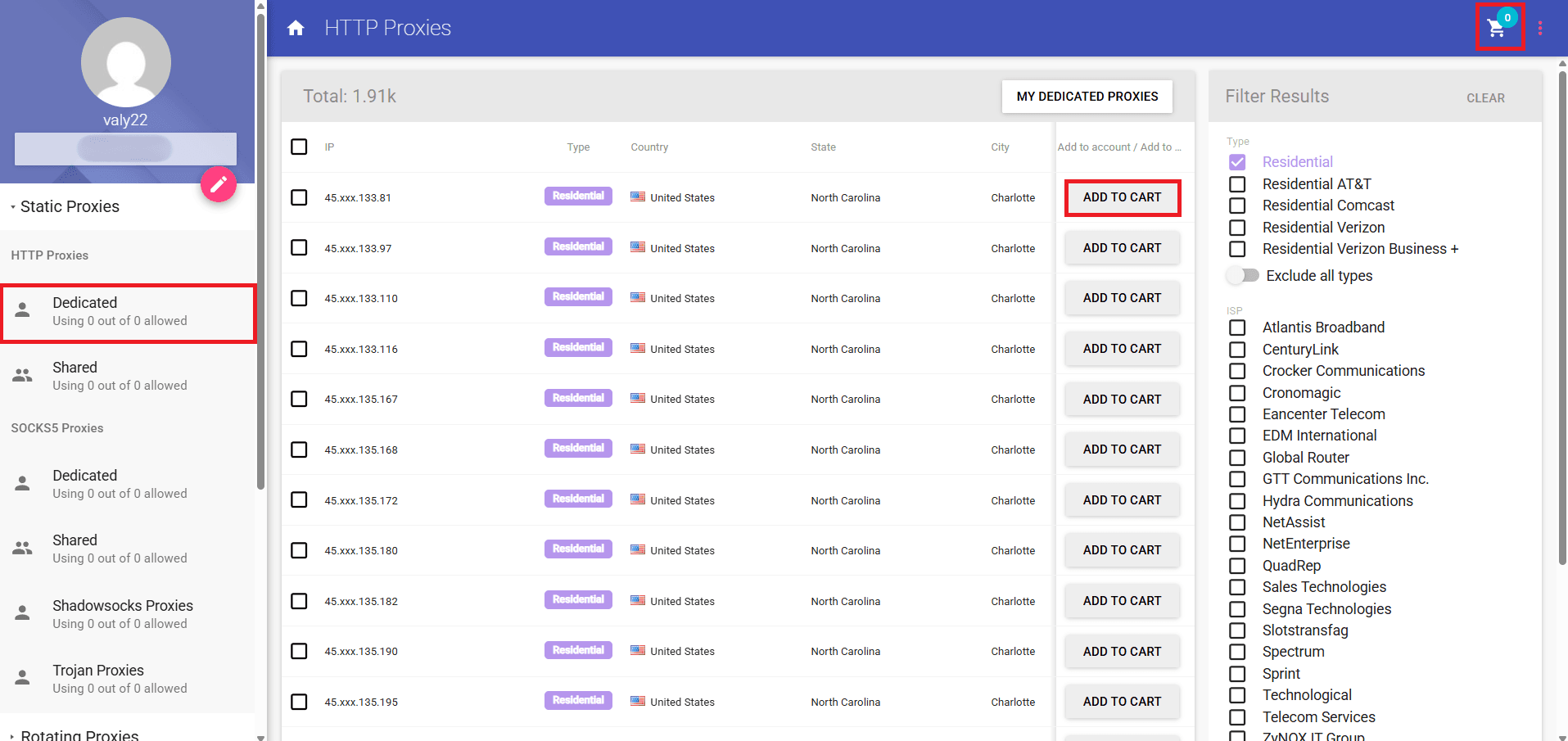
Once you are logged in, open the Static Proxies tab in the left menu and choose dedicated HTTP Proxies. Try to use the filters to find the proxy type that fits your needs faster. For example, you can go for a residential IP if you want to look like a real user on the web, or if the speed is your main goal, you can pick a dedicated datacenter IP. For even more authenticity, you can even select your preferred ISP such as AT&T, Verizon, or Comcast. When you know what you need, click Add to Cart, then open the cart to complete your purchase.
Step 2: Grab your Connection Details
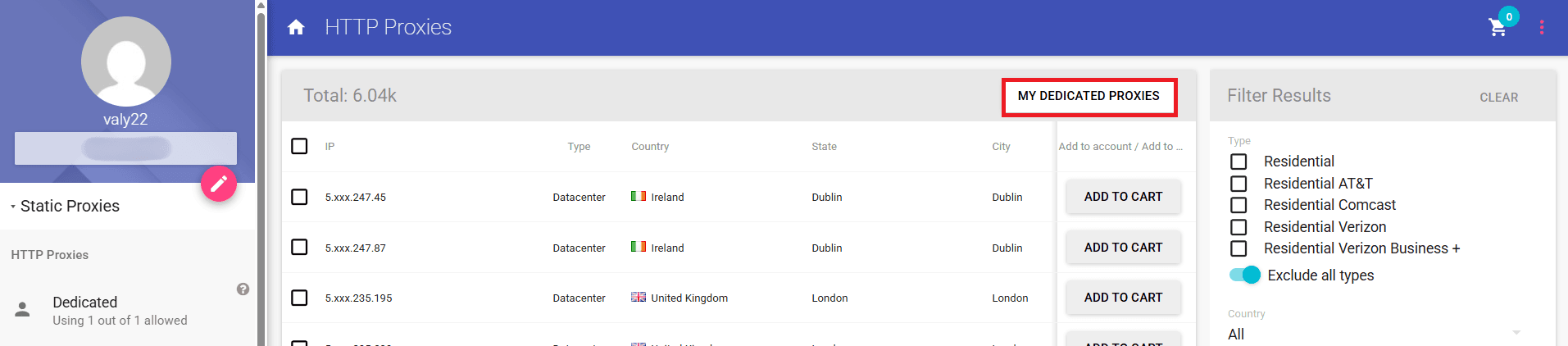
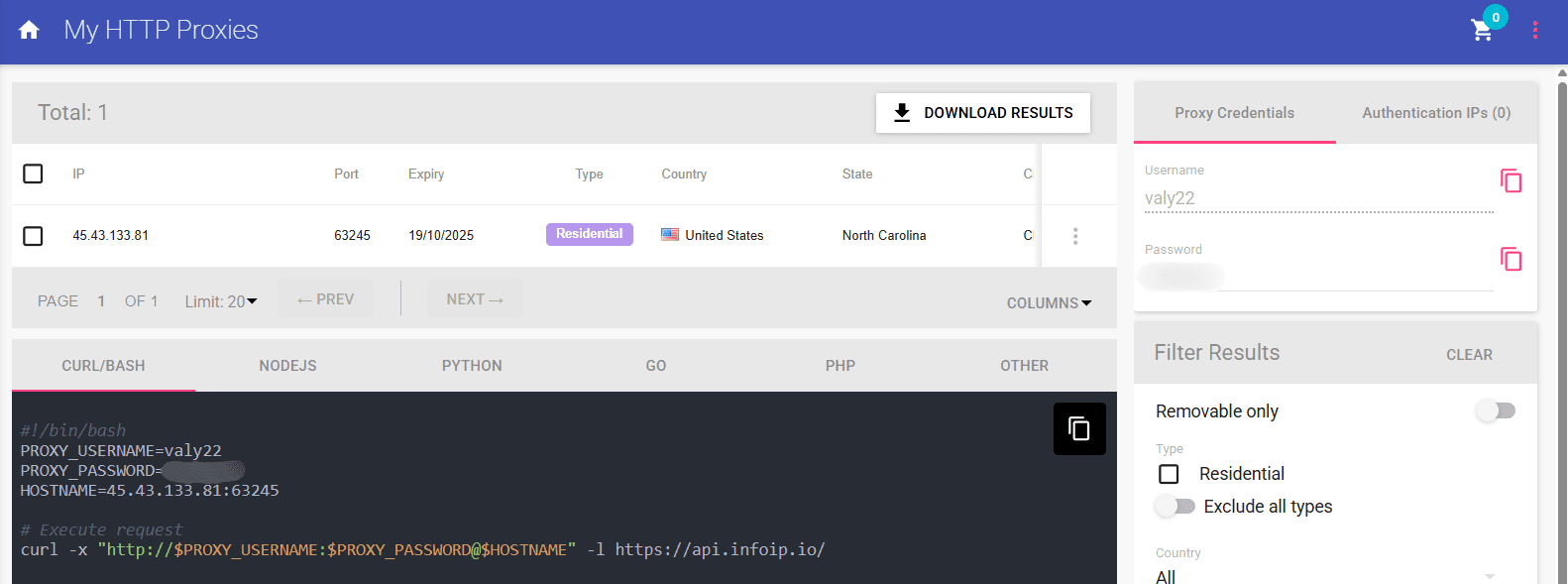
Once your purchase is completed, go to My Dedicated Proxies page to see your proxy details that you are going to use.
Step 3: Set Up your Proxy
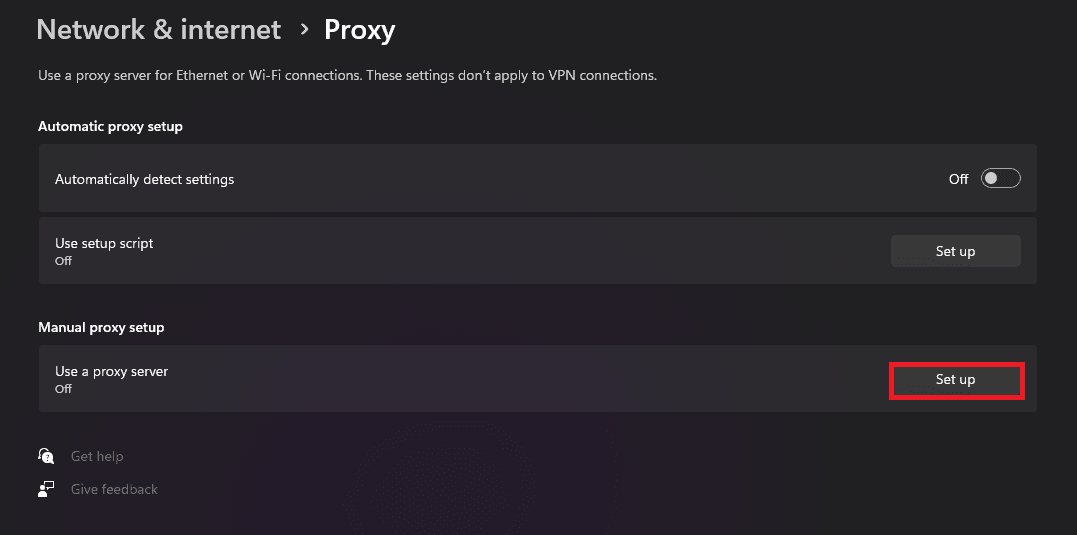
Now, you will need to go to your proxy settings for your device. I will use Windows for this example.
Under Manual proxy setup, just click on Set up button.
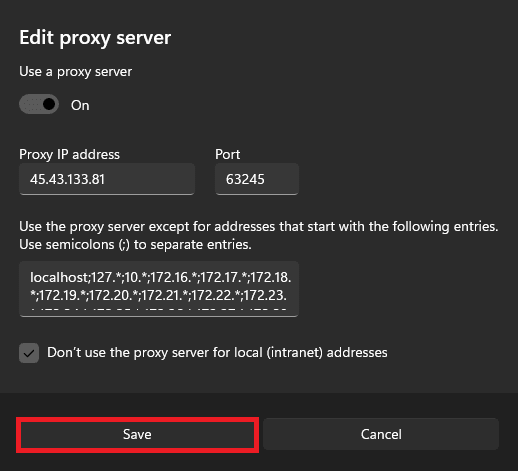
A prompt to enter your proxy details will open and here you'll need to switch Use a proxy server to On, and just paste the proxy's details from your dashboard in the required fields and click on Save.
Step 4: Open Discord
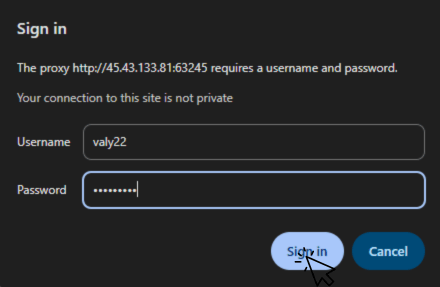
For the final step, you will need to open a browser, and when it will open a small sign in window will appear and you will need enter your proxy credentials.
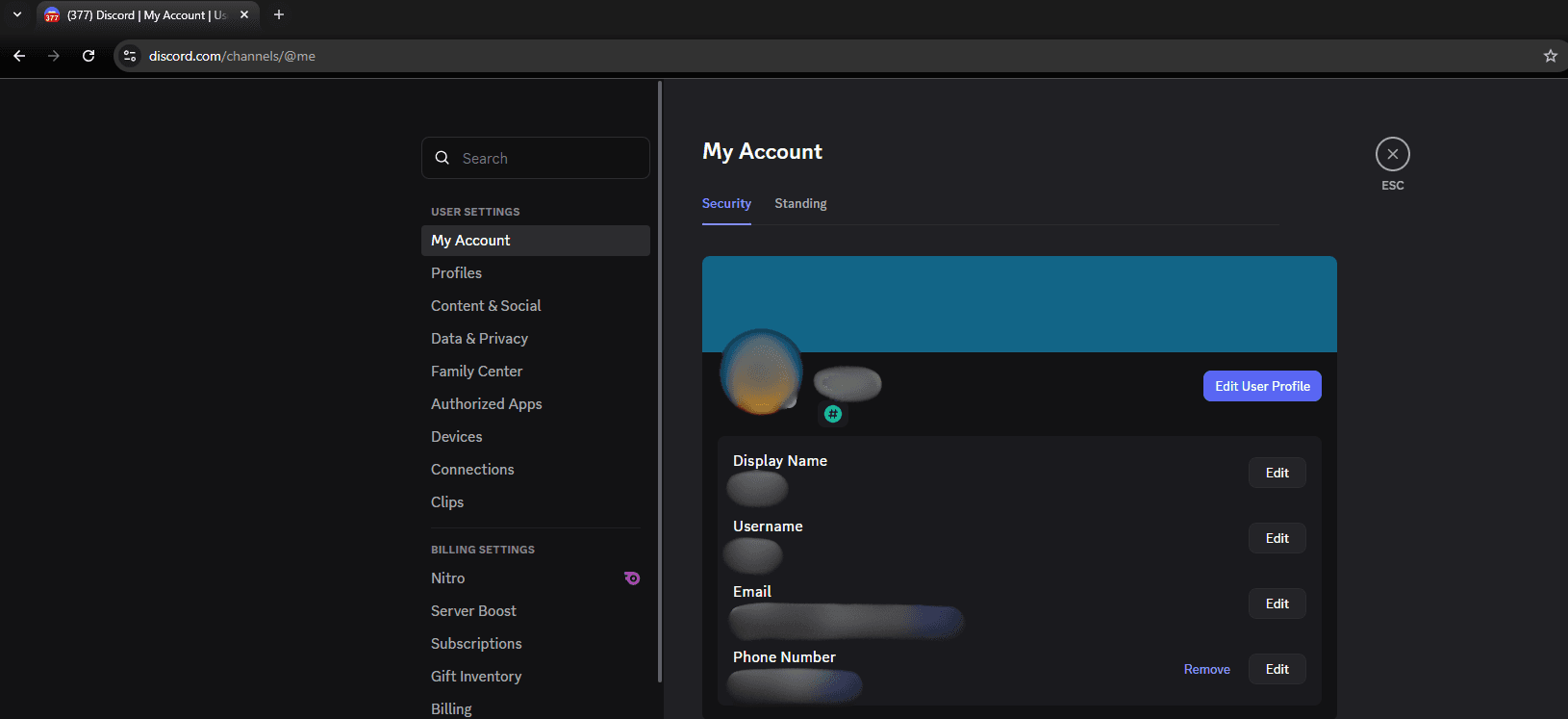
Once you entered your credentials, just go to discord.com and you should be able to access your account again.
Prevent Future Discord Blocks
- Abide by the rules of Discord. To clarify, do not use any self-bots or spam. If you are using a bot to automate some features, use an official bot framework (i.e., discord.js) and follow all rate limits.
- Make sure you pace your activity throughout the day. Avoid the action of joining a dozen servers at once, mass DMs to your server members, or rapid-switching between channels.
- Maintain a reputable IP. Only use trusted proxies like static dedicated residential proxies, so you can to maintain a stable identity.
- Do not share accounts. Instead of sharing your account credentials, assign trusted roles and use team-managed bots.
- Maintain your security. Enable 2FA, keep all apps updated, and routinely scan your devices for malware.
- Only use trusted software. You should always be using the official Discord application or integrations that have a proven record in their operations.
Conclusion
Unblocking on Discord does not have a blanket solution. In cases where you just want to chat, switching to the mobile hot spot, or the web client is enough. In some cases, a VPN will handle the basics of the filter, but even then, the reliability is inconsistent since it is common for a VPN to share an IP range with someone who gets flagged. However, for reliable access, especially in stricter networks, the best choice will always be a proxy.
If you have trouble or have further questions, don't hesitate to contact our support team to help with any problem you've got.

Buy ISP Proxies
Dedicated IPs from real ISPs. Residential trust, datacenter speed, unlimited bandwidth.